Tips & tricks · AI · Everywhere · ~45 min a day · 20 min read · in-depth guide, doing it ~2 h
Routines in Claude: mail sorts itself and drafts get written before you arrive
Last reviewed:
In this article
- A typical scenario
- Phase 1: connectors — what Claude will see and what it won't
- Phase 2: rules in a project — one page that feeds every routine
- Phase 3: the first routine — one, small, for a week
- Phase 4: the set of four routines that hold the day and the week together
- Phase 5: managing several routines together
- Phase 6: tuning — when a routine returns nonsense
- Phase 7: the security model and revoking permissions
- Common mistakes
- The best tools
- What you get out of it
- Pro tip
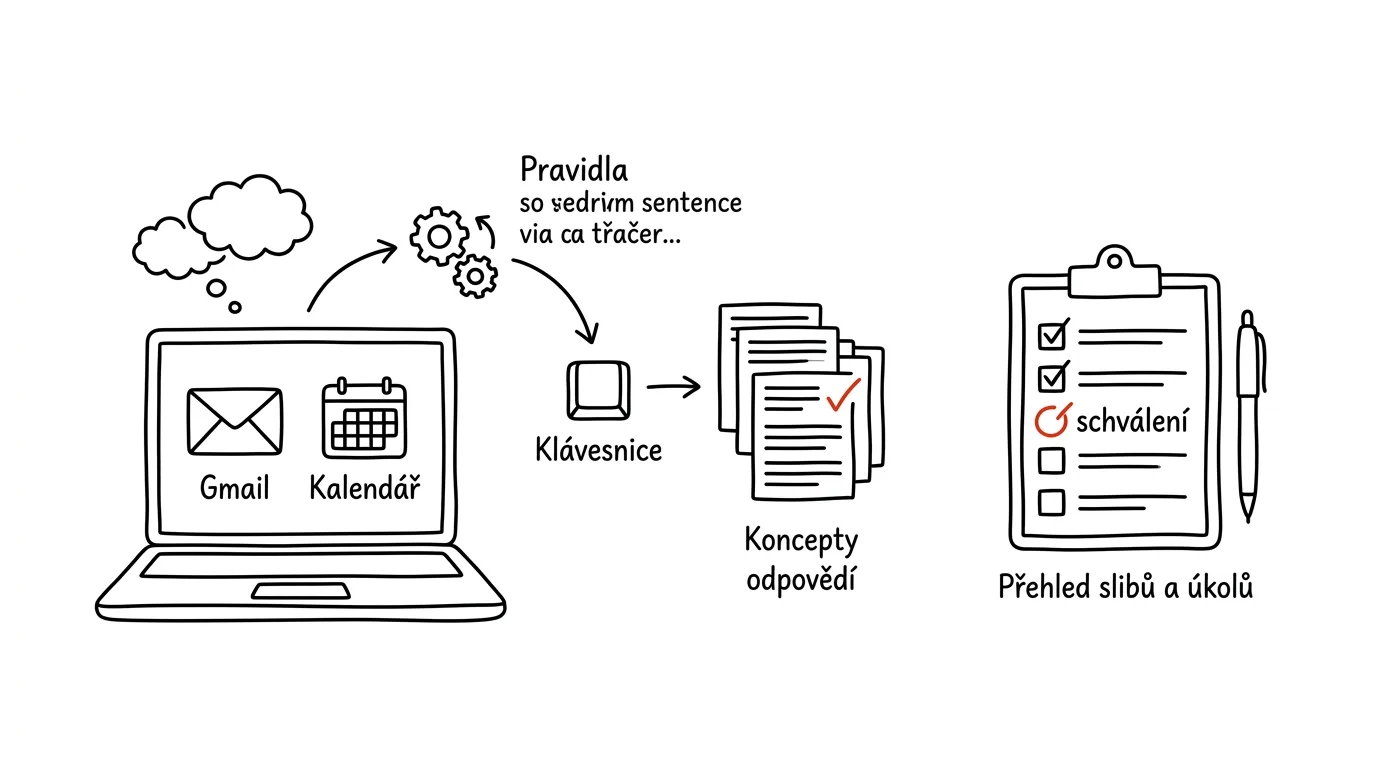
Most people stay on the first rung of AI use: they open a chat, ask something, close the window. The real leap happens the moment AI stops waiting for your question. Claude can run a task repeatedly on a schedule — and when it has connector access to your mail and calendar, it keeps working even when nobody is sitting at the computer. Describe the rules once, in plain language, and from then on finished drafts are waiting for you in the morning, and an evening summary shows what you promised whom.
This piece is the hub for the whole build. It walks you from the very first connector connection — what Claude will see and what it won't — through one deliberately small first routine, all the way to a set of four that together hold a week in place. Each of the four routines gets a short recipe here plus a link to the standalone guide where it's spelled out in full detail. It also covers what the individual guides don't: how to manage several routines at once, how to tune them when they start returning nonsense, and how to revoke permissions again.
One hard line governs this entire guide, and we never cross it: Claude may prepare anything; only a human sends, pays, or deletes. A routine with permission to send mail on your behalf isn't a time-saver — it's a risk waiting for the day it misreads a single sentence. Everything that follows is built so the output is always a draft awaiting your approval.
A typical scenario
Hana, a project manager, gets to work at 8:15. By then about thirty emails have piled up: six newsletters, eight messages for information only, ten that want a reply, and four that ask about a date she has to check against her calendar. Her morning burns an hour on mail alone, even though she isn't coming up with anything new — she's just retyping what she already wrote last week. A second tax awaits her in the afternoon: around 5 p.m. she tries to recall what she promised whom during the day, and twice a week she forgets something.
After rolling out four routines, her week looks different. At 6:30, Claude goes through new messages, separates newsletters from things that actually need something, and drafts a reply for nine emails — four of them with a date already checked against her calendar. Hana opens the Drafts folder at 8:15: sends six unchanged, tweaks two, deletes one. Done in 25 minutes instead of an hour. At 17:30 the day's summary arrives: what she promised whom today, what she's waiting on, and four suggested to-dos flagged “needs approval.” Wednesday morning brings a list of seven conversations that nobody has answered in five days, with follow-up nudges already drafted. Friday at 3 p.m., a weekly overview: what got wrapped up, what's been dragging for a third week, and what will run into two days of training next week.
The total after a month: roughly 45 minutes a day that used to go to transcribing and remembering. And one less measurable difference — Hana stopped leaving work with the feeling she'd forgotten something, because every evening something wrote it all out for her.
Phase 1: connectors — what Claude will see and what it won't
A connector is the link between Claude and one of your services: Gmail, Google Calendar, Drive, Notion, Slack, and others. Technically it runs on the MCP protocol; in practice it's a plug socket — more detail in connectors explained. Connectors are indispensable for routines: without one, Claude couldn't do anything with your mail, because it wouldn't have access to it.
Connecting, step by step
On claude.ai, open the connector settings, find Gmail and Google Calendar, and connect them. Sign-in happens through your own Google account — Claude never receives your password, only a credential issued by the service that you can revoke at any time. During setup you'll see a screen listing the permissions being requested; read it, don't click through it. It's the one moment you get to see that whole list in one place.
An order that has proven itself: calendar first (less sensitive, and you can immediately see whether the routines work), then mail. And start on the account where a bit of mess wouldn't bother you — if you have both a work and a personal inbox, experiment on the personal one.
What Claude sees
It sees whatever you've given it access to, and only while a task or conversation that asks for it is running. For mail that typically means subject lines, message bodies, senders, and recipients, within whatever scope it requests — which is why it pays to narrow the scope right in the routine's instructions (“only messages from the last 24 hours,” “only the Clients label”). For the calendar, it sees event titles, times, and attendees for the period you ask about.
It sees nothing you haven't connected: another account, another mailbox, files on a drive, company systems without a connector. It doesn't watch you continuously in the background outside a routine's run. And above all: it does nothing it hasn't been explicitly told to do. When a routine's instructions say “save as a draft, never send,” that's an instruction it follows — but it's an instruction from you, not a system-level lock. That's exactly why we'll keep repeating it in every single routine.
The scope you grant is the scope that applies
The best protection is the one you never had to grant. Before you connect mail, ask whether the routine needs the whole inbox or just one label. In Gmail you can draw that line with a filter: let a filter automatically tag messages with the label Routine and have the routine work only with that label. Instructions for filters are in the tip on sorting your inbox.
Sensitive matters don't belong in routines: HR, health information, payroll, contracts pending signature, anything under an NDA. If you handle that kind of mail, separate it with a label and keep the routine off it. And the general rule across this whole site applies: sensitive data only on a paid or business account with contractual data protection, never in a free chat, and anonymize whatever can be anonymized.
Before you switch anything on, it's worth taking inventory of your own inbox. One conversation is enough for this, no routine needed:
I want to build a morning routine that prepares reply drafts for me.
Before I turn it on, I need to know what NOT to run it on.

Go through my messages from the last 14 days and make me an inventory:
1. What types of mail I get — categories, message count, typical
   sender for each category
2. Which categories contain sensitive content (personal data, health
   information, payroll, contracts, trade secrets) and should be
   excluded from automation
3. Which categories are, by contrast, boring and repetitive — i.e.
   the ideal candidate for a first routine
4. A suggestion for which label or filter to use so the routine only
   sees that third group

Don't send anything, don't label anything, don't delete anything.
Just write it up for me as a table.
You'll get back a map of your own inbox that most people have never seen — and, more importantly, a list of categories that don't belong in automation. Check point 2 with your own eyes: the model judges sensitivity from content, but it doesn't know your internal context (that a project with an innocent-sounding name is actually an acquisition under an NDA).
Phase 2: rules in a project — one page that feeds every routine
This is the step people skip, and then wonder why the drafts sound like they were written by a stranger. A routine is never smarter than the context it has available. A project in Claude is persistent context — everything you write into it is known to every conversation and every routine created inside it. More detail on projects in the tip projects as persistent context.
What belongs in the rules
One page, not ten. This skeleton has proven itself: who you are and what you do; how you sign off; tone for clients, tone for colleagues, tone for vendors; sentences you use over and over (confirming a date, declining, asking for more detail); what never gets a reply at all; which time slots you're allowed to offer and which you aren't; when your focus block is, where meetings never go; how long a typical reply should be; what to avoid (stock phrases, superlatives, apologizing for delays that weren't yours).
The fastest route to that page isn't writing from scratch — it's mining what you've already written:
I'm attaching twenty of my sent emails from the last three months
(ten to clients, ten to colleagues).

Derive from them a style manual for my writing that I'll use as
standing rules for automated drafts. I want:
- how I greet and sign off, separately for clients and for colleagues
- typical reply length (sentences, paragraphs) by type of recipient
- phrases I use repeatedly — quote them verbatim
- what I avoid (what's never in my emails)
- how I phrase a decline, how I offer a time slot, how I ask for
  more detail
- where I'm inconsistent and should settle on one variant

The output should be a finished set of rules written in the second
person ("write like this"), at most one page, no intro and no
compliments.
You'll get back a set of rules built on your actual writing, not on a generic idea of how emails should sound. The last point is the most valuable: it typically reveals that you greet clients with “Hello” once, with their first name another time, and with nothing a third time — and a routine will faithfully inherit that inconsistency unless you resolve it.
Examples are worth more than descriptions
Add three to five real replies to the project as samples, each with one sentence of context (“this is how I answer when a client wants a discount”). The model learns more from an example than from a paragraph of description — the same principle as in the tip examples over descriptions. Rewrite names and numbers in the samples to something neutral, so no one else's data sits in persistent context.
Phase 3: the first routine — one, small, for a week
Resist the temptation to build the whole set right away. The first routine has a single job: to show you whether you trust what it returns. So keep it small, legible, and without permission to change anything.
Instructions for the first routine
You create a routine by describing what it should do and when — in plain language, no fields to configure. It's still worth writing it in a structured way, though, because the instructions will get revised many more times.
Every weekday at 6:30, go through my messages from the last 24 hours
that have the label [Routine].

Split them into three groups:
A) needs my reply
B) FYI only
C) newsletter or automated message, nothing needed

For every message in group A, write one line:
sender — what it's about — what they need from me — how urgent it is
(today / this week / can wait).

For groups B and C, just count them and list the senders.

Don't label anything, don't move anything, don't delete anything,
and don't create any drafts yet. The output is just an overview.
Notice the last sentence. The first routine deliberately must not do anything — it only looks and reports. You let it run for a week, and every morning you ask yourself one question: does this sorting match how I'd have sorted it myself? If yes, you can give the routine permission to create drafts. If not, you adjust the rules in the project and wait another day.
When it's time for the next step
Make the move from “just looks” to “creates drafts” once the sorting has been right three days in a row. At that point you just add a paragraph to the instructions:
Addition to the instructions: for messages in group A, also prepare
a reply draft following the rules in this project.

- Write in my tone and with my signature, length depending on the
  type of recipient.
- If a message asks about a date, check my calendar for the next
  10 business days and offer two specific open times; respect my
  focus blocks and don't offer a slot inside them.
- If you don't have enough information in the source material to
  reply, create the draft anyway, but instead of guessing, put a
  line at the top saying MISSING: [what I need to know].
- Never send anything. Save everything strictly as a draft.
- Flag drafts for emails involving money, a contract, or a complaint
  with the word CAUTION on the first line — I'll review those first.
You'll get drafts waiting in your inbox, with the MISSING line showing up wherever the model would otherwise have guessed at something it doesn't know. That line is the single most useful part of the prompt: without it you get a smooth-sounding reply with one made-up number buried inside. A detailed version of this routine, including variants, is in the tip the AI email-draft routine.
Phase 4: the set of four routines that hold the day and the week together
Once the first routine is running reliably, it makes sense to add the rest. Four routines cover four different moments and four different kinds of forgetting. Each one gets a short recipe here plus a link to its own guide.
Morning drafts (6:30, weekdays)
Described above. Its payoff is that mornings no longer start with a blank page — they start with editing. Full guide: the AI email-draft routine.
Evening summary of promises (17:30, weekdays)
The second routine solves a different problem than the first: not what I need to reply to, but what I promised whom. Promises hide in the middle of paragraphs (“I'll send it by Friday,” “I'll follow up once I've talked to my colleague”), and people don't write them down because at the moment they seem small.
Every weekday at 17:30, go through today's sent and received mail
and today's calendar.

Return four lists:
1. WHAT I PROMISED — every commitment I made in an email today.
   Format: to whom — what — by when (if no date was given, write
   date unspecified). Also look for indirect phrasing like "I'll
   take a look," "I'll send it over," "I'll follow up."
2. WHAT WAS PROMISED TO ME — the same from the other side, including
   when it was supposed to arrive.
3. WHAT WENT UNANSWERED — today's messages that ask for something
   and nobody responded to.
4. SUGGESTED TO-DOS — turn points 1 and 3 into a to-do list with a
   deadline. Flag it as awaiting approval; don't create it anywhere.

If you're not sure whether something was a promise or just a
pleasantry, include it and add a question mark. Better to have one
extra than to miss one.
You'll get back a list where you dismiss most items and copy two into your task manager. The last paragraph is deliberate: a false-positive promise costs you two seconds of reading, a forgotten promise costs trust. Full guide: the evening summary of promises.
Follow-up watchdog (Tuesdays and Thursdays, 9:00)
The third routine watches for silence. The most expensive emails aren't the ones you received — they're the ones nobody answered: a quote, an invoice, a request for materials. The watchdog lets them ripen and then flags them for you.
Every Tuesday and Thursday at 9:00, find conversations where I wrote
the last message and the other side hasn't replied for more than
[5] business days.

Exclude: newsletters, automated messages, messages like "thanks" and
"ok," internal threads where I'm not expecting a reply, and
conversations with the label [No follow-up].

For each conversation, list:
- who I wrote to, when, and how many business days of silence
- what it's about in one sentence
- what exactly I'm waiting for (a decision, materials, a payment,
  a date)
- how urgent it is (blocking my work / pushing back a deadline /
  nothing critical)

For the three most urgent, prepare a draft of a polite follow-up:
short, three to five sentences, no reproach, with a specific question
at the end and a proposed date. Save as a draft, don't send.
You'll get back a list that usually contains at least one item you had no idea about. Watch that first exclusion paragraph closely — without it, the watchdog will offer you a follow-up every week on a thread where you yourself wrote “thanks” and that was the end of it. Full guide: the AI follow-up watchdog.
Weekly overview (Friday 15:00)
The fourth routine has a different horizon: it doesn't look at a day but at a week — and mainly forward.
Every Friday at 15:00, prepare a weekly overview from my mail and
calendar for the past 7 days and my calendar for the next 7 days.

Structure:
1. DONE — what got wrapped up this week (based on mail and meetings),
   8 bullets maximum
2. PENDING — open items; for each, note how long it's been open and
   who it's waiting on
3. DRAGGING — anything open for more than [3] weeks; for each, write
   one sentence on why you think it isn't moving
4. NEXT WEEK — how many meeting hours I have, how many open blocks,
   which day has no stretch of uninterrupted work time
5. THREE THINGS THAT SHOULD HAPPEN NEXT WEEK — a proposed set of
   priorities with reasoning, not just a list

Be matter-of-fact, no cheerleading. If something's off, say so.
You'll get material for a fifteen-minute Friday check-in. Point 3 is the reason this routine pays for itself — things that have been dragging for a third week don't remind themselves, because you've gotten used to them. Full guide: the AI weekly overview.
A schedule that doesn't collide
Don't let the four routines fire at the same minute, and especially not cover the same ground. A layout that has proven itself: 6:30 drafts, 17:30 day summary, Tuesday and Thursday 9:00 watchdog, Friday 15:00 week. There's half a day between morning and evening, so they don't overlap in what they report. If the watchdog and the weekly overview ever report the same thread twice, narrow the watchdog's scope — that's a signal you have one routine too many.
Phase 5: managing several routines together
One routine is a tool. Four is already an operation, and an operation needs rules — otherwise within a month you'll have built yourself a second inbox you can't keep up with either.
Attention budget
The basic number: everything your routines bring you in a day has to be reviewable in ten minutes. If it isn't, it's misconfigured, not useful. Practical consequences: every routine should have a cap (10 items max, count the rest), every output should have three summary lines right at the top so you can tell whether the rest is worth reading, and anything that doesn't require a decision from you doesn't need to be in the output at all.
Naming and one home
Name routines by the formula time + what it does + what it's about: “6:30 drafts, client mail.” Three months from now, when you have seven of them, that's the difference between orientation and guessing. Create every routine that shares rules inside the same project — that way they share context, and a fix to the rules happens in one place for all of them.
Quarterly review
Once a quarter, sit down for twenty minutes and go through the list of routines. For each, answer three questions: when did I last do something with its output, how many minutes a day does reading it cost me, and what would happen if I turned it off. A routine whose output you've spent a month just closing isn't harmless — it's teaching you to ignore routine output in general.
I'm attaching the instructions for all my current routines, plus a
description of what I actually do with their output:

[paste the routines' instructions, and for each one a sentence on
how often you actually use something from it]

Give me a review:
1. Which two routines overlap — reporting me the same thing twice?
2. Which instructions are so broad that the routine inevitably
   returns noise? For each, suggest a concrete way to narrow it
   (scope, label, an item cap).
3. Which routines, based on their description, don't change
   anything and should be turned off?
4. What in my day isn't covered, where a routine would make sense?
5. Rewrite the instructions for the worst one, the way it should
   look.

Be ruthless on point 3 — I don't want to keep routines around
"just in case."
You'll get back a review after which one routine typically disappears and two get narrowed. Point 1 is usually the surprise: overlap between the evening summary and the follow-up watchdog crops up almost every time the watchdog isn't explicitly told to leave today's mail alone.
Phase 6: tuning — when a routine returns nonsense
A routine doesn't break all at once. It degrades slowly, because your mail keeps changing while its instructions don't. Tuning has three levels, and it's worth trying them in this order.
Level 1: corrections back into the rules
The cheapest kind of tuning is a habit: every correction you make to a draft, add as one sentence to the rules in the project. Changed “Best regards” to “Thanks, and have a good one”? A sentence in the rules. Cut three throat-clearing sentences from the opening? A sentence in the rules. After five days, accuracy is somewhere completely different from the first morning, and after two weeks corrections almost stop.
Level 2: narrowing the instructions
When a routine returns noise, the mistake is usually in scope, not in the model. Typical fixes: narrow the time window (24 hours instead of 7 days), narrow the source (one label instead of the whole inbox), add a cap (10 items maximum), add an explicit list of what to ignore (newsletters, automated messages, threads where you last replied “thanks”).
Level 3: dissecting a specific failure
When neither helps, stop guessing and have one real bad output dissected. Run this in an ordinary conversation, not inside a routine:
Here are my routine's instructions, and here's its output from
[date], which was wrong. I'll explain what specifically didn't
add up.

Routine instructions:
[paste the full instructions]

Output:
[paste the output]

What was wrong:
[e.g. it filed three emails as "needs a reply" when they were
actually automated notifications; on two drafts it invented a date
that isn't on my calendar]

Do three things:
1. Determine what caused it — a missing rule, too broad a scope,
   ambiguous wording in the instructions, or missing context
2. Rewrite the routine's instructions so this doesn't happen again;
   list the changes separately as "what I changed and why"
3. Write three test cases — specific messages I can use to tell
   whether the fix worked

Don't apologize and don't give generic advice — I want a concrete
rewrite.
You'll get back a corrected set of instructions and, more importantly, an explanation of where the gap was. Don't skip point 3: without test cases you won't know whether the fix worked until five days later. And watch for one thing — if the model proposes a rule that gives the routine more power (say, “go ahead and mark it as read”), reject it. Tuning should never end with an expanded set of permissions.
When the output doesn't show up
A routine that has quietly stopped running is worse than no routine at all, because you're relying on it. Check, in this order: is the connector sign-in still valid (credentials expire, typically when you change your password or IT tightens the rules), has the label or folder name the routine targets changed, and is the task not running at a time when the account is unreachable. A practical safety net: add the sentence “if you find no items, say so in one line” to every routine's instructions — then you can tell the difference between “nothing came up” and “the routine didn't run.”
Phase 7: the security model and revoking permissions
Four rules with no exceptions
A routine never sends. Not an email, not a message, not a reply to a calendar invite. The no-sending rule is hard-coded into every routine's instructions and is never lifted — not even “as a weekend test.”
A routine never deletes or archives. A message the model judged to be a newsletter and deleted doesn't come back — and worse, you'll never know about it. Let a mail filter do the sorting; let the routine just read.
A routine doesn't touch money or commitments. No confirming orders, approving invoices, or accepting terms. The rule “AI proposes, a human approves” applies to money literally.
A routine doesn't handle sensitive matters. HR, health, payroll, legal, anything under an NDA — separate it with a label and keep it off-limits. If you must work with it, only on a paid or business account with contractual data protection, anonymizing everything that can be anonymized.
How to verify what a routine is allowed to do
Every so often it's worth having a fresh set of eyes review your own instructions. Ideally run this prompt in a different model than the one your routines run in — the reviewer shouldn't be a co-author:
You are a security reviewer for automations. I'm attaching the
instructions for a routine that has access to my mail and calendar.

[paste the routine's instructions]

Go through it and return:
1. All actions the routine is ALLOWED to take under this text —
   including ones not spelled out explicitly but not forbidden by
   the instructions either
2. Worst case: what happens if the model interprets one sentence
   in the worst possible way
3. Which data in the instructions or in the output is sensitive
   and shouldn't be there
4. Specific sentences I should add to the instructions to narrow
   the scope

Don't evaluate whether the routine is useful. I only care about the
scope of its permissions.
You'll get back a list that usually contains at least one uncomfortable item — typically an action you never forbade because it never occurred to you. Read point 1 carefully: whatever the instructions don't forbid, the model can, under some circumstances, do.
Revoking permissions
Disconnecting matters as much as connecting, and it takes a minute. In connector settings you disconnect the connector; also check the provider's side — for a Google account there's a list of apps with access, where you can revoke it outright. Do both, because they're two different places.
When to disconnect: when you turn off a routine and don't plan to bring it back; when you're changing jobs or roles; when you connected a connector “just to try it” and the trial is over; and as a blanket rule, once a quarter, for anything you haven't used in six months. Permissions have a way of quietly piling up — after a year of experimenting, you typically have twice as many services connected as you actually use.
A last note on leaving a company or handing off responsibilities: routines run on your account, with your access. They aren't transferable like a shared document. When you hand off responsibilities, hand off the routines' instructions and the rules page as text — your colleague sets them up on their own account, with their own connectors. That's also a good test of whether the rules make sense to someone other than you.
Common mistakes
- Turning on all four routines at once. If you launch five of them together, you won't be able to tell which one is returning noise, and you'll stop reading all of them. One routine, a week, then the next.
- Letting a routine send. The most tempting and most expensive shortcut. A draft you review costs you ten seconds; one badly worded email that actually went out can cost you a client relationship.
- Turning a routine loose on the whole inbox. A broad scope produces a long output, nobody reads a long output, and an unread output is worse than none at all. Start with one label.
- Not carrying corrections into the rules. If you're fixing the same thing in a draft for the fifth time, the mistake isn't in the model — it's that you never wrote it into the project.
- Trusting numbers and dates without checking. Verify a date a routine offered against your calendar until you're confident it reads it correctly. A model can invent a date just as convincingly as it can read a real one.
- Leaving a routine running whose output you've spent a month just closing. It isn't harmless — it trains you to ignore automated output, and that habit will bite you on the routine that actually matters.
The best tools
- Claude with connectors (MCP) — links to Gmail, Calendar, Drive, Notion, and more; without a connector, a routine can't do anything with your mail. You choose the scope of access, and you can revoke it at any time.
- Projects in Claude — persistent context with your tone, signature, and rules, shared by every routine; you make a fix once and it applies everywhere.
- Scheduled tasks (routines) in Claude — run on a schedule; you find the output finished without having been there.
- Mail filters and labels — the cheapest way to narrow a routine's scope. Whatever a filter can solve, don't solve with a prompt.
- A second model as a security reviewer — for checking a routine's instructions: fresh eyes find the action you forgot to forbid.
- Claude Code or n8n — when a routine needs to touch files, run on your own server, or react to an event from another system; see personal automation in Claude Code.
What you get out of it
- Time: a conservative 40–50 minutes a day with the set of four routines. Most of it comes from the morning drafts (editing instead of writing from scratch); the rest comes from the evening summary and the watchdog, which replace remembering and searching.
- Money: indirectly, but measurably — the follow-up watchdog typically finds one or two quotes or invoices a month that would otherwise have quietly gone cold.
- Peace of mind: mornings don't start with a blank page, and evenings don't end with the feeling you forgot something, because something wrote it out for you.
- Quality: replies keep the same tone and the same terms, because they all come from one page of rules — and that page gets sharper every week.
Pro tip
Set up a test day once a month for your routines: one morning a month, before you use the morning routine's output, sort your mail yourself, blind, and only then compare. Five minutes that tell you the truth about whether accuracy is holding up, or whether you've just gotten used to whatever the routine returns. After a month, people stop checking the output, and this test is exactly the difference between “it works” and “I've just started trusting it.”
And the rule that sums the whole thing up in one sentence: a routine may prepare anything, the decision stays yours — and on the day you're tempted to make an exception and let it send something, don't make that exception.
Want to go deeper? The handbook has a whole chapter on it — AI and automation.
Similar tips
Quick Share: Files From Android to Windows, No Cable
AirDrop's counterpart is built into every newer Android phone — and with a free app from Google it sends photos and files to Windows too.
Android: two apps on screen at the same time
Notes next to your browser, or a calendar next to email — split screen is genuinely usable on bigger phones.
A Ten-Minute Subscription Audit: Search Your Own Inbox
You don't have to painfully recall every subscription you're paying for — searching payment confirmations in your inbox plus two system screens puts the list together in ten minutes.
Common questions
Can a routine send emails by itself?
No, never — the no-sending rule goes into every routine's brief permanently and is never lifted, not even “just for a weekend trial.” A draft you read costs ten seconds; one unfortunately phrased sent email costs a client relationship. Likewise, a routine never deletes, archives, or touches money.
What does Claude see after I connect a connector?
Only what you granted access to, and only while a task or conversation that asks for it is running — it doesn't monitor you in the background. It can't see another account, files on your disk, or systems without a connector. It pays to narrow the scope right in the brief: only messages from the last 24 hours, only one label.
How do I start with my first routine?
One, small, for a week — and with no right to change anything: it only sorts and reports. Each morning you ask whether the sorting matches what you'd do yourself. Add the right to create drafts only after the sorting has been right three days in a row. Whoever switches on four routines at once can't tell which one produces noise.
Why do the routine's drafts sound like a stranger wrote them?
Because a routine is no smarter than the context it has. Create a rules page in the project — tone, signature, typical phrases, what not to offer — ideally distilled from twenty of your own sent emails. And add every correction you make in a draft as one sentence to the rules; after two weeks the corrections nearly stop.
What do I do when a routine returns nonsense?
Tune in three levels: corrections back into the rules, narrowing the brief (shorter window, one label, an item cap, an ignore list), and only then a breakdown of one specific bad output. Beware: tuning must never end in expanded permissions — reject a suggestion like “go ahead and mark as read.”
What mail doesn't belong in routines?
Sensitive matters: HR, health information, salaries, contracts before signing, anything under NDA. Separate it with a label and keep routines away from it. In general: sensitive data only on a paid or business account with contractual data protection, and anonymize whatever can be anonymized.
Was this helpful?
Liked this tip?
I send one like it every week by email. Two minutes to read, hours saved.
The Top 30 tips e-book, free — it lands in your inbox right away.
Then 1 tip a week · no spam · unsubscribe in one click
Prefer a system to single tips? The free email course — seven days, seven emails, one skill a day.