Tips & tricks · AI · Everywhere · ~1 day a month · 20 min read · in-depth guide, doing it ~1 h
Claude Code: a personal automation engine, not just for developers
Last reviewed:
Facts verified against the tools:
Change history for this guide →
In this article
- A typical scenario
- Phase 1: what Claude Code is and what you can do with it
- Phase 2: installation and the first half hour
- Phase 3: five tasks worth doing right away
- Phase 4: CLAUDE.md — permanent project instructions
- Phase 5: case study — how this website gets made
- Phase 6: security — what it may and may not do
- Common mistakes
- The best tools
- What you get out of it
- Pro tip
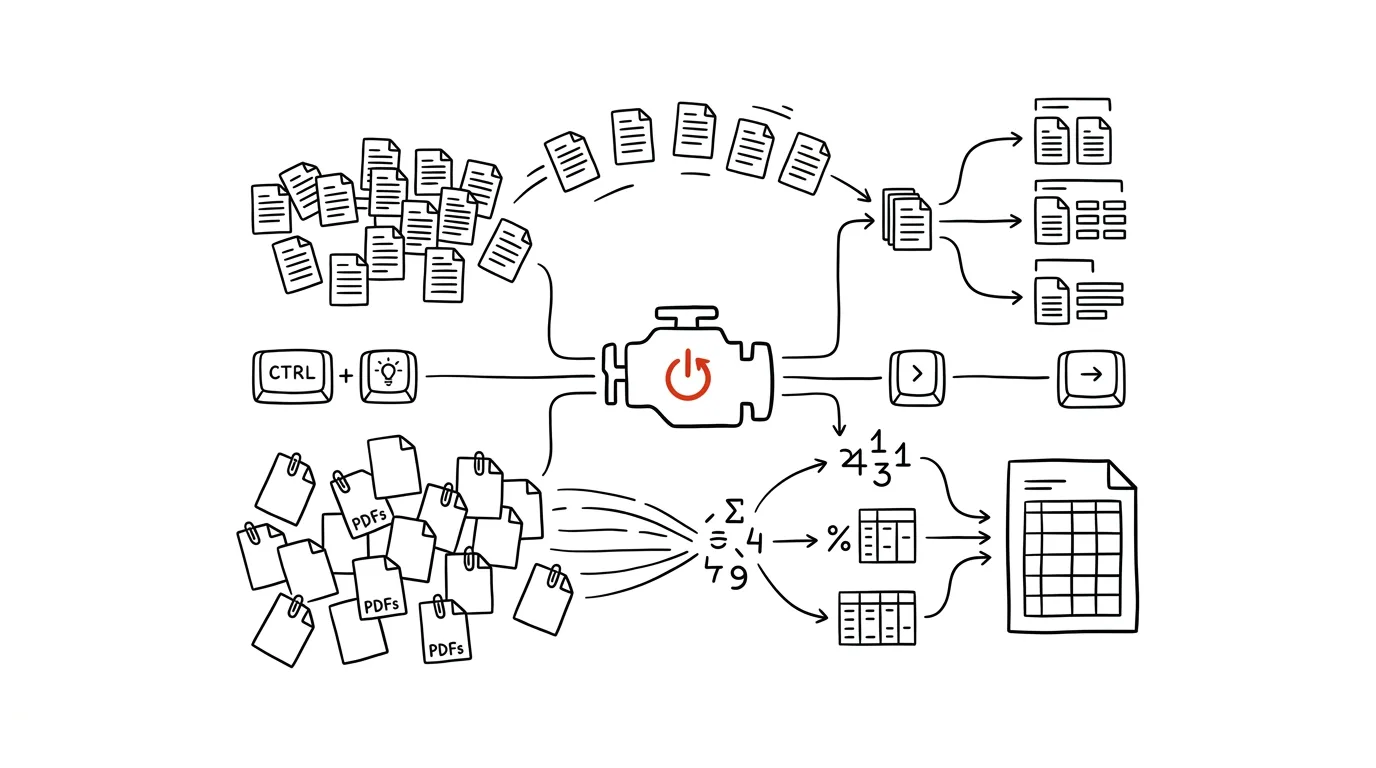
Most people know AI as a window in a browser: you paste something in, something comes out, you finish the rest by hand. Claude Code is a different category of tool — it runs on your computer, it sees your files and can actually work with them: read them, rename them, sort them into folders, write and run a script, open fifty documents and turn them into a single spreadsheet. The name invites you to file it under “for programmers.” In reality it's a general-purpose executor of multi-step tasks — exactly the kind you currently lose whole days to.
This guide is written for a non-technical reader. It doesn't assume you can code, or that you've ever opened a terminal — it only assumes you have a folder on your disk that's a mess, and the will to fix it once and for all. It walks you through installation, the first half hour, five typical tasks with ready-to-copy briefs, a file of permanent instructions, and finally the safety rules that protect your data and your files.
Read it in order and don't skip Phase 2 — it's dull, but nothing after it makes sense without it. One rule governs the whole guide: AI proposes, the human approves. The tool may prepare anything; deleting, sending, paying, and publishing are yours to approve.
A typical scenario
Hana, a bookkeeper, receives invoices from clients by email. In a month, one folder fills up with over four hundred PDFs named things like “scan_0042.pdf.” Before she can post them, she has to open each one, type the vendor, the amount, and the due date into a spreadsheet, and rename the file so it can be found again later. Two days every month, on repeat. It's not hard work — it's the kind of work that leaves your head empty by six in the evening with nothing to show for it.
The second time around, she describes it in one paragraph: pull the vendor, the amount before VAT, the amount with VAT, the issue date, and the due date out of each PDF, rename the file following the pattern 2026-08-vendor-amount.pdf, sort the files into folders by month, and generate a single CSV alongside them with all the data. Claude Code writes a script, runs it on ten files first, and shows her the result in a table. Hana fixes one rule — two vendors had the issue date mixed up with the due date — and lets it run through the rest.
The result: review and wrap-up take under an hour instead of two days. The script flags nine invoices as uncertain (handwritten, a bad scan), and Hana retypes those herself. Next month she just says “do it like last time” — the rules are already saved in the project folder. Over a year that gives her back roughly twenty working days, and that's not even counting the invoices that used to go missing because they were named scan_0042.
Phase 1: what Claude Code is and what you can do with it
The difference from chat in a browser
Chat on claude.ai is a conversation: you paste something in, the model replies with text. Everything in between — downloading a file, opening it, saving the result, running it again on the next forty — is on you. For one-off things that's fine. For repeated work, you turn into a courier ferrying data between your disk and the browser window.
Claude Code, by contrast, is an executor. You run it in a folder, and inside that folder it can:
- read files — text documents, spreadsheets, PDFs, images, and scans, including handwriting,
- write and edit files — create a new one, overwrite an existing one, add a line,
- move, copy, and rename — in bulk, by rule,
- write a script and run it right away — see the error, fix it, run it again,
- work with git — version changes, show diffs, roll back,
- search the web and fill in whatever isn't in the folder.
The key sentence is this: the model doesn't just suggest a procedure — it carries it out and shows you the result. That's the difference between advice and finished work.
What that means in practice
A task suited to Claude Code has three traits, and when it has all three, it saves you a day:
- A lot of items. Fifty files, three hundred rows, twelve monthly statements. With three items it's not even worth typing up the brief.
- A describable rule. You could explain to a colleague what should happen, even if it took ten sentences and five exceptions.
- Zero creative value. Nobody's going to thank you for doing it by hand. It's just work that has to get done.
Typical candidates: sorting vacation photos by date and location, unifying e-shop exports into one CSV, turning three years of bank statements into a categorized overview, checking two hundred scanned contracts against a list of criteria, restoring a “Downloads” folder with eight hundred files to a state where you can actually find something.
What doesn't fit: decisions that come down to taste, anything with a vague brief (“just tidy it up somehow, sensibly”), and anything where a bad result is both irreversible and expensive.
Phase 2: installation and the first half hour
What you need
Claude Code runs from the command line — on a Mac that's the Terminal app, on Windows it's PowerShell or Terminal. It sounds intimidating; in reality you type one sentence in plain English into it and read what comes back. There's also a web version you can run in a browser without installing anything, which is a good way to get a first feel for it.
You need a Claude account and the tool installed per the official instructions. Installation is one command and takes a few minutes. I won't reproduce the steps here, because they change — and this is exactly the kind of situation where it pays to ask the tool itself, since you already know how to talk to it. Open claude.ai and ask:
I want to install Claude Code on [macOS / Windows 11].
I've never worked in a terminal before and I don't have
Node.js or anything like that installed.

Write me a step-by-step guide:
1. how do I open the terminal on my system
2. exactly what to type, line by line
3. how do I know each step worked (what should print out)
4. what do I do if a permissions error shows up
5. how do I confirm at the end that the tool is running

For each command, write one sentence explaining what it does.
Don't assume any prior knowledge and don't use terms you
haven't explained.
You'll get a guide good for ten minutes. Watch out for one thing: installation steps change over time, so compare the result against the official Claude Code documentation — when they disagree, the documentation wins. And never run a command you don't understand at all; ask a follow-up question like “what exactly will this line do to my computer.”
First run: a safe playground
Don't start on real data. Build yourself a practice folder — copy twenty random files into it, old photos or PDFs you don't care about. Navigate into it in the terminal and start Claude Code. Then type your very first brief:
You're in a practice folder I'm using to try out what you
can do. Don't delete anything.

1. Go through this folder and all subfolders and give me an
   overview: how many files there are, what types, how big,
   how old.
2. Show me the 10 oldest and 10 largest files.
3. Find files that look like duplicates (same content or
   nearly the same name) and list them in pairs.
4. Suggest a reasonable way to sort this folder — but don't
   move anything yet, just write me a plan.

Answer briefly and put the results in a table.
This is the most important prompt in the whole guide, even though it doesn't actually do anything. It shows you that the tool sees what you expect it to see, and it teaches you the rhythm of the work: overview first, then a plan, only then action. If the overview turns up files you didn't know were there, that's a sign you ran it one folder higher than you meant to.
The work rhythm: brief, plan, sample, full run
The proven approach has four steps, and it's worth sticking to even after a year of using the tool:
- Brief — you describe what you want, the way you would to a new colleague. Input, output, rules, exceptions.
- Plan — you have it describe what it's about to do before it does it. You read it.
- Sample — you let it run on ten items and check the result.
- Full run — only now do you let the rest go through.
The sentence “try it on ten files and show me the result” is the cheapest insurance you have. A mistake on ten files costs a minute; a mistake on five hundred costs an evening.
Phase 3: five tasks worth doing right away
Task 1: cleaning up a folder where nothing can be found
The classic case: a “Documents” or “Downloads” folder with a thousand items from the last five years. Nobody ever finishes cleaning it up by hand, because after twenty minutes they run out of patience. A machine has plenty of patience — it just needs a clear rule for what goes where.
The folder [path] has [about 900] files from the last few
years. I want to clean it up, but carefully.

Steps:
1. First give me an overview: file types, counts, total size,
   oldest and newest.
2. Suggest a folder structure by type and year, for example
   documents/2024, invoices/2025, images/2023. Show me the
   proposed tree and how many files would go into each folder.
3. List separately the files you're not sure how to classify,
   and files that look like duplicates.
4. Don't move ANYTHING yet. Wait for me to approve the plan.

Rules: never delete anything, not even duplicates. Keep the
original creation dates. If a file has no extension in its
name, or is corrupted, put it in a review/ folder and give
me a list.
You'll get back a folder tree and a list of uncertain cases. Check item 3 especially — that's usually where the thing you've been looking for for years turns up. Once you approve the plan, say “move it according to the plan, but first make a copy of the folder into backup/.” Leave the duplicates alone: deciding which copy is the real one is a human call.
Task 2: bulk renaming based on content
Even system tools can rename five hundred files — but only by order. Claude Code can do something different: rename a file based on what's inside it. That's the difference between photo_0231.jpg and 2025-06-14-grandmas-wedding.jpg.
The folder [path] has [420] scanned documents named things
like scan_0042.pdf. I want to rename them based on content.

Name pattern: YYYY-MM-DD_document-type_counterparty.pdf
For example: 2025-03-14_invoice_alpha-services.pdf

Rules:
- figure out the document type from the content: invoice,
  contract, statement, confirmation, other
- take the date from the document, not the file's timestamp;
  if there's no date in the document, use the file's date and
  add a _nodate flag at the end of the name
- write the counterparty name in lowercase without accents,
  replace spaces with hyphens, shorten to 3 words
- if you're less than 90% sure about the content, do NOT
  rename the file — write it to a review.txt file with a
  reason instead

Do it on 10 files first and show me a table: old name → new
name → what you read from the document.
That last paragraph is the most important part. The table “old → new → read from document” shows you not just the result but the reasoning behind it, so you can catch a systematic mistake (for example, the model pulling the due date instead of the issue date). Also keep an eye on name length and accented characters — on some systems, accents in filenames cause trouble during backups.
Task 3: extracting data from a stack of PDFs
This is the task with the biggest payoff. Forty invoices, sixty contracts, two hundred delivery notes — you need five numbers from each one, and you want them all in a single table.
The folder [path] has [180] invoices in PDF. Build a single
CSV file, invoices.csv, from them.

Columns, in this order:
file, vendor, tax ID, invoice number, issue date, due date,
amount before VAT, VAT rate, amount with VAT, payment
reference, confidence

Rules:
- semicolon delimiter, UTF-8 encoding, decimal comma
- dates in YYYY-MM-DD format
- amounts as a plain number, no currency symbol and no
  thousands separators
- if a value isn't in the document, leave the cell empty;
  do NOT guess or calculate anything
- in the confidence column, write high / medium / low based
  on how legible the document is
- for handwritten scans, always mark confidence as low

Process 10 files first, show me the result, and wait.
At the end, tell me how many invoices don't add up — where
the amount before VAT plus VAT doesn't equal the amount with
VAT.
You'll get back a CSV you can open straight in Excel, plus a checksum at the end. The “confidence” column is the part people skip and then regret: it tells you which fifteen rows to eyeball and which hundred and sixty-five you can let through. The VAT-total check is a second safety net — it catches most number-reading mistakes.
Before you run the full batch, think about the data. Invoices and contracts contain information about people and companies. Use a paid or business account with contractual data protection, not a free chat, and anonymize whatever can be anonymized beforehand. More on this in the tip data analysis with AI.
Task 4: a monthly report that generates itself
Once your data is in a CSV or a spreadsheet, a report is just a matter of one script. The important part is not letting the numbers get “calculated in chat” — a language model generates text, not arithmetic. Only a number produced by a script — one you can rerun — belongs in a report.
I have a file [data.csv] with [sales for the past year]. The
header and first three rows look like this:

[paste 4 rows here, including the column headers]

Write a Python script, report.py, that:
1. loads the file (semicolon delimiter, UTF-8, decimal comma)
2. cleans the data: drop rows missing [key column], unify
   the spelling of [column], and convert dates to real dates
3. calculates a monthly summary: count, sum, average, median
4. calculates the top 10 [category] by [metric] and their share
5. compares the last month to the previous month and to the
   same month last year, in percent
6. saves the numbers to results.csv and three charts to
   charts/ as PNG
7. at the end, prints a summary in plain English: what went
   up, what dropped, where the data looks suspicious

Comment each step in English, explaining WHY it's there. The
script has to hold up even with empty cells. Then run it and
show me the output.
You'll get a script, it'll run, and you'll see the numbers. Check two things: whether the number of rows loaded matches what you expect (a typical problem is a wrong delimiter, after which one column loads instead of twelve), and whether the totals match what you know from another source. Next month you just swap in the new data.csv and rerun the script — the report recalculates in a few seconds.
If you want to keep digging into the numbers, that continues in the tip on data analysis; for a monthly rhythm, routines are a good fit for firing the task off on a schedule.
Task 5: managing a website and other text-based projects
The last typical task is the least expected one: Claude Code is excellent at managing anything stored as text. A website, documentation, a library of templates, a collection of notes. It can read text files, edit them in bulk, check them against rules, and version them with git, so every step can be undone.
This folder holds a [website / documentation] made up of
[markdown] files in a [content/] folder.

Run a consistency check for me and return one summary:
1. files missing a required field in the header (required
   fields: [title, description, date, category])
2. links inside the project that point to a file that doesn't
   exist
3. duplicate or very similar titles
4. texts shorter than [1500] characters and longer than
   [30000]
5. places using straight quotes instead of proper typographic
   quotes
6. typos in recurring terms (list the variants of the same
   term that appear across the project)

Don't fix anything, just list the findings with the file path
and line number. Sort them by severity.
You'll get back a list that would otherwise take half a day to compile by hand. Once you've gone through it, you can assign fixes in groups — never all at once. And make sure the project is in git first: that way even a bad bulk replace is one command away from being undone.
Phase 4: CLAUDE.md — permanent project instructions
What it's for
When you work in the same folder repeatedly, it starts to grate that you have to explain the same things over and over: what the folder is called, where outputs get saved, what date format you use, what should never be deleted. The fix is a CLAUDE.md file at the root of the project. Claude Code reads it automatically every time it starts and treats it as permanent instructions.
It's the equivalent of custom instructions in chat, just tied to a specific folder. The difference is fundamental: the instructions don't belong to you, they belong to the project. When you hand the folder to a colleague, they get the rules too.
What to put in it
A good CLAUDE.md has four parts: what the folder is for, how it's organized, how typical tasks get done, and what's off-limits. The fastest way to write it is to have it draft one and then edit it yourself.
I want to set up a CLAUDE.md file with permanent instructions
in this folder, so you behave the same way every time you
start up again.

First look around the folder, then write a draft that
includes:
1. What this folder is for (I'll tell you: [description])
2. The folder structure and what goes where
3. Conventions: file names, date format, encoding, language
4. Procedures for three recurring tasks I do here:
   [task A], [task B], [task C] — for each one, the steps and
   the output
5. Hard rules: what to never delete, what to never send, when
   to ask instead of deciding
6. Where to save outputs and backups

Write it concisely, in bullet points. Phrase it as
instructions for yourself, not a description for a human.
Where you're not sure what applies to this folder, write a
question and leave it for me to fill in.
You'll get a draft where part of it is accurate and part is invented from what it can see in the folder. Go through it line by line — this file will influence everything that happens in the folder, so it's worth spending twenty minutes on it. Always write item 5 yourself; don't delegate the prohibitions.
How to maintain it
CLAUDE.md isn't a document you write once. Every time you have to explain something a second time in a conversation, it belongs in the file. A good habit: at the end of a bigger task, add one sentence.
We just finished [task]. Go through what we did today and
suggest what should be added to CLAUDE.md, so I don't have
to explain it again next time.

List only concrete sentences to add, and for each one note
which section it belongs in and why. Don't write anything
yet — I want to approve it first. Skip anything that only
applied today, and anything I wasn't sure I wanted permanent
myself.
This way, over a few weeks, the file matures to the point where “do the month-end close” is all you need to say. The rules become the property of the folder, not your memory.
Phase 5: case study — how this website gets made
The best proof that this works outside of programming is the website you're reading right now. The Czech productivity site this article lives on is a text-based project: every tip is one file, every chapter of the handbook is too, plus an English-language version. The author runs the content, the translations, and every new deployment through Claude Code.
In practice it looks like this. Brief: the author describes what should get made — a new tip on a given topic, a revision of a category, filling in missing English versions. Execution: the tool writes the files, checks them against the project's rules, and shows what it changed. Approval: the author reads the output, fixes what he doesn't like, and only then does the change go live. Publishing is never automatic — that's a line that never moves.
Three things make this work, and all three carry over to any other project.
Rules live in a file, not in someone's head. The project has a CLAUDE.md with hard rules: what the structure of a tip looks like, what tone to use, what should never appear in the text, how quotation marks are written. Without it, every new piece of text would look different.
Checking is a script, not reading. For catching formal issues — length, structure, broken links, inconsistent terminology — there's a QA script. It goes through every file in a few seconds and returns a list of findings. A human then only reads what the script flagged, plus the content the script can't judge for itself.
Git is the safety net. Every change is logged and reversible. That makes it possible to run even bold bulk edits: if one goes wrong, you undo it with a single command. Without version control, bulk changes either wouldn't happen at all, or would happen with a knot in your stomach.
What this means for you: a non-technical project with a large number of text files — company documentation, a library of proposals, a collection of contract templates, a blog — can be run the same way. You don't need to know how to code. You need to be able to describe what the result should look like, and be willing to check it. When a task outgrows a single agent, the next step is the approach covered in subagents.
Phase 6: security — what it may and may not do
What the tool can actually do
Let's be specific, because being wary of the unknown makes sense here, and vagueness doesn't help. Claude Code has access to whatever is in the folder you run it in, and to whatever commands you let it run. That means it can, in principle, read, change, move, and delete files, and it can run programs on your computer.
That's why the first rule is: run it inside the project folder, never at the root of the disk and never in your home folder. The scope of access is your main safety lever, and it's free.
Seven rules worth following
- Work on a copy. For the first bulk task on data that matters, copy the folder and run it on the copy. Once the result checks out, run it on the original — or just use the copy.
- Back up before a bulk change. A copy of the folder is enough. Anyone working with text should use git; then every step can be undone.
- Keep deletion for yourself. Write into the project's instructions that the tool never deletes anything — it only moves items into a
to-delete/folder. The decision to delete belongs to a human. - Read what's about to run. When the tool proposes a command you don't understand, ask “what exactly does this command do, and what happens if I run it on the wrong folder.” You'll get an answer immediately.
- A human always approves sending, paying, and publishing. The tool may prepare an email, an invoice, or a post. Sending it is on you. Don't break this rule even for a task you've done a hundred times.
- Sensitive data only on a paid account with contractual data protection. Clients' personal data, health records, payroll, non-public contracts. Anonymize whatever can be anonymized beforehand — replace names with a sequence number and keep the key to yourself.
- Review permissions once a quarter. Which folders and services does your automation have access to? Permissions quietly pile up, and nobody cleans them up for you.
When in doubt, ask for the plan
The simplest defense against an unpleasant surprise is one extra sentence in the brief: don't do it, just describe what you would do. For big or irreversible tasks, this prompt is worth using:
I want to [task description] in the folder [path].

Don't do anything yet. Write me:
1. an exact plan of the steps, in the order you'd carry
   them out
2. for each step, which files would change, move, or get
   created — and roughly how many
3. what about this is irreversible and what can be undone
4. what happens if you run into something unexpected in the
   data
5. how I would verify the result is correct once it's done
6. what you'd back up before running this, in my position

Then wait. Don't run anything until I approve the plan.
Item 3 is the whole reason this prompt exists. The difference between “four hundred files get renamed” (reversible, if you have a copy) and “the source spreadsheet gets overwritten” (irreversible) decides whether you make a backup first or save a minute now and regret it later. Hold on to item 5 — it's your post-run verification procedure.
Common mistakes
- Running the tool in your home folder or at the root of the disk. It gets access to everything, including things you forgot about. Always a specific project folder, and if it needs to see more, say so explicitly.
- Running a bulk task without a sample first. Ten files up front will surface ninety percent of the mistakes in the brief. Skip the sample and you end up checking five hundred results and usually redoing them.
- Not backing up before an irreversible operation. Copying a folder takes half a minute. Reconstructing overwritten data takes an evening, and sometimes isn't possible at all.
- Letting numbers get calculated “in chat” instead of by a script. A language model generates plausible text, not arithmetic — with a long table it only sees a slice and estimates the rest. Only a number from a rerunnable script belongs in a report.
- Writing a three-sentence brief and expecting a miracle. “Tidy this up” is not a brief. Input, output, rule, exceptions, format — five extra sentences save three rounds of fixes.
- Letting the tool send, delete, or publish directly. Even after the task has gone right twenty times. The twenty-first round is the one where an unusual input shows up — and a human is the only safety net that catches it.
- Not writing rules into CLAUDE.md. When you're explaining the same thing for the third time, you're losing exactly the time you deployed the tool to save.
The best tools
- Claude Code — works with files, runs scripts, and drives git; the pick for anything that needs to run on your own disk and has more than one step.
- claude.ai — chat, projects with persistent context, and artifacts (working mini-apps right in the window); for one-off things with nothing to install, and for asking questions mid-task.
- Claude Cowork — a desktop mode built on top of a file folder; a more comfortable entry point for anyone who avoids the terminal but still wants work done on their own material.
- Git — a safety net for bulk changes; not for everyone, but whoever has it sleeps easier. Claude Code itself can explain the basics in five minutes.
- Python (pandas) — the language most data scripts get written in; you don't need to know how to write it, but it's worth understanding what a script does.
- Zapier, Make, or n8n — when the task happens in the cloud between services rather than in files; covered in more depth in your first no-code AI automation.
What you get out of it
- Time: for people who regularly reshuffle files and retype data from documents, a conservative one working day a month. For the bookkeeper from the intro, processing hundreds of invoices, more like two.
- Money: work you were considering handing to a temp or an outside service now fits into an hour of your own review. For a recurring monthly workload, that's the difference of roughly one working day a month you can spend on paid work instead.
- Peace of mind: tedious work stops hanging over your head as the threat of a lost weekend. What's left is the decision-making nobody else can do for you anyway.
- Quality: a machine doesn't make a typo on line fifty because it's tired. It applies the rule the same way to the first file and the last — and the “confidence” column honestly tells you which fifteen cases to eyeball.
- Scope: tasks you never even started before (“go through three years of statements”) suddenly fit into a single evening.
Pro tip
An advanced move that changes the order of the work: have it write the verification script before the automation itself. Once you know how you'll recognize a correct result — how many rows there should be, which totals have to match, which combinations are impossible — you can then run even bold bulk edits, because checking them takes a second. Without a verification script, every big change is a gamble, and you either don't run it or you run it and don't sleep.
And the closing rule that overrides all the others: give the tool exactly as much room as it needs, and not a foot more. A specific folder instead of the whole disk, a copy instead of the original, moving instead of deleting, approval instead of sending. The same rule applies here as everywhere on this site — AI proposes, a human approves. Send sensitive material only to a paid or business account with contractual data protection, never a free chat, and anonymize whatever can be anonymized beforehand.
Want to go deeper? The handbook has a whole chapter on it — AI and automation.
Similar tips
Top edge of your monitor at eye level
A neck that hurts from a monitor set too low. A stand or arm for a few dollars fixes years of discomfort.
Noise-cancelling headphones: focus and a signal, both at once
ANC headphones solve two problems at once: ambient noise, and coworkers who can't tell you don't want to be disturbed.
A closed lid doesn't have to put your laptop to sleep: run it as just a monitor setup
With an external monitor and keyboard, a laptop can run closed and save desk space. Just change one setting for what closing the lid does.
Common questions
Is Claude Code only for programmers?
No — the name misleads, but it's a general-purpose executor of multi-step tasks: cleaning up a folder of eight hundred files, extracting data from hundreds of PDFs, a monthly report from a script, managing a website or documentation. You don't need to know how to program; you need to describe what the result should look like and be willing to check it.
What tasks is Claude Code suited for?
Ones with three traits: many items (it's not worth it for three), a describable rule (you could explain it to a colleague), and zero creative value. It's not suited for judgment calls, vague briefs, or things where a wrong result is irreversible and expensive.
How do I start without breaking anything?
Don't start on live data — make a practice folder with copies of files, and let the first brief just describe what's in the folder. Then keep the rhythm: brief, plan, a sample of ten items, only then the whole batch. A mistake on ten files costs a minute; on five hundred, an evening.
Can Claude Code delete or send something?
In principle yes — so run it in a project folder, not the root of your drive, and write into the instructions that it never deletes anything, only moves items to a to-delete folder. Sending, payments, and publishing are always approved by a human, even on a task you've done a hundred times. Back up before any bulk change.
What is the CLAUDE.md file for?
It holds the project's persistent instructions — Claude Code reads it on every launch. It contains the folder structure, conventions, procedures for recurring tasks, and hard rules. Whenever you explain something a second time, it belongs in the file; after a few weeks, “do it like last time” is all you need to type.
Can I have numbers calculated right in the conversation?
No — a language model generates plausible text, not computation: with a long table it sees only a slice and estimates the rest. Only a number produced by a script that can be rerun belongs in a report. And sensitive data belongs only in a paid account with contractual data protection, anonymized in advance.
Was this helpful?
Liked this tip?
I send one like it every week by email. Two minutes to read, hours saved.
The Top 30 tips e-book, free — it lands in your inbox right away.
Then 1 tip a week · no spam · unsubscribe in one click
Prefer a system to single tips? The free email course — seven days, seven emails, one skill a day.