Tips & tricks · AI · Everywhere · ~a day of work after every conference · 17 min read · in-depth guide, doing it ~2 h
From a box of business cards to a CRM table in one evening
Last reviewed:
In this article
- A typical scenario
- Phase 0: scanning and prep, before you turn the AI loose
- Phase 1: extraction in the folder, handwriting included
- Phase 2: a table ready for import
- Phase 3: a mini company research pass into a "prep" column
- Phase 4: follow-up drafts grounded in the note
- Phase 5: rules that aren't optional
- Phase 6: closing the loop
- Common mistakes
- The best tools
- What you get out of it
- Pro tip
Business cards have a short shelf life. A week after the trade show you still remember who's who; a month later you're holding a card with a stranger's name on it, with no idea why you kept it. So most business cards end up in a drawer, because retyping a hundred contacts into a CRM is a half-day chore nobody ever finds time for. The booth cost money, though — and its value doesn't come from how many cards you collected, but from how many people you reach before they forget you.
The most valuable piece of information on a business card is often not the printed part — it's your pencil note in the margin: “follow up in September,” “interested in training for 12 people,” “won't decide until the budget's approved.” No automatic card scanner reads that part, because it's built for printed text in a predictable layout. AI that can read handwriting reads it — and that's the difference between a list of names and a list of opportunities.
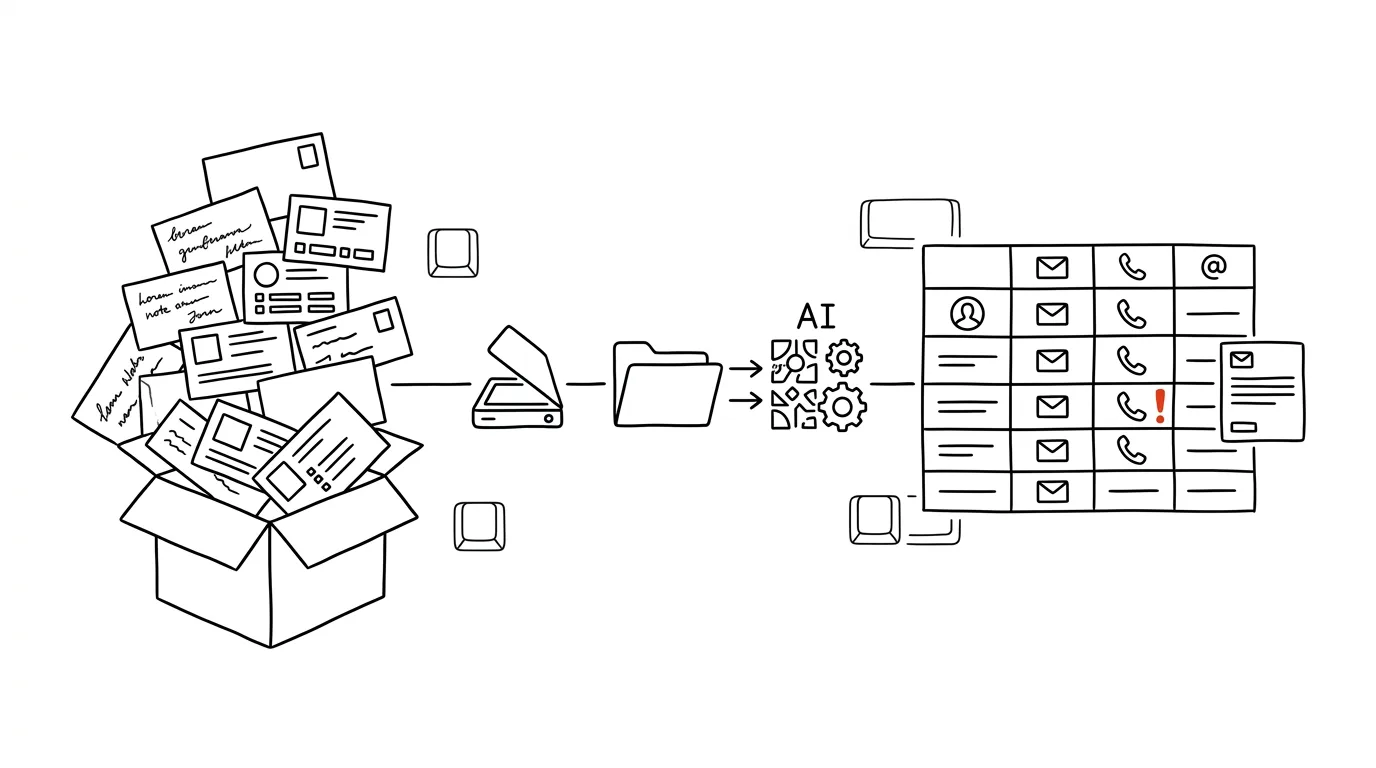
This guide walks the whole path: from scanning cards into a folder, through processing in Claude Cowork, cleaning up the table and building a CSV for CRM import, all the way to a mini company research pass and personalized follow-up drafts. Every phase comes with a prompt to copy. And one rule sits above all of them: AI writes the drafts, a human always sends them — a mass send is an off-limits move here, and not just because of the rules on commercial communication, but mainly because an email nobody read is more likely to close a relationship than open one.
A typical scenario
Sales rep Ray comes back from a three-day industry trade show with 94 business cards held together by a rubber band. About a third of them have a pencil note added, twelve have just one word, and for five of them he doesn't remember anything at all. He knows the standard routine: the cards sit on his desk for three weeks, then he retypes the twenty most promising contacts and tosses the rest. Seventy contacts the booth paid for go to waste — not out of disinterest, but because that first step never fits into a week already spent catching up on everything three days at the show piled onto him.
The new routine takes him one evening. Sunday after dinner, he lays the cards out ten at a time on the table and scans them with his phone into a single folder — twenty minutes, including two reshoots. He opens the folder in Claude Cowork and kicks off extraction. Before his tea's finished brewing, he has a table with 94 rows: name, company, title, email, phone, the margin note transcribed into a “context” column, and eleven rows flagged “check.” He goes through those eleven by hand against the photos — ten minutes. A second pass adds two sentences of research per company into a “prep” column. A third prepares draft follow-up emails.
Then comes the part he doesn't delegate: two hours spent reading the drafts. He deletes forty, because the contact was a polite exchange and writing to them would be spam. He edits fifty-four — in some cases rewriting the whole first paragraph, because the note from the card said something different from what the model assumed — and sends them out in small batches over three days, not all at once. By Thursday he has three meetings booked and two replies along the lines of “not now, check back in January,” which counts as a result too, since he logs them in the CRM with a date. The difference from last year isn't the quality of the emails. It's that they got written at all.
Phase 0: scanning and prep, before you turn the AI loose
The quality of the output gets decided right here. An hour spent on bad scans comes back to you as two hours of fixing the table afterward.
Scanning into a single folder
You don't need a scanner. Your phone and its built-in scan mode are enough — it crops the shot, straightens the perspective, and boosts contrast, see scanning with your phone. A process that's worked well:
- Lay ten cards at a time on the table, side by side in a grid, on a plain-colored surface. Ten photos instead of a hundred, and still enough detail to read an email address. If your cards are glossy or dark, shoot five at a time instead.
- Photograph double-sided cards on both sides, ideally so the back follows right after the front — and flag this to the model in the prompt. Contact details end up on the back more often than you'd expect.
- Don't cover your own notes with your finger. If you wrote on the back, the previous point applies doubly.
- Move the photos into a single folder on your computer and don't sort anything inside it. That's the whole point — sorting is the work you're handing off to the machine.
What to prepare from your CRM
Before you start, find out two things about your CRM: what column names its import expects (most systems support CSV and document a sample header) and what encoding and delimiter it wants — comma and UTF-8 are the common default, but not always. Knowing this up front saves you from remapping the whole table later. Copy the sample header somewhere; you'll paste it into a prompt.
Checking scan quality
Before you run full extraction, have the folder reviewed first. It's a prompt that costs a minute and saves you corrections.
Work with the folder [folder path] of scanned business cards.
Don't extract anything yet — just do a quality check.

Go through every file and return a table:
file | how many cards are in the shot | readability (good /
poor / unreadable) | what specifically is wrong (glare, blur,
cut-off edge, print too small, dark background)

At the end, give me:
- a list of files you'd recommend reshooting, and why
- how many cards are in the folder in total, by your count
- whether any shots look like the back of the same card as
  another shot

Don't organize, rename, or delete anything.
It returns a list of shots to reshoot — usually just a handful, and reshooting them costs two minutes. Compare the total card count against how many cards you actually had; if they don't match, something got left out of frame.
Phase 1: extraction in the folder, handwriting included
Claude Cowork is a desktop-app mode for working with files without writing any code: you pick a folder, and Claude can read documents, images, and scans inside it, and write the results back into files. It only has access to the folders you explicitly give it, and you can revoke that access at any time.
Contacts are other people's personal data, so do this on a paid or business account with contractual data protection, not in a free chat. And put nothing but business cards in that folder — no other work files, no private photos.
The main extraction prompt
This is the core of the whole process. Three instructions matter most: never guess, transcribe handwriting verbatim, and don't mix transcription with interpretation.
Work with the folder [path] of scanned business cards from
[trade show name, date held].

Go through every image and build a table, one row per card,
with columns:
first_name | last_name | title | company | email | phone | website |
address | context | contact_source | file | confidence

Rules:
- transcribe handwritten notes VERBATIM into the context column,
  don't interpret, shorten, or add to them; if there's no note,
  leave the cell empty
- write [trade show name] and the event date into the
  contact_source column, the same way for every row
- give the phone number in international format and keep the
  original notation in parentheses after it
- transcribe the email address character by character; for
  characters that get confused (lowercase l and capital I, zero
  and the letter O, the combination r n versus m), weigh the
  context of the name and company, but never guess the address
- combine the front and back of the same card into a single row
- anything you can't read, write as [ILLEGIBLE]; never guess
- in the confidence column, write high / medium / low based on
  how sure you were of the reading

Save the output as contacts.csv in the same folder, semicolon
delimiter, UTF-8 encoding. In the chat, give me just a summary:
how many rows, how many rows have low confidence, and which files
they're from.
It returns a file that's ninety percent finished. The summary in the chat is deliberate — you don't need to read 94 rows in a window, you need to know how many require your hand. The most common failure: the model merges two contacts from one shot into a single row (which is why the count check in Phase 0 matters), and it swaps title and company on cards with a graphic layout. Both surface during the check the next prompt is for.
A second pass on uncertain rows
From contacts.csv, take the rows where confidence is low or
where there's an [ILLEGIBLE], and go back through the matching
photos for those.

For each such row, tell me:
- which field is the problem
- what you can see on the shot, even if it's only a fragment
- two or three possible readings, ranked by likelihood
- whether a reading is checkable against another field (say,
  the shape of an email address based on the name and the
  company website's domain)

Don't write anything to the file yet. I'll make the call and
tell you what to fill in where.
It returns a rundown where you make the call — exactly the spot where AI proposes, the person approves plays out. Be strict about emails: an address with one wrong character goes unnoticed until it bounces, and a bounced email looks like silence, not a mistake. If you're not sure, leave the field empty and reach the contact through a professional network instead.
Phase 2: a table ready for import
There's still a stretch of work between the extracted data and a working import: duplicates, formats, headers. This is the part people underestimate and then spend two hours fixing inside the CRM.
Cleanup and duplicates
Run a cleanup pass on contacts.csv. Don't delete anything —
create contacts-cleaned.csv and list the changes for me.

1. Duplicates: find rows that are probably the same person
   (matching email, or matching last name plus company). Don't
   merge them yourself — list them as merge candidates, including
   what differs between them.
2. Formats: standardize phone numbers into international form,
   emails to lowercase, company names with no trailing spaces and
   no double spaces inside.
3. Standardize legal-entity suffixes (Inc., LLC, Ltd. and similar)
   into one consistent form, but never shorten or add to the name
   itself.
4. Flag obvious typos in email domains (gmial, hotmial) as
   suspicious, but don't fix them.
5. Empty required fields: list rows missing both email and phone
   at once — those can't be worked with.

At the end, give me a summary: how many rows were adjusted, how
many merge candidates, how many rows are unusable.
It returns a cleaner table and a list of decisions to make. Merge duplicates by hand: two rows with the same last name and company could be two different people from the same department, and merging them would produce a contact who doesn't exist.
Mapping to your CRM's header
Here's the sample import header from my CRM, [system name]:

[paste the exact header the CRM expects]

Convert contacts-cleaned.csv into import-crm.csv so it exactly
matches this header.

- write column names literally as in the sample, in the same order
- map my context and contact_source columns into the [note /
  description] field, in the form:
  "Source: [trade show, date]. Note from the card: [verbatim
  transcript]."
- leave fields the CRM expects but I have no data for empty;
  don't fill anything in or invent anything
- date in the format [YYYY-MM-DD]
- semicolon delimiter, UTF-8 encoding, first row is the header

In the chat, list the fields that stayed empty, and the fields
from my data that didn't fit into the header.
It returns a file ready to upload. That last paragraph matters: the fields that “didn't fit” into the header are typically the most valuable ones (the context from the card), and without a flag they'd quietly disappear. Always test the import on five rows first — every CRM has its own idea of what's required.
Phase 3: a mini company research pass into a "prep" column
A contact in a table is raw material. It becomes usable the moment you know who you're calling. This second pass turns the table into a sales-ready briefing.
Add a new column, prep, to import-crm.csv.
For each company in the table, find and summarize:

- what the company does (one sentence, specific — not "provides
  solutions" but what it actually does and for whom)
- roughly how big it is (headcount or an order-of-magnitude
  estimate) and where it operates
- one recent development from the past year, if there is one
  (new product, expansion, acquisition, open position, leadership
  change)
- why my offering might interest them: [describe what you're
  offering]

Rules:
- cite a source for every fact (a link or the name of the page)
- write "not found" for anything you can't find — don't guess,
  and don't write generic phrases that would fit any company
- if you're not sure it's the right company (similar name,
  different country), say so explicitly and don't combine data
  across companies
- 4 sentences maximum per company, total

Process it in batches of [10] companies and pause after each batch.
It returns a column that keeps you from going into a call blind. Watch two things. Sources aren't decoration — for companies with a generic name, the research easily ends up attached to a different company, and a link is the only thing that catches it. And “not found” is a correct answer, which you have to explicitly allow in the prompt, or you'll get four sentences of empty phrasing for every company. Treat the research as a hypothesis to verify, not a fact; the general approach is in fact-checking with AI.
Deep research for the contacts worth it
For your five to ten most promising contacts, it's worth going further than four sentences. That's what deep research is for — it searches the web and returns a report with citations.
Prepare a briefing for a meeting with [name, title] from
[company]. Note from the card: [verbatim transcript]. I'm
offering [what you're offering].

I want:
1. What the company does, in which market, and how it differs
   from competitors
2. What their current situation and priorities probably are
   (based on annual reports, press releases, job postings)
3. Who else in their industry deals with similar problems, and how
4. Three specific questions I can ask that show I looked into
   them
5. Two things that could be reasons this WON'T make sense

Cite a source for every claim. Where you have no basis, say so
instead of guessing. Don't write me sales pitches — I want facts
and questions.
It returns half an hour's worth of reading you wouldn't otherwise have done. Point 5 is deliberate: a contact where you know up front why it doesn't make sense is one you don't have to call at all — and that's a saving too.
Phase 4: follow-up drafts grounded in the note
This is the core of the value, and also the biggest risk. The difference between building a relationship and spam isn't the technology — it's whether the other person can tell you're writing to them specifically.
Drafts, not sends
For every contact in import-crm.csv where the context column is
filled in, prepare a draft follow-up email. Save them as
individual files in a drafts/ subfolder, named lastname-company.md.

For each email:
- subject line under 50 characters, specific, no exclamation
  marks, and no words like "offer" or "partnership"
- the first sentence recalls where and what we talked about — it
  must be drawn from the note in the context column and the event
  in the contact_source column
- the second to third sentence follows up on what interested them,
  not on what I want to sell
- one specific offer of a next step (a fifteen-minute call, sending
  one piece of material) — just one, not three options
- signature: [your name, company, phone]
- 120 words maximum total, formal/informal tone per the [column]
  [or: always formal]

Hard rules:
- don't send any emails and don't forward them anywhere, just
  save the files
- if the note in the context column is empty or unclear, don't
  write an email — just write "no basis, decide manually" into
  the file instead
- don't invent anything about the meeting; if the note doesn't
  mention a topic, don't include one
- no phrases like "it was a pleasure" or "hope you're doing well"
It returns a folder of drafts that all share one property: they can't be sent without you reading them first — and that's by design. The prompt deliberately forbids writing an email where there's no basis, because empty notes are exactly where generic emails come from — the kind that kill a relationship faster than silence would.
Sending is a line AI doesn't cross. Not because of a technical limitation, but because a mass send out of the drafts folder is exactly the thing that turns a legitimate business contact into spam. As you go through the drafts, sort them into three groups: send after editing, put off with a date, and delete. The third group tends to be the biggest, and that's fine.
Contacts with no note: a shorter message, or none at all
There's a remaining group you don't remember anything about. A longer email doesn't work here — a shorter one does — and for some of them, nothing works, which is also an answer.
Here's a list of contacts from [event name, date] where my
context column is empty — I don't remember what we talked about:

[paste the rows: name, title, company, prep column]

Split them into three groups and write one sentence for each
saying why:
A) worth reaching out to — the field and role make sense given
   what I do [describe your offering]
B) leave in the database, no action
C) doesn't make sense at all, doesn't belong in the CRM

For group A, write a short message, 60 words maximum:
- admits upfront that we met at [event] and that I want to
  reconnect
- one sentence on why my work might be relevant to their role
- one closing question that can be answered in a single sentence
- no attachments, no meeting request in the first email
- don't invent anything about our conversation, no "as we discussed"
It returns three piles, and short messages for only the first one. Group C is the reason this prompt pays off: a contact that doesn't belong in your database shouldn't be there “just in case” either.
Tone check before sending
Read through the drafts in the drafts/ folder and go over them
like a strict editor of business communication. Don't rewrite
anything, just flag it.

For each email, list:
1. Sentences that would fit anyone — evidence the email isn't
   personal.
2. Places where I claim something that doesn't follow from the
   note on the card.
3. Sales-y phrases and superlatives.
4. An unclear next step (what exactly I want from the recipient).
5. A guess at how the email would land if the recipient didn't
   remember meeting me at all.

At the end, rank the emails from weakest to strongest, and tell
me which ones you think I shouldn't send at all.
It returns a list of findings that shows which drafts are worthless. Point 5 is the most useful: most people genuinely don't remember you after a trade show, and an email that assumes otherwise falls flat. For working with AI's first draft of an email more generally, see a first email draft from AI.
Spread the sending out over time
Fifty emails sent from one address within ten minutes looks suspicious, both technically and to a human reader. Spread them over three days, in small batches within each day, start with your most promising contacts (they'll tell you whether the wording works), and after the first ten, stop and read the replies. If two out of ten write back “what are you talking about,” the problem is in your first sentence, not in the list.
Phase 5: rules that aren't optional
You're processing the personal data of other people, who gave it to you in person and in a specific context. That carries obligations — and also just common sense, which will save your reputation.
Personal data protection
- Purpose and minimization. Process only what a business contact requires: name, company, title, contact details, and the note from the meeting. Don't add private details pulled from the internet into the CRM (marital status, hobbies, personal profiles). Research targets the company, not the person.
- Record where the contact came from. That's why the table has a contact_source column with the event name and date. If someone asks a year from now where you got their address, you need to be able to answer — and “handed me their card at trade show X on date Y” is the answer you want written down, not something you have to try to remember.
- A paid or business account with contractual data protection. Other people's contact details don't belong in a free chat. At a company, check in advance what you're actually authorized to do with personal data.
- A retention limit. A contact who hasn't replied in two years and never showed any interest has no business staying in the CRM. Set a review date and go through the database once a year.
- Act on an objection immediately. When someone writes that they don't want to be contacted, delete them from every list and note that you did. That's not courtesy — it's an obligation.
This isn't a legal analysis and doesn't substitute for one — for larger volumes or a company-wide rollout, go over the setup with whoever's responsible for this at your company.
Rules on unsolicited commercial communication
A follow-up after meeting someone in person at a trade show is a legitimate business contact. But the rules governing commercial communication still apply here: write to people individually, not in bulk, state clearly who you are and where you met, give them a way to say “don't contact me,” and honor that request the first time it's made. And there's one more boundary people cross without realizing it: a business card isn't consent to a newsletter subscription. Adding a trade-show contact to a mass mailing list is a different thing from writing to them personally, and you shouldn't cross that line without consent.
Checking the table before import
Go through import-crm.csv as a check before importing it into
the CRM and give me three lists. Don't change anything.

1. Data that has no business being in the table: anything
   sensitive or private that made its way in from the notes
   (health status, family situation, judgments about a person,
   private addresses).
2. Notes in the context column that are phrased in a way that
   would be uncomfortable for me if that person ever saw them.
3. Rows missing contact_source — where I wouldn't be able to
   document where the contact came from.

For each finding, cite the row and what you'd suggest doing
about it.
It returns an overview that's worth going through every time. Point 2 is a practical test: a CRM is a shared database, and someone will eventually see a note like “seemed pretty out of it” — possibly even the person themselves, if the two companies ever start working together.
Deleting the photos after import
Once the data is in the CRM, the card photos serve no purpose anymore, and they're someone else's personal data. Delete the scan folder — including the copy in your phone's gallery, including the trash, and including the automatic cloud backup that kicked in without you noticing. Shred the physical cards you don't want to keep. The only thing that should remain is the record in the CRM, because that has a purpose and a documented origin.
Phase 6: closing the loop
An import alone doesn't earn you anything. The value only shows up once there's a task with a date attached.
Go through the context column of import-crm.csv and pull out
tasks with deadlines. Return a table:
contact | company | what to do | deadline | where it comes from

- convert relative dates from the notes ("follow up in September",
  "after their budget's approved", "in two weeks") into a
  specific date based on the event date [date], and keep the
  original wording in parentheses
- where a note doesn't include a deadline, propose one of three
  modes: follow up within 3 days / within 2 weeks / leave with
  no action, and justify it in one sentence
- list contacts with no basis at all separately, as "no action"

Sort by deadline. Don't write or create anything anywhere.
It returns a follow-up plan you can carry into your task list or CRM. If you have connectors set up, you can have the tasks proposed for creation directly — always in draft-and-confirm mode, never automatically. Tracking the replies is covered in a follow-up watcher.
Evaluation after a month
A month later, ask yourself three questions: how many contacts replied, how many meetings came out of it, and which wording worked better. You don't have to tally it by hand.
Here's the list of follow-ups sent from [event name] and what
happened:

[paste table: contact | company | had a note from the card
yes/no | day sent | replied yes/no | outcome]

Give me a breakdown in five points:
1. Overall response rate, and separately for contacts with a note
   versus without one.
2. Response rate by how many days after the event the email
   was sent.
3. Response rate by the recipient's field or role, if that's
   visible in the data.
4. What the emails that got a reply have in common — and what
   the ones that got nothing have in common.
5. Three specific things I should do differently at the next
   event (at the booth, when writing notes, when writing
   follow-ups).

If the sample is too small for a conclusion on any point, say so
instead of giving one. Don't calculate percentages from fewer
than [10] cases.
It returns an analysis you can actually learn from — the last line of the prompt is there so it doesn't turn five emails into a “40 percent success rate,” which would be a statistic with nothing behind it. The most important finding, though, usually has nothing to do with AI and everything to do with behavior at the booth: contacts with a handwritten note get a noticeably higher response rate than ones without. Which means next time, you should be writing more on the cards.
Common mistakes
- Letting AI send the emails. The fastest way to turn contacts you paid dearly for into spam, and your company into a sender people report. The machine writes the drafts, a human always sends them — and sends them in small batches, not all at once.
- Writing to everyone. Half of business-card exchanges are a polite gesture with no real content behind them. An email with no basis is worse than silence, because it reveals that you didn't actually remember the conversation.
- Trusting research with no sources. For companies with generic names, the data easily ends up attached to the wrong company. Without a link it's a hypothesis; with one, it's a briefing you can use for a meeting.
- Not checking emails and phone numbers. A swapped character in an address goes unnoticed until it bounces, and that looks like silence from the other side. Low-confidence fields get checked against the photo, not guessed at.
- “Improving” the note from a card. The context column is a verbatim transcript, not an interpretation. When “too pricey?” turns into “showed interest, focused on pricing,” you're building an email on something nobody actually said.
- Adding contacts to a newsletter. A business card isn't consent to a mass mailing list. A personal email, yes; a mailing list, no.
- Leaving the photos lying around. After import, the scans are someone else's personal data with no remaining purpose. Delete them, including the cloud backup and the trash.
The best tools
- Claude and Claude Cowork — goes through a folder of scans, reads printed text and handwriting, writes the results into a CSV, and prepares email drafts, without you writing a single line of code.
- A scanning app on your phone — cropping, straightening, and batch shooting; the better the source image, the fewer corrections in the table. More detail in scanning with your phone.
- A spreadsheet editor — the middle step where you check the table, fine-tune the headers, and merge duplicates by hand.
- Your CRM — almost every one supports CSV import; the key is knowing the expected header, delimiter, and encoding ahead of time.
- Deep research with citations — for your five most promising contacts, a briefing you wouldn't otherwise put together.
- Mobile processing for a single card — when one card comes in outside of a trade show, there's no reason to set up a folder; the process is in snap a photo and it's a task.
What you get out of it
- Time: one evening instead of half a day of retyping, and for most of that evening you're not the one doing the work. For a hundred cards, that tends to save four to six hours — and the most valuable part, the follow-up drafts, comes out as a side product.
- Money: a trade-show booth cost money, and a contact left in a drawer erases that investment. When you reach out to fifty contacts instead of twenty, the return on the whole event gets calculated differently.
- Peace of mind: a box of business cards on your desk is a quiet debt. An empty box and a CRM full of dated tasks means nothing slipped through.
- Quality: an email that references a specific line from your conversation gets an incomparably better response than a mass template — and a follow-up sent within a week works, while a month later it's already a cold contact.
Pro tip
Write the note on the card right there on the spot, and write it so it still makes sense a month later — not “interesting,” but “looking for Excel training for 12 people, deciding by October, other priorities right now.” A rule of thumb: three things per card — what they need, when they'll decide, what caught their interest about me. AI will read that handwriting, but it won't invent what you should have written down yourself.
And one closing rule: the difference between building a relationship and spam is whether the other person can tell you're writing to them specifically. Everything in this guide — the verbatim note transcript, the ban on writing without a basis, the tone check, spreading the sending out over time — serves exactly one purpose: making sure they can tell.
Want to go deeper? The handbook has a whole chapter on it — AI and automation.
Similar tips
IMPORTRANGE: connect two Google Sheets live
One function pulls data from another spreadsheet into yours — and keeps it current. No more manually copying numbers between files.
Checkboxes in Google Sheets: a checklist in under a minute
Insert → Checkbox turns a range of cells into an interactive list — and you can attach formatting and formulas to it.
Delete an annoying suggestion from the address bar: Shift+Delete
Shift+Delete
Does your browser keep offering a typo or an old site? Select the suggestion with the arrow key and press Shift+Delete — it's gone for good.
Common questions
How is this better than a business card scanner app?
The most valuable information on a card often isn't the printed part but your pencil note in the margin — “call in September”, “interested in training for 12 people”. Automatic readers are built for printed text in a predictable layout; AI reads the handwriting and transcribes it verbatim into the context column. That's the difference between a list of names and a list of opportunities.
Can I let AI send the follow-up emails directly?
No — AI writes the drafts, a human always sends. Bulk sending is the fastest way to turn expensively acquired contacts into spam. Sort the drafts into send after editing, postpone with a date, and delete — the third pile is usually the biggest, and that's fine. And send in small batches over three days, not all at once.
What about cards where I remember nothing?
An email with nothing behind it is worse than silence, because it reveals you didn't remember the conversation. Have the contacts sorted into three groups: worth a short note (max 60 words that openly admits you want to reconnect), keep in the database with no action, and doesn't belong in the CRM at all. Never invent anything about the meeting.
How do I handle the personal data on the cards?
Process only what a business contact needs, on a paid account with contractual data protection, and record the contact's origin (event and date) — you must be able to answer “where did you get my address”. A business card isn't consent to a newsletter, honor an objection the first time, and after the import delete the photos including the cloud backup and the trash.
What if the model misreads an email or phone number?
An address with one swapped character goes unnoticed until it bounces — and a bounced email looks like silence. That's why the extraction returns a confidence column and a marker for illegible spots: low-confidence rows get checked against the photo, never guessed. When in doubt, leave the field empty and reach out via a professional network.
Can I trust the company research AI adds?
Only with sources — for companies with generic names, the research easily attaches to a different company, and a link is the only thing that catches it. “Not found” is a correct answer you have to explicitly allow in the prompt, or you get empty phrasing. Treat the research as a hypothesis to verify, not a fact.
Was this helpful?
Liked this tip?
I send one like it every week by email. Two minutes to read, hours saved.
The Top 30 tips e-book, free — it lands in your inbox right away.
Then 1 tip a week · no spam · unsubscribe in one click
Prefer a system to single tips? The free email course — seven days, seven emails, one skill a day.