Tips & tricks · Apps · Mobile · ~3 min a day · 2 min read
Gboard Has a Clipboard History — Win+V in Your Pocket
Last reviewed:
In this article
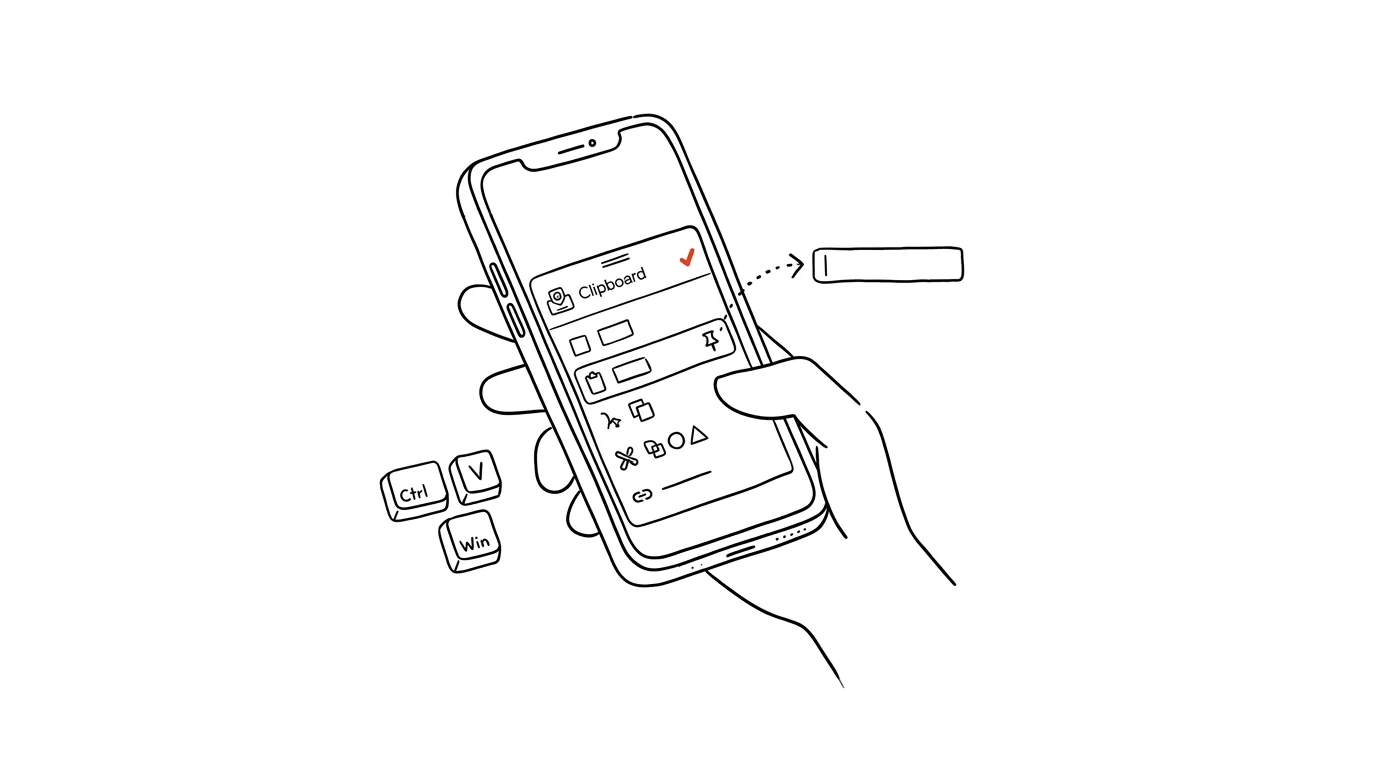
The same curse hits your phone as your computer: you copy an address, then a confirmation number — and the address is gone. On Windows, clipboard history via Win+V solves this; on Android, the same job is done by the Gboard keyboard, which comes preinstalled on most phones. Its clipboard holds on to items copied in the last few minutes, and you can pin what matters permanently — an account number, a tax ID, or an address then goes in with two taps, anywhere. The tip is for Android; the iPhone keyboard has no clipboard history.
How to do it
- Open the keyboard in any app and tap the clipboard icon in Gboard's top bar (if it's not there, look under the icon with four squares or three dots).
- The first time you open it, turn on the clipboard with the toggle. From that point on, everything you copy gets saved here — text and screenshots alike.
- Tap an item to insert it into a text field. Freshly copied text is also offered as a suggestion right above the keyboard.
- Long-press an item and choose pin — pinned items don't expire and stay available permanently. Gboard automatically deletes regular items after roughly an hour, which is sensible for sensitive data too.
- Pin what you type out constantly: billing details, account number, email, address, a link to your booking calendar. Sensitive passwords, on the other hand, don't belong here.
A typical scenario
You're filling out an order on your phone: name, email, address, tax ID. Without the clipboard, you switch between a notes app and the form and copy each item separately — six app switches, with the risk that the form resets in between each time. With Gboard's clipboard, your billing details are pinned: tap into a field, open the clipboard, pick the item, next field, next item. A three-minute form becomes a thirty-second one — with no typos in the account number.
What you get out of it
Copy and paste is everyday bread and butter on a phone too, and a lost clipboard is the most common small loss there is. History eliminates it, and pinned items function like a mini database of details you'd otherwise keep digging out of notes or old emails. Pasting from a pinned item is also always accurate — for account numbers and tax IDs, that's not a nicety, it's prevention against expensive mistakes.
On a computer, the clipboard history in Windows does the same job — with Gboard, both your devices are covered.
Pro tip
Gboard's clipboard also captures screenshots — after taking one, the snapshot is offered right above the keyboard, and you drop it into a chat with one tap, no trip through the gallery needed. Handy when you're sending someone an error message or a cropped map: photograph, open the conversation, tap the preview, send.
Want to go deeper? The handbook has a whole chapter on it — The app categories that matter.
Similar tips
Phone Link: photos and texts from your phone, right on your computer
Get a phone photo into a presentation without a cable, no emailing yourself: the Phone Link app shows photos, messages, and notifications right inside Windows.
Quake mode: a terminal that slides out from anywhere on Win+`
Win+`
Windows Terminal has a mode like an old game console: Win+` slides it down over the top half of the screen, press it again to hide it. Always at hand, never in the way.
winget: install and update programs with one command
No more hunting for installers across the web: winget install installs a program from a verified source, and winget upgrade --all updates everything at once.
Was this helpful?
Liked this tip?
I send one like it every week by email. Two minutes to read, hours saved.
The Top 30 tips e-book, free — it lands in your inbox right away.
Then 1 tip a week · no spam · unsubscribe in one click
Prefer a system to single tips? The free email course — seven days, seven emails, one skill a day.