Tips & tricks · Communication · Browser · ~15 min a day · 4 min read
Templates in Gmail: never write the same reply twice
Last reviewed:
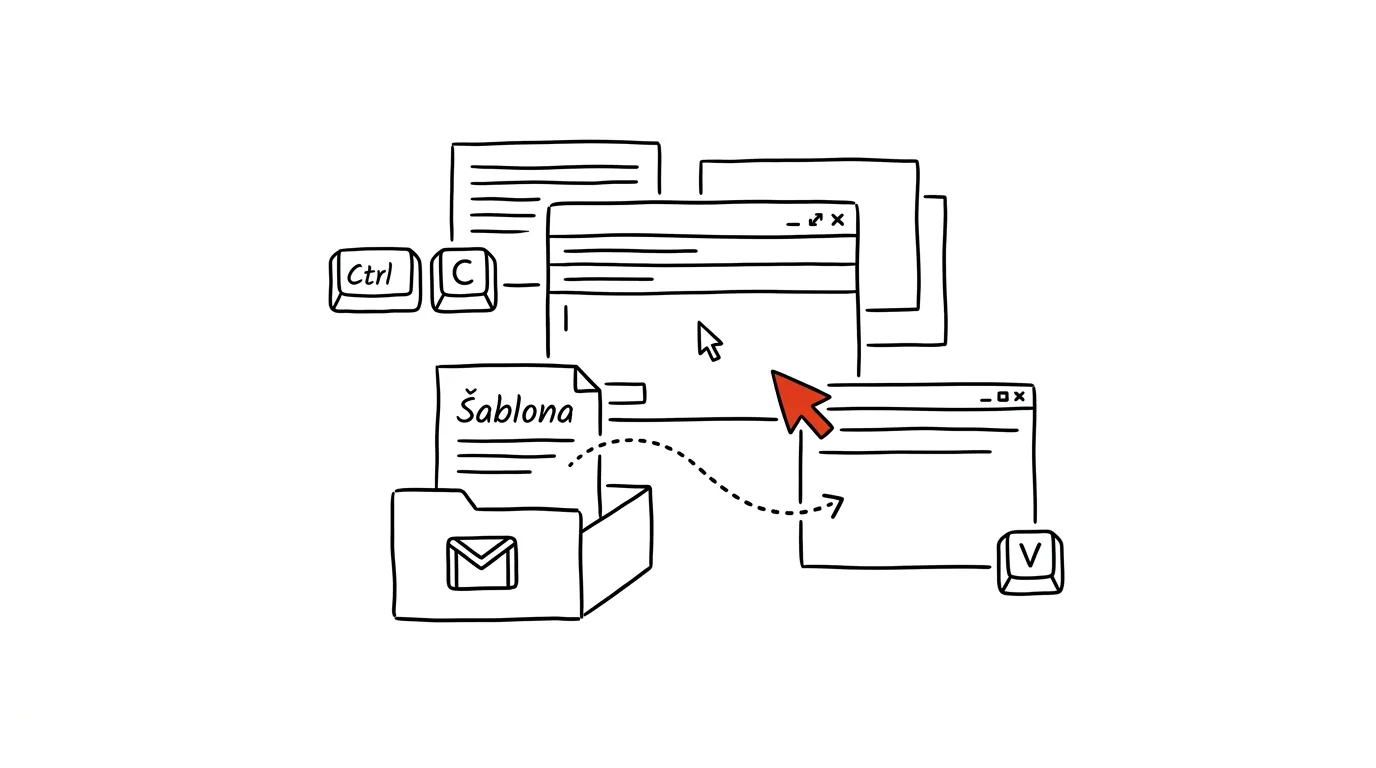
Anything you write for the third time is a candidate for a template — if you're answering similar questions over and over (pricing, availability, clients' frequently asked questions), retyping the same answer again and again is pure wasted time that Gmail can solve in two clicks.
A typical scenario
Freelancer Tereza gets almost the same question every week from potential clients: what her rates are, how long delivery takes, how the collaboration works. Every time, she sits down and writes practically the same answer, just with small tweaks — she spends dozens of minutes a week retyping something she's already written many times before.
Once she saved that answer as a template, all it takes is two clicks to insert the finished text and just tweak the greeting and a few details for the specific client. Ten minutes of writing becomes a minute of editing.
How to do it
- Open Settings → See all settings → Advanced tab → Templates and choose Enable, and remember to click Save Changes at the end.
- Write a message the way you'd want it as a template — general, without specific details for a given client. Then click the three dots in the bottom right of the compose window and choose Templates → Save draft as template, where you'll name the template.
- Next time you want to use the template, click the three dots → Templates in a new compose window and pick the right one from the list — the text inserts, including the subject line, if you had one filled in on the template.
- Build a set of templates for the most common situations: pricing and terms, a thank-you after finishing a job, a reminder about an unpaid invoice, a reply to an inquiry.
- Feel free to leave blank spots in square brackets in the template (client's name, a specific date, an invoice number) — they look like obvious spots to fill in, so you're less likely to forget them before sending.
- Name your templates clearly by situation, not by creation date — you'll find "Reply to inquiry" faster next time than "Template 3."
- Templates can be edited anytime — open a saved template, edit the text, and save it again through the same menu, this time choosing to overwrite the existing template.
The best tools
- Gmail's built-in templates — free, just turn them on once in settings, no extension needed.
- Snippets in TextExpander or a similar tool — for shorter phrases and replies you want to insert outside Gmail too, say in chat or documents.
- Quick Parts in Outlook — a similar feature for Microsoft 365 users.
- A CRM tool with custom reply templates — useful when an entire team needs to share and use templates, not just one person.
- A shared document with a reply library (Google Docs) — a simple option where a team keeps one central place with all the tried-and-tested phrasing, from which text gets copied manually.
What you get out of it
- Time: an estimated 15 minutes a day if you answer similar questions more than once a week.
- Consistent communication: clients get an equally well-worded answer every time, not a rushed version thrown together when you're short on time.
- Lower risk of mistakes: a well-thought-out template makes it easier to avoid forgetting an important piece of information you might otherwise leave out in a hurry.
- A faster response to inquiries: the faster you respond to a new client, the better — a template cuts the time between an incoming inquiry and your reply down to a minimum.
- Less mental strain from repetition: typing the same answer for the sixth time in a week is more tiring than it sounds — a template removes that tedious part of the job entirely.
Pro tip
A template is a starting line, not the finish — always personalize two or three sentences for the specific client, like the greeting or a mention of their particular request. You get the speed of a template, but the feel of a hand-written email that doesn't come across as an automated reply.
Want to go deeper? The handbook has a whole chapter on it — Professional email communication.
Similar tips
Text to Columns: Split a CSV Export Apart
Data separated by commas or semicolons crammed into one column? The Text to Columns wizard splits it correctly.
Paste Values Only: Formulas Out, Numbers Stay
Ctrl+Alt+V
Ctrl+Alt+V opens Paste Special — paste results without formulas, formats without content, or transpose a table.
Double-Click the Fill Handle to Copy a Formula All the Way Down
You don't have to drag a formula across a thousand rows — double-clicking the little black square copies it down to the end of the adjacent data.
Was this helpful?
Liked this tip?
I send one like it every week by email. Two minutes to read, hours saved.
The Top 30 tips e-book, free — it lands in your inbox right away.
Then 1 tip a week · no spam · unsubscribe in one click
Prefer a system to single tips? The free email course — seven days, seven emails, one skill a day.