Tips & tricks · Shortcuts · Everywhere · ~3 min a day · 3 min read
Double-Click the Fill Handle to Copy a Formula All the Way Down
Last reviewed:
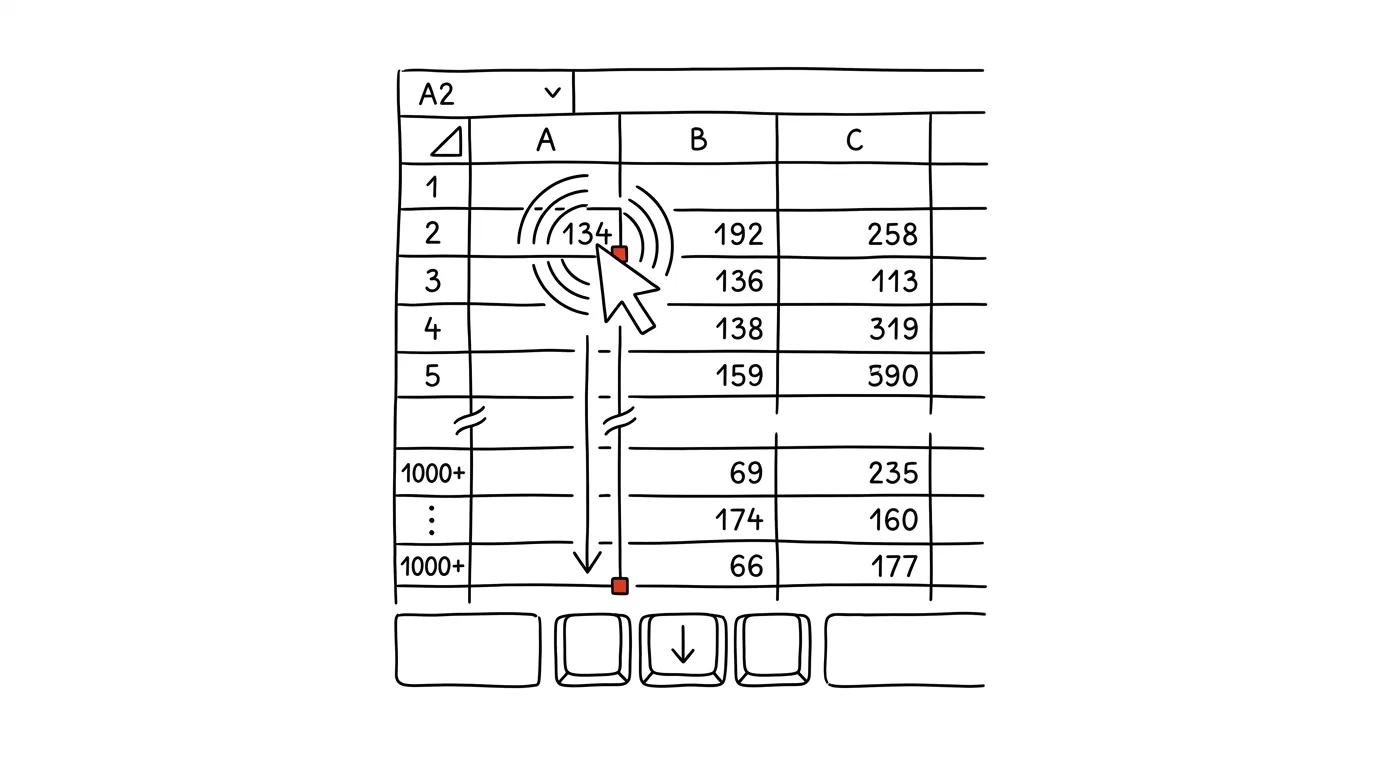
Dragging the mouse across 2,000 rows is a test of patience you don't have to put yourself through. Excel, Google Sheets, and Numbers all have a much faster tool for long columns of formulas — just double-click one small square. It works on price lists, reports, and order lists alike, anywhere a formula sits next to a column of data that tells it where to stop. Once you discover the double-click, you usually never go back to dragging formulas with the mouse.
A typical scenario
Accountant Jana gets an exported list of 3,400 invoices and needs to calculate VAT for each one. She types the formula into the first cell, grabs the handle with the mouse, and drags down — halfway through, her hand slips, she drags a few rows too far, pulls back a bit, and by the time she reaches the end of the list, a full nervous minute has gone by scrolling and double-checking that the formula didn't go off track somewhere.
With a double-click on the handle, that problem never comes up: Excel figures out on its own where to fill the formula, since it follows the adjacent column of data. Jana types the formula once, double-clicks — and it's done, all the way to the last invoice on the list. The same trick works for other columns she needs to calculate too, so she gets through the whole report in a few minutes instead of spending half the morning dragging and checking.
How to do it
- Type the formula into the first cell of the column (say,
=B2*0.21for VAT). - Hover the cursor over the bottom-right corner of that cell — a small black square appears, known as the fill handle.
- Once the cursor turns into a thin crosshair, double-click.
- Excel automatically copies the formula down — exactly to the row where the data in the adjacent column ends. It won't go further, since it has nothing to tell it where to stop.
- If the adjacent column has gaps (empty cells in the middle of the data), the fill stops at the first gap — you'll then need to repeat the process starting from the next contiguous stretch.
- It works in reverse too — if you need to fill a formula upward or sideways, you can grab the same handle with the mouse and drag it manually, but the double-click only works downward.
- Always check the result on the last row of data — with very irregular sheets, the column Excel follows to decide where to stop can occasionally not match what you actually want filled.
The best tools
- The built-in fill handle (Excel, Google Sheets, Numbers) — works identically in all three, nothing to install.
- The Ctrl + D keyboard shortcut — fills a formula from the first cell down into a pre-selected range, handy when you want to fill an exact number of rows regardless of the adjacent column.
- Excel Tables (Ctrl + T) — once you turn data into a formatted table, a new formula propagates to every row automatically, no double-click or dragging needed.
- Copy-paste via the clipboard (Ctrl + C, Ctrl + V) — works as a fallback when you need to paste a formula into only selected, non-adjacent rows.
What you get out of it
- Time: on long lists you save tens of seconds per formula — for someone who lives in Excel, that's minutes a day.
- Accuracy: no mouse slips, no accidentally over- or under-dragged rows.
- Peace of mind: no need to check after dragging whether the formula happened to stop a few rows early.
- Less physical strain: repeatedly dragging the mouse across long stretches of screen strains the wrist more than it seems — for people who spend hours a day in Excel, it adds up.
Pro tip
To fill several formula columns at once, select the cells with all the formulas in the first row and double-click the handle of any one of them — every selected column fills at once, not just the one you clicked.
Want to go deeper? The handbook has a whole chapter on it — The app categories that matter.
Similar tips
Android: customize your Quick Settings tiles
Your Quick Settings panel can have exactly what you use — flashlight, screen recording, QR scanner. And in the order you want.
Ctrl+F: don't read the page, search it
Ctrl+F
Looking for a specific piece of information on a long page? Ctrl+F and a few letters get you there in two seconds.
Ctrl+L: straight to the address bar, no mouse needed
Ctrl+L
Jumping to the address bar is the foundation of fast browsing — start typing an address or a search right away.
Was this helpful?
Liked this tip?
I send one like it every week by email. Two minutes to read, hours saved.
The Top 30 tips e-book, free — it lands in your inbox right away.
Then 1 tip a week · no spam · unsubscribe in one click
Prefer a system to single tips? The free email course — seven days, seven emails, one skill a day.