Tips & tricks · Shortcuts · Browser · ~3 min a day · 3 min read
Ctrl+L: straight to the address bar, no mouse needed
Last reviewed:
Ctrl+L
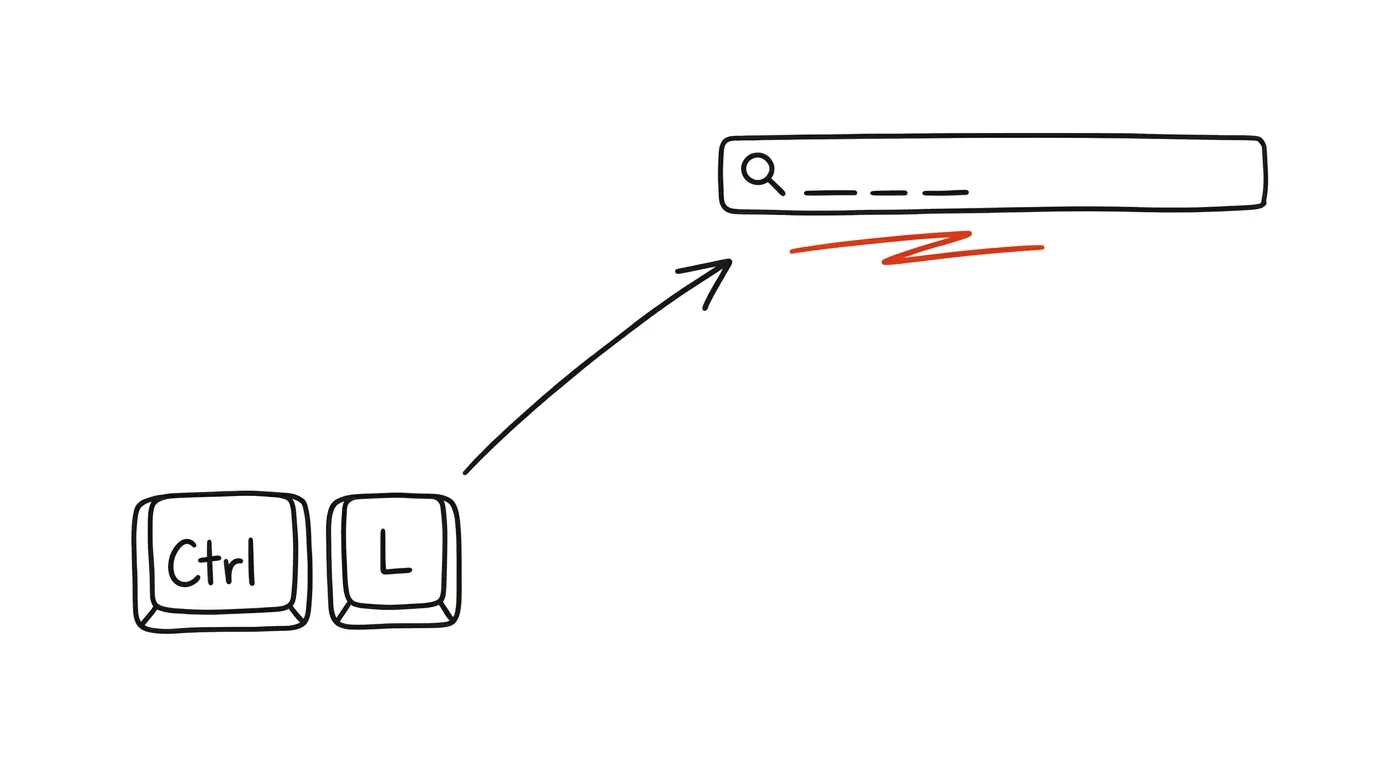
Every search on the web starts the same way — you need to get to the address bar. Most people's hand automatically drifts to the mouse, moves up, and clicks. That's an unnecessary detour: the address bar has its own keyboard shortcut, and it works the same way in every major browser, whether you're on a laptop or a desktop with an external keyboard.
A typical scenario
You're writing in a word processor or working in a spreadsheet and need to quickly look up a number online. Without the shortcut: let go of the keyboard, reach for the mouse, move the cursor up to the address bar, click, and only then type your query. Four steps for one lookup. With Ctrl + L, your hands never leave the keyboard — press, type, Enter, back to the document. For a single search the difference is cosmetic, but across dozens of queries a day (which is realistic for a typical office day), it adds up to minutes lost switching between keyboard and mouse.
How to do it
- Press Ctrl + L — it works in every major browser (Chrome, Edge, Firefox). Alt + D does the same thing, and on a Mac it's Cmd + L.
- The contents of the address bar are fully selected the moment you press it, so you can just start typing — the existing text gets overwritten automatically, no need to clear it first.
- You can type either an exact address or a plain query — the browser figures out on its own whether it's a URL or a search, and sends you straight to the page or to search results accordingly.
- Enter opens the result in the current tab. If you want to keep your current work intact and open the result off to the side, use Alt + Enter — it opens in a new tab while you stay right where you were.
- The shortcut works even when focus is on some other element on the page, like a button or a link — you don't need to click anywhere first to get to the address bar.
The best tools
- The built-in Ctrl+L shortcut — works with zero setup in every major browser, nothing to install.
- Alt+D — an alternative with the same effect, useful if Ctrl + L conflicts with another app or extension.
- Custom browser keyboard shortcuts — in your extension settings (Chrome: chrome://extensions/shortcuts) you can add more shortcuts for frequent actions and run your whole browser from the keyboard.
- Mobile browser shortcuts — on a tablet with a connected keyboard, the same shortcut works in the mobile version of Chrome or Safari too, so the habit carries over off the desktop.
What you get out of it
- Time: a few seconds on every search adds up to a few minutes a day across dozens of daily queries.
- Smoother workflow: your hands stay on the keyboard, so your train of thought isn't interrupted by reaching for the mouse.
- Less wrist strain: less switching between keyboard and mouse means less repetitive motion over the course of a day.
Pro tip
The shortcut works even in the middle of typing into forms and other text fields on the page — you don't have to worry about accidentally overwriting text you were in the middle of. The address bar grabs focus regardless of where you were. Once you turn this one shortcut into an automatic reflex, it naturally extends to similar situations — like switching tabs or opening a new one with Ctrl + T, which saves time the same way.
Want to go deeper? The handbook has a whole chapter on it — The app categories that matter.
Similar tips
Alt+arrows: move lines of code instead of cutting and pasting
Alt+↓
Alt+up/down arrow moves a line or block to a new spot, Shift+Alt+arrow duplicates it. No more juggling Ctrl+X and Ctrl+V.
F2 renames a function across the whole project — no searching, no replacing
F2
Renaming a symbol with F2 changes a function or variable everywhere it's used, across files. Smarter than find and replace.
Multi-cursor editing: edit ten lines at once
Ctrl+D
Ctrl+D in VS Code selects the next occurrence of a word — and you type in all of them at once. Small refactors without find and replace.
Was this helpful?
Liked this tip?
I send one like it every week by email. Two minutes to read, hours saved.
The Top 30 tips e-book, free — it lands in your inbox right away.
Then 1 tip a week · no spam · unsubscribe in one click
Prefer a system to single tips? The free email course — seven days, seven emails, one skill a day.