Tips & tricks · Apps · Browser · ~3 min a day · 2 min read
Close Twenty Tabs With Three Clicks
Last reviewed:
In this article
Two hours into research and you have thirty tabs in the bar, three of which you actually need. Closing them one by one with the X is tedious — so most people just leave them be and the chaos keeps growing. Yet browsers have bulk operations built in: close everything to the right of the current tab, close everything except it, or select several tabs like files in a file browser and act on them all at once. It works in Chrome, Edge, and Firefox.
How to do it
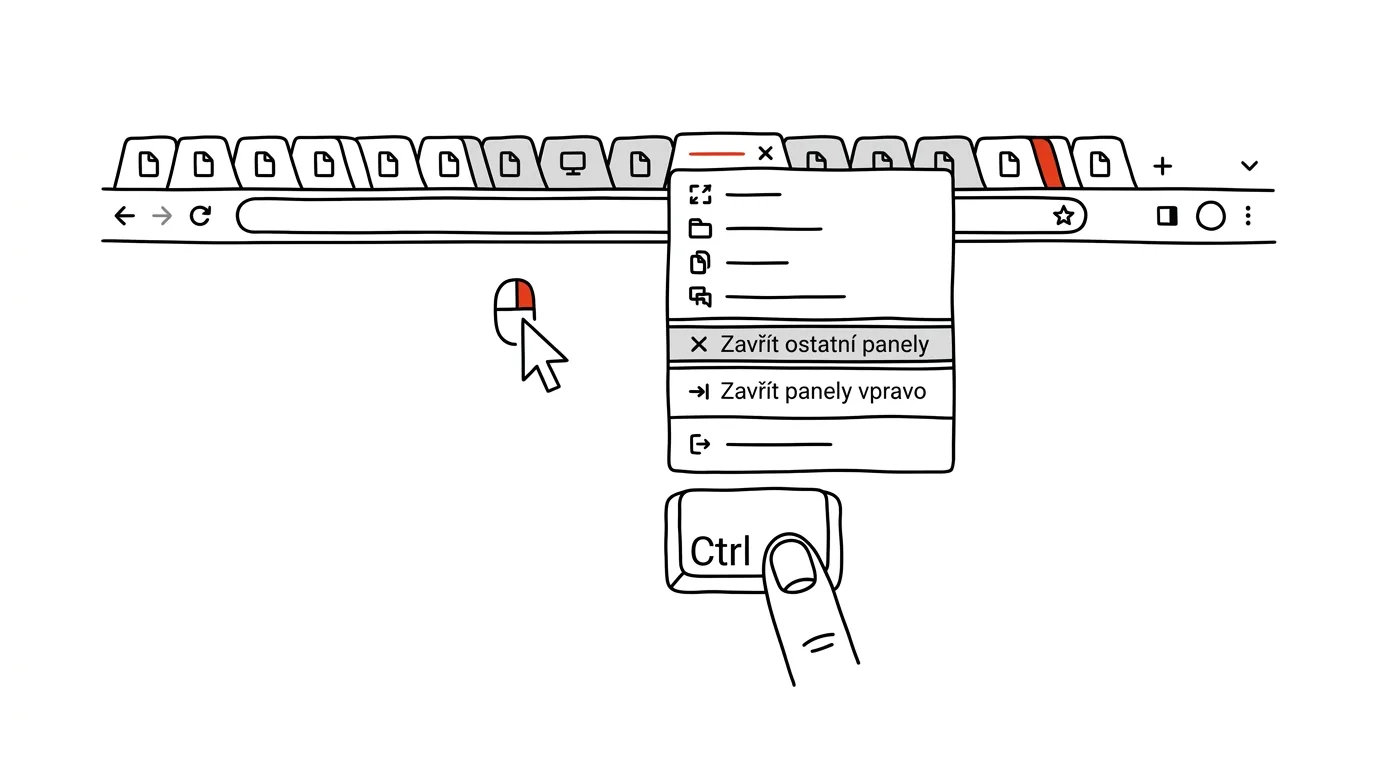
- Right-click the tab you want to keep, and in Chrome, Edge, and Firefox alike, check out the menu: Close other tabs leaves only the current one, Close tabs to the right sweeps away everything to its right.
- "Close tabs to the right" is more useful than it sounds: tabs line up left to right in the order they were created. The important, long-lived stuff tends to sit on the left; the fresh pile of research sits on the right — exactly what you want to sweep away.
- For finer selection, use multi-select: hold Ctrl (on a Mac Cmd) and click the tabs that belong together. Select a contiguous range by clicking the first and Shift+clicking the last — just like with files.
- With a group selected, handle them all at once: right-click to close them, drag them out of the window (which spins up a new window from them), or move them into a tab group.
- Accidentally closed tabs aren't a tragedy — Ctrl+Shift+T brings them back, even after a bulk close, including a whole group at once.
A typical scenario
A marketer spends the morning researching competitors: twenty tabs of other companies' websites, price lists, reviews. In the afternoon he needs to write a report and only needs a document, a spreadsheet, and two sources. Ctrl+click those four tabs, drag them into a new window — then in the original window, choose "Close other tabs." Two hours of chaos become a clean working window in ten seconds.
Similarly, a student after turning in an assignment: click the last "critically important" tab, "Close tabs to the right" — and the whole layer of half-read sources vanishes at once, without thirty separate "might still need this one" decisions.
What you get out of it
Tab cleanup stops being a five-minute chore you keep putting off and becomes a move you make without thinking. A cleaner bar means faster orientation — and less temptation to click on things unrelated to your current work.
Pro tip
An end-of-day habit: before closing your browser, leave open only the tabs related to tomorrow's first task, and sweep the rest away with "Close other tabs." In the morning you won't be greeted by yesterday's chaos, but by work already in progress — the best possible start.
Want to go deeper? The handbook has a whole chapter on it — The app categories that matter.
Similar tips
In-depth guide · 18 min
Notion vs. Obsidian vs. Built-In Notes Apps: What to Pick
A fair comparison of three camps across eight criteria — from capture speed to price. With a comparison table, a pick for your situation, and an exit plan.
Obsidian: the daily note as a safety net for your day
One place where you dump notes, ideas, and links all day long. Sort it out in the evening — or don't; search will still find it.
Obsidian: [[links]] weave your notes into a network
Double square brackets create a link to another note — and backlinks show you where it's referenced from.
Was this helpful?
Liked this tip?
I send one like it every week by email. Two minutes to read, hours saved.
The Top 30 tips e-book, free — it lands in your inbox right away.
Then 1 tip a week · no spam · unsubscribe in one click
Prefer a system to single tips? The free email course — seven days, seven emails, one skill a day.