Tips & tricks · Communication · Everywhere · ~30 min a day · 2 min read
Speedy meetings: 25 minutes instead of 30, a break as a bonus
Last reviewed:
In this article
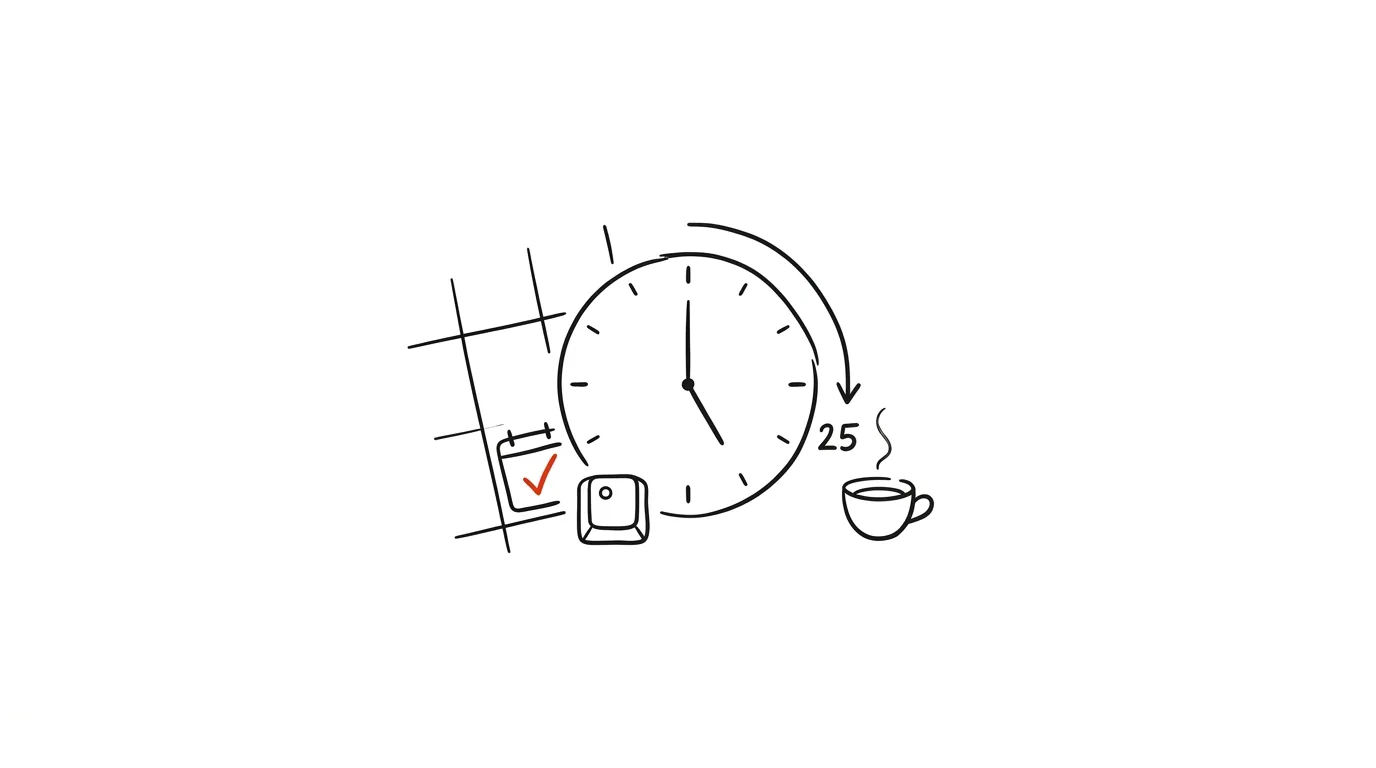
Three calls back to back: 10:00–10:30, 10:30–11:00, 11:00–11:30. You drop off the first one a second late, join the second one behind, and there's no window for a bathroom break or coffee, not even in theory. The problem is the default setting: calendars offer meetings in 30- and 60-minute blocks that lock together with no gaps at all. Both Google Calendar and Outlook have a single checkbox that fixes this: new events are created at 25 and 50 minutes by default. The meeting content fits into that almost every time — and between calls you get a five-minute gap to stretch, take notes, and move on.
How to do it
Google Calendar:
- Open Settings → Event settings.
- Check Speedy meetings. From then on, half-hour events are created as 25 minutes, and longer ones end 10 minutes early.
Outlook (new Outlook and web):
- Open Settings → Calendar → Events and invitations.
- Turn on shorten events — choose whether meetings should end earlier or start later, and by how many minutes for short and long events.
The setting only changes the default length of newly created events — you can always manually override the time on a specific meeting. And it applies to events you create; you'll need to recommend the same trick to colleagues separately. It's most powerful for people who mostly organize meetings: one checkbox for the organizer creates breathing room for the whole team.
A typical scenario
A team lead has five back-to-back calls on Tuesday. After switching to speedy meetings, every call ends at :25 or :50 — and attendees genuinely respect it, because the end is enforced by a calendar notification, not someone's guess. Between calls, the lead has time to jot down action items from the call that just ended before the next one overwrites them in his memory. By evening he doesn't feel like he spent the whole day talking with nothing to show for it — and his meeting notes stopped being reconstructed after the fact from a leaky memory.
What you get out of it
Breaks between meetings stop happening by accident and start happening by design. You get space to capture takeaways, grab water, and join on time — and the meetings themselves tend to be sharper, because 25 minutes forces you to get to the point. Parkinson's Law works in reverse too: work shrinks to fit the time you give it.
Pro tip
Shortened time works best when a meeting has a clear agenda — a twenty-five-minute meeting with no agenda ends up just as unfocused as a half-hour one. So pair speedy meetings with the rule that a meeting without an agenda doesn't happen. And when you roll it out, say it out loud to the team: "we're now ending meetings at :25 and :50 so we can actually make it to the next one" — otherwise people will assume the :25 end time is a typo on your part.
Want to go deeper? The handbook has a whole chapter on it — Professional email communication.
Similar tips
Excel: Ctrl+Arrow Keys Jump to the Edge of Your Data
Ctrl+↓
Don't scroll through a sheet with thousands of rows. Ctrl+arrow jumps to the end of the block, and with Shift it selects as it goes.
Format as a Table: Filters, Banding, and Formulas for Free
Ctrl+T
Ctrl+T turns a range into a “smart” table — automatic filters, formatting for new rows, and readable formulas.
Today's Date in One Shortcut: Ctrl+;
Ctrl+;
Ctrl+semicolon inserts today's date as a fixed value — unlike the TODAY() function, it doesn't change.
Was this helpful?
Liked this tip?
I send one like it every week by email. Two minutes to read, hours saved.
The Top 30 tips e-book, free — it lands in your inbox right away.
Then 1 tip a week · no spam · unsubscribe in one click
Prefer a system to single tips? The free email course — seven days, seven emails, one skill a day.