Tips & tricks · Apps · Everywhere · ~10 min a week · 3 min read
Format as a Table: Filters, Banding, and Formulas for Free
Last reviewed:
Ctrl+T
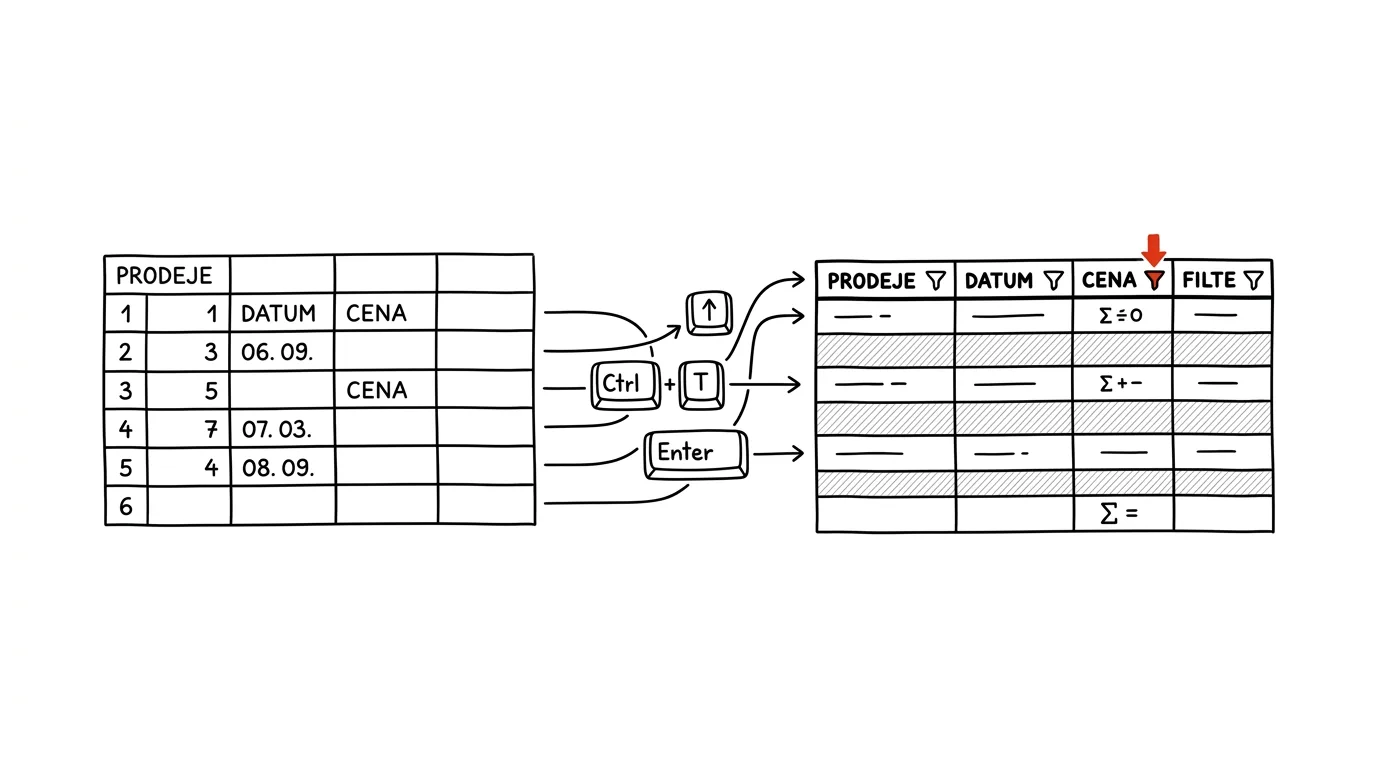
A range of cells looks like a table, but Excel doesn't treat it as one — it's just a cluster of values with no structure. A real table, created with Ctrl+T, is a different league: it has its own name, automatic filters, alternating row colors for readability, and, most importantly, it expands on its own when you add a new row or column. The difference really shows up once the data starts changing and growing over time.
A typical scenario
Radek tracks monthly orders in a plain range of cells. Every time he adds a new row at the end, he has to manually drag formulas down, fix the range in a chart, and check whether the filter still covers all the data — otherwise the chart or total quietly skips the latest entries.
After converting to a table (Ctrl+T), all of that goes away. A new row added right below the last one automatically inherits the formatting and formulas from the column above it, the filter picks it up on its own, and a chart linked to the table expands without any intervention. Radek just types the data — the table handles the rest.
How to do it
- Click anywhere in the data (one cell is enough — Excel figures out the block's boundaries on its own) and press Ctrl + T.
- Excel proposes a table range and asks whether My table has headers — if the first row has column names, leave that checked.
- The table immediately gets banded rows, filter buttons in the header, and its own name, visible and renameable on the Table Design tab.
- If you type data into the row right below the table, Excel automatically absorbs it into the table, formatting and formulas included — the table stretches on its own, no manual copy-formatting required.
- Charts, PivotTables, and formulas that reference the table by its name instead of cell addresses update automatically as the table grows — you don't have to drag ranges around.
The best tools
- Excel's built-in table (Ctrl+T) — the basic, fastest solution for any table of data that will grow over time.
- Power Query — if you regularly import data from elsewhere (CSV, another system), Power Query can automate the import and cleanup too, and feed the result straight into the table.
- Google Sheets — added a similar Tables feature in recent years, found under the Insert or Format menu; the behavior is quite similar.
- LibreOffice Calc doesn't have a full-fledged “smart” table, but AutoFilter under Data → AutoFilter covers at least part of the benefit.
What you get out of it
- Time: roughly 10 minutes a week that would otherwise go to manually dragging formats, formulas, and chart ranges after every data addition.
- Fewer mistakes: no “forgotten” rows left outside a chart's or filter's range, because the table expands on its own.
- Readability: banded rows and visible headers make it easier to navigate for anyone you send the sheet to as well.
Pro tip
The table name, set on the Table Design tab, can be used directly in formulas instead of a range address — a formula like =SUM(Table1[Price]) stays readable and functional even as the table grows by dozens of rows over time.
Want to go deeper? The handbook has a whole chapter on it — The app categories that matter.
Similar tips
A shared shopping list: whoever's in the store buys it
“Buy milk” texted over SMS gets lost. A shared list in Google Keep or Reminders is visible to both partners and updates instantly.
Tab groups: a cleanup for chronic tab hoarders
Tabs can be grouped under a colored label and the group collapsed. Research for a project takes one click instead of twelve open tabs.
Vertical tabs: on a wide monitor, read names, not icons
Edge and Firefox can move your tabs into a column on the side. Twenty tabs with readable titles instead of a row of nameless little teeth.
Was this helpful?
Liked this tip?
I send one like it every week by email. Two minutes to read, hours saved.
The Top 30 tips e-book, free — it lands in your inbox right away.
Then 1 tip a week · no spam · unsubscribe in one click
Prefer a system to single tips? The free email course — seven days, seven emails, one skill a day.