Tips & tricks · Shortcuts · Mac · ~5 min a week · 3 min read
The Option key unlocks hidden options in menus
Last reviewed:
Option
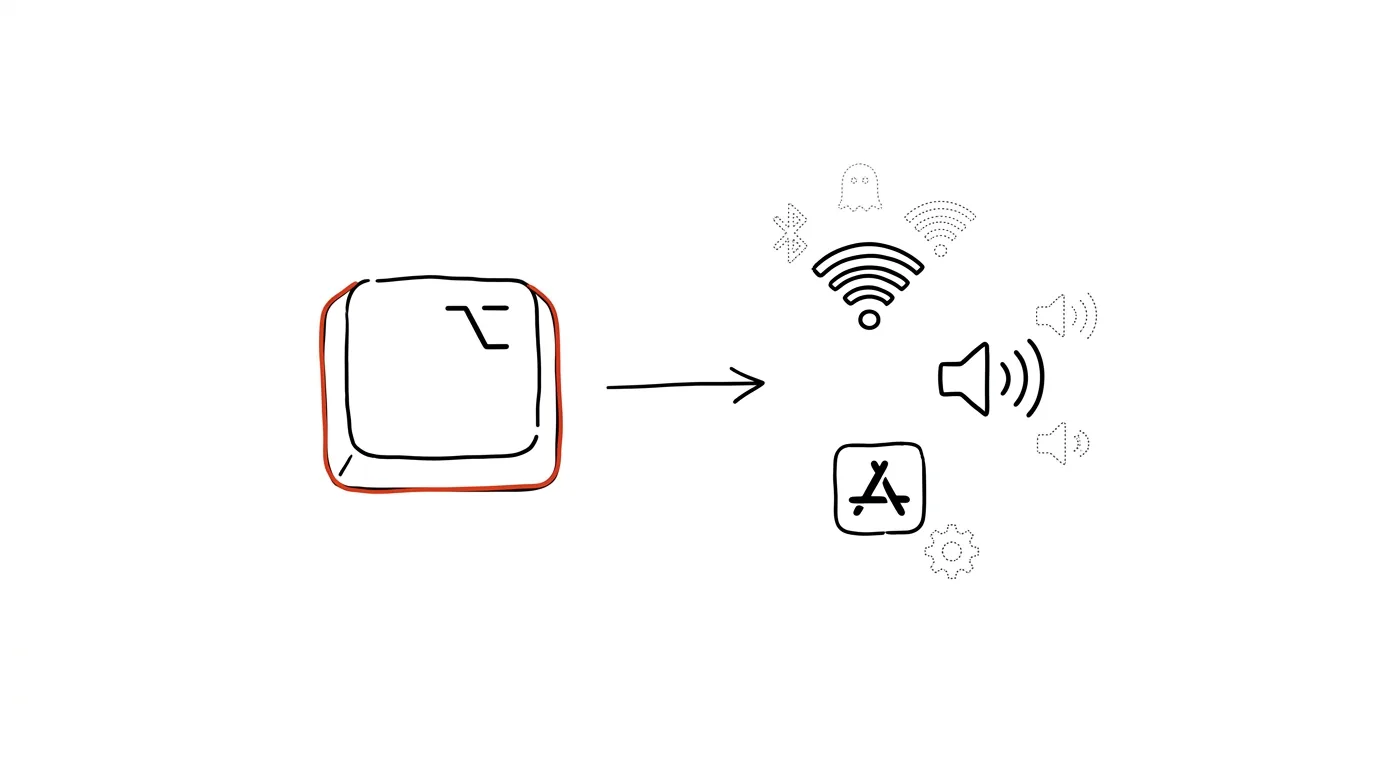
On a Mac, Option is the unofficial universal key to the "advanced version" of almost anything in the system. Hold it down, and suddenly menus and menu bar icons reveal options you'd otherwise never see at all — technical details, quick shortcuts to settings, alternative variants of commands. It works across system icons and inside apps alike, and hardly anyone knows about it.
A typical scenario
You're troubleshooting why your Wi-Fi is slow, and you need to know which channel the network is running on and how strong the signal is. Without Option, you'd have to open System Settings, click through to the Network section, and hunt for the details, or maybe reach for Terminal.
Hold down Option and click the Wi-Fi icon in the menu bar, and all that information appears instantly, right in the dropdown menu. The same trick works on a number of other menu bar icons too, so once you get used to it, it becomes an automatic first step for practically any minor technical problem.
How to do it
- Option + click on the Wi-Fi icon in the menu bar shows the IP address, network channel, and signal strength — without opening any settings.
- Option + click on the sound icon lets you quickly switch both input and output audio devices (microphone, headphones), not just control the volume.
- Holding Option in an open app menu changes some items into expanded variants — typically "Close" turns into "Close All," or a "Save As…" option appears where there would otherwise just be a silent overwrite.
- Option + click on the battery icon shows the exact percentage and status of individual connected Bluetooth devices (headphones, mouse).
- Option works similarly in the Dock: holding it and clicking an app icon can hide all other windows and switch to the clicked app at once.
- Option + drag a file with the mouse between folders creates a copy instead of moving it — a handy alternative to the Cmd+C and Cmd+Option+V combo.
- Holding Option while clicking the Bluetooth icon shows technical details about connected devices that don't otherwise appear in the regular menu.
The best tools
- The built-in Option key — works system-wide, nothing to configure or install.
- Terminal (commands like networksetup or ifconfig) — for more detailed network diagnostics than a dropdown menu can offer.
- Activity Monitor — for a deeper look at what's actually loading the network or an audio device.
- System Settings as a fallback path — Option is a shortcut, but you can find the same information (just more slowly) there too.
What you get out of it
- Time: quick network diagnostics or switching audio devices without having to open settings and click through to the detail view.
- Visibility: key technical details are one Option-click away, exactly when you need them.
- Less reliance on Terminal: plenty of things that would otherwise require the command line, you can now handle right in the menu bar.
- Confidence troubleshooting: knowing the hidden options means you don't have to immediately call IT or search for a tutorial online for minor technical hiccups.
Pro tip
Try holding Option systematically on every system icon in the menu bar and in the menus of the apps you use daily — it's the fastest way to discover hidden options that no manual will ever tell you about. Holding the key alone doesn't trigger anything, it just reveals what's underneath, so it's safe to try everywhere.
Want to go deeper? The handbook has a whole chapter on it — The app categories that matter.
Similar tips
Copy on your iPhone, paste on your Mac
Universal Clipboard works between Apple devices automatically — text, photos, and links travel over without emailing yourself.
A shortcut for resizing images: right-click instead of online tools
Build your own Quick Action in the Shortcuts app in five minutes — select photos, right-click, and they're the right size for email.
Regex Without the Learning Curve: AI Writes It, Explains It, Tests It
Describe in plain words what you want to match, and AI returns a regular expression with a part-by-part explanation and test cases. For Sheets, editors, and bulk edits.
Was this helpful?
Liked this tip?
I send one like it every week by email. Two minutes to read, hours saved.
The Top 30 tips e-book, free — it lands in your inbox right away.
Then 1 tip a week · no spam · unsubscribe in one click
Prefer a system to single tips? The free email course — seven days, seven emails, one skill a day.