Tips & tricks · Apps · Mac · ~10 min a day · 3 min read
Safari Reader: an article without the ads and clutter
Last reviewed:
Cmd+Shift+R
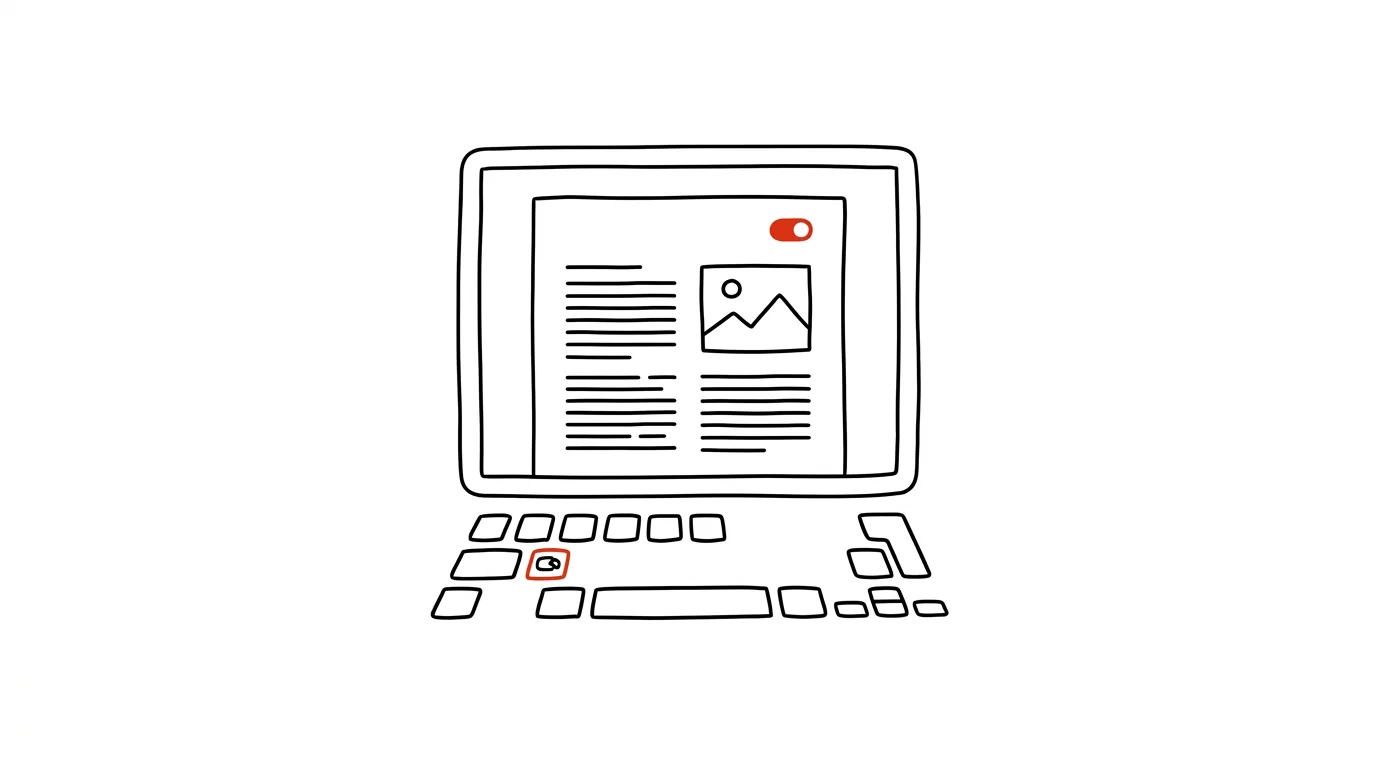
The web can be read without it jumping around under you. Ad banners, newsletter pop-ups, and sidebars full of "more articles" pull your attention away from the text you came to the page for in the first place. Safari has a built-in reader view that strips absolutely everything away from an article except the text and images themselves — and lets you view it exactly to your taste.
A typical scenario
A student is writing a term paper and needs to get through five academic articles across different sites. Without a reader view, that means, on every single page: fighting through a cookie banner, closing an ad pop-up, scrolling past a banner in the middle of the text, and dodging links to "similar articles" that keep popping up on their own. After half an hour, they're more worn out from fighting the interface than from the actual reading.
With Reader view, one shortcut is all it takes on every page. The text lines up into a clean column, everything distracting disappears, and all that's left is exactly what the student came for — the headline, the author, and the paragraphs. The font settings, meanwhile, only need to be set once, and Safari remembers them for next time.
How to do it
- Open an article in Safari.
- Press Cmd + Shift + R, or click the reader icon on the left side of the address bar — it looks like lines of text and only shows up on pages Safari recognizes as articles.
- The page switches to a clean view: headline, author name, text, and images, with no ads, sidebars, or links to other articles.
- In the reader settings (the "Aa" icon on the left of the address bar), adjust the font size and typeface and the background color — white, gray, or dark, depending on the light in the room and eye strain.
- Get back to the regular view of the page with the same shortcut, or by clicking the reader icon again.
- From the Share menu, you can print an article straight from Reader view or save it as a PDF — producing a clean document with no ads or clutter, ideal for notes or sharing.
The best tools
- Safari's built-in Reader (Cmd + Shift + R) — free, works instantly with no installation, more than enough for everyday reading.
- Immersive Reader in Microsoft Edge — a similar feature for those who switch between browsers or work on a company computer running Edge.
- Instapaper or Pocket — save an article for later and offer a reader mode that works offline too, handy for long reads on the go.
- Reader View-style extensions for Chrome — a Safari-Reader equivalent for users who stick with a different browser.
What you get out of it
- Time: less scrolling and closing pop-ups — for a longer article, that's easily a few extra minutes saved through focus alone.
- Calm: no blinking animations, autoplay videos, or cookie banners that keep coming back with every click.
- Better reading: your own font size and background contrast help most when reading in the evening or in bright sunlight outdoors.
- Fewer distractions: without links to "recommended articles," it's easier to stay with a single text from start to finish.
Pro tip
Safari remembers your reader settings — font, size, and background — and applies them automatically every time you open Reader view again. Set it up once, then just read, with no repeated fiddling with the look.
Want to go deeper? The handbook has a whole chapter on it — The app categories that matter.
Similar tips
iPhone Shortcuts: your phone switches into work mode by itself
The Shortcuts app can do automations: arriving at the office turns on Do Not Disturb, opening Instagram starts a timer.
Save articles for later — and read them in a batch
Instapaper, Pocket, or bookmarks: save an article in a second and read it later in peace, without twenty tabs open on your phone.
App limits: 30 minutes of social media a day is plenty
iOS and Android can both lock an app once you've hit your daily limit. Extra friction that actually works.
Was this helpful?
Liked this tip?
I send one like it every week by email. Two minutes to read, hours saved.
The Top 30 tips e-book, free — it lands in your inbox right away.
Then 1 tip a week · no spam · unsubscribe in one click
Prefer a system to single tips? The free email course — seven days, seven emails, one skill a day.