Tips & tricks · Gear · Mac · ~10 min a day · 3 min read
Universal Control: one mouse and keyboard for both Mac and iPad
Last reviewed:
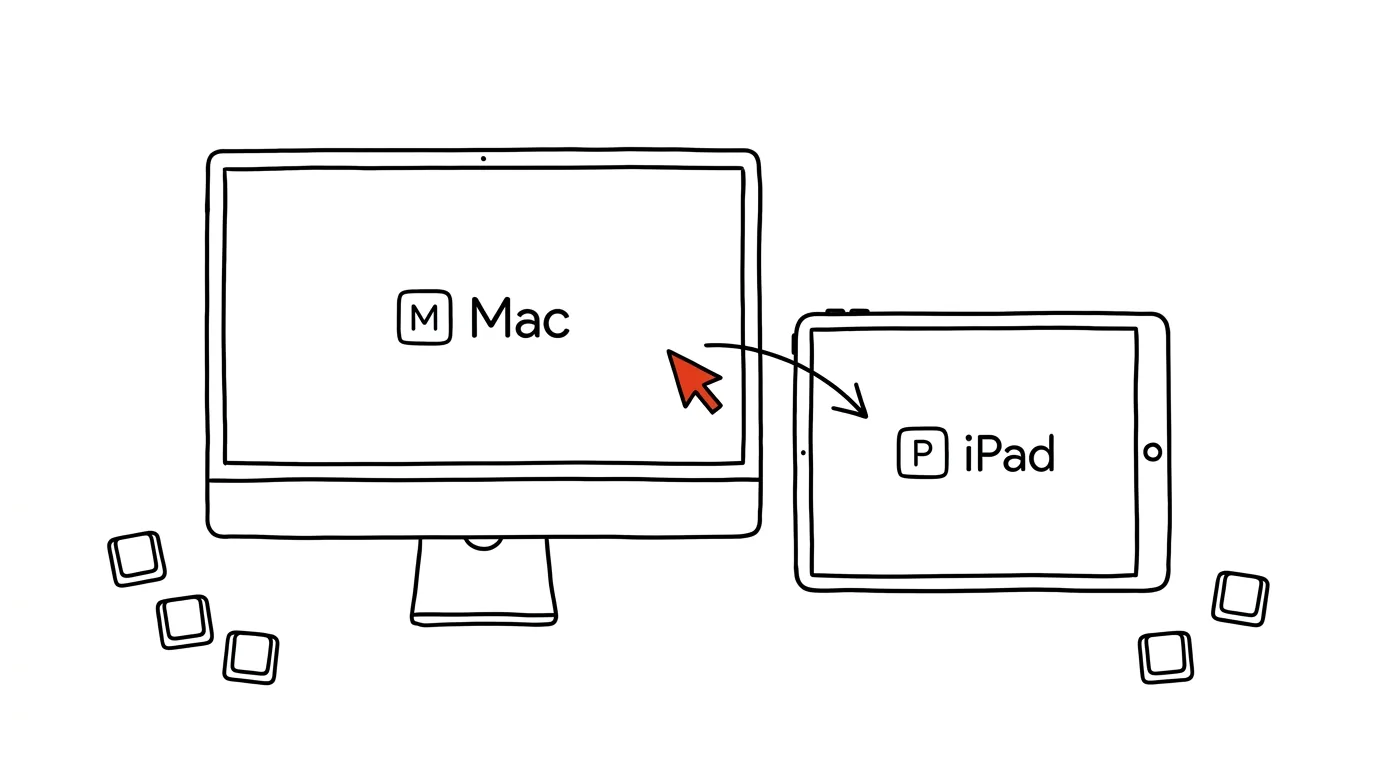
You've got a Mac on your desk and an iPad next to it. Every time you want to do something on the tablet, you lift your hand off the keyboard and tap the screen. Universal Control turns that into a single smooth motion: move your mouse cursor to the edge of the Mac's screen, "push" it past the edge — and the cursor shows up on the iPad. The Mac's keyboard types wherever the cursor is. Unlike Sidecar, the iPad doesn't display the Mac's screen — it keeps running as an independent device with its own apps, you're just controlling it with the keyboard and mouse from your computer.
How to do it
- Sign both the Mac and iPad into the same Apple ID and turn on Bluetooth, Wi-Fi, and Handoff on both. Place them next to each other.
- On your Mac, open System Settings → Displays → Advanced… and check that the option allowing cursor and keyboard movement between nearby devices is turned on.
- Move the cursor to the edge of the screen facing the iPad and keep pushing for a moment — the cursor emerges at the edge of the iPad's display. From that point on, the mouse and keyboard belong to whichever device the cursor is on.
- In Displays settings, you can set which side the iPad sits on, so the transition matches its actual position on your desk.
- You can drag things between devices too: grab an image or file on the Mac, move the cursor onto the iPad, and drop it into Files, Photos, or a document you're working on. You just have to drop it onto an app that can accept that file type — you can't drop anything onto the iPad's home screen, since it has none.
- It also works between two Macs — the same cursor-push-past-the-edge trick lets you control, say, a work and a personal MacBook sitting side by side with one keyboard and mouse.
A typical scenario
A developer uses an iPad for testing an app and a Mac for writing code. It used to go: write code, reach across the desk, tap the tablet, back to the keyboard. Now he slides the cursor right onto the iPad, clicks through the app with the mouse, or types test input directly with the Mac's keyboard — then moves the cursor back into the editor. His hands never leave the desk. The same Mac + iPad combo works well for notes: he writes entries in an iPad app using a real keyboard instead of tapping glass. And when a designer sends him a new asset, he drags it with the mouse straight from the Mac into the app on the iPad — no AirDrop, no waiting for sync.
What you get out of it
The iPad goes from a device left "on the couch" to a full-fledged part of your desk setup — a second screen with its own apps, controlled without ever changing which device your hands are on. Dragging files between devices also replaces AirDrop for small stuff. If you'd rather extend your Mac's screen than run the iPad as a separate device, reach for Sidecar instead — both features toggle in the same Displays menu.
Want to go deeper? The handbook has a whole chapter on it — The complete guide to an effective home office.
Similar tips
Silence an annoying notification right from the shade
No need to dig through settings: swiping on a notification on iPhone offers an hour of silence; holding one on Android turns off just the annoying category.
In-depth guide · 62 min
AI automation: the complete guide
Automation in plain language: triggers, actions, runs; Zapier vs. Make vs. n8n vs. Power Automate; ten scenarios with prompts, and when not to automate.
In-depth guide · 21 min
Rehearsing a hard conversation: AI plays the other side
A complete guide with prompts: set up the other side's role, run the rehearsal for real, and handle six of the toughest talks — from a raise to a layoff.
Was this helpful?
Liked this tip?
I send one like it every week by email. Two minutes to read, hours saved.
The Top 30 tips e-book, free — it lands in your inbox right away.
Then 1 tip a week · no spam · unsubscribe in one click
Prefer a system to single tips? The free email course — seven days, seven emails, one skill a day.