Tips & tricks · Apps · Mobile · ~5 min a week · 3 min read
Share your Wi-Fi password without reading it out loud
Last reviewed:
In this article
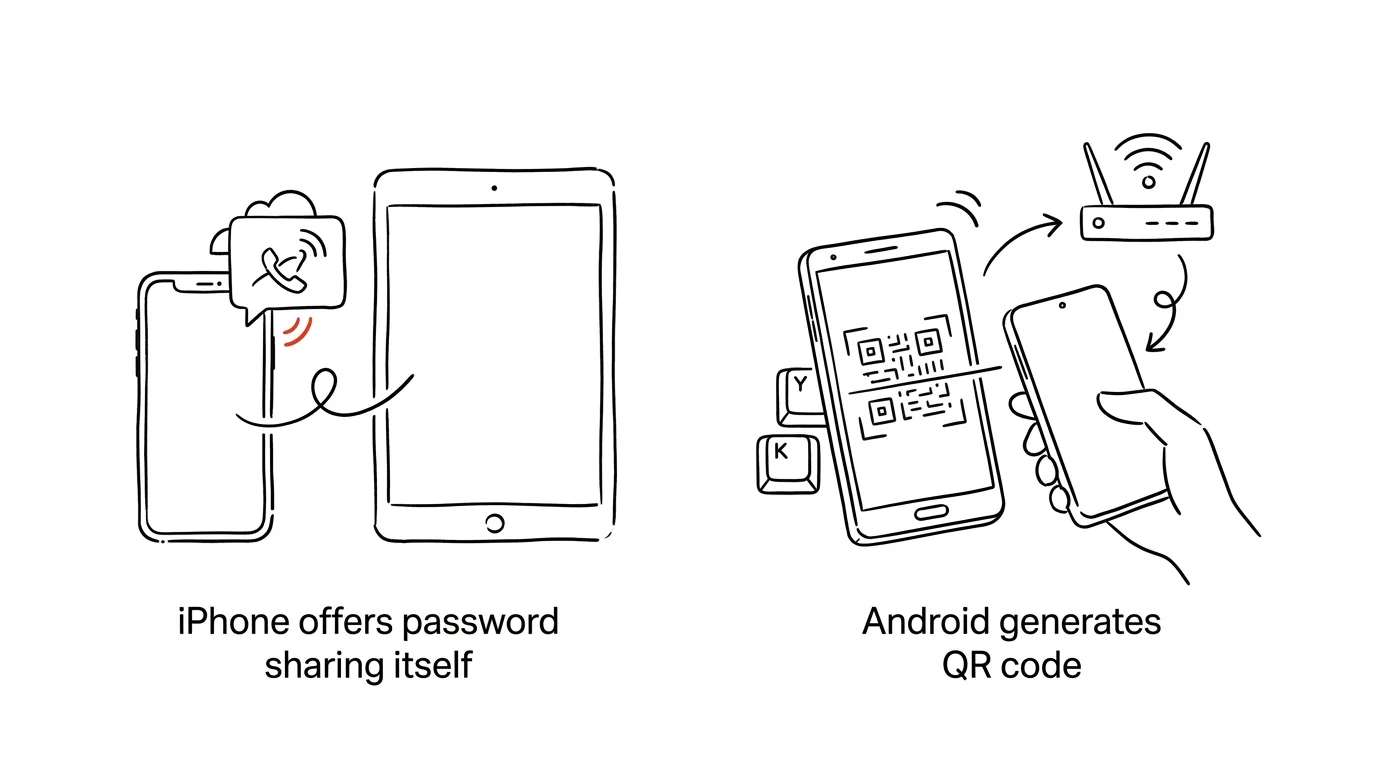
"What's the Wi-Fi password here?" — and then someone hunts for a sticky note, reads out "capital B, lowercase r, four…," and the connection fails three times over a typo. Unnecessary. Both systems can hand over a password without anyone seeing or retyping it: iPhone shares passwords automatically between people you know, and Android turns any saved network into a QR code.
How to do it
iPhone → iPhone, iPad, or Mac:
- Your guest opens Settings → Wi-Fi on their device and taps your network.
- On your unlocked iPhone, a Share Password card appears at the bottom — tap it and your guest's device connects. Nothing gets read aloud; the password transfers invisibly.
- Conditions that occasionally make this "mysteriously" not work: both devices need Wi-Fi and Bluetooth turned on, and you need to be in each other's contacts (under the email tied to the other person's Apple account). You can view your own password under Settings → Wi-Fi → the (i) icon next to the network → Password.
Android:
- Open Settings → Network & Internet (Connections on Samsung) → Wi-Fi and tap the network you're connected to.
- Choose Share and confirm with your fingerprint or PIN. A QR code appears, and on most phones the password in readable form too.
- Your guest scans the code with their camera — it works for guests with an iPhone too, since Wi-Fi QR codes are a universal standard. Once scanned, the device connects immediately.
Mixing the two: when an iPhone needs to hand a password to an Android device, automatic sharing won't work — use the displayed password instead, or the network's QR code from the Passwords app (iOS 18).
A typical scenario
Visitors arrive in a conference room, and the meeting starts with three people retyping a twenty-character password off a sign on the wall. With a QR code on Android, you just pass the code around — everyone scans it and is connected within five seconds. Same thing at home with guests: instead of hunting for the sticky note from the router, you just show your screen.
And when a friend with an iPhone wants to connect at your cabin, you just unlock your phone, wait for the Share Password card, and tap it. She never sees the password — handy when it's the same one you use in three other places too.
What you get out of it
Connecting guests stops being a ritual of reading passwords aloud and typos — minutes become a few seconds, every single time someone shows up. There's a security bonus too: you hand over the password without it ever appearing anywhere in readable form, so you don't have to change it after every visit or keep it written on the fridge.
Pro tip
You can print your home network's QR code and hang it in the hallway or the conference room — visitors connect on their own, no questions asked. A code generated on Android is just a plain image: screenshot the sharing screen and you've got a permanent "ticket" to your Wi-Fi that both iPhone and Android can scan.
Want to go deeper? The handbook has a whole chapter on it — The app categories that matter.
Similar tips
The Address Bar Is Also a Calculator
Type 154*1.21 into the address bar and the result shows up right in the suggestions — no Enter, no opening a calculator.
A distraction blocker: stronger than your willpower
Apps like Cold Turkey or Freedom block chosen websites for a set period. Decide once, and it holds for the whole morning.
Screenshot the Whole Page — Even the Part You Have to Scroll To
Ctrl+Shift+S
Edge and Firefox capture an entire web page from header to footer with a single command. No extensions, no stitching pieces together.
Was this helpful?
Liked this tip?
I send one like it every week by email. Two minutes to read, hours saved.
The Top 30 tips e-book, free — it lands in your inbox right away.
Then 1 tip a week · no spam · unsubscribe in one click
Prefer a system to single tips? The free email course — seven days, seven emails, one skill a day.