Tips & tricks · Apps · Mobile · ~10 min a week · 3 min read
Lending your phone? Lock it into one app
Last reviewed:
In this article
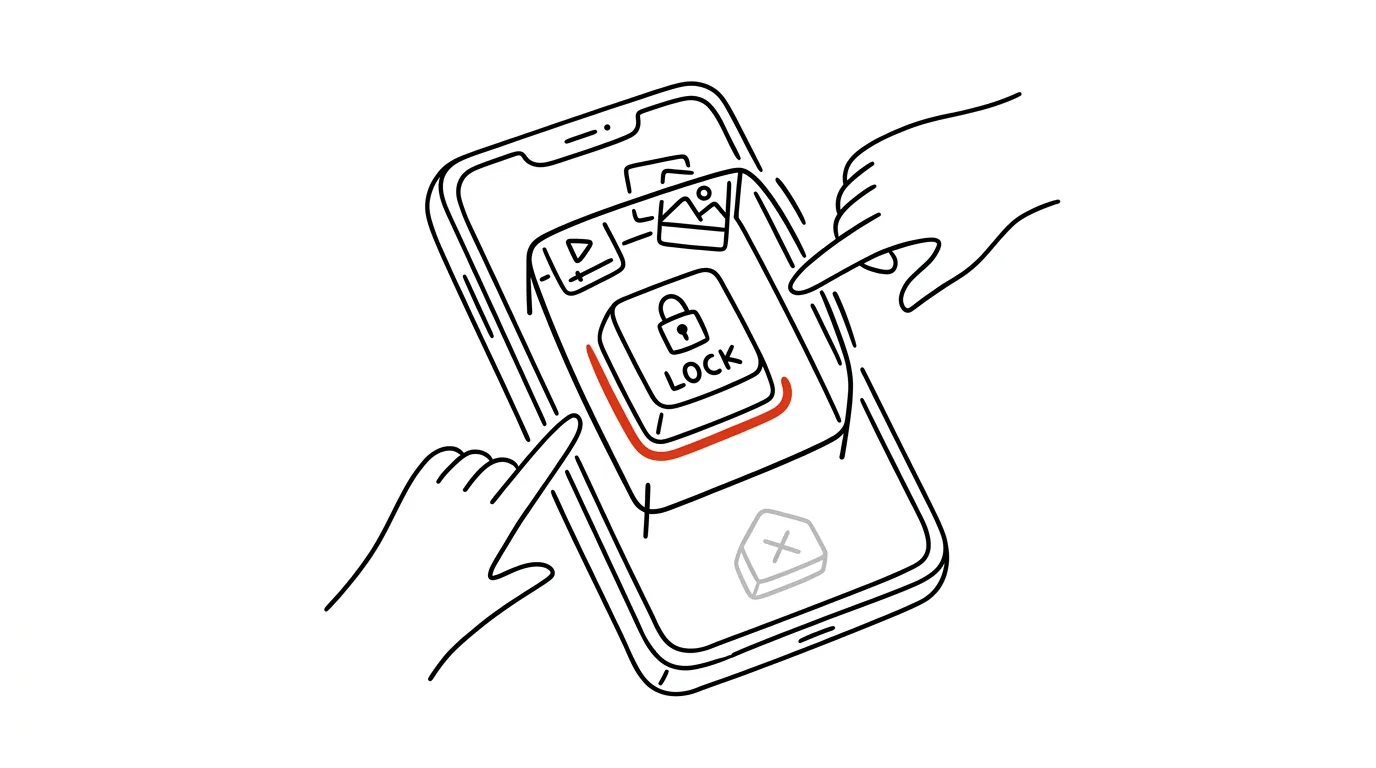
Handing someone your unlocked phone means handing over everything: email, photos, banking, unfinished messages. A kid wants to watch a cartoon, a colleague wants to see a photo, a customer needs to fill out a form — and you just hope nobody "accidentally" wanders off elsewhere. Both systems have a lock for this: the phone stays trapped in one app, and nobody gets out without your code. On iPhone it's called Guided Access; on Android it's app pinning (or screen pinning).
How to do it
iPhone (Guided Access):
- Turn it on once: Settings → Accessibility → Guided Access → turn on and set a passcode (it can differ from your phone's unlock code).
- Open the app you want to lend and triple-click the side button. Tap Start — the phone is now locked into the app.
- You can also disable parts of the screen (circle them with your finger) or turn off touch entirely — handy while playing a video.
- To end: triple-click the side button again and enter the passcode.
Android (app pinning):
- Turn it on once: Settings → Security → App Pinning (on Samsung, Biometrics and Security → More Security Settings → Pin Windows). Also turn on requiring a PIN before unpinning.
- Open the app switcher, tap the app icon above its preview, and choose Pin.
- To unpin: hold the Back and Overview gestures or buttons together (the phone shows the exact steps on screen) and unlock the phone.
A typical scenario
A waiting room at the doctor's office, and your kid asks for a cartoon. Without the lock, they get a phone with a cartoon on it — and five minutes later you discover it also sent three emojis to your boss and rearranged your home screen. With Guided Access, they get a phone locked into the video player: the buttons work, the cartoon plays, but no amount of swiping or tapping gets them anywhere else. A teacher lending out a tablet for a test gets the same benefit — the student stays inside the test app, not the browser.
What you get out of it
You can lend your phone without anxiety and without standing over someone's shoulder. Your privacy stays yours, your settings stay untouched, and the phone comes back exactly as you handed it over. Set it up once, and after that it's just a triple-click — faster than clearing history and checking what happened in those five minutes.
If you lend your phone to kids often, also look at app limits — the two features complement each other well: the lock handles one-off lending, limits handle long-term rules.
Pro tip
Guided Access on iPhone can also set a time limit: set it to twenty minutes, say, and the phone announces the end on its own and locks itself once time's up. A cartoon in the waiting room then has a clear ending that the device announces, not you — and you part ways with the phone with no negotiation required.
Want to go deeper? The handbook has a whole chapter on it — The app categories that matter.
Similar tips
Todoist: add a task in a single sentence
“every Monday at 10 #meetings p1” — Todoist picks up the date, recurrence, project, and priority straight from the text.
In-depth guide · 18 min
Todoist vs. TickTick vs. Microsoft To Do: Which Task Manager Actually Sticks
An honest comparison of the three most popular task managers across ten criteria. Plus a table, a pick for your situation, and a lossless migration guide.
Vertical tabs: on a wide monitor, read names, not icons
Edge and Firefox can move your tabs into a column on the side. Twenty tabs with readable titles instead of a row of nameless little teeth.
Was this helpful?
Liked this tip?
I send one like it every week by email. Two minutes to read, hours saved.
The Top 30 tips e-book, free — it lands in your inbox right away.
Then 1 tip a week · no spam · unsubscribe in one click
Prefer a system to single tips? The free email course — seven days, seven emails, one skill a day.