Tips & tricks · Apps · Mobile · ~10 min a day · 2 min read
Silence an annoying notification right from the shade
Last reviewed:
In this article
When an app bombards you with notifications, most people either suffer through it or set off on a long trek through settings they end up abandoning anyway. Yet the fastest route runs straight through the notification itself: every notification carries controls for its own source. On iPhone you can silence it for an hour or a day; on Android you can even turn off one specific category — marketing messages from your bank, say, while payment confirmations keep coming through.
How to do it
iPhone:
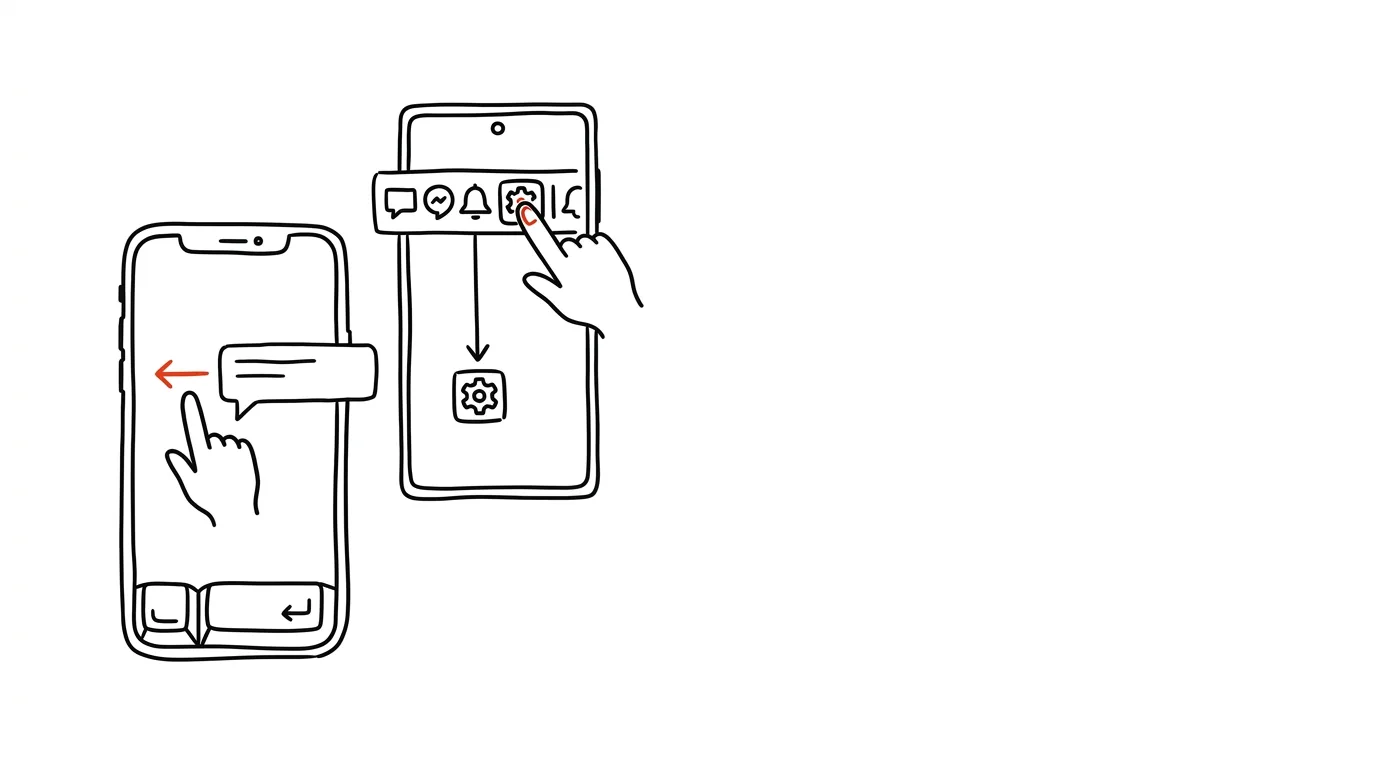
- On a notification (on the lock screen or in Notification Center), swipe left and tap Options.
- Choose Mute for 1 Hour or Mute for Today — the app will deliver quietly, with no sound or banner, and return to normal on its own by evening.
- The same menu also has Turn Off to end notifications from that app for good, and View Settings for finer control.
Android:
- Hold your finger on a notification — quick options appear: switch to Silent delivery, or Turn Off Notifications.
- Tap the gear icon or More Settings to see that app's notification categories (Android calls them channels): a delivery app might split "order status" from "deals and news," a bank might split "account activity" from "offers."
- Turn off just the annoying categories and leave the useful ones alone — this is a feature iPhone doesn't have, and it's what makes Android the king of notification cleanup.
A typical scenario
A group chat about a weekend event kicks off Tuesday morning — thirty messages an hour, all inconsequential, but you don't want to leave the group. On iPhone, you swipe left on the first notification, tap Options, Mute for Today. Done — you'll read the chat that evening. Another time, an online store starts sending "today only" discount pings — on Android, you hold the notification, open categories, and turn off "offers and promotions," while package delivery updates keep coming through.
What you get out of it
Notification cleanup stops being a Sunday-afternoon project and becomes a reflex: you handle every annoying notification the moment it interrupts you, with two taps. Within a few weeks you'll have quietly cleaned up your entire phone this way — only what you actually want to see remains. And temporary muting means you don't have to choose between "everything" and "nothing": you survive a noisy group-chat day with no permanent changes.
For a more systematic cut, go through batched notifications — a summary instead of a drip feed for anything that isn't urgent.
Pro tip
Set yourself a simple rule: any notification that interrupts you and isn't worth it gets muted or turned off on the spot. No "I'll go through settings when I have time." Your phone cleans itself up gradually and effortlessly this way — within a month, you'll be left with notifications worth looking up for, and nothing else.
Want to go deeper? The handbook has a whole chapter on it — The app categories that matter.
Similar tips
Web clipper: save an article with one keystroke
Ctrl+Shift+K
Ctrl+Shift+K and the article is in your library, tags included. No more bookmarks you'll never find again.
Install a website as an app
Gmail, your calendar, or Teams can run in their own window with an icon on the taskbar — no address bar and no risk of an accidentally closed tab.
Stop sites from asking about notifications
The “This site wants to show notifications” popup can be switched off globally with one toggle. Sites stop asking — and you stop dismissing them.
Was this helpful?
Liked this tip?
I send one like it every week by email. Two minutes to read, hours saved.
The Top 30 tips e-book, free — it lands in your inbox right away.
Then 1 tip a week · no spam · unsubscribe in one click
Prefer a system to single tips? The free email course — seven days, seven emails, one skill a day.