Tips & tricks · Gear · Everywhere · ~3 min a day · 2 min read
Mouse sensitivity: across two monitors with one flick of the wrist
Last reviewed:
In this article
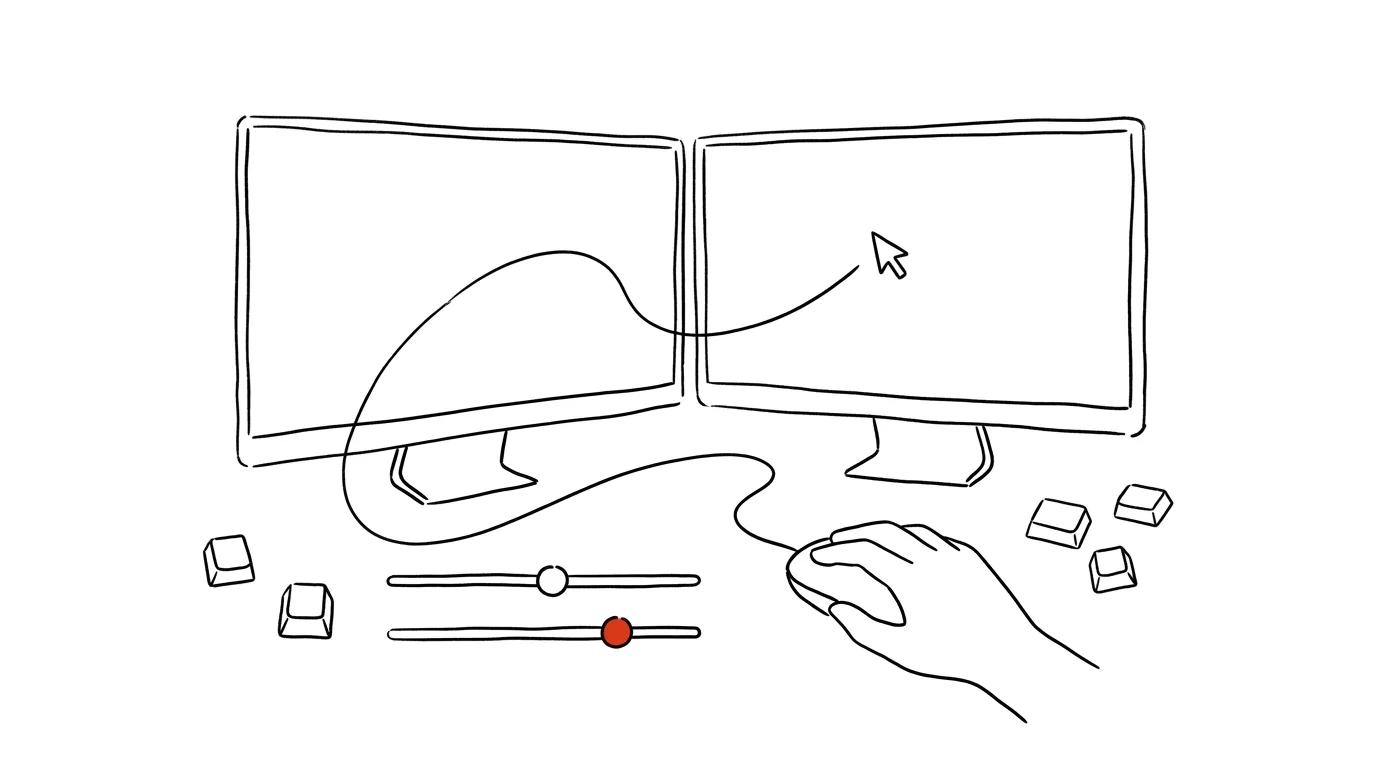
The default mouse pointer speed assumes a small screen. As soon as you get a large monitor, or two, something familiar starts happening: "rowing" — the mouse hits the edge of the mousepad, you lift it, reposition it, and keep going. Same with the scroll wheel: three lines per notch was fine for short documents, but on today's endless pages it leaves you scrolling until you're exhausted. Both are fixed with two sliders that most people have never opened.
How to do it
- On Windows, open Settings → Bluetooth & Devices → Mouse. Raise the Mouse pointer speed slider until you can cross the whole screen (or both screens) with one relaxed flick of the wrist, not a movement of your whole arm.
- In the same place, adjust scrolling: choose how many lines move per wheel notch — try raising it from three to five or six and live with it for a while.
- On Mac, go to System Settings → Mouse and raise Tracking speed; for a trackpad, the same slider is under System Settings → Trackpad.
- Live with the new sensitivity for two or three days, even if it feels "twitchy" at first — your hand adapts surprisingly fast. Then dial it back a notch if needed.
- If you have a gaming or office mouse with its own software, it usually has a DPI toggle button too — you can switch sensitivity right on the mouse, lower for precise graphics work and higher for everyday use.
A typical scenario
Project manager Lena has a laptop paired with a wide monitor. Closing a window in the top-right corner used to mean two mouse strokes with a lift in between — and she makes hundreds of such crossings a day: between an email on one screen and a spreadsheet on the other, to a button, back to a list. After raising pointer speed, she crosses both screens with one flick of the wrist, and her shoulders stopped complaining after long days at the computer. A faster scroll wheel means a long report flies by instead of grinding along.
What you get out of it
Less physical effort for exactly the same result: shorter travel distances, no lifting and repositioning the mouse, fewer strenuous arm and shoulder movements — something you genuinely notice over an eight-hour day at large screens. It's a classic "set once, benefit forever" setting — a minute of work you then quietly enjoy on every single click.
Pro tip
On Windows, under Additional mouse options → Pointer Options, there's a setting called Enhance pointer precision. That's acceleration: a slow mouse movement slows the pointer down, a fast one speeds it up. Most people are fine leaving it on, but if you work in graphics or play games and the pointer seems to "run away" unpredictably, try turning it off — mouse movement then maps to pointer movement at a constant one-to-one ratio.
Want to go deeper? The handbook has a whole chapter on it — The complete guide to an effective home office.
Similar tips
Mail Merge in Czech: Let AI Get the Vocative Case Right
In Czech, “Dear Mr. Novák” is wrong — it has to be “Dear Mr. Nováku,” the vocative case. AI adds a properly-declined salutation column to your contact table, for hundreds of names at once.
Ten Questions Your Audience Will Ask After Your Presentation
Before you present, have AI generate the audience's questions — curious, skeptical, and the one from your boss about money. You'll find out which ones you can't answer while there's still time.
Two Lists Side by Side: AI Finds What's Missing
Attendance against sign-ups, payments against orders: paste two lists and AI lists what's in one and missing from the other — even through typos.
Was this helpful?
Liked this tip?
I send one like it every week by email. Two minutes to read, hours saved.
The Top 30 tips e-book, free — it lands in your inbox right away.
Then 1 tip a week · no spam · unsubscribe in one click
Prefer a system to single tips? The free email course — seven days, seven emails, one skill a day.