Tips & tricks · Apps · Browser · ~15 min a month · 2 min read
Fill out a PDF form in your browser — don't print, don't scan
Last reviewed:
In this article
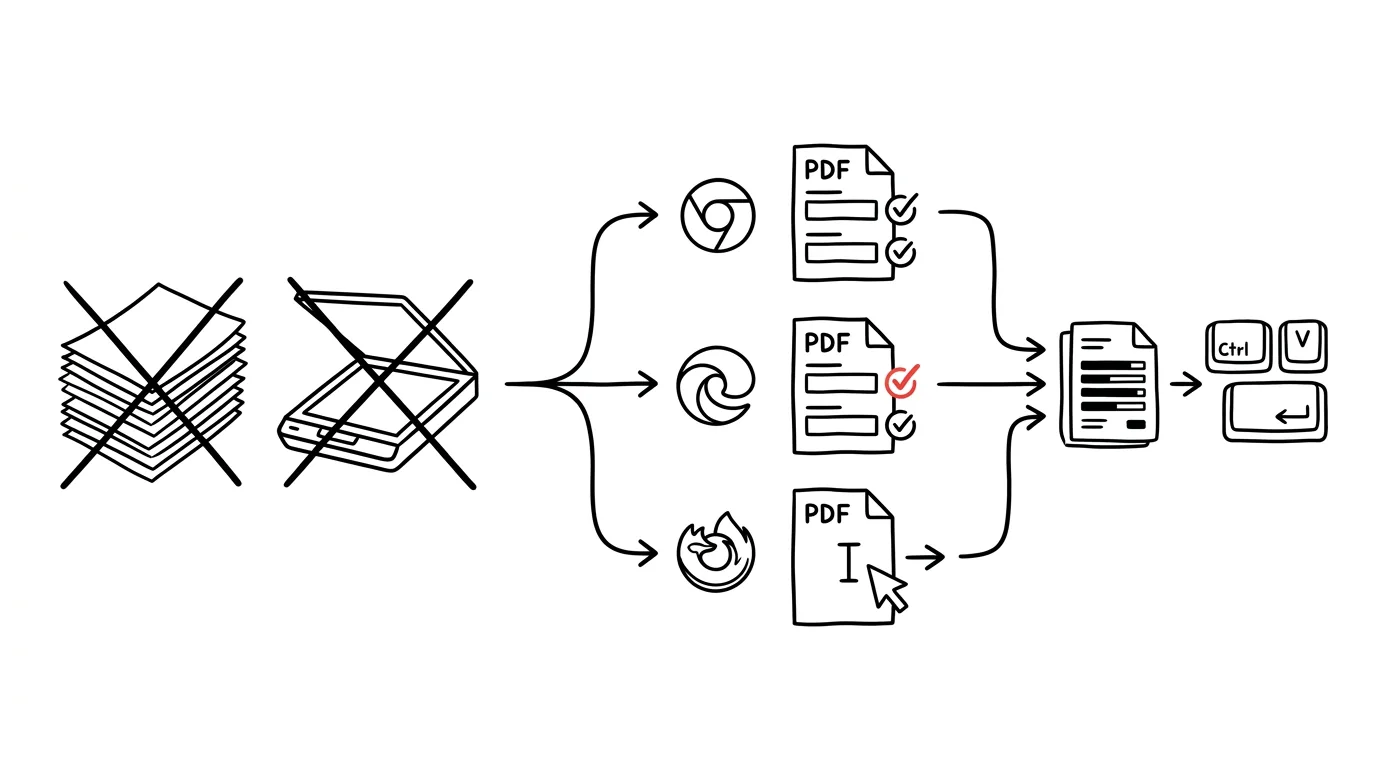
A PDF form lands in your inbox — an application, a questionnaire, a request. The reflex kicks in: print it, fill it out with a pen, scan it (read: photograph it on your phone under bad lighting), and send it back. That whole paper loop is usually unnecessary: a PDF opened in your browser can be filled in right on screen and saved. Even when the form has no clickable fields at all — Edge and Firefox can type text anywhere on the page.
How to do it
- Open the PDF in your browser — just drag the file into the window, or click straight on it if it arrived as a link or email attachment.
- If the form has active fields, just click into them and type; checkboxes and dropdowns work too. Tab moves you comfortably between fields. Chrome, Edge, and Firefox all handle this.
- If the form has no active fields (it's just an “image” of a form), use Edge or Firefox: in the toolbar above the document you'll find Add text (Edge) or Text (Firefox). Click a spot in the document and type — font size and color are both adjustable.
- Save the finished document using the download/save icon in the PDF toolbar — that's what writes the filled-in data into the file. To be safe, reopen it after saving and confirm the data stuck.
- Handle the signature with the drawing tool (Edge: Draw, Firefox: Draw) — it's clunky with a mouse, but good enough for an ordinary application form; on a touchscreen it's comfortable.
A typical scenario
The evening before the deadline, a parent is filling out a camp registration form. The printer's out of toner — of course. Instead of panicking, they open the PDF in Edge, fill in the fields, add a note about medication with the Add text tool, draw a signature, save, and email it off. Ten minutes, no paper — and the organizer gets a legible document instead of a photo of a crumpled sheet.
A teacher fills out self-assessment forms and reports the school sends as PDFs the same way — and a freelancer handles client questionnaires and disclosures the same way. A form filled in once also stays on the computer: next year, they just reopen it and update the date.
What you get out of it
The print–pen–scan loop disappears for most forms anyone sends you. The result is legible, saved, and reusable — and you don't need a printer, a scanner, or any paid PDF editor.
Pro tip
When the other party insists on a handwritten signature, you don't have to print the whole document just for that: sign with a black marker on plain paper, photograph the signature with your phone, and drop the image into the PDF (Firefox does this via its add-image tool). Once you've made a signature, you can reuse it again and again.
Want to go deeper? The handbook has a whole chapter on it — The app categories that matter.
Similar tips
Ctrl+Enter: a new page without hammering Enter
Ctrl+Enter
Paginating with twenty presses of Enter falls apart at the first edit. Ctrl+Enter inserts a real page break that stays put.
Find and Replace in Word: more than just text
Ctrl+H
Ctrl+H can also replace formatting, double spaces, and paragraph marks. Cleaning up a whole document in a few clicks.
Shift+F3: change letter case without retyping
Shift+F3
Caps Lock stuck on by accident? Select the text and Shift+F3 cycles between lowercase, Title Case, and UPPERCASE.
Was this helpful?
Liked this tip?
I send one like it every week by email. Two minutes to read, hours saved.
The Top 30 tips e-book, free — it lands in your inbox right away.
Then 1 tip a week · no spam · unsubscribe in one click
Prefer a system to single tips? The free email course — seven days, seven emails, one skill a day.