Tips & tricks · Shortcuts · Everywhere · ~5 min per document · 2 min read
Ctrl+Enter: a new page without hammering Enter
Last reviewed:
Ctrl+Enter
In this article
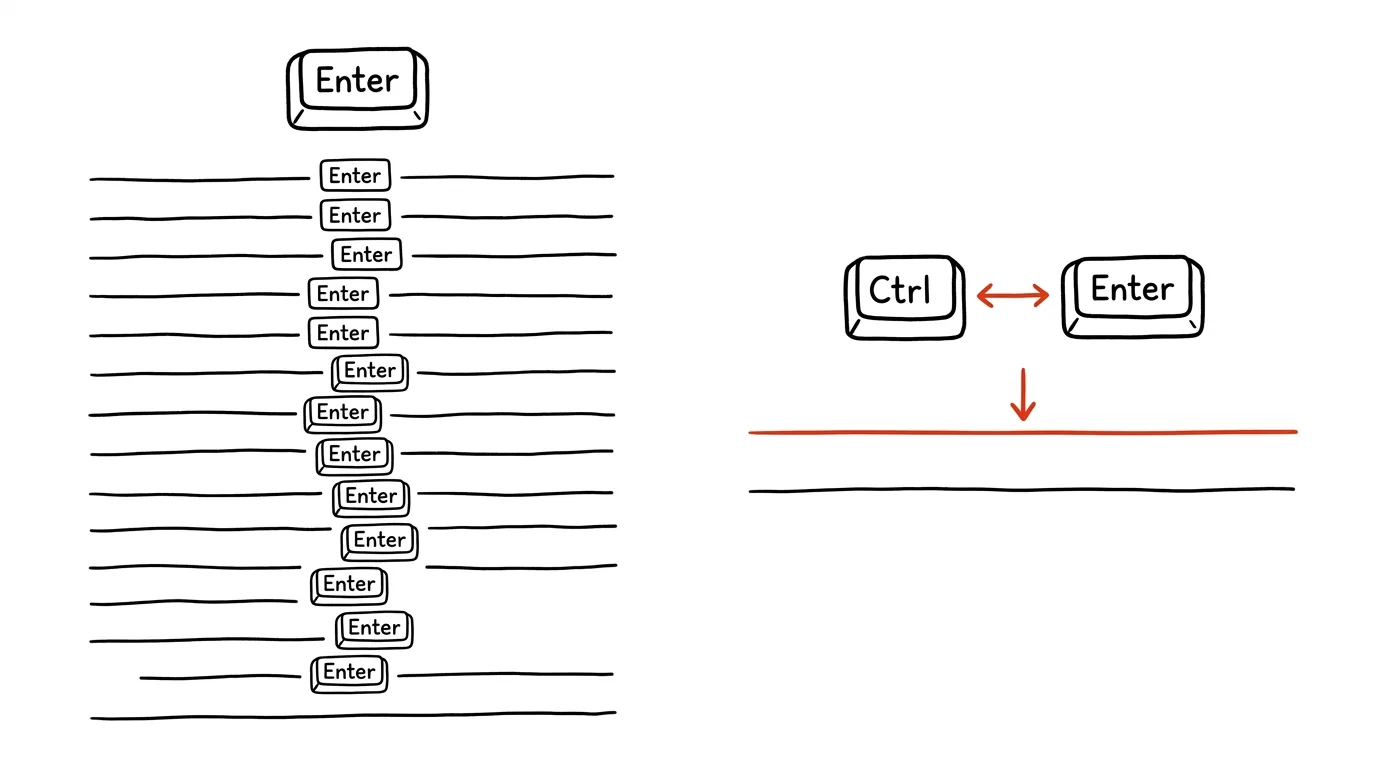
A chapter is supposed to start on a new page, so you hold down Enter until the text jumps over. It works — right up until you add or delete anything a few pages up. Every blank line shifts, headings end up in the middle of pages, and manual re-tuning of the whole document begins. The Ctrl + Enter shortcut inserts an actual page break: a fixed marker after which text always starts at the top of a new page, no matter what happens before it.
How to do it
- Place the cursor before the text that should start on a new page — typically before a chapter heading.
- Press Ctrl + Enter (Cmd + Enter on a Mac). Works in both Word and Google Docs.
- The text after the cursor jumps to the start of a new page and stays there — even if paragraphs are added or removed above it later.
- Delete a page break like any regular character: place the cursor at the start of the line right after it and press Backspace. In Word, make it visible with the ¶ button on the Home tab.
Related shortcuts, so you don't mix them up: a plain Enter starts a new paragraph, Shift + Enter just breaks the line within a paragraph (handy in addresses and signatures), and Ctrl + Enter starts a new page. Three different things — and whoever uses them correctly ends up with a document that doesn't fall apart.
A typical scenario
A student is submitting a term paper: intro, three chapters, conclusion, each part on its own page. Paginated with Enter, it looks fine — until the advisor sends back a comment: “add a paragraph to the intro.” One added paragraph shifts everything below it: the second chapter's heading slides to the middle of a page, the conclusion starts with three blank lines. Ten minutes of scrolling and adding or deleting blank lines throughout the document follow.
With Ctrl+Enter, this problem doesn't exist: the intro grows, its page adjusts, and every chapter still starts exactly at the top of its own page. The document fixes itself — and at submission time there's no risk that a printer or a different Word version shifts lines and wrecks a carefully hand-clicked pagination.
What you get out of it
A document that doesn't fall apart with every edit — meaning the final proofread before submission takes minutes, not half an hour of rearranging blank lines. And when printing or exporting to PDF, you can be sure the pagination looks exactly as intended.
Pro tip
For chapter headings, there's an even more elegant solution: if you use heading styles, set the Heading 1 style's “Page break before” property (in the style-editing dialog, Line and Page Breaks tab). Every chapter then starts on a new page automatically, without a single keypress.
Want to go deeper? The handbook has a whole chapter on it — The app categories that matter.
Similar tips
Quick settings and notifications without a mouse
Win+A
Win+A opens quick settings (Wi-Fi, volume, focus), Win+N opens the notification center with a calendar.
Win+Alt+K: mute your microphone from anywhere
Win+Alt+K
You don't have to hunt down the meeting window to mute yourself. Win+Alt+K in Windows 11 toggles the microphone even while you're working in a completely different app.
Win + D: instant screen cleanup
Win+D
One press hides every window and shows the desktop. A second press brings it all back.
Was this helpful?
Liked this tip?
I send one like it every week by email. Two minutes to read, hours saved.
The Top 30 tips e-book, free — it lands in your inbox right away.
Then 1 tip a week · no spam · unsubscribe in one click
Prefer a system to single tips? The free email course — seven days, seven emails, one skill a day.