Tips & tricks · Shortcuts · Everywhere · ~5 min per presentation · 2 min read
Ctrl+D in PowerPoint: a duplicate that remembers the spacing
Last reviewed:
Ctrl+D
In this article
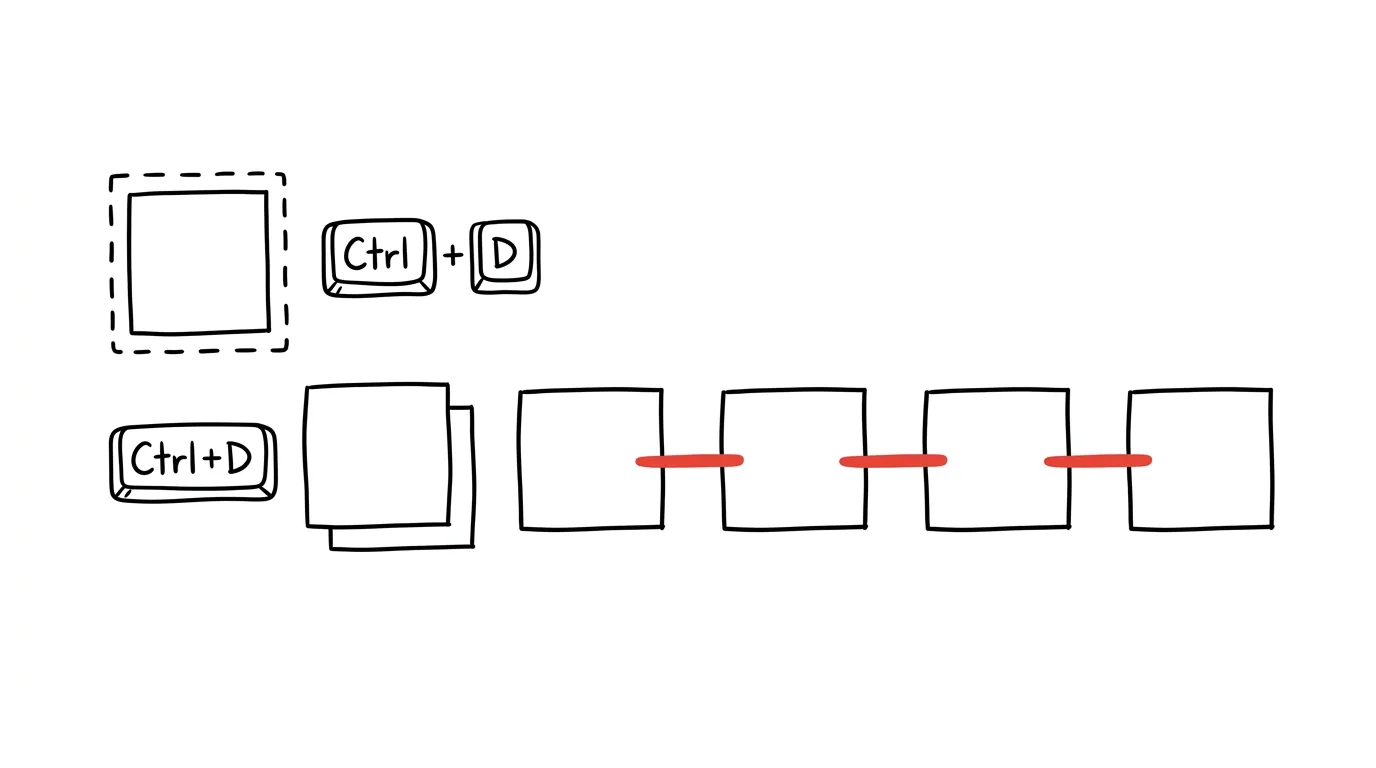
A slide with a row of identical elements — four process steps, six icons, a timeline made of rectangles — usually gets built the slow way: copy-pasting through the clipboard and manually dragging each copy into place, eyeballing the gaps. PowerPoint has a smarter path: Ctrl + D duplicates the object, and once you move that first duplicate to where it belongs, every further press of the shortcut creates a copy offset by exactly the same amount. The third, fourth, and fifth elements then fall into place on their own.
How to do it
- Select an object (a shape, an icon, a text box — or several objects at once) and press Ctrl + D (on a Mac, Cmd + D).
- Immediately drag the resulting duplicate to where the second item in the row should sit — that's how you “show” PowerPoint the spacing.
- Press Ctrl + D again: the new copy appears offset by the same step. Repeat until the row is complete.
- Important: don't click anything else between duplicates — the moment you do something else, the remembered offset resets, and the next duplicate lands right back next to the original instead of continuing the row.
Two related gestures pair well with duplicating: dragging an object while holding Ctrl creates a copy wherever you drop it, and holding Shift while dragging keeps the movement perfectly horizontal or vertical. Combine them — Ctrl+Shift+drag — and you get a copy perfectly aligned with the original, often the fastest way to start the whole row.
A typical scenario
A consultant is building a timeline slide for a client presentation: six milestones, each a circle with a label, spaced evenly across the full width of the slide. The old way: six rounds of Ctrl+C, Ctrl+V, and six manual drags while eyeballing the gaps, then straightening everything out anyway. With Ctrl+D: fine-tune the first milestone, duplicate it, place the second — then just press the shortcut four more times. Six circles in a perfectly even row, done in fifteen seconds.
What you get out of it
Regular rows and grids of elements come together in a few keystrokes, already aligned — no straightening them out afterward. In presentations full of diagrams, that means minutes saved on every slide, and a cleaner result because the spacing is calculated by the machine, not the eye. It works horizontally, vertically, and diagonally — the direction is whatever you moved the first duplicate to.
Pro tip
If the row is already built but the spacing still drifted a bit, the align and distribute tool fixes it up — select the whole row and let PowerPoint calculate even gaps. Ctrl+D also works in Excel and Word on objects and images, just without remembering the offset — there it's “just” a faster copy.
Want to go deeper? The handbook has a whole chapter on it — The app categories that matter.
Similar tips
In-depth guide · 16 min
The content factory: thirty outputs from one pillar
A complete guide with prompts: break a pillar topic into posts, a newsletter, and a video script, lock in your brand voice, and keep a human on publish.
A link that jumps straight to one sentence on the page
Select text, right-click, “Copy link to highlight” — the recipient lands exactly on that sentence, highlighted in yellow.
Closed a document without saving? Office can bring it back
Word, Excel, and PowerPoint quietly save copies of your work as you go. File → Info → Manage Document recovers even files you never saved.
Was this helpful?
Liked this tip?
I send one like it every week by email. Two minutes to read, hours saved.
The Top 30 tips e-book, free — it lands in your inbox right away.
Then 1 tip a week · no spam · unsubscribe in one click
Prefer a system to single tips? The free email course — seven days, seven emails, one skill a day.