Tips & tricks · Shortcuts · Everywhere · ~5 min per presentation · 3 min read
Copying formatting: Ctrl+Shift+C and V
Last reviewed:
Ctrl+Shift+C
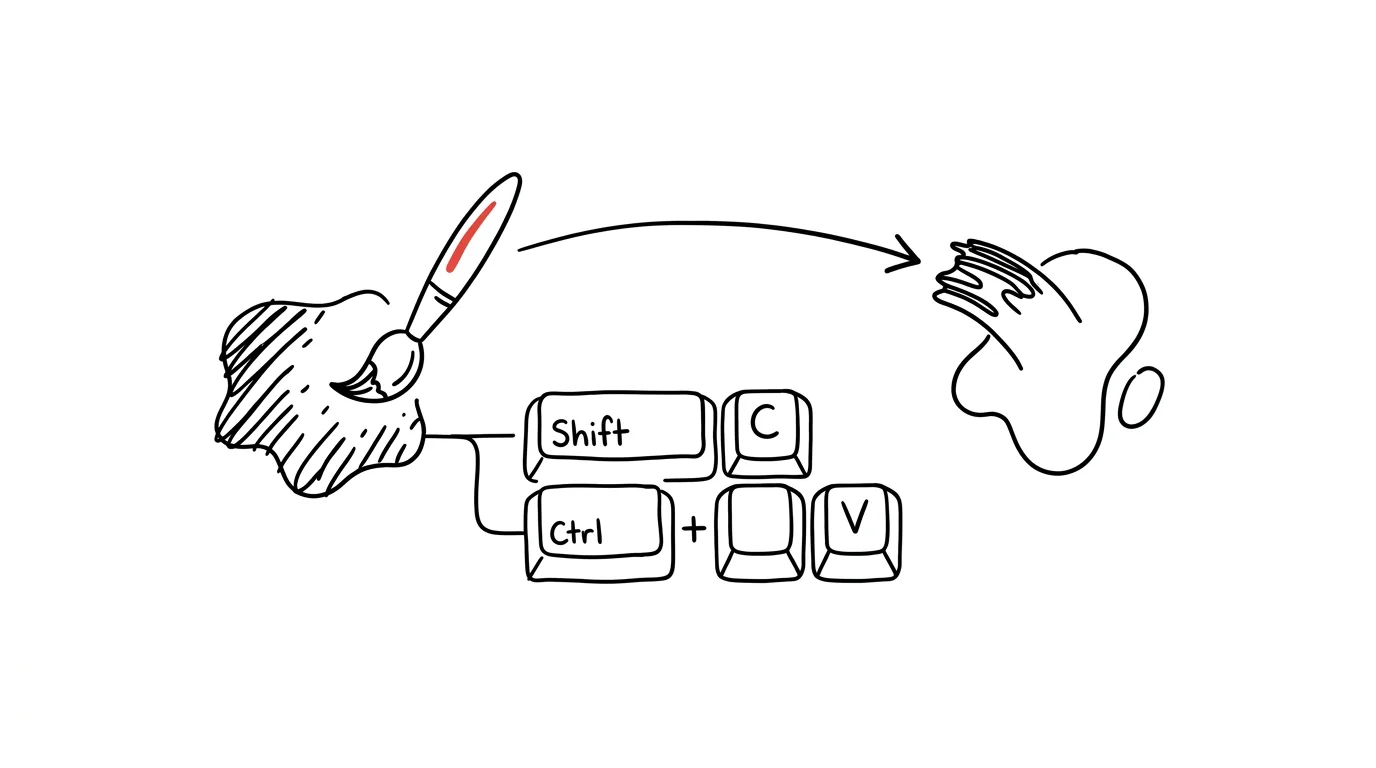
Matching styles by hand is endless work — color, font weight, size, border style, you have to nail every one of them again on every next element. The format painter tool solves this with one click, but it also has a keyboard version that's faster and, better still, works repeatedly, without you constantly reaching back for the paintbrush icon with the mouse.
A typical scenario
You're building a presentation with ten section headings. You've fine-tuned the first one exactly the way you want it — the right color, bold, a specific size. Now you need to carry that same look over to the other nine. Without the shortcut, that means manually setting color, weight, and size on every heading separately, and it's easy for one of them to end up subtly different from the rest. With Ctrl + Shift + C and Ctrl + Shift + V, you copy the format once and then just "stamp" it onto each next heading — the look is guaranteed identical on the first try.
How to do it
- Select the element with the correct, already-tuned look — a heading, a text box, or a shape.
- Press Ctrl + Shift + C — the element's formatting is copied to the format clipboard (unlike the regular clipboard, it stays separate from text and images).
- Select the target element you want to apply the format to, and press Ctrl + Shift + V.
- You can paste the copied format this way onto as many other elements as you like — just press Ctrl + Shift + V again each time, without re-copying the format.
- It works across element types (text, shapes, images) and across slides — you can copy the format on one slide and paste it on another.
The best tools
- The built-in Ctrl+Shift+C/V shortcut — works directly in both PowerPoint and Word, nothing to install.
- The format painter icon on the Home tab — the same feature with the mouse, handy when you don't remember the shortcut or only need to apply the format once.
- Double-clicking the paintbrush icon — keeps the painter "locked on" after a double-click so you can apply the format to multiple elements in a row with the mouse, without re-copying each time.
What you get out of it
- Time: roughly 5 minutes on a presentation with dozens of elements that would otherwise need their formatting tuned one by one.
- Consistency: no heading ends up a shade off in color or a point off in size from the rest.
- Peace of mind: you don't need to remember the exact values (color, size, weight) you set on the first element — the whole format transfers at once.
Pro tip
The shortcut also works across open documents in the same app — you can copy a format from one presentation and paste it into another if you have both open at the same time. Handy when you're unifying the look across multiple files for the same client.
Want to go deeper? The handbook has a whole chapter on it — The app categories that matter.
Similar tips
Ten Questions Your Audience Will Ask After Your Presentation
Before you present, have AI generate the audience's questions — curious, skeptical, and the one from your boss about money. You'll find out which ones you can't answer while there's still time.
In-depth guide · 21 min
AI makes things up with total confidence. Verify it
A complete guide with prompts: why models hallucinate, three verification methods, the two-source rule, and a workflow for content that leaves the company.
Two Lists Side by Side: AI Finds What's Missing
Attendance against sign-ups, payments against orders: paste two lists and AI lists what's in one and missing from the other — even through typos.
Was this helpful?
Liked this tip?
I send one like it every week by email. Two minutes to read, hours saved.
The Top 30 tips e-book, free — it lands in your inbox right away.
Then 1 tip a week · no spam · unsubscribe in one click
Prefer a system to single tips? The free email course — seven days, seven emails, one skill a day.