Tips & tricks · Apps · Windows · ~5 min a day · 2 min read
Text Extractor: copy text that can't be copied
Last reviewed:
Win+Shift+T
In this article
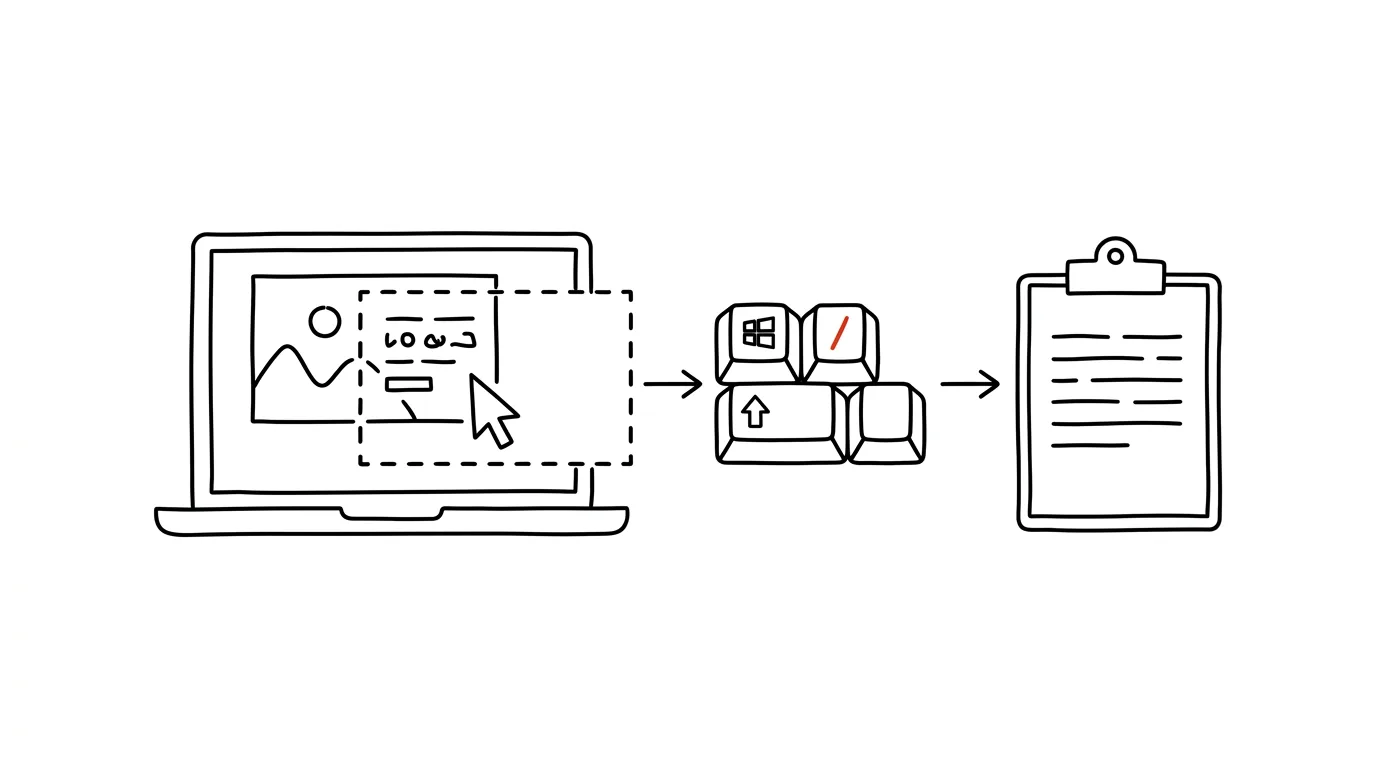
An error message in a screenshot a colleague sent. A tax ID on a scanned invoice. A paragraph in a presentation you only have as images. An order number in a paused video call. All of these are text you can see but can't select and copy — so you retype them by hand and hope you don't make a typo. The Text Extractor module from the free PowerToys suite fixes this: you select an area of the screen just like taking a screenshot, but instead of an image you get text straight onto your clipboard.
How to do it
- Install PowerToys (Microsoft's free toolkit) and confirm the Text Extractor module is turned on in the settings.
- Wherever you see text on screen, press Win + Shift + T — the screen dims like it does for a screenshot.
- Drag your mouse to select the area with the text. That's it: the recognized text is on your clipboard, ready to paste with Ctrl + V wherever you need it.
- Recognition relies on Windows language packs — to read text accurately with diacritics, make sure the relevant language is installed on your system (Settings → Time & language → Language & region).
- Keep in mind OCR isn't infallible — double-check numbers, IDs, or codes against the original.
A typical scenario
Support sends you a screenshot of an error message with a “just google it” attached. The message is four lines of technical text. Instead of retyping it by hand, you press Win+Shift+T, drag over the message, and paste it into a search engine — ten seconds instead of three minutes and one typo that would have made the search find nothing.
A student version: a lecturer shares slides as images inside a PDF. A quote you need for your notes doesn't have to be retyped — you pull it straight off the screen, punctuation and all. And when researching old scanned course materials, you copy a paragraph into your notes in seconds, even though the PDF has no text layer at all.
What you get out of it
- No more retyping: text in images, screenshots, scans, and videos stops being dead data — whatever you can see, you can get onto your clipboard.
- Fewer errors: manually retyping numbers and codes is a gamble; OCR followed by a quick check is both faster and more reliable.
- Works everywhere: it works across anything on screen — the app doesn't need to support copying, and it doesn't even need to be a file.
Pro tip
Newer versions of Windows 11 can do a similar trick without PowerToys: in the Snipping Tool (Win+Shift+S), you'll find a text-extraction action right next to a snip. Text Extractor is a step faster, though — it skips the intermediate screenshot and returns text directly. On a Mac, Live Text plays the same role.
Want to go deeper? The handbook has a whole chapter on it — The app categories that matter.
Similar tips
A Glossary for Your First Meeting: AI Explains the Acronyms in Your Materials
New project, and a document full of acronyms and jargon? AI pulls out every term and explains it in context — flagging what it's only guessing.
Word on the Tip of Your Tongue: AI as a Reverse Dictionary
You know the meaning but not the word? Describe it to AI and get ten candidates with the shades of difference between them. Works for technical terms and cliché-free synonyms too.
A Table Locked Inside a PDF: AI Puts It Back Into Excel
Copying a table out of a PDF turns the columns into one tangled noodle of text. Upload the PDF to AI, ask for CSV — and check the control total.
Was this helpful?
Liked this tip?
I send one like it every week by email. Two minutes to read, hours saved.
The Top 30 tips e-book, free — it lands in your inbox right away.
Then 1 tip a week · no spam · unsubscribe in one click
Prefer a system to single tips? The free email course — seven days, seven emails, one skill a day.