Tips & tricks · Workflow · Everywhere · ~5 min a day · 2 min read
ssh-copy-id: log in to a server without typing a password
Last reviewed:
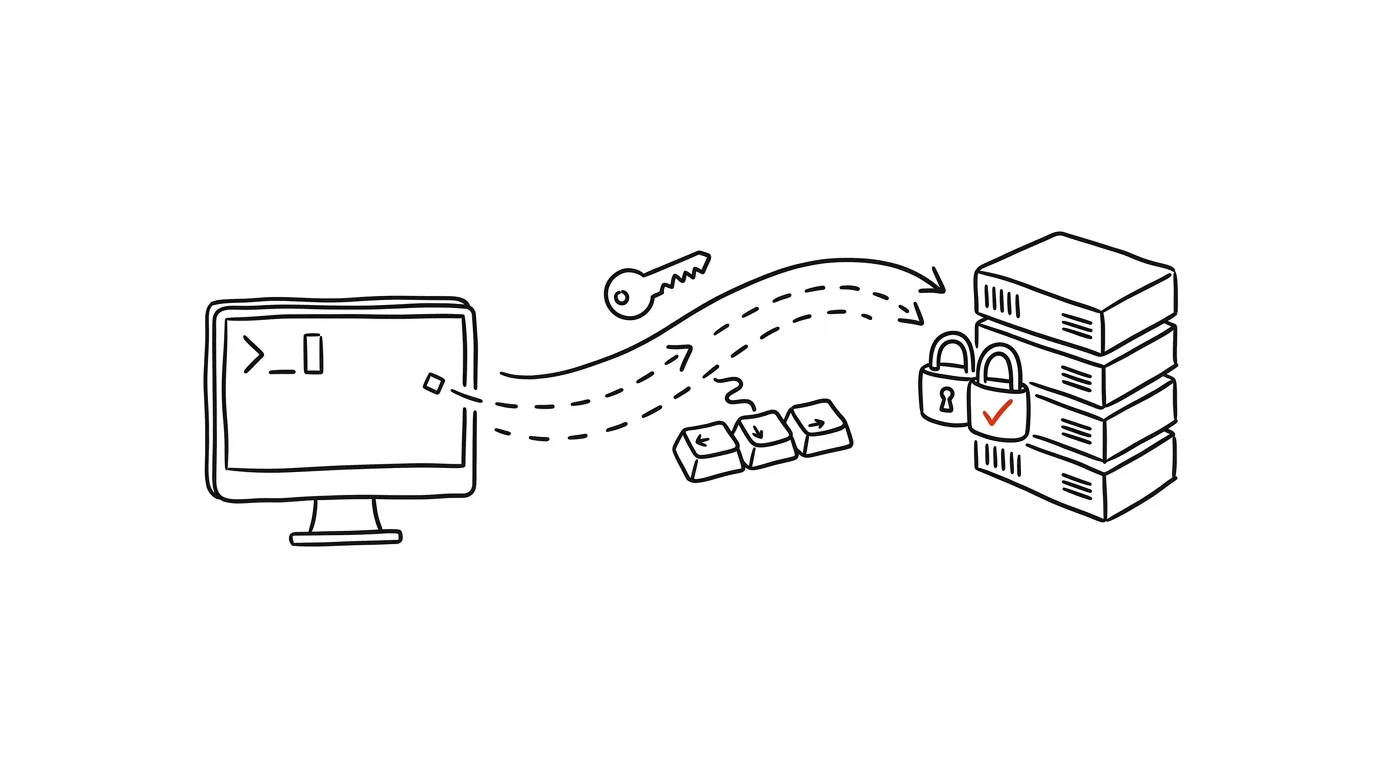
Typing a password on every server login is annoying — and, ironically, weaker security than logging in with a key. An SSH key is a pair of files: the private half stays with you, the public half goes on the server, and from then on they sort things out between themselves. The usual stumbling block was that exact step, uploading the public key to the server: hand-editing the authorized_keys file with the right permissions is precisely where mistakes creep in. The ssh-copy-id command does the whole thing for you — correctly, on the first try, in one line.
How to do it
- If you don't have a key yet, create one:
ssh-keygen -t ed25519. You can hit Enter through the prompts; a passphrase on the key is an optional extra safeguard in case someone else ever gets hold of the key file. - Upload the public key to the server:
ssh-copy-id user@server. You'll type the password one last time — the command appends the key to~/.ssh/authorized_keyson the server and sets the correct permissions. - Try it out:
ssh user@server— it logs you in without asking for the server's password. ssh-copy-idships with OpenSSH on Mac and Linux. Windows lacks this helper script — either run it from Git Bash or WSL, where it is available, or transfer the contents ofid_ed25519.pubto the server by hand: log in one last time with a password and append the key line to the end of~/.ssh/authorized_keyson the server.- Repeat for every server you log in to. You can upload the same public key to multiple servers — and it belongs on GitHub or GitLab too (in account settings, the SSH keys section), so
git pushruns without passwords as well.
A typical scenario
A developer logs in to three servers during the day: staging, production, and a home NAS. Every login meant fishing a password out of the password manager, copying it, pasting it — twenty seconds of annoying mechanics, many times a day, not to mention scp and rsync asking again. One afternoon he runs ssh-copy-id three times, and every connection since has been instant. A bonus he only appreciates later: he can now disable password login on the servers entirely, which also removes the risk of password-guessing attacks. And scripts that couldn't be automated before, because they'd stop midway to ask for a password — backups over rsync, deployments over scp — suddenly run unattended.
What you get out of it
Every server connection is a few seconds faster and one interruption lighter — which really adds up for people who log in ten times a day. Logging in with a key is also a security upgrade: a key can't be shoulder-surfed or guessed the way a password can. And the follow-up tip on SSH config aliases shortens the ssh command itself down to a single word.
Want to go deeper? The handbook has a whole chapter on it — Core systems: inbox, priorities, reviews.
Similar tips
Answer clients in windows, not on demand
A reply within 24 hours is the professional standard. A reply within 5 minutes is a bar you can never lower again.
The Friday admin block: invoicing, timesheets, mail
Ninety minutes on Friday for all your admin at once — instead of scattered nagging all week long.
Proposal, contract, and invoice templates: do it once, properly
Every proposal written from scratch is an hour of lost time. A template with marked spots to fill in cuts it to ten minutes.
Was this helpful?
Liked this tip?
I send one like it every week by email. Two minutes to read, hours saved.
The Top 30 tips e-book, free — it lands in your inbox right away.
Then 1 tip a week · no spam · unsubscribe in one click
Prefer a system to single tips? The free email course — seven days, seven emails, one skill a day.