Tips & tricks · Apps · Browser · ~3 min a day · 3 min read
A page from computer to phone: QR code or send-to-device
Last reviewed:
In this article
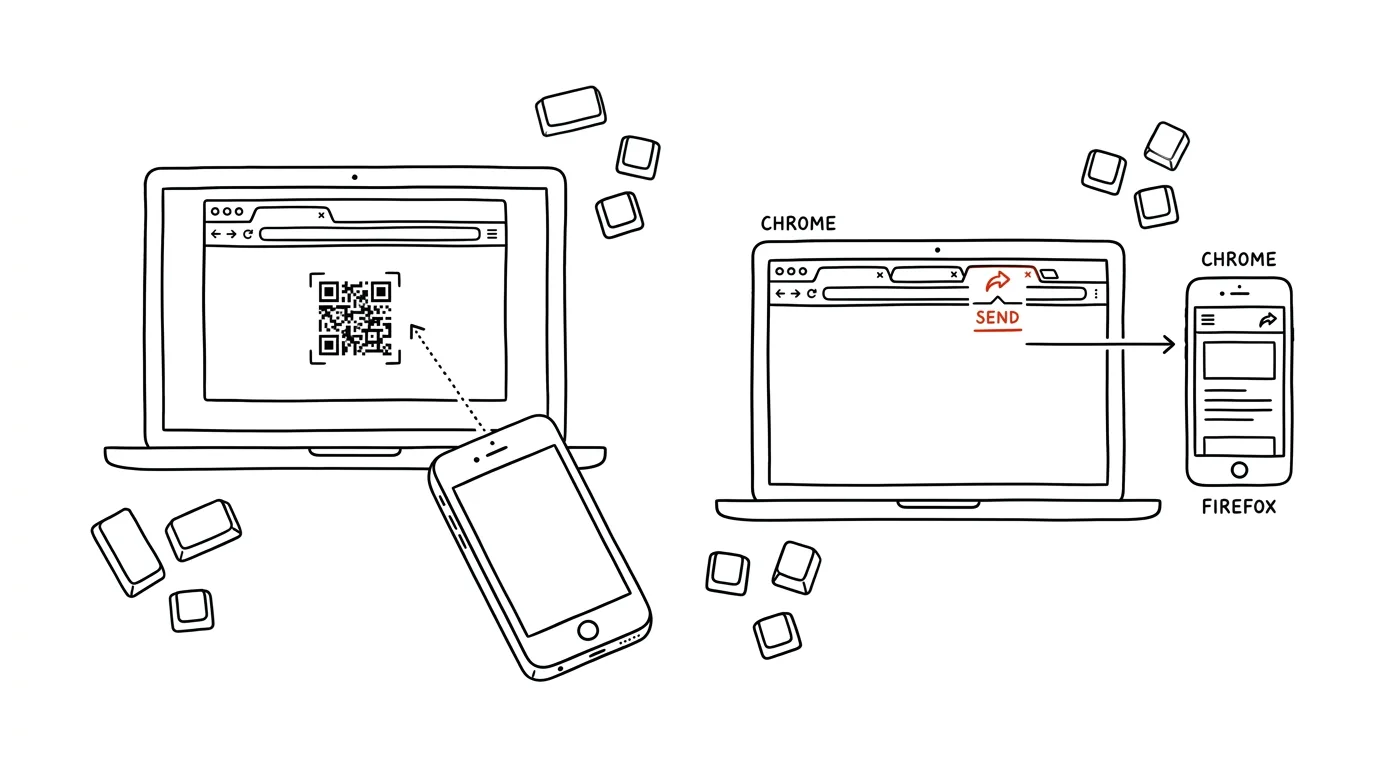
You find a recipe, a map, or an article on your computer that you want on your phone. The usual fix? Email the link to yourself, or send it through a chat where it gets lost among other messages. The browser can do this more elegantly in two ways: it can generate a QR code you simply scan with your phone, or — if you're signed in on both devices — send the page straight to your phone as a notification.
How to do it
QR code (no sign-in needed, works right away):
- In Chrome, right-click the page and choose Create QR Code for this Page, or find Send, Save & Share → Create QR Code in the three-dot menu.
- A QR code appears on screen. Point your phone's camera at it — the address opens in the mobile browser.
- The code can also be downloaded as an image — handy when you want to share a page with a whole room, say on a projected slide.
Sending a tab to a device (requires being signed in on both sides):
- In Chrome, right-click the tab's title and choose Send to your devices; pick your phone from the list.
- In Firefox, the same thing: right-click the tab → Send Tab to Device (you need a Firefox account and to be signed in on the mobile app).
- A notification lands on your phone — tapping it opens the page exactly where you left off on your computer.
- If your phone doesn't appear in the device list, check that the same account is signed in on the mobile app and that the app has notifications enabled — without them, the sent tab quietly waits and nobody notices.
A typical scenario
You're cooking from a recipe you found at your desk — but there's no computer in the kitchen. Two seconds: right-click, QR code, one tap of the phone, and the recipe travels with you. Same story with a route on a map before you leave the house, a ticket, or a long article you want to finish on the tram.
The QR code also shines at work: you're presenting a slide deck and want everyone in the room to open the same link. Instead of dictating an address or sending an email, you show the QR code on the screen — and within ten seconds everyone is on the page.
What you get out of it
Moving a page between devices shrinks from “I'll email it to myself and dig it up on my phone later” down to one click and one tap. Your clipboard and inbox stop serving as a dumping ground for links to yourself.
Pro tip
It works the other way too: mobile Chrome and Firefox can send a page from phone to computer through the share menu. An article discovered in bed at night is waiting for you open on your work monitor in the morning — more reliable than a bookmark you'll never open again.
Want to go deeper? The handbook has a whole chapter on it — The app categories that matter.
Similar tips
Win+H: dictate instead of typing
Win+H
Voice typing in Windows works in your language and starts wherever the cursor is blinking. Dictate a first draft of an email in a third of the time.
Win+Home: minimize everything except the window you're working in
Win+Home
Ten windows open and you only need one. Win+Home minimizes all the others — press it again and they all come right back.
Win+I: straight into Settings
Win+I
Open Windows Settings with a shortcut — and the search box inside gets you to a specific option faster than clicking through menus.
Was this helpful?
Liked this tip?
I send one like it every week by email. Two minutes to read, hours saved.
The Top 30 tips e-book, free — it lands in your inbox right away.
Then 1 tip a week · no spam · unsubscribe in one click
Prefer a system to single tips? The free email course — seven days, seven emails, one skill a day.