Tips & tricks · Communication · Everywhere · ~3 min a day · 3 min read
Paragraphs in Teams: Shift+Enter and the expanded editor
Last reviewed:
Shift+Enter
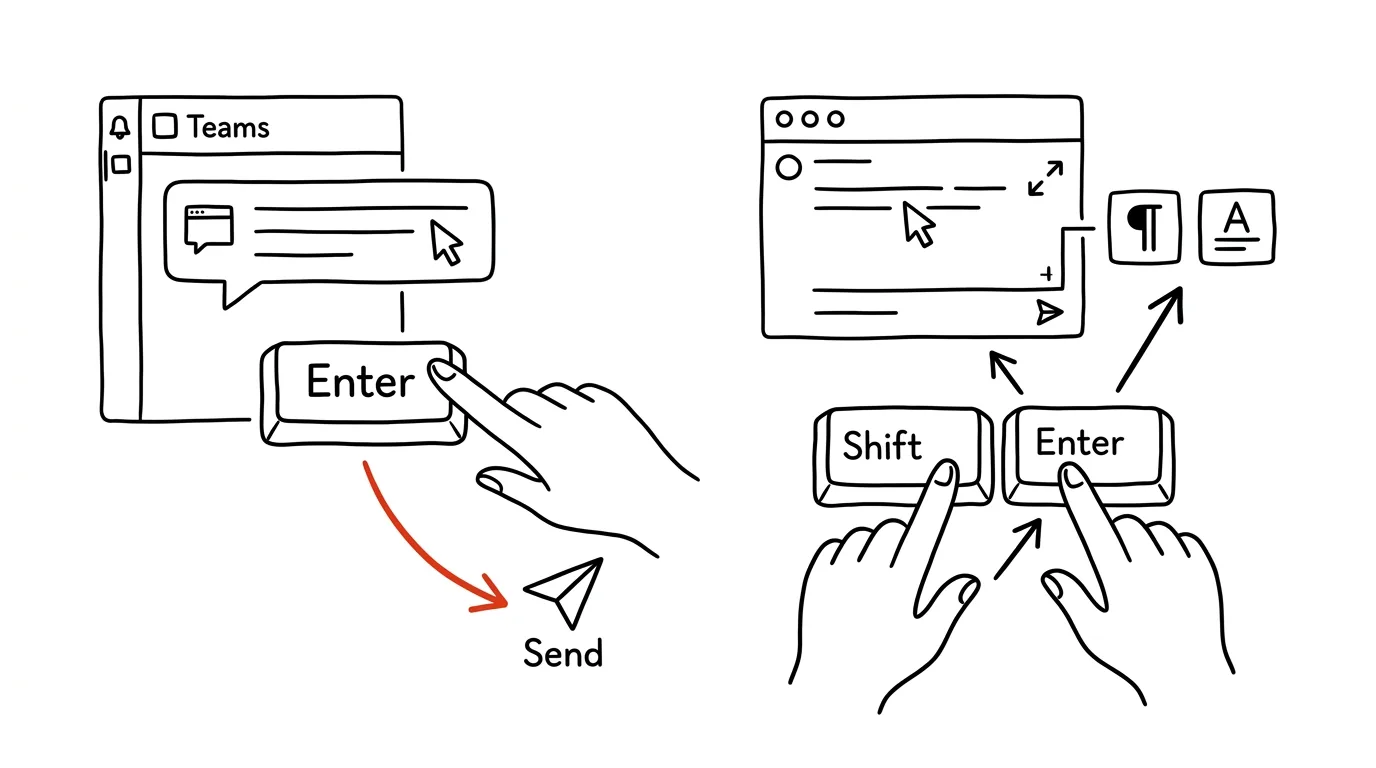
Half of all people send a message before they've finished writing it. They hit Enter when they only meant to start a new line, and a carefully thought-out message goes out chopped into three pieces or only half-finished. You don't have to be one of them — Teams has a simple fix, most people just don't know about it.
A typical scenario
You're writing a coworker a longer message with three points about a project. You hit Enter after the first point to continue on a new line — and the message is sent immediately, half-finished, with the last sentence cut off. You have to send a second and third message as follow-ups, the result looks like three rushed fragments instead of one clear message, and your coworker has to piece the context together from three separate bubbles.
With Shift + Enter, you write the whole message with paragraphs at once and send it as a single, complete piece exactly when it's ready — not before.
How to do it
- To start a new line without sending the message, press Shift + Enter instead of just Enter. The text continues on the next line in the same field, and the message isn't sent.
- Enter on its own still sends the message immediately — that stays the same, it's just a matter of remembering the difference and using the right combination at the right moment.
- In the message box you'll find an A with a pencil icon (Format) — clicking it opens an expanded editor with its own large text field.
- In the expanded editor, Enter doesn't send the message at all — you have to click the arrow (the Send button) in the bottom right. This is ideal for longer messages where you want to be sure nothing goes out prematurely.
- The expanded editor also gives you a full set of formatting options: headings of different levels, bulleted and numbered lists, bold and italic emphasis, and the option to mark a message as important (it highlights for the recipient with a red border).
- Formatting can be combined with paragraphs from Shift + Enter even outside the expanded editor — both work at the same time in the regular message box.
The best tools
- Teams' built-in editor (the A-with-a-pencil icon) — free, right in the app, enough for the vast majority of needs.
- The Shift+Enter shortcut — the fastest way to write a multi-line message without opening another panel, works in both the regular and expanded fields.
- Message templates (saved replies or text snippets built into your operating system) — for recurring longer messages you'd otherwise retype over and over.
- Dictation (built into both Windows and macOS) for dictating a longer message you then just format in the expanded editor.
What you get out of it
- Time: an estimated 2–4 minutes a day, since you're not fixing prematurely sent messages and typing follow-ups.
- Clearer communication: one complete message with paragraphs reads better than three fragments in a row, and your coworker sees the whole context right away.
- A more professional impression: choppy messages with “oh, and I also wanted to add” follow-ups look rushed; a formatted message with paragraphs and, if needed, a highlighted important line looks deliberate.
- Fewer misunderstandings: structured formatting (headings, bullets) in longer messages helps the reader quickly find what matters, instead of parsing a solid block of text.
Pro tip
Mark a message that absolutely must not get missed as Important in the expanded editor — it appears to the recipient with a red border, and they have to explicitly acknowledge it as read. Don't use it for every message, though, or the feature loses its point, the same way an overused high-priority flag on email does.
Want to go deeper? The handbook has a whole chapter on it — Professional email communication.
Similar tips
Templates in Notion databases: a new entry, pre-filled
A record template pre-fills the structure — meeting notes, task briefs, client profiles. Set it up once, use it forever.
A link that jumps straight to one sentence on the page
Select text, right-click, “Copy link to highlight” — the recipient lands exactly on that sentence, highlighted in yellow.
Closed a document without saving? Office can bring it back
Word, Excel, and PowerPoint quietly save copies of your work as you go. File → Info → Manage Document recovers even files you never saved.
Was this helpful?
Liked this tip?
I send one like it every week by email. Two minutes to read, hours saved.
The Top 30 tips e-book, free — it lands in your inbox right away.
Then 1 tip a week · no spam · unsubscribe in one click
Prefer a system to single tips? The free email course — seven days, seven emails, one skill a day.