Tips & tricks · Workflow · Everywhere · ~15 min a day · 3 min read
The Todoist Inbox: everything goes in, sort it out later
Last reviewed:
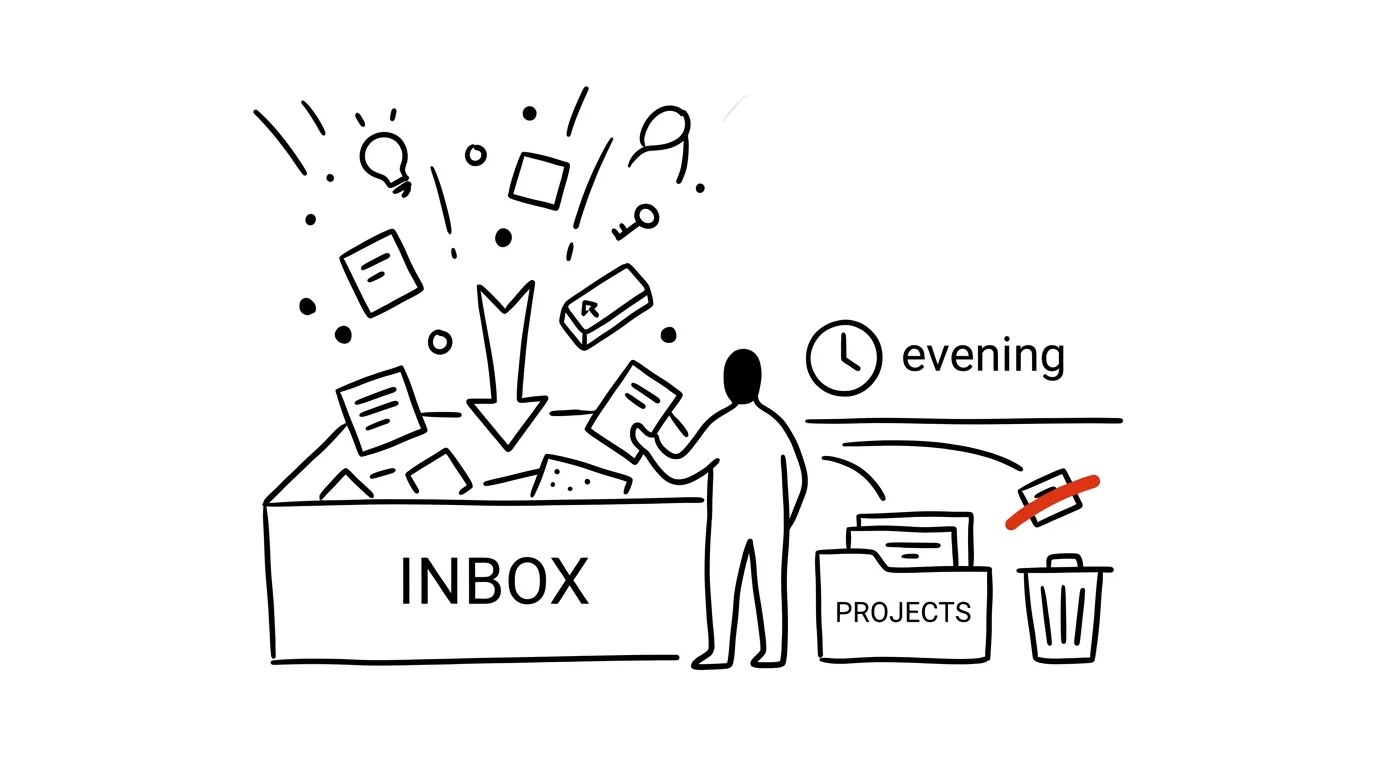
Deciding “where does this belong” for every single idea kills capture before it even happens. When you have to pick the right project, label, and due date for every thought as it occurs to you, your brain decides it'd rather “just remember it some other way” — and that's exactly how ideas vanish. The solution is simple: capture first, sort later.
A typical scenario
Over the course of a workday, five different things occur to you — order materials, verify an invoice, call a client, buy a coworker's birthday present, think through an idea for a new product. Without a system, you try to hold onto them in your head or scribble them half on scraps of paper, half in your phone's notes, half nowhere at all — and by evening, you only remember two of the five.
With an Inbox, you dump everything into one place the instant it occurs to you, without a second of thought about where it belongs. Open Todoist, type a few words, close it — the whole thing takes five seconds, and the idea is safe.
How to do it
- During the day, send absolutely everything into the Inbox — no project assigned, no due date, no priority. Your only job right now is getting the thought out of your head and into the system, not processing it.
- Don't overthink the wording or whether something is “important enough” to write down — the whole point of the Inbox is zero friction between having an idea and capturing it.
- Once a day, ideally in the evening or first thing the next morning, go through the entire Inbox item by item.
- For each item, decide: either assign it a project and, if needed, a due date (moving it out of the Inbox to where it belongs), or delete it outright if it's no longer relevant or turns out not to matter.
- Don't leave items sitting in the Inbox “to think about later” — that one step is exactly what turns the Inbox, over time, into the same kind of opaque storage pile you were trying to avoid.
- Treat an empty Inbox at the end of your sort as the goal, not as unnecessary perfectionism — it's the only reliable way to be sure nothing important slipped through.
The best tools
- Todoist's Inbox — the default and simplest place to capture, works across every version of the app, including mobile.
- Quick Add (a global keyboard shortcut in both the desktop and mobile app) — lets you jot down an idea without switching context, straight from any other app.
- Voice input or dictation (built into your phone) for moments when your hands are busy, like driving or walking.
- A physical notepad as a backup channel, for whenever you don't have your phone on hand — the principle is “write it down immediately, wherever,” not any specific tool.
What you get out of it
- Time: an estimated 10–20 minutes a day, since you're not spending time figuring out where something belongs the moment an idea strikes you in the middle of other work.
- A clearer head: your brain stops functioning as storage for unfinished tasks, because it knows the system will reliably capture them — psychologists call this the closed-loop effect.
- Fewer lost ideas: systematic capture means small but important things (call, verify, order) don't get lost among bigger tasks.
- A clean line between capturing and deciding: separating these two activities in time makes both faster — frictionless capture is instant, and sorting with a focused mind in the evening beats deciding on the fly.
Pro tip
An empty Inbox doesn't mean you've completed every task inside it — it just means you've processed all of them, meaning filed them where they belong or deleted them. The goal is a system with no loose ends in one spot, not an empty task list overall. This distinction matters, so that emptying your Inbox doesn't start creating a false sense of “I'm done.”
Want to go deeper? The handbook has a whole chapter on it — Core systems: inbox, priorities, reviews.
Similar tips
Multiple desktops: separate work from communication
Ctrl+→
Ctrl+arrows switch between virtual desktops. One for focused work, one for mail and chat — and distractions disappear from view.
Stage Manager: one window on stage, the rest wait in the wings
An alternative to window-switching — the active window sits center stage, the rest lined up at the edge. Helps you keep one thing in focus.
A shortcut for resizing images: right-click instead of online tools
Build your own Quick Action in the Shortcuts app in five minutes — select photos, right-click, and they're the right size for email.
Was this helpful?
Liked this tip?
I send one like it every week by email. Two minutes to read, hours saved.
The Top 30 tips e-book, free — it lands in your inbox right away.
Then 1 tip a week · no spam · unsubscribe in one click
Prefer a system to single tips? The free email course — seven days, seven emails, one skill a day.