Tips & tricks · Shortcuts · Browser · ~5 min a week · 2 min read
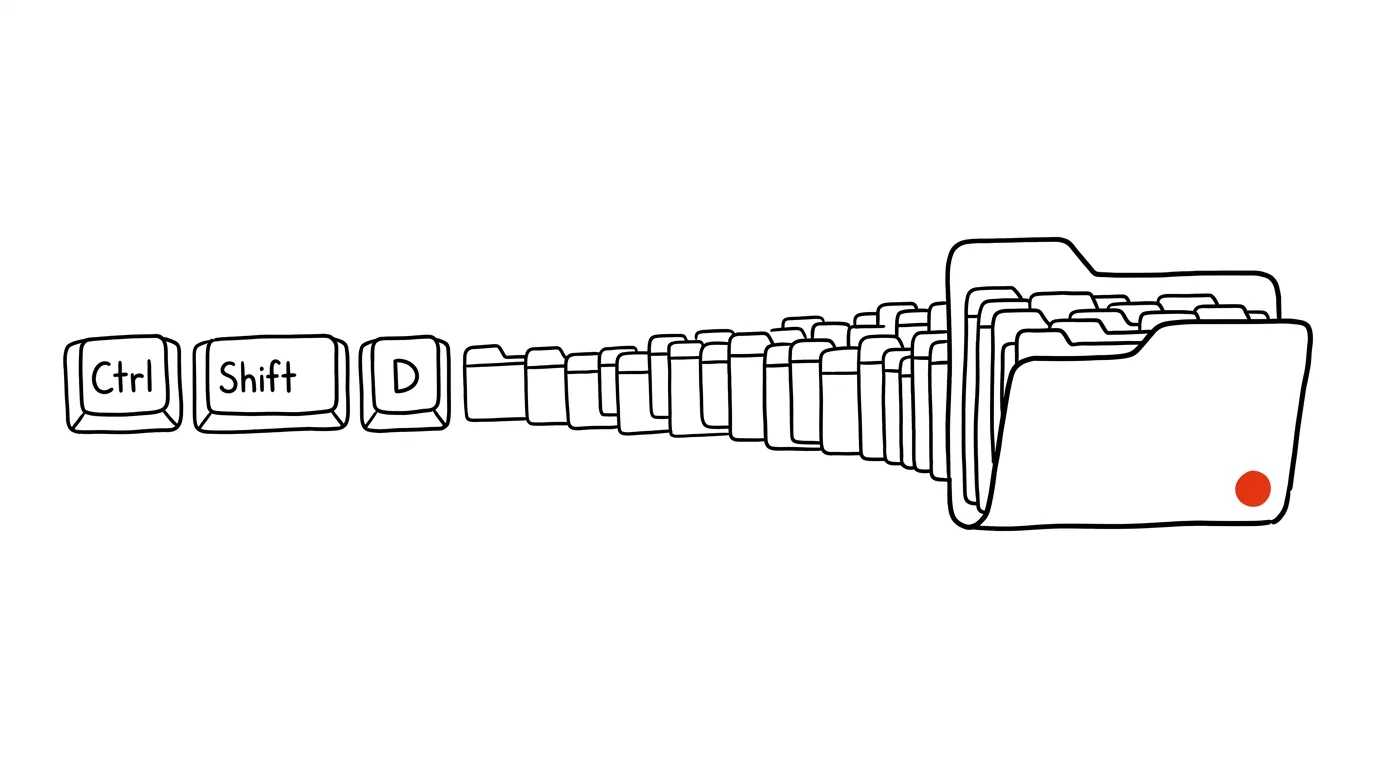
Ctrl+Shift+D saves every tab into a single bookmarks folder
Last reviewed:
Ctrl+Shift+D
In this article
End of the workday, twenty tabs of unfinished research open in the window — and you know you'll need all of them tomorrow. Leave them open? The browser might update, the computer might restart, a coworker might “just look something up.” Bookmark them one at a time? Twenty minutes of clicking. There's a third way: Ctrl + Shift + D saves every open tab at once into a single bookmarks folder that you name yourself. An entire work session packed up in one step.
How to do it
- In the window with the tabs you want to keep, press Ctrl + Shift + D (on a Mac, Cmd + Shift + D). Works in Chrome, Edge, and Firefox.
- The browser offers to create a new bookmarks folder with all the open tabs. Name it something meaningful — “Vendor research, August” serves you better than “New folder.”
- You can now close the tabs with a clear conscience, even the whole window — the folder with the rest of your bookmarks also syncs, so the session will be waiting for you on another computer too.
- When you're ready to continue, open the bookmark manager (or the bookmarks bar), right-click the folder, and choose Open All — the whole session comes back at once, each tab in its place. You can also open it into a new window, so the research doesn't mix with whatever you have open right now.
- Clean out folders that have served their purpose now and then — bookmarks have the advantage that they can be tidied up in bulk, an entire folder deleted in one go.
A typical scenario
A student is writing a term paper and has to log off at ten at night, but her sources are spread across twelve tabs. Ctrl+Shift+D, a folder called “Term paper — sources,” close, sleep. Saturday morning: right-click, Open All — and she's right back where she left off. No trying to remember “what did I have open,” no digging through history.
A marketer, meanwhile, keeps folders for recurring situations: a “Monthly report” folder with the ten sites he always needs when reporting. Once a month he opens them all at once — a bookmarks folder acting as a button that sets the desk for work.
What you get out of it
You get the freedom to close your browser at any time — work in progress isn't at risk, because it can be preserved in one motion and restored in one motion. Piles of tabs you're afraid to lose stop being the reason you always have forty of them open.
Pro tip
For short-term parking (until tomorrow), tab groups are more flexible — you collapse them and they stay in the tab bar. Ctrl+Shift+D shines over a longer horizon and for recurring sets: bookmarks survive anything, sync between computers, and don't take up space in the tab bar. Groups for days, folders for weeks.
Want to go deeper? The handbook has a whole chapter on it — The app categories that matter.
Similar tips
Stop sites from asking about notifications
The “This site wants to show notifications” popup can be switched off globally with one toggle. Sites stop asking — and you stop dismissing them.
Smart Quotes and Dashes: Typographic Proofreading by AI
Before you publish, have AI fix only the typography: smart quotes, dashes instead of hyphens, spacing around numbers and units. It leaves the wording alone.
In-depth guide · 19 min
Dictate your thoughts, let AI turn them into text
A complete guide with prompts: how to dictate a usable transcript, tidy it into an email or notes with one prompt, and turn commutes into writing time.
Was this helpful?
Liked this tip?
I send one like it every week by email. Two minutes to read, hours saved.
The Top 30 tips e-book, free — it lands in your inbox right away.
Then 1 tip a week · no spam · unsubscribe in one click
Prefer a system to single tips? The free email course — seven days, seven emails, one skill a day.