Tips & tricks · Communication · Everywhere · calmer calls · 3 min read
Noise suppression: the mower outside your window stays yours alone
Last reviewed:
In this article
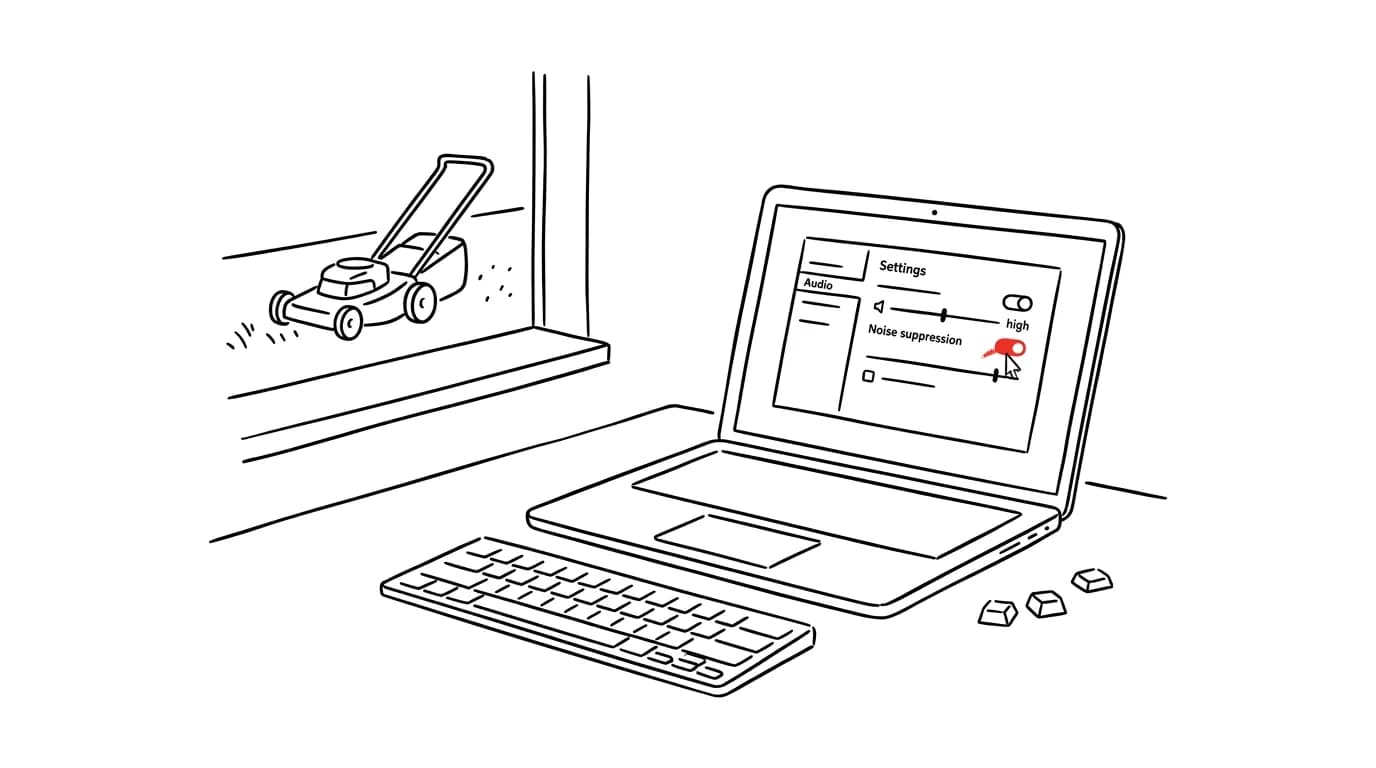
The dog starts barking the exact moment you get the floor. The neighbor picks your meeting time to drill, and the kids turn on a cartoon in the next room. A home office sounds the way it sounds — but the other side of the call doesn't have to hear it. Zoom and Teams both have built-in background noise suppression, which filters everything that isn't speech out of your audio. In its default “automatic” mode it works cautiously; few people know it can be switched to a high level, which reliably swallows keyboard clatter, rustling paper, and most barking too.
How to do it
Teams:
- Open Settings → Devices and find Noise suppression in the audio section.
- Switch it from the automatic level to High. You can also change it mid-call through the menu by the microphone button.
Zoom:
- Open Settings → Audio and find the background noise suppression section (depending on version, “Background noise suppression,” or a sound profile option).
- Choose the high level — an aggressive filter designed exactly for noisy environments.
The exact names of the options vary slightly between versions, but the logic is the same: auto for a normal environment, high for a noisy one. One exception — if you need to transmit music or singing (a lesson, a demo), turn suppression down or off instead, or the filter will mangle the music as if it were unwanted noise.
A typical scenario
A father on parental leave has a call with a client while a Lego build with full sound effects is underway in the living room. With noise suppression on high, the client hears only his voice — the bricks, the cartoon, and the clinking dishes in the background are all reliably swallowed by the filter. Without it, half the call would be spent apologizing for the noise and stepping away to close doors. The same trick rescues calls from a café, a train, or an open-plan office where a colleague next to you is running their own meeting.
What you get out of it
You can focus on the substance of the call instead of the acoustics of your apartment — and you come across as professional even calling from a kitchen, a café, or a train. The other side doesn't have to strain to decipher your voice out of the noise, either, so meetings flow better and are less tiring for both parties. And the reflexive “just in case” muting that leaves people talking into a muted mic disappears too.
Pro tip
The filter handles your outgoing audio, not incoming. When someone else at the meeting is the source of the noise, combine approaches: ask them to turn on the same setting — and in the meantime, captions will save you. And for noise that disturbs you as a listener, the most effective tool is noise-cancelling headphones: the software filter protects the other side, headphones protect you. Only together do they turn a home office into a quiet studio.
Want to go deeper? The handbook has a whole chapter on it — Professional email communication.
Similar tips
Top edge of your monitor at eye level
A neck that hurts from a monitor set too low. A stand or arm for a few dollars fixes years of discomfort.
Mouse sensitivity: across two monitors with one flick of the wrist
Default pointer and scroll-wheel speed is tuned for monitors from a decade ago. Two sliders save hundreds of arm movements a day.
In-depth guide · 62 min
AI automation: the complete guide
Automation in plain language: triggers, actions, runs; Zapier vs. Make vs. n8n vs. Power Automate; ten scenarios with prompts, and when not to automate.
Was this helpful?
Liked this tip?
I send one like it every week by email. Two minutes to read, hours saved.
The Top 30 tips e-book, free — it lands in your inbox right away.
Then 1 tip a week · no spam · unsubscribe in one click
Prefer a system to single tips? The free email course — seven days, seven emails, one skill a day.