Tips & tricks · Gear · Windows · fewer mysteries · 2 min read
Shutting down isn't enough: Windows only fully resets on a restart
Last reviewed:
In this article
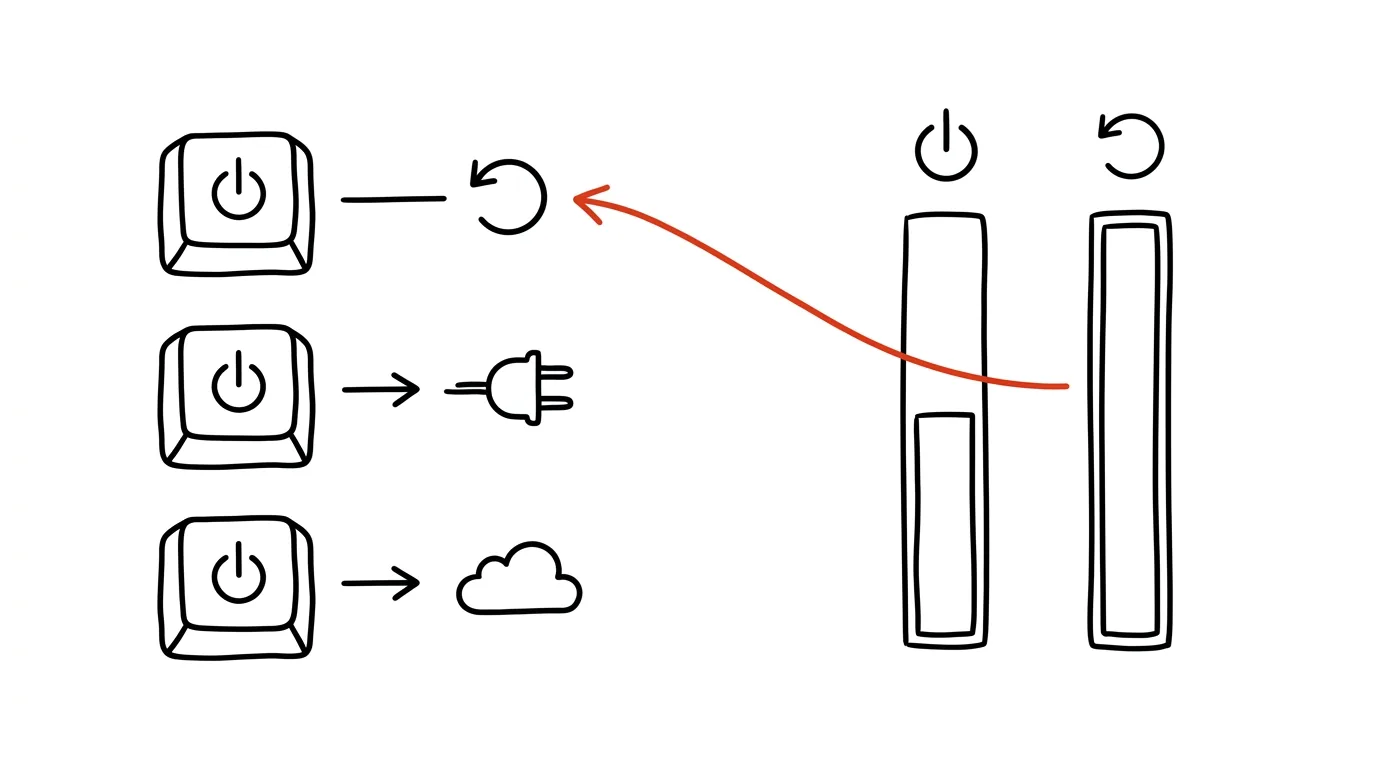
“Did you try turning it off and on again?” — except on modern Windows, that classic move might not work. By default, the system has Fast Startup enabled: when you shut it down, it doesn't fully terminate — it saves part of its state to disk so it can boot faster next time. It's effectively a shallow hibernation. Small software glitches that build up over weeks of use survive a shutdown just fine. Only the Restart option gives you a genuinely clean start — it bypasses Fast Startup and rebuilds the system from zero. That's why “off and on again” sometimes didn't help, but a restart did: they aren't synonyms.
How to do it
- When the computer is acting strange — Wi-Fi won't connect, sound doesn't play, an app is stuttering, a USB device isn't detected — use Start → power → Restart, not Shut down.
- To see how long the system has actually been running, check Task Manager (Ctrl + Shift + Esc): on the Performance → CPU tab there's an Uptime figure. More than one surprised user has found hundreds of hours there after a month of “shutting down every day.”
- So make restarting a routine — once every few days, maybe with Friday coffee. Windows sorts out updates, drivers, and memory afterward. Unfinished documents aren't lost either: modern apps can pick up right where they left off after a restart, and browsers restore their tabs.
- If you'd rather have even an ordinary shutdown be complete every time, turn off Fast Startup: Control Panel → Power Options → Choose what the power buttons do → Change settings that are currently unavailable, and uncheck Turn on fast startup. Boot will be a few seconds slower, but always clean.
A typical scenario
The family computer is “acting weirdly sluggish” and its connection to the printer has vanished again. Dad dutifully shut it down in the evening, turned it on in the morning — nothing changed. Only when he chose Restart instead of Shut down did the printer reappear and the sluggishness disappear: only the restart discarded weeks of stuck state that a Fast-Startup shutdown had faithfully preserved every time. Task Manager later showed the system had actually been running without a clean start for over six hundred hours.
What you get out of it
Half of all “mysterious” computer problems have the cheapest possible fix — you just have to actually do it. Knowing that restarting and shutting down aren't the same thing saves you frustration, pointless forum searches, and a trip to a repair shop with a computer that isn't actually broken.
Pro tip
When only the display is acting up — a black screen, artifacts, a frozen cursor — you don't have to restart the whole system: the shortcut from the tip on Win+Ctrl+Shift+B restarts just the graphics driver while everything keeps running.
Want to go deeper? The handbook has a whole chapter on it — The complete guide to an effective home office.
Similar tips
Turn on a notification for every card payment
A banking-app alert for every charge catches a forgotten subscription or a compromised card in the minute it happens — not a month later on a statement.
Noise suppression: the mower outside your window stays yours alone
Zoom and Teams can filter out barking, keyboard clatter, and next-door drilling. Just switch noise suppression to high in your audio settings.
In-depth guide · 17 min
From a box of business cards to a CRM table in one evening
A guide with 13 prompts: Claude Cowork pulls contacts and notes from scanned cards, prepares a CSV for your CRM, and drafts follow-ups. A human sends them.
Was this helpful?
Liked this tip?
I send one like it every week by email. Two minutes to read, hours saved.
The Top 30 tips e-book, free — it lands in your inbox right away.
Then 1 tip a week · no spam · unsubscribe in one click
Prefer a system to single tips? The free email course — seven days, seven emails, one skill a day.