Tips & tricks · Apps · Browser · ~5 min a day · 2 min read
Install a website as an app
Last reviewed:
In this article
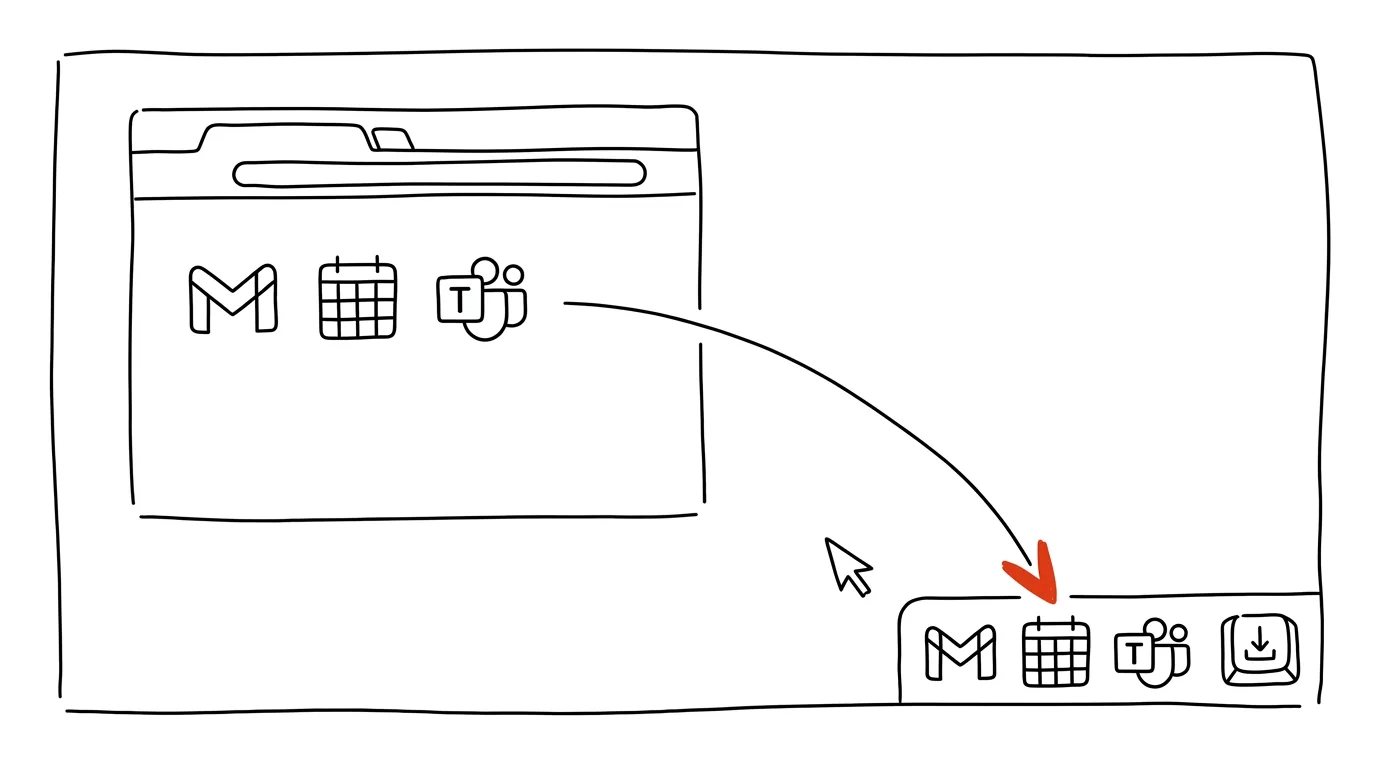
Web apps you spend your whole day in — mail, calendar, chat, a task tracker — don't have to live as tabs among thirty others. Chrome and Edge can “install” any website as a standalone app: it gets its own window with no address bar, its own taskbar icon, and shows up in Alt+Tab switching like a full-fledged program. The site remains a site, it just behaves outwardly like a real application — no store install, no download.
How to do it
- Open a site you use every day — typically webmail, a calendar, a task tracker, or a company chat.
- In Chrome: the three-dot menu → Save and share → Install page as app. On sites set up for it, the same option also appears as a small icon right in the address bar.
- In Edge: the three-dot menu → Apps → Install this site as an app.
- The site opens in its own clean window. Pin the icon to your taskbar (right-click the icon → Pin) — from then on you launch the app with one click, like Word or Excel. Sign-in and settings are shared with the browser, so you don't start from zero.
- Uninstalling is just as easy: open the app's menu inside its window and choose uninstall. Firefox doesn't have this feature on desktop — there, pinned tabs are the closest substitute.
A typical scenario
A manager has his calendar open as the seventeenth tab from the left. When he needs it, he hunts for it in the tab bar; twice a day he closes it by accident while tidying up tabs; and when the browser crashes, the calendar disappears with it. After installing it as an app, the calendar gets its own icon next to mail, switches via Alt+Tab, and the browser window itself can be closed entirely — the calendar keeps running in its own world.
There's a psychological difference too: open a task tracker as an app, and you see the task tracker. Open it as a tab, and you see all twenty other tabs clamoring for attention too — and the path to “I'll just check messages real quick” is one click shorter than it should be.
What you get out of it
Your most-used tools get a one-click launch and a spot in Alt+Tab, where they belong. They stop getting lost among tabs, can't be closed by accident during cleanup — and work inside them gets noticeably more focused, because the rest of the browser isn't flickering around it.
Pro tip
Installed apps work great combined with split-screen: calendar as an app on the right, mail on the left, no extra browser chrome. The windows behave like any others, so you can arrange them with the Win+arrows shortcut.
Want to go deeper? The handbook has a whole chapter on it — The app categories that matter.
Similar tips
In-depth guide · 17 min
Custom instructions: set up AI once, it applies forever
A complete guide to standing instructions: what belongs in them, how they differ from a Project, testing them — and ready sets for common professions.
Ask AI What It Assumed
Gaps in your prompt get silently filled with the model's own assumptions. Have them listed out — see what the answer is standing on before you build work on top of it.
In-depth guide · 28 min
AI for complete beginners: what to install on your computer and phone, and the difference between chat, Cowork, and Claude Code
A complete guide with prompts: installing Claude and ChatGPT on computer and phone, chat versus Cowork versus Claude Code — and who can actually draw.
Was this helpful?
Liked this tip?
I send one like it every week by email. Two minutes to read, hours saved.
The Top 30 tips e-book, free — it lands in your inbox right away.
Then 1 tip a week · no spam · unsubscribe in one click
Prefer a system to single tips? The free email course — seven days, seven emails, one skill a day.