Tips & tricks · AI · Browser · ~10 min a day · 3 min read
Voice typing in Google Docs
Last reviewed:
Ctrl+Shift+S
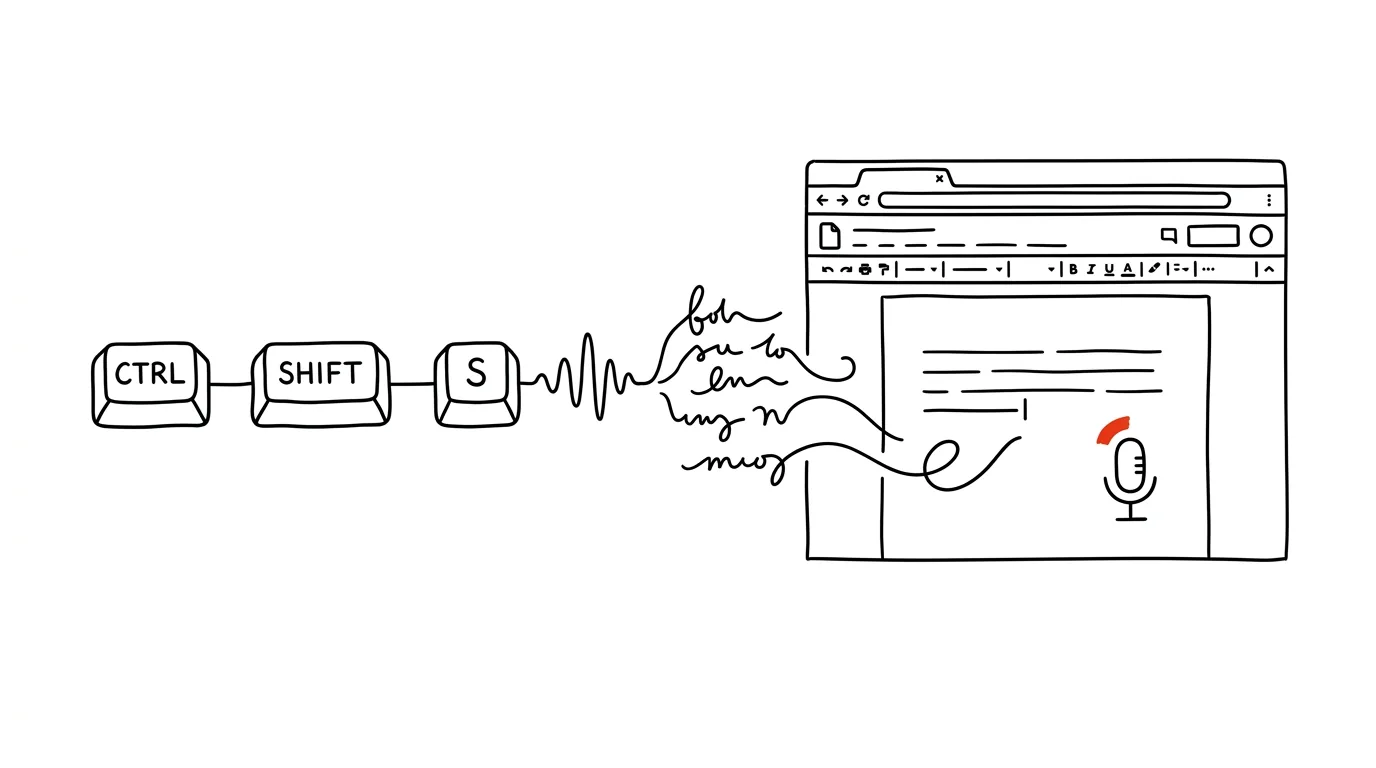
The first version of a text doesn't have to come from a keyboard. Google Docs has built-in voice typing that works in English, right in the browser, at no cost — all you need is a microphone, which comes built into nearly every laptop or headset these days.
A typical scenario
You're writing a term paper or a longer report and need to get a rough first version down on the page — the ideas, the arguments, the skeleton of the text — before you start polishing it. Typing on a keyboard, you often get stuck wording a single sentence, hunting for the exact word, and losing momentum on the whole piece. With voice typing, you talk the way you'd explain it to a coworker or classmate — more freely, more naturally, and faster than on a keyboard — and only then go back and clean the text up into its final form. Splitting the work into “content first, form second” is more effective than trying to write perfectly on the first pass.
How to do it
- In Google Docs, open Tools → Voice typing, or use the shortcut Ctrl + Shift + S directly.
- A floating microphone icon appears — click it and start talking. The document types out the text in real time as you speak.
- You need to dictate punctuation out loud — say “comma,” “period,” “new line,” or “question mark” exactly where it belongs, since it isn't inserted automatically based on your tone of voice.
- The goal of this first phase is to get the content out, not to be perfect. Don't stop over a slip of the tongue or an awkward phrasing — you'll read through and edit the text calmly as a second step once the microphone is off.
- Voice typing only works in the Chrome browser (or browsers built on the same engine) and requires an active internet connection, since speech recognition runs on a server.
- Turn off the microphone by clicking the icon again or using the same keyboard shortcut you used to start dictation — the document stays saved the entire time, and nothing gets lost.
The best tools
- Voice typing in Google Docs (Ctrl+Shift+S) — built in, free, and works in English right in the browser with nothing extra to install.
- Dictation in Windows (Win+H) or dictation in macOS — a similar feature outside of Google Docs, useful if you're writing in an app other than your browser.
- An AI writing tool — once you've dictated a rough draft, you can have it cleaned up into clear, grammatically correct text; if it contains people's names, contact details, or other sensitive information, anonymize it before pasting it into the AI tool — replace it with a generic description or remove it temporarily.
What you get out of it
- Time: for longer texts, a real savings of several minutes a day, since speaking is faster than typing on a keyboard.
- Smoother idea flow: speaking naturally supports more coherent expression than hunting for words finger by finger on a keyboard.
- Less writer's block: separating “content out loud first, editing second” helps you get past a blank page when you don't know how to start.
Pro tip
Dictate in short, self-contained bursts of thought and pause briefly between them — it makes editing easier later, since the text ends up naturally broken into paragraphs based on how you were thinking, instead of one messy stream of sentences. Before trying dictation on an important piece of writing for the first time, practice on something less critical — you'll quickly pick up exactly how to dictate punctuation and what pace of speech the system recognizes best.
Want to go deeper? The handbook has a whole chapter on it — AI and automation.
Similar tips
The Two-Screen Meeting Rule: One for People, One for Notes
Put the meeting window on the monitor with the camera, notes and materials on the other. You look people in the eye, never share anything private, and minutes write themselves.
E-ink tablets: writing like on paper, without the distraction
The reMarkable and its peers have no notifications, no browser, no social networks. Just you and your notes — which digitize themselves.
In-depth guide · 64 min
How to write an email people answer
A complete guide to writing emails: subject lines, salutations, formal and casual English, ready-made wording for ten hard situations, and prompts for AI.
Was this helpful?
Liked this tip?
I send one like it every week by email. Two minutes to read, hours saved.
The Top 30 tips e-book, free — it lands in your inbox right away.
Then 1 tip a week · no spam · unsubscribe in one click
Prefer a system to single tips? The free email course — seven days, seven emails, one skill a day.