Tips & tricks · Apps · Mac · ~10 min a week · 3 min read
Your iPhone as a scanner: scan a document straight into your Mac
Last reviewed:
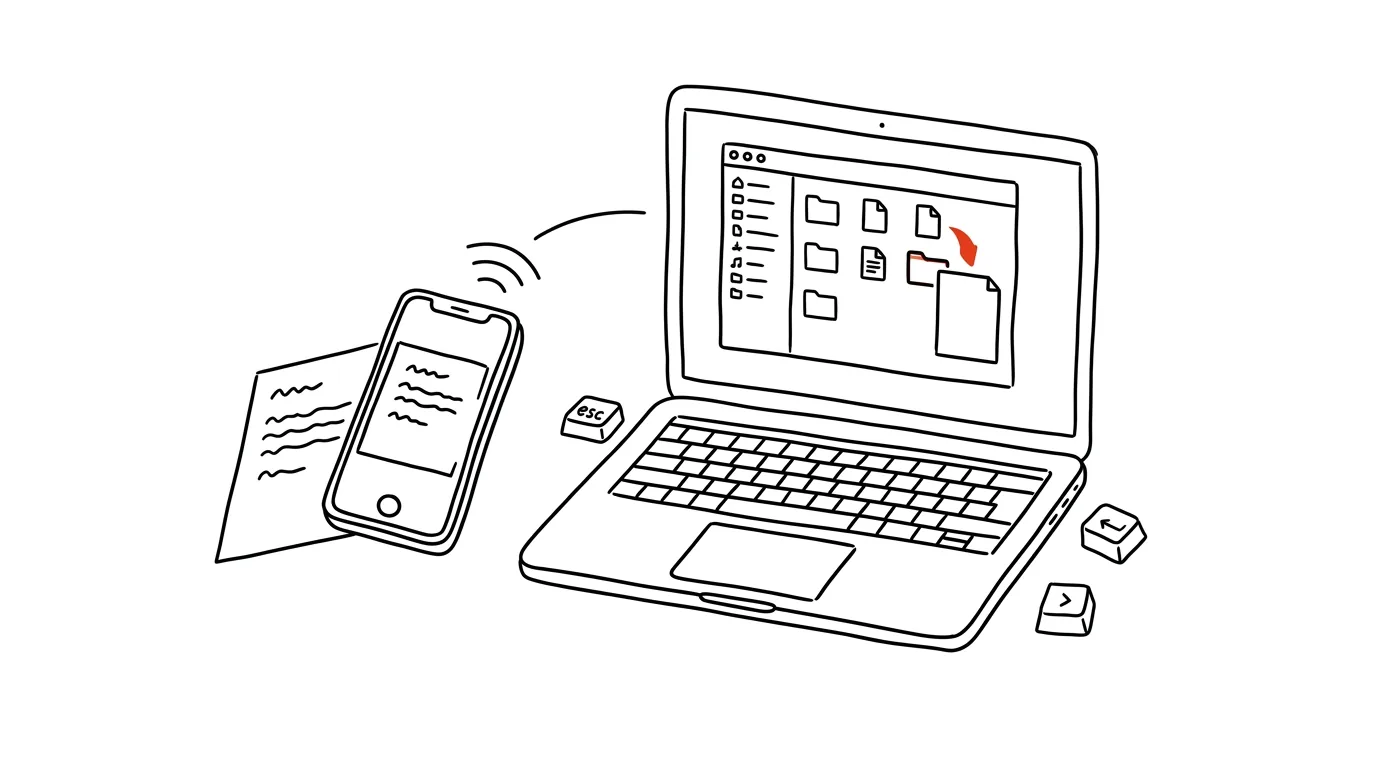
You don't need a scanner — it's already in your pocket. Continuity Camera links your iPhone to your Mac so the phone's camera works as an input straight into apps on your computer — not just for scanning documents, but also for photographing objects or streaming live video.
A typical scenario
You need to drop a scan of a signed contract into an email, and it's sitting on your desk right next to your Mac. The old way means photographing the document with your phone, sending yourself the photo via AirDrop or email, downloading it on your Mac, and only then inserting it into the message — and the photo isn't even cropped or straightened. With Continuity Camera, you right-click directly in the window where the scan belongs, your phone opens automatically as a scanner, and the finished PDF lands exactly where you clicked, with no extra steps in between.
How to do it
- Make sure your iPhone and Mac are signed into the same Apple ID and have Bluetooth and Wi-Fi turned on.
- Right-click (or Ctrl + click) wherever you want the scan to go — in Finder, Mail, Notes, or another supported app.
- From the context menu, choose Import from iPhone → Scan Documents (or Take Photo, if you just want a plain snapshot).
- Your iPhone's scanner opens automatically — point it at the document, and it crops and straightens itself, just like the Notes app does directly on the phone.
- Scan additional pages if needed; they all end up in the same file.
- Tap Save on your iPhone — within a few seconds, the file appears exactly where you originally clicked on your Mac.
The best tools
- Continuity Camera (built into macOS and iOS) — free, nothing to install, works between your own Apple devices.
- The Notes app on iPhone — if you only need the scan on your phone, without transferring it to your Mac, the same scanner works standalone too.
- Adobe Scan — for more advanced needs like text recognition inside a scan or automatic sorting into folders.
- A desktop scanner with an ADF feeder — if you regularly scan dozens of pages at once, a physical scanner is still faster than doing it page by page on your phone.
What you get out of it
- Time: the whole detour of sending a photo between devices disappears — the scan lands where it belongs, usually within ten seconds.
- Quality: automatic cropping and straightening beats a manual photo from your camera roll, which you'd otherwise have to crop yourself in an editor.
- Less file clutter: you don't end up with extra copies of photos in your phone's camera roll on top of the file on your Mac — the scan goes straight where you need it.
- Convenience without extra hardware: you don't need to buy a scanner or keep one nearby, your phone fully replaces it for everyday documents.
Pro tip
The feature also works in reverse, and more simply than you'd expect — the same right-click lets you insert a plain photo taken directly with your iPhone into your Mac, which is handy when writing documentation and you need to quickly photograph a physical product or prototype and drop it straight into the text.
Want to go deeper? The handbook has a whole chapter on it — The app categories that matter.
Similar tips
In-depth guide · 18 min
Give your content a voice: audio versions of articles and newsletters
A guide with prompts: turning finished text into listenable audio — preparing the text for the ear, choosing a voice, and hard voice-cloning rules.
The two-minute rule for your inbox
Anything that takes less than two minutes, do right when you read it. Longer things go to your task list — and archive the email.
In-depth guide · 64 min
How to write an email people answer
A complete guide to writing emails: subject lines, salutations, formal and casual English, ready-made wording for ten hard situations, and prompts for AI.
Was this helpful?
Liked this tip?
I send one like it every week by email. Two minutes to read, hours saved.
The Top 30 tips e-book, free — it lands in your inbox right away.
Then 1 tip a week · no spam · unsubscribe in one click
Prefer a system to single tips? The free email course — seven days, seven emails, one skill a day.