Tips & tricks · Shortcuts · Mac · ~2 min a day · 3 min read
“Cut and paste” files in Finder
Last reviewed:
Cmd+Option+V
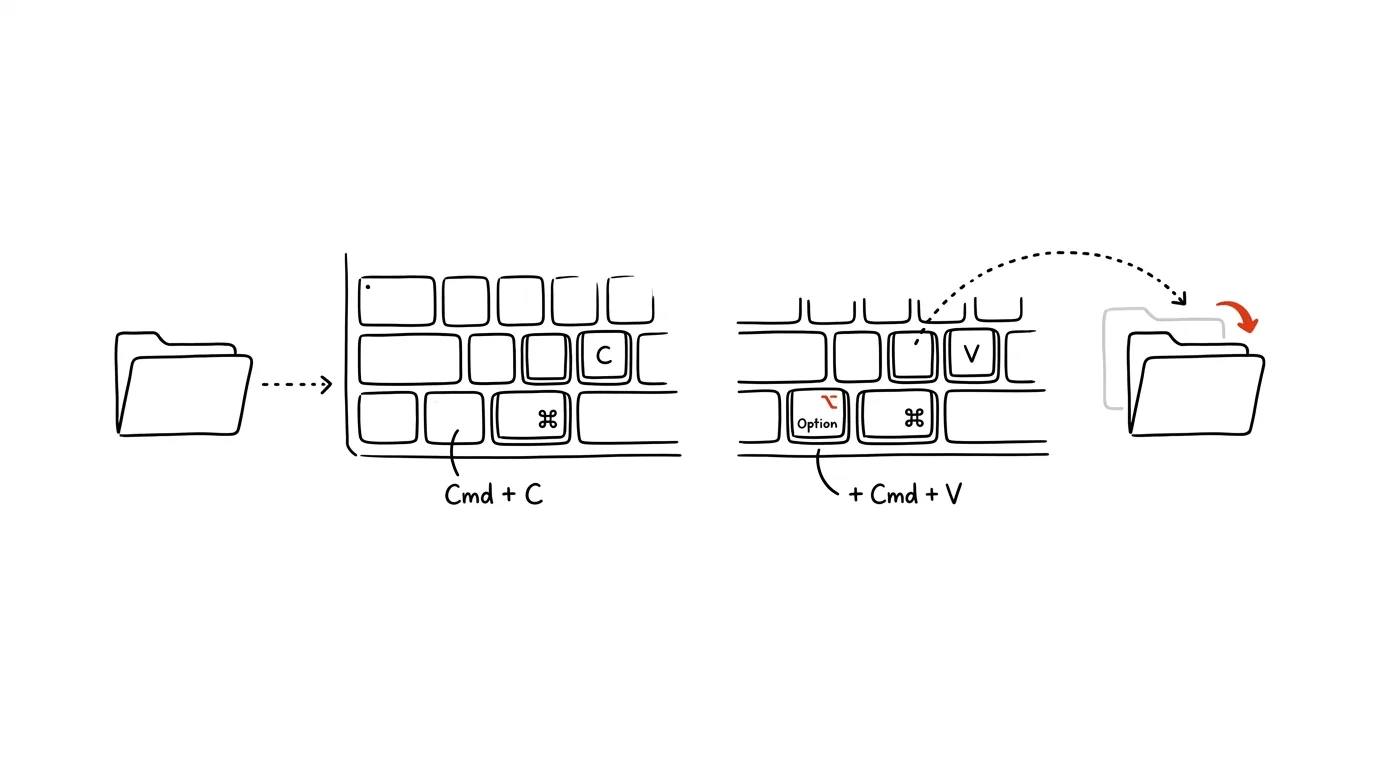
Unlike Windows, the Mac has no classic Ctrl+X for files — dragging files with the mouse between two open Finder windows is therefore slow and error-prone when moving between distant folders. Anyone switching from Windows finds this the most jarring difference, because the habit of pressing Ctrl+X runs deep. The solution is simple: copy the file as usual, and when pasting, add the Option key, which turns the copy into a move.
A typical scenario
You have ten files in Downloads that belong in a project folder buried deep in your Documents structure. Dragging with the mouse would mean having both windows open side by side, aiming precisely at the target folder, and making sure the file doesn't accidentally get dropped somewhere else.
With Cmd+C and Cmd+Option+V, you copy the file, navigate to the destination folder, and paste — and the file disappears from the original folder, because it actually moved rather than being copied. So you don't have to go back afterward and manually delete a leftover copy that would otherwise sit around in Downloads.
How to do it
- Select the files you want to move and press Cmd + C — just as with a normal copy.
- Navigate to the destination folder, either by clicking through, or faster with Cmd + Shift + G and typing the path.
- Press Cmd + Option + V — the files move to the destination folder; a plain Cmd + V would just copy them and leave a duplicate in the original folder.
- If you accidentally move a file somewhere you didn't intend, the standard Cmd + Z will undo it.
- It also works between your computer's drive and a connected external or network drive — a move between different volumes can take a bit longer, because the data is physically transferred, not just re-registered in the file system.
- The move also works for multiple files and entire folders at once, so you can select a whole batch and move it in a single step.
The best tools
- The built-in Cmd+C and Cmd+Option+V combo — the fastest route, nothing to install.
- Dragging with the mouse while holding Cmd, between two Finder windows — an alternative for when you have both destination folders visible side by side on screen.
- Finder tabs (Cmd+T) — open the source and destination folders as tabs in a single window and drag between them without switching windows.
- Path Finder — a third-party tool with an advanced file manager, for users who need more than standard Finder offers.
- Holding Cmd while dragging with the mouse between volumes — for moves between two different drives, a plain drag copies by default; holding Cmd turns it into a move.
What you get out of it
- Time: moving from the keyboard is faster than precisely aiming for the destination folder with the mouse, especially when the source and destination folders are far apart in the tree.
- Tidiness: files don't end up duplicated in two places, as can happen if you forget to delete the copy after a manual copy-paste.
- Less risk of error: no dropping a file "next to" the destination folder, as easily happens when dragging with the mouse.
- A tidier drive: without forgotten duplicates in Downloads or on the Desktop, your storage doesn't fill up with unnecessary copies.
Pro tip
The Cmd+C and Cmd+Option+V combo deserves a spot in your muscle memory right alongside regular copy and paste — once you've got it down, dragging files between windows with the mouse will start to feel needlessly slow.
Want to go deeper? The handbook has a whole chapter on it — The app categories that matter.
Similar tips
In-depth guide · 23 min
Reproducible Data Analysis: Turn a One-Off Query into a Procedure That Always Gives the Same Number
A guide with prompts: why the agent writes a different script every time, when to move from chat to a file, scheduled runs, and catching silent breaks.
In-depth guide · 19 min
Research before a big purchase, in five minutes
A guide with prompts: nail down your criteria, search with citations, build a comparison table, and pull complaints from reviews. Services save most.
In-depth guide · 59 min
A restaurant as a system: one menu that everything else is derived from
A complete guide with 25 prompts: turn your menu into a structured source of truth, then derive the printed menu, a QR menu on your website, social posts, and a staff cheat sheet from it. No more retyping the same soup in four places.
Was this helpful?
Liked this tip?
I send one like it every week by email. Two minutes to read, hours saved.
The Top 30 tips e-book, free — it lands in your inbox right away.
Then 1 tip a week · no spam · unsubscribe in one click
Prefer a system to single tips? The free email course — seven days, seven emails, one skill a day.