Tips & tricks · Shortcuts · Mac · ~5 min a day · 3 min read
Half- and quarter-screen window layouts
Last reviewed:
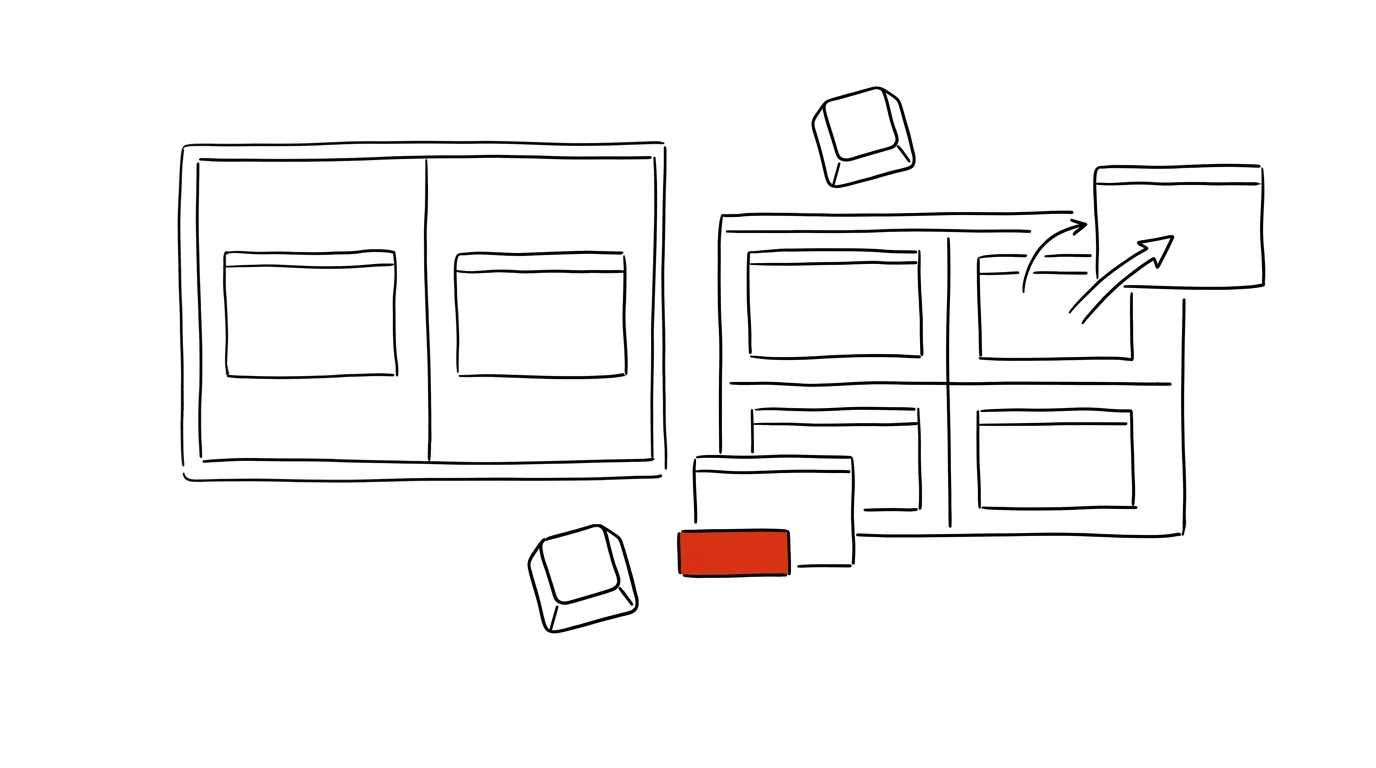
A tidy screen means a tidy head. Windows on a Mac can line themselves up — you don't have to manually resize them by dragging a corner and guessing whether two windows will really fit side by side the way you wanted. Newer macOS versions support edge snapping much like Windows users already know, just with slightly different controls.
A typical scenario
A designer needs four smaller windows side by side — notes, a reference image, a chat with the client, and the main work app — each in one quarter of the screen. Dragging corners by hand means a minute of guessing and fine-tuning to get the windows to line up exactly without overlapping.
With edge snapping, you just drag a window to the corner of the screen and the system offers up the exact quarter on its own. Within a few seconds, all four windows are evenly arranged, without a single manual resize.
How to do it
- Drag a window with the mouse to the left or right edge of the screen — before you let go, the screen highlights the area the window will occupy, usually half the screen.
- Release the mouse button at that point and the window snaps exactly to that half.
- Drag into a corner of the screen (not just an edge) and you're offered a quarter instead of a half — handy for fitting four smaller windows at once.
- Alternatively, hover over the green button in the top-left corner of a window — this opens a menu with layout options: half, quarter, or centering the window on screen.
- Once you place the first window in a half or quarter, the system automatically offers thumbnails of the remaining open windows to fill the rest of the screen.
- Holding the Option key while hovering over the green button reveals an even more extensive layout menu on some macOS versions, including asymmetric pairs (say, two-thirds and one-third of the screen) for when one app needs more room than the other.
The best tools
- Built-in window snapping — free, works by dragging with the mouse with nothing to install, and is fully sufficient for arranging two to four windows.
- Rectangle (free, open source) — adds keyboard shortcuts for precise layouts, good for anyone who prefers the keyboard over the mouse.
- Magnet (paid App Store app) — visual layout previews with support for saved combinations for recurring window setups.
- Moom — a more advanced tool for people with multiple monitors and custom, precisely defined window layouts.
What you get out of it
- Time: faster window arranging than manually dragging corners and eyeballing sizes — for anyone who rebuilds the same desktop setup repeatedly, that's minutes a day.
- Clarity: evenly arranged windows are easier to track at once, without overlap and without unnecessary switching.
- Consistency: the same windows can be arranged the same way every time, so you quickly get used to a tidy desktop and know where to find things.
- Less eye strain: the borders between windows are sharp and even, which reads as calmer at a glance than randomly stacked windows of different sizes.
Pro tip
Quarter combinations work across two monitors too — a window dragged toward the edge of one display and on toward the next can be placed in the corner of the neighboring monitor the same way, which is handy on a widescreen setup. Layouts can be rearranged anytime, so it's worth changing them during the day based on whatever two or three things you need to watch at once, instead of leaving the same setup permanently in place.
Want to go deeper? The handbook has a whole chapter on it — The app categories that matter.
Similar tips
Pinned tabs: mail and calendar always in the same spot
A pinned tab shrinks to an icon, stays on the left, and can't be closed by accident. The foundation for a stable browser setup.
Free trial? Cancel it right away — it runs the full course anyway
For subscriptions through the App Store or Google Play, you can cancel the trial a minute after activating it: it still runs to the end, and nothing gets charged. Elsewhere, a reminder does the job.
Exam registration: a reminder for the exact minute it opens
Exam slots fill up within minutes. A reminder set to the exact moment registration opens decides whether you plan your exam period, or take whatever's left.
Was this helpful?
Liked this tip?
I send one like it every week by email. Two minutes to read, hours saved.
The Top 30 tips e-book, free — it lands in your inbox right away.
Then 1 tip a week · no spam · unsubscribe in one click
Prefer a system to single tips? The free email course — seven days, seven emails, one skill a day.