Tips & tricks · Shortcuts · Everywhere · peace of mind while presenting · 2 min read
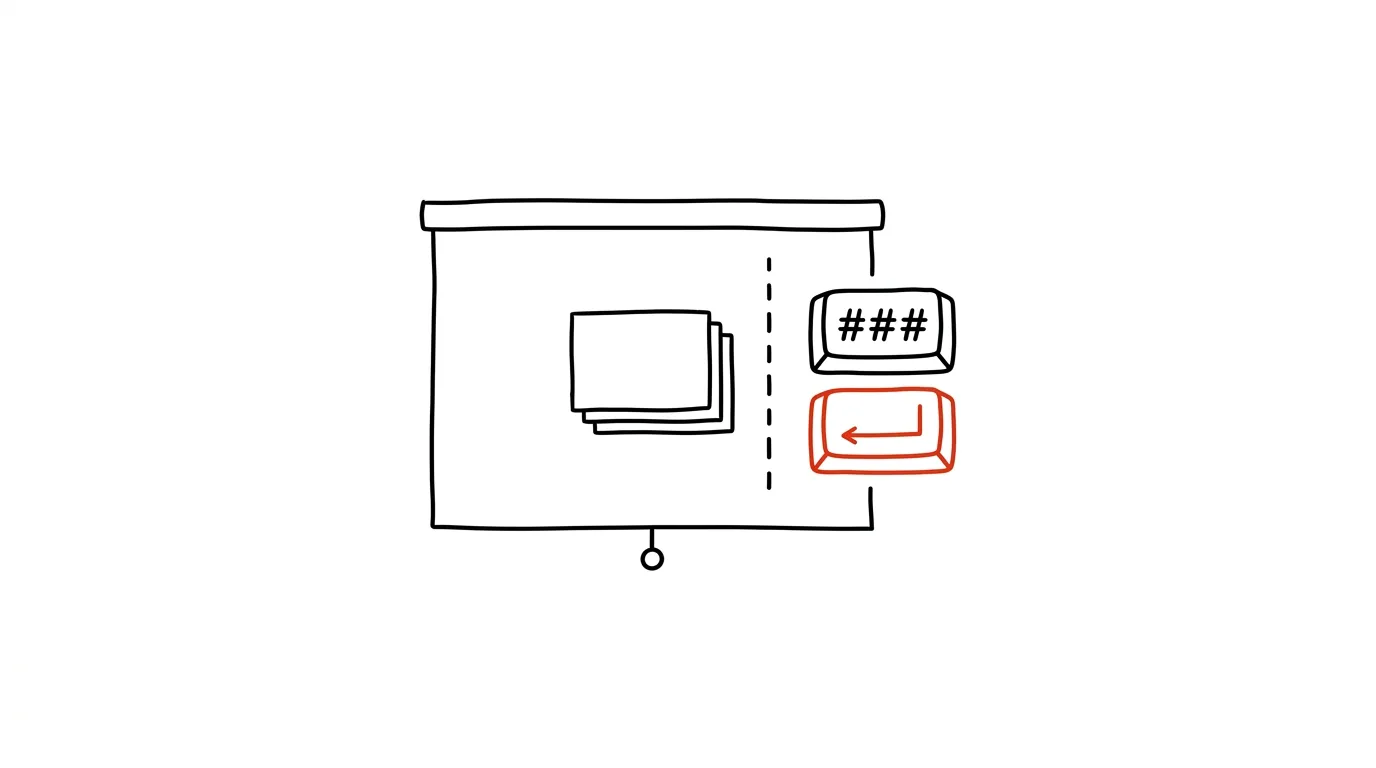
Jump to any slide while presenting: type the number, hit Enter
Last reviewed:
In this article
“Could you go back to that chart from the beginning?” And the presenter clicks the back arrow through fifteen slides while the audience watches the deck run in reverse and the thread of the talk falls apart. Yet both PowerPoint and Google Slides can jump blind to any slide mid-show: just type its number and press Enter. The audience sees only an instant cut — as if you'd rehearsed it.
How to do it
- During the slideshow, type the slide number on your keyboard (say, 4) and press Enter. This works in both PowerPoint and Google Slides, even though you don't see any input field on screen.
- To know the numbers of your key slides, print the outline and jot them into your presenter notes — or just remember three: the opening agenda, the main chart, the closing summary. For an important presentation, it's worth keeping a sticky note with five numbers next to the keyboard.
- If you don't know the number, an overview of all slides helps: in PowerPoint during a slideshow, right-click → See All Slides (in newer versions also the G key) shows a grid of thumbnails you click to jump to. Careful — the audience sees this overview too; jumping by number is more discreet.
- Getting back is the same move: type the number of the slide where you paused and continue from there.
Jumping by number also opens up a useful backup-slide tactic: put details you'll only show on request — a detailed table, methodology, more sensitive figures — after the last slide of the deck. In normal clicking you'll never reach them, but when the question comes, you jump there by number and look prepared for anything.
A typical scenario
You're presenting quarterly results to leadership. At slide 18, someone asks about the calculation methodology you explained on slide 5, and the person asking doesn't remember it anymore. You type 5, Enter — the chart's on screen, you answer, type 18, Enter — and continue where you left off. The whole thing took five seconds, and nobody saw any confused flipping or your email inbox flash on screen.
What you get out of it
Composure in the most exposed part of presenting — unexpected questions. The discussion can jump around the deck however the audience needs, and you come across as having the material completely in hand. No wasted time, no rewinding in front of the room — and none of the loss of rhythm rewinding usually causes for you too.
Pro tip
Two more keys belong in a presenter's toolkit: B fades the screen to black when you want attention on you instead of the slides, and Ctrl + L in PowerPoint turns the cursor into a red laser pointer — you then point with your mouse right on screen.
Want to go deeper? The handbook has a whole chapter on it — The app categories that matter.
Similar tips
Headphones with a mic for meetings: sound matters more than the camera
Colleagues will forgive a grainy picture, but not a booming mic sound from across the room. A mic near your mouth is the cheapest meeting upgrade there is.
In-depth guide · 17 min
Social media on autopilot (with a human thumb)
A complete guide with prompts: content pillars and brand voice, a monthly plan, batch-produced posts for LinkedIn, Instagram, and X, and a monthly review.
In-depth guide · 57 min
Your club as a system: posters, an events calendar, and membership records with AI
A complete guide with 25 prompts for anyone running a club on evenings and weekends: one visual identity through the Canva connector, an events calendar as the single source of truth, membership records with roles in Supabase, mass emails with a personal touch — and the whole system documented so it can be handed off to a successor.
Was this helpful?
Liked this tip?
I send one like it every week by email. Two minutes to read, hours saved.
The Top 30 tips e-book, free — it lands in your inbox right away.
Then 1 tip a week · no spam · unsubscribe in one click
Prefer a system to single tips? The free email course — seven days, seven emails, one skill a day.