Tips & tricks · Shortcuts · Everywhere · stronger presentations · 3 min read
The B key while presenting: black out the screen, get attention
Last reviewed:
B
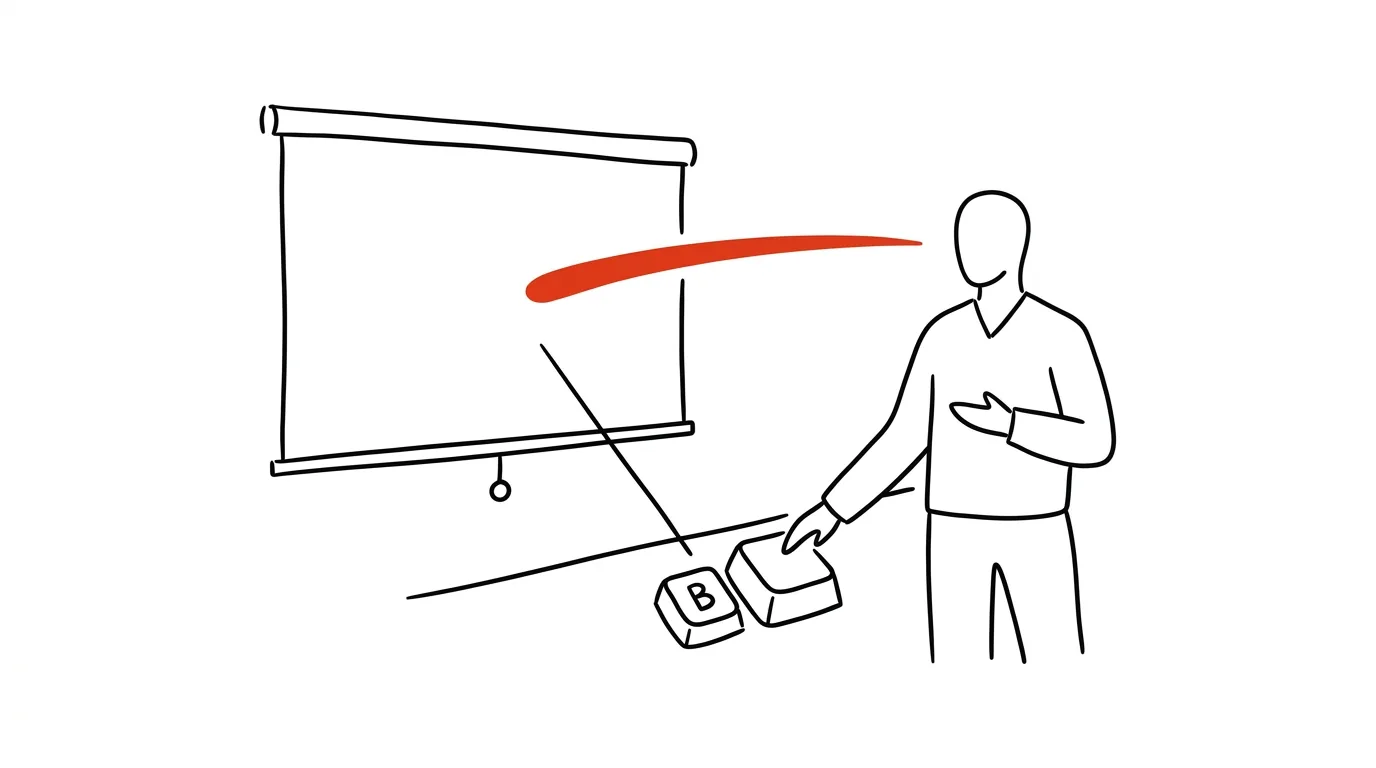
When you want people to listen to you instead of reading the slide behind you, the simplest fix is to turn the slide off for a moment. Both PowerPoint and Google Slides have a single key for this that most presenters never use, even though every slideshow player supports it. It works at any point in a presentation, with no menu clicking and no interruption to your talk.
A typical scenario
You're running a meeting and just walked through a chart with last quarter's numbers. Now you want to open up discussion — except the chart is still glowing on screen and half the room keeps reading the numbers instead of listening to you. Without the trick, you either leave the slide up and fight for attention, or awkwardly click through to a blank slide you had to prepare in advance. With the B key, the screen goes black in a second, attention automatically shifts to you, and once you're ready to continue, pressing any key picks up exactly where you left off.
How to do it
- Start the presentation in slideshow mode (F5, or Shift + F5 to start from the current slide).
- At any point during the slideshow, press B — the whole screen goes black (B for black). The audience sees an empty dark screen and naturally focuses on you.
- If you want a white screen instead, for a "spotlight" effect, press W (white) instead.
- Returning to the presentation is just as fast — press any key or click the mouse and the slide reappears exactly where you left it, nothing shifts or skips.
- Out-of-order navigation works too: type the number of a specific slide and confirm with Enter — typing "12 Enter" jumps you straight to slide twelve without clicking through everything in between.
The best tools
- The built-in shortcut in both PowerPoint and Google Slides — works identically in both, nothing to install or configure.
- A presenter remote with a black-screen button — physical clickers (Logitech and similar) often map this feature to a button, so you don't have to reach for the keyboard.
- Presenter view — combined with the B key, you still see your notes and the timer on your own display while the audience sees black.
What you get out of it
- A stronger presentation: the audience's attention goes where you want it — on you, not the text behind you.
- Smoothness: the switch between "showing a slide" and "speaking without distraction" takes one second, with no awkward pause or menu hunting.
- Control over pacing: you can stop for discussion or questions anytime without a visual constantly "pushing" content you've already covered.
- A professional impression: the audience may never notice this detail, but they'll register that you're running the presentation confidently and without hesitation.
Pro tip
Jumping to a specific slide is just as useful in reverse — when someone in the audience asks about a slide you covered ages ago, type its number and hit Enter instead of hunting for it manually. Jot down slide numbers ahead of time for edge-case points that tend to come up in questions.
Want to go deeper? The handbook has a whole chapter on it — The app categories that matter.
Similar tips
In-depth guide · 23 min
Beeper as your message hub: Claude pulls promises out of your chats before you forget them
A complete guide with prompts: Beeper unifies WhatsApp, Messenger, and Slack into one app, and Claude pulls promises and deadlines out of them via MCP on a regular schedule and writes them into Notion. Includes a patient introduction to the terminal for anyone who's never opened one.
A checklist for anything you do a second time
Client onboarding, publishing an article, the monthly close — a repeated process without a checklist means forgetting something, every time.
In-depth guide · 20 min
Artifacts: mini-apps without coding
A guide with prompts: how a plain description becomes a working calculator, quiz, or prototype, refining and sharing it — and when you need a real app.
Was this helpful?
Liked this tip?
I send one like it every week by email. Two minutes to read, hours saved.
The Top 30 tips e-book, free — it lands in your inbox right away.
Then 1 tip a week · no spam · unsubscribe in one click
Prefer a system to single tips? The free email course — seven days, seven emails, one skill a day.