Tips & tricks · AI · Everywhere · ~3 h a week and forgotten promises · 23 min read · in-depth guide, doing it ~2 h
Beeper as your message hub: Claude pulls promises out of your chats before you forget them
Last reviewed:
In this article
- A typical scenario
- What Beeper is, and why it's a hub
- Before you start: what you'll need
- The terminal, for anyone who's never opened one
- Connecting Beeper to Claude
- The first promise scan
- Writing to Notion and your calendar
- Running it on a regular schedule
- Privacy and security
- Common mistakes
- The best tools
- What you get out of it
- Pro tip
Count how many apps sent you messages today: WhatsApp from clients, Messenger from friends, Instagram with an inquiry, Slack from your team, LinkedIn from a recruiter, SMS from a contractor, maybe Signal and Telegram too. In every one of them, someone made a promise today — you to them, or them to you. “I'll send it to you by Friday.” “I'll call tomorrow.” “Let's meet Thursday at ten.” And every one of those sentences lives in a different app that scrolls it away by evening. Promises don't get lost because you're unreliable — they get lost because they're scattered across seven inboxes, and none of them has a memory.
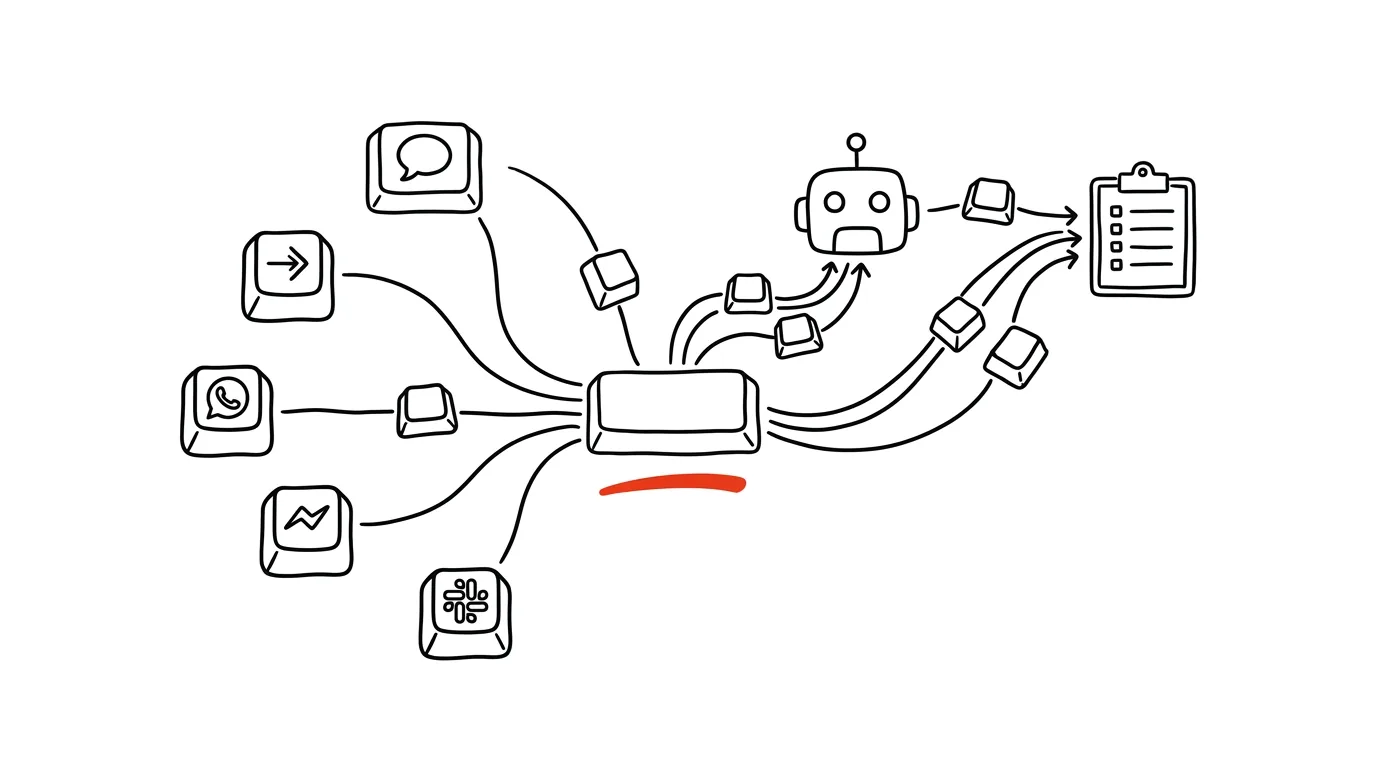
This guide builds a solution out of two pieces. Beeper pulls every network down into one app — and because it has a local API with a built-in MCP server, AI can work on top of that single inbox. Claude then goes through new messages across every network at once, on a regular schedule, pulls commitments and deadlines out of them, and writes them into Notion and your calendar. In the morning, instead of opening seven apps, you open one table.
This is the most technical guide on this site, and that's precisely why it's written for non-technical readers: it assumes you've never opened a command line, and every step describes exactly what you'll see on screen. Setup takes one afternoon; running it afterward takes a few minutes a day. And two rules govern the whole thing: AI proposes, the human approves — nothing gets sent or written without your review — and sensitive conversations never enter the scan at all.
A typical scenario
Mark works as a project manager, half of it freelance. Clients write to him wherever they happen to be: two on WhatsApp, one insists on Messenger, inquiries come in through Instagram, two teams live on Slack, a recruiter on LinkedIn, and the contractor redoing his office exclusively by SMS. Around a hundred and forty messages flow through seven apps every day. He has a task system — but a task only exists once he writes it down, and between “sure, I'll send it to you by Friday” typed with a thumb on the train and opening the task app lies a gap that swallows two promises a week. Once a month that turns into an awkward phone call; once a quarter, an angry client.
After setting up this guide, his day looks different. In Beeper, all seven networks sit in one inbox. At 8:30 in the morning and 3:00 in the afternoon, he runs a saved scan in Claude Code: Claude goes through the messages since the last run, pulls out the commitments — “you promised Peter a quote by Friday (WhatsApp)”, “Jane will send you the materials by Wednesday (Slack)”, “Thursday 10:00 meeting with Novak (Messenger)” — and proposes an entry into Notion. Mark reviews the summary, tweaks one date, approves it — and Claude writes the items into the promises database; Mark adds meetings to his calendar with a single confirmation. The whole thing takes five minutes, twice a day. In the first month the system caught 63 commitments; Mark reckons four of them would otherwise have slipped through for sure. Forgotten promises: zero.
What Beeper is, and why it's a hub
Beeper is an app that unifies chat networks into a single inbox. It's owned by Automattic (the company behind WordPress.com), which acquired it in 2024, and a rebuilt version shipped in 2025 in which network bridging runs primarily right on your own device. It supports, among others, WhatsApp, Messenger, Instagram, Telegram, Signal, Slack, Discord, LinkedIn, X, and Google Messages (i.e., SMS/RCS from your Android phone); plus Matrix and Google Chat. The free tier caps the number of connected accounts; the paid plan raises the limits — check Beeper's website for current terms, since they change.
The principle: in Beeper, you sign into each network with your own account, and from then on you see every conversation in one list, reply from a single window, and search everything with a single search box. The other side notices nothing — to them, you're writing normally from WhatsApp or Messenger.
To be fair about the limits. First, Beeper runs on bridges — software translators between a network and Beeper. A bridge is always a step behind the official app: when a network changes something, the bridge can go quiet for hours or days, and some features (disappearing messages, voice notes, reactions on some networks) work only partially. Second, don't look for iMessage — support ended after a standoff with Apple in 2023. Third, on networks like WhatsApp, using an unofficial client formally violates the terms of service; the practice has been tolerated for years, but you should know it. And fourth — most important for this guide — Beeper has a Desktop API: a local interface that lets another program on your computer read and search your chats. It includes a built-in MCP server, a standard “socket” that Claude can plug into. All of it runs only on your machine and only while Beeper Desktop is running — none of it is a cloud service. What MCP is in general, and everything else you can plug into Claude, is covered in the connectors and MCP overview.
Before you start: what you'll need
- A Mac or Windows computer where you can install software. The whole system runs locally, so it needs to be the machine you spend your days on — not a work laptop with an install ban (check with IT first in that case; see the security section).
- Beeper Desktop — Beeper's desktop app with your networks connected. Expect each network to take one login or QR code scan; five networks take about half an hour.
- A paid Claude account. Claude Code requires a paid plan — and for this use case you want one anyway, per this site's core rule: private conversations are sensitive data and belong only on a paid account with contractual data protection, never in a free chat.
- Claude Code — Claude on the command line. We'll install it together in the next section; you don't need anything ready in advance.
- Notion (optional) — the destination where promises get written. A free account is enough. If you'd rather skip Notion, the guide includes a plain-text-file alternative.
- Time: 60–90 minutes for first-time setup if you follow it step by step. Running it afterward takes five minutes, twice a day.
The terminal, for anyone who's never opened one
This section is deliberately the most detailed. The command line (terminal) is the reason most people close guides like this one — and yet it's just another window for talking to your computer. Instead of clicking buttons, you type sentences. Nothing breaks just by looking at it, and a bad command almost always ends in an error message, not a catastrophe.
What the terminal is and what it looks like
The terminal is a window full of text. When you open it, you'll see one or two lines of text — typically your computer's name and your username — followed by a character the computer uses to say “I'm listening”: usually % or $ on a Mac, > on Windows. A blinking cursor sits after that character. Whatever you type appears after the cursor; the Enter key sends it, and the computer replies with more text. That's the whole thing. Three things worth knowing up front:
- Copy commands whole, on one line, and paste with Ctrl+V (Cmd+V on Mac). A typo in a command almost always just produces a “command not found” message — nothing worse.
- When the terminal seems to “do nothing” for a moment after you send a command, it's working. Leave it be; you'll know it's done when the line with
%/$/>and the blinking cursor reappears. - If anything ever gets stuck, the keyboard shortcut Ctrl+C interrupts whatever's running and hands the line back to you. That's your universal emergency brake.
Opening the terminal on a Mac
Press Cmd+Space (this opens Spotlight search), type “Terminal,” and press Enter. A white or black window opens with a line ending in %. That's it — leave it open.
Opening the terminal on Windows
Press the Windows key, type “PowerShell,” and press Enter. A blue or black window opens with a line starting with PS C: and ending in >. PowerShell is Windows' terminal — fully capable for our purposes.
Installing Claude Code
Claude Code is Claude running in the terminal instead of a browser — and that's exactly why it can do things a web chat can't: work with files on disk and connect to local programs like Beeper. It installs with a single command, using the official process from Anthropic's documentation.
On a Mac, paste this line into the terminal and press Enter:
curl -fsSL https://claude.ai/install.sh | bash
On Windows, paste this line into PowerShell and press Enter:
irm https://claude.ai/install.ps1 | iex
The install will run — text will scroll by, and it can take a minute or two. Once the line with the cursor comes back, check the result with claude --version (type it and press Enter). If a version number prints out, you're done. If the terminal says it doesn't recognize the command, close the terminal window, open a new one, and try again — freshly installed programs only introduce themselves to a new window.
First launch and sign-in
Type claude and press Enter. On first launch, Claude Code needs to sign in to your account: it'll offer to sign in through your browser — confirm it, the claude.ai page opens, you sign in as usual, and the terminal picks it up automatically. After that you'll see a chat interface right in the terminal: a field you type into, just like on the web. Try saying hello or asking “what can you do” — it replies in the language you write in.
Two small pieces of control worth knowing up front: end a conversation with /exit (or just close the window), and when Claude asks mid-task whether it's allowed to do something — read a file, call a tool — you answer with the arrow keys and Enter. These prompts are your safeguard, not an annoyance. Don't click through them without reading; especially for a workflow running over private messages.
Connecting Beeper to Claude
Now let's link the two worlds: Beeper offers up its MCP server, and Claude Code signs in to it. Takes five minutes.
Step 1: the Desktop API in Beeper
Launch Beeper Desktop and leave it running — the API only works while the app is running. In Beeper, open Settings → Integrations. This is where the Desktop API lives: you'll find ready-made connection instructions for various AI apps, along with a list of Approved connections, where you'll later see (and can revoke at any time) Claude's access. Nothing else needs setting up right now; the server runs locally at an address we'll hand to Claude in a moment.
Step 2: the claude mcp add command
Close any running Claude conversation (/exit) so you're at a plain terminal, and paste this command — it's the official setup step from Beeper's documentation:
claude mcp add beeper http://localhost:23373/v0/mcp -t http -s user
What that line says, piece by piece: “add an MCP server, call it beeper, find it at localhost:23373 (i.e., on this computer, no internet involved), talk to it over HTTP, and remember it for all my future conversations” (-s user). The terminal will confirm the server was added. Check it with claude mcp list — you should see a “beeper” line in the list.
Step 3: approval and verification
Launch claude and type /mcp. You'll see a list of connected servers and their status. The first time you use it, an access approval (OAuth) flow runs — Beeper handles it itself, and the connection appears in its Approved connections list. If the approval step misbehaves, you can create an access token manually in Beeper under Settings → Integrations (the plus button next to Approved connections) and pass it into the command — the exact steps are in Beeper's documentation, but for most people the automatic path just works.
And now the moment it all connects for the first time. Give Claude a test prompt:
You have Beeper connected via MCP. Try asking it what came in for me
today: go through messages from the last 12 hours across every
network and give me a brief summary — who it's from, which network,
roughly what the message is about. Don't mark anything as read,
don't flag anything, and above all DON'T SEND ANYTHING. Just read
and summarize. If you can't connect to Beeper, tell me exactly what
error came up.
Claude will ask whether it may use the Beeper tool — approve it — and it'll return a summary of today's messages across every network. This is the moment most people get goosebumps: WhatsApp, Slack, and SMS in a single reply. If you get an error instead, nine times out of ten either Beeper Desktop isn't running, or there's a typo in your claude mcp add — remove the server with claude mcp remove beeper and add it again.
The second prompt is worth running right after the first: an inventory. You'll need it in the security section.
Give me an overview of my Beeper: which networks/accounts are
connected, and for each network the 10 chats with the most traffic
over the last 14 days — chat name, network, roughly how many
messages.
Split them into two groups: work and personal (estimate from the
content, put a question mark on anything uncertain). Don't read
anything aloud in detail, no quotes from private messages — just
chat names and numbers. Don't send anything.
The output will show you, in black and white, exactly how far AI can reach — and while you're at it, jot down the chats from the personal group that you'll exclude from scanning in the next section.
The first promise scan
The heart of the whole workflow is a single thorough prompt. Its job: go through new messages across every network and pull out commitments — sentences where someone promised someone something. Your promises to others, other people's promises to you, and scheduled meetings, which are promises with a time and a place attached.
The main scan prompt
Go through my messages from the last 24 hours across every network
via Beeper and pull out the commitments. Look for three kinds:

1. MY PROMISES — what I promised someone (“I'll send”, “I'll get
   it ready”, “I'll call”, “I'll find out”, “I'll let you know
   by…”).
2. OTHER PEOPLE'S PROMISES — what someone promised me (“I'll send
   you”, “I'll get back to you”, “I'll deliver the materials
   by…”).
3. MEETINGS AND DEADLINES — arranged meetings, calls, deadlines we
   agreed on.

For each finding, give me:
- who and whom (names from the chat),
- exactly what (one sentence),
- by when (convert “tomorrow” and “by Friday” to a specific date;
  today is [date]; if no deadline was stated, write “no deadline”),
- network and chat name,
- the exact quote you're basing this on.

Rules: exclude these chats [names of excluded chats]. Don't mistake
musing (“maybe I could…”) for a promise — only count clear
commitments. When you're not sure, put the finding in a separate
“Needs review” section instead of guessing.
Don't write anything anywhere, don't mark anything as read, and
DON'T SEND ANYTHING — just give me the summary.
You'll get back a structured summary in three groups plus “Needs review.” For the first run, feel free to use 7 days instead of 24 hours — you'll see how many commitments slipped through your fingers over a week, and it's the best motivation to finish setting the whole thing up. Check two things: the date conversions (the model sometimes miscalculates relative phrases like “by the end of the week” — that's why today's date goes into the prompt) and the quotes — every finding comes with the exact sentence attached, so you can tell whether the AI invented a promise out of an innocent pleasantry.
What the output looks like
MY PROMISES (3)
1. Me → Peter Novak: send the renovation quote
   By: Friday, 8/21 | WhatsApp, chat “Peter Novak”
   Quote: “sure, I'll send you the quote by Friday”
2. Me → Web team: prepare materials for the sprint review
   By: Wednesday, 8/19 | Slack, channel “project-web”
   Quote: “I'll have the materials ready by Wednesday”

OTHER PEOPLE'S PROMISES (2)
1. Jane Miller → me: deliver the landing page copy
   By: Tuesday, 8/18 | Messenger, chat “Jane Miller”
   Quote: “I'll get you the copy on Tuesday, promise”

MEETINGS AND DEADLINES (1)
1. Meeting with Mr. Smith, Thursday 8/20 at 10:00, at their office
   Messenger, chat “Mr. Smith” | “Thursday at 10 at our office?”
   → my reply: “works for me”

NEEDS REVIEW (1)
1. Tom (SMS): “I'll take a look at the flooring next week” — a
   promise with no fixed date, suggest recording it with the
   deadline “next week”.
Following up for context
For findings in the “Needs review” section — and any time you're unsure whether a promise still stands — ask a follow-up question instead of opening the original app:
For finding #[number], give me the whole conversation around the
quoted sentence: 10 messages before it and every message after it
up to now, with timestamps and sender names. I want to judge
whether the promise still stands, or whether someone changed or
canceled it in the meantime. Don't evaluate anything, just the
verbatim transcript. Don't send anything.
This, by the way, is the hub's biggest practical advantage: you can trace context with a single question, whether the promise happened in an SMS or on Slack. And the core rule still applies: the scan's output is a proposal. Before anything gets written into Notion or your calendar, you review it with your own eyes — AI can find the promise, but only you know that “I'll send it to you by Friday” was meant ironically in that particular thread.
Writing to Notion and your calendar
A summary in the terminal is nice, but it scrolls away just like the messages did. Promises need to live somewhere permanent — a database with a deadline, a status, and a link back to the source.
Connecting Notion
Notion has an official MCP server that connects to Claude Code the same way Beeper does. In the terminal (outside a running conversation):
claude mcp add --transport http notion https://mcp.notion.com/mcp -s user
Then launch claude, type /mcp, and finish signing in to Notion — a browser opens where you confirm access with your Notion account and choose which pages it may reach. The difference from Beeper: this server runs on Notion's side, not yours — you're connecting one cloud service to another, which is a common and well-supported setup.
Structuring the promises database
Have the database created for you — and dictate the structure so it matches this guide:
Create a new Notion database called “Promises & Commitments” with
these properties:
- Promise (title) — one sentence describing what's supposed to
  happen
- Who (select: Me, Other party)
- Other party (text) — the other person's name
- Due (date)
- Network (select: WhatsApp, Messenger, Instagram, Slack, Signal,
  LinkedIn, SMS, Telegram, Discord, Other)
- Chat (text) — the conversation's name
- Quote (text) — the exact sentence from the message
- Status (select: New, Confirmed, Done, Canceled; default New)
- Logged (created time)
Add a “Calendar” view based on the Due property, a “Overdue” view
filtered to Due in the past and Status not Done or Canceled, and
a “My promises” view filtered to Who = Me. Don't create anything
else.
You'll get a finished database with all three views. The calendar view is why the Due column is a date type — Notion draws your promises straight into a weekly grid, even if you never connect any other calendar.
Writing findings: propose, approve, write
Now the two halves meet. Always do the write step in two phases — a proposal first, the write only after your approval:
Take the commitments from the last scan and prepare an entry into
the Notion database “Promises & Commitments”.

First, show me a table of the rows you're about to create, in the
database's column format. Check for duplicates: if a row with the
same other party and the same promise already exists in the
database, don't create it again — propose a deadline update instead,
if the date changed.

Wait for my approval. Only once I type “write” should you create
the rows, and then tell me exactly what you wrote, with links to
the new items. Never write anything I haven't approved, never
delete anything in the database, and DON'T SEND ANYTHING to Beeper.
Claude will show you the table, you say “write” (or fix a date first, then say “write”), and the items appear in Notion. The duplicate check matters — promises get repeated across conversations (“yep, by Friday, like we said”), and without it you'd end up with every commitment logged three times over.
Deadlines also into Google Calendar
You want meetings and hard deadlines in your calendar too, where the rest of your day lives. The easiest proven route: Google Calendar has an official connector for Claude — connect it under connector settings on claude.ai (works in both the web and desktop Claude apps). Then paste the scan output into a Claude conversation with this brief:
Here's today's summary of commitments from my chats:

[paste the MEETINGS AND DEADLINES section from the scan output]

Propose calendar events for these on my Google Calendar: title in
the form “Name: what” (e.g., “Smith: meeting at their office”), the
correct date and time, and an all-day event for anything without a
time. Put the quote and the network it came from in each event's
description. Check for conflicts with my existing calendar and list
them. Show me the list of proposed events and only create them
after I explicitly approve.
It'll return a list of events for approval and create them once you agree. For more on getting mileage out of the mail and calendar connector — including automated routines — see the guide on mail and calendar routines.
The Notion-free alternative: a text file
Don't want another app? Claude Code can write straight to a file on disk — and a text file is indestructible, portable, and yours:
Instead of Notion, keep my promises in a file called promises.md
in this folder. Structure: a heading for the week, with bullets
underneath in the form
- [ ] DUE | WHO WHOM | WHAT | network/chat | "quote"
Mark completed promises with a checkmark - [x], never delete them.
Take the commitments from the last scan, show me which lines you're
about to add, and append them to the right place after I approve.
Sort by due date. Don't send anything.
You lose the filters and the calendar view, but the core — one place, nothing gets lost, everything cited — stays intact. The file can always be moved into Notion later. On a Mac, the same dictation approach can write into the Reminders app via its export formats, but a text file is a sturdier place to start.
Running it on a regular schedule
The system only works if it runs regularly. And here's one honest technical fact you need to know: scheduled tasks (routines) on claude.ai run in the cloud — and can't reach Beeper, because its API only lives on your computer, at a localhost address the internet can't see. For mail and calendar, cloud routines are great (covered in depth in the chapter on routines and agents); for Beeper, the scan has to run on your own machine.
Path 1: rhythm instead of automation
The simplest, and the best place to start: you run the scan yourself, twice a day, on a cue from your calendar. Save the main prompt as a combined “daily batch” — scan plus write in one:
Daily promise check. Today is [date].
1. Go through messages via Beeper from last night onward, across
   every network except these chats: [list of excluded chats].
2. Pull out commitments (my promises, other people's promises,
   meetings) in this format: who and whom, what, due date,
   network/chat, exact quote.
3. Compare against the “Promises & Commitments” database in Notion:
   what's new, what's a duplicate, where the deadline moved.
4. Check the existing database: which promises are due today or
   overdue — list these separately as “ON FIRE”.
5. Show me a proposal of what to write and change. Only write after
   I say "write".
Don't send anything, don't delete anything, don't mark anything as
read.
Set up two recurring calendar events (8:30 and 15:00, weekdays), and running it means: open the terminal, type claude, paste the prompt. After a week it becomes as automatic as morning coffee — and you know a human was involved in every entry.
Path 2: real automation, for advanced users
If you want the scan to run entirely on its own, you can use your system's task scheduler — cron on Mac and Linux, Task Scheduler on Windows — and the non-interactive mode claude -p, which carries out the instructions and exits. On a Mac, a cron line for a run at 8:30 and 15:00 would look like this:
30 8,15 * * 1-5 claude -p "$(cat ~/promises/daily-scan.txt)" >> ~/promises/log.txt
Before you go this route, three warnings. A non-interactive run has no one to ask for permission — you'd have to pre-approve specific actions for the Beeper and Notion tools in advance, which weakens the approval safeguard; if you do it, allow only reading and writing to a single database, never sending messages. Your computer has to be on at the scheduled time, and Beeper running. And you still have to actually read the output — an automation whose output nobody reads is just a more expensive way to ignore your promises. For most people, path 1 is the better trade-off: two minutes of manual work a day for full control.
Why twice a day, not every five minutes
Promises have a horizon of days. Scanning every five minutes won't get you a faster response — it'll get you duplicate findings, burned-through plan limits, notification noise, and, worst of all, the end of review, because nobody honestly reads twenty-four outputs a day, so you'll start clicking through them unread. Twice a day means the morning run catches last night's messages and the afternoon run catches the morning's; nothing can slip past more than half a day. Less than that gets risky (Monday's harvest from the weekend runs long); more than that, you don't need.
Privacy and security
This section isn't an afterthought — it's a condition of running the system at all. Take stock of what you've just built: a program with AI access has read access to all your private conversations at once. Your work Slack and your family WhatsApp, a deal you're negotiating and messages from your partner. That's not a reason not to do it — it's a reason to do it with rules.
What exactly flows where
Beeper's Desktop API runs locally: your message database sits on your own disk, and the API only reads from it on request, only while Beeper is running. But the moment Claude reads those messages, their content goes off for processing by Claude — like any text you send to a model. That's why this site's hard rule applies: this type of data belongs exclusively on a paid account with contractual data protection, where your conversations aren't used for training and business terms apply. Never run this workflow on a free account. And if it touches your company's work messages, you have obligations toward your colleagues and clients too — for company business, check with IT before deploying this, so you don't break internal rules before you've saved your first hour.
Excluded chats: decide in advance, not on the fly
Go back to the chat inventory from the connection section and write up a list of excluded conversations: partner, family, health, anything that has no business in a work system. That list belongs in every scan prompt (“exclude chats: …”). For anything truly sensitive, go a step further and flip the logic — a whitelist instead of a blacklist:
From now on, when scanning for promises, work EXCLUSIVELY with
this list of chats and don't open or search any others:
[list of allowed chats — e.g. “Peter Novak (WhatsApp)”,
“project-web (Slack)”, “Mr. Smith (Messenger)”]
If completing the task would require going outside this list, stop
and tell me — never do it on your own. Confirm that you understand
the rule and repeat the list back to me.
A whitelist is safer, because a new sensitive conversation is protected automatically — you don't have to remember to add it. The downside: promises from new work chats will slip through until you add the chat to the list, so update the list weekly. Keep in mind this is an instruction to the model, not a technical lock — which is exactly why you repeat it in every prompt and review the output.
What to never delegate
Beeper's API can not only read messages but also send them. For this workflow, that's a risk, not a feature — which is why every prompt in this guide ends with a ban on sending. Three things you never delegate, not even “to try it out”:
- Replying on your behalf. AI may propose a reply or a nudge; sending it is your click, in your own app. A message sent under your name can't be unsent.
- Deleting and archiving. The scan only reads. Never grant permission to delete messages or chats — a mistake there is irreversible.
- Anything involving money. Payment details and transaction confirmations have no business in a conversation with AI, period.
How to turn the whole thing off
Disconnecting matters just as much as connecting — and you have two places to do it. In the terminal, claude mcp remove beeper (and, if applicable, claude mcp remove notion) removes the link on Claude's side. In Beeper, under Settings → Integrations next to Approved connections, revoke the approved access, which also invalidates any token tied to it. If you're going on vacation or lending your computer to someone, just close Beeper Desktop — without it, the API doesn't run.
Common mistakes
- Skipping the test prompt and jumping straight to the big scan. When the first command fails, you need to know whether the problem is Beeper, MCP, or the prompt itself. A small “what came in for me today” prompt isolates the mechanics from the task.
- Leaving every chat in the scan because “it doesn't matter.” It does. The first awkward moment — a quote from a personal conversation showing up in the middle of a work summary — arrives within a week. Define your excluded chats on day one.
- Trusting deadlines without checking them. “By the end of next week” recalculated by the model is the workflow's most common silent failure. That's why every finding comes with a quote, and why you put today's date in the prompt — check at least the deadlines anything important rides on.
- Writing into Notion without an approval step. A single-phase write fills the database with duplicates and misread “promises”, and you stop trusting it. A database you don't trust is worse than no database — back to keeping promises in your head.
- Turning on automation before you've built the habit. Cron without a habit of reading the output just produces a longer log. Run it manually, twice a day, for the first two weeks; automate only once you know what a good output looks like.
- Treating Beeper as a bulletproof archive. Bridges drop out sometimes, and a network can go quiet for a day. The scan only reports what Beeper can see — if an entire network goes silent for a week, check whether the bridge went down before you believe nobody's writing to you.
The best tools
- Beeper Desktop — the hub for every network and the source of the data: one inbox on top of WhatsApp, Messenger, Instagram, Slack, Signal, and SMS, with a local Desktop API and a built-in MCP server.
- Claude Code — the workflow's engine: runs on your machine, talks to Beeper over localhost, to files on disk, and to Notion, and the whole thing is controlled in plain English.
- Notion with the official MCP server — the permanent home for promises: a database with deadlines, statuses, quotes, and a calendar view, which Claude writes to after your approval.
- Google Calendar with the Claude connector — meetings and hard deadlines where the rest of your day lives; Claude creates the events in the app once you approve the list.
- A plain text file — a minimalist alternative to Notion: promises.md on disk, which outlives everything and never leaves your machine.
What you get out of it
- Time: instead of an evening trawl through seven apps wondering “did I promise something,” two five-minute scans a day — around three hours a week in practice, mostly clawed back from fragmented app-switching.
- Money: a forgotten promise to a client is the most expensive kind of mistake in freelancing — it doesn't cost hours, it costs trust and deals. A system that catches two slipped commitments a month pays for itself many times over.
- Peace of mind: knowing that “I'll send it to you by Friday,” typed on the train, gets pulled out and logged by the afternoon means the end of that quiet evening mental scan. You're allowed to forget — the system doesn't.
- Quality: you reply with context. Before a meeting, one question pulls up the whole history of what was agreed; you can nudge someone with a quote of their original promise — you come across as someone who remembers everything.
Pro tip
Once the scan has run reliably for a week, add a second layer: tracking other people's promises. You already have them in the database (Who = Other party) — once a week, have Claude go through what people promised you and didn't deliver, and draft reminder proposals:
Go through the “Promises & Commitments” database for items where
Who = Other party and Status isn't Done or Canceled, and the due
date is today or in the past. For each one, check in Beeper whether
it's since been fulfilled or the deadline moved — if so, propose a
status change.
For the rest, draft short, friendly reminders in my voice (one per
network, matched to that chat's context), referencing the original
arrangement. DON'T SEND ANYTHING — just give me the texts, I'll
send them myself from my own apps.
You'll get a Friday summary of “who owes you what,” with ready-made nudge texts — send them yourself in two minutes. This discipline is explored in more depth in the follow-up watchdog guide.
And the closing rule for the whole system: the hub may see everything, but it may say nothing. The moment you let AI send on your behalf, it stops being a safeguard against forgotten promises and starts being a source of new ones — promises you never actually made. Reading and proposals go to the machine, the signature stays with the human.
Want to go deeper? The handbook has a whole chapter on it — AI and automation.
Similar tips
Shutting down isn't enough: Windows only fully resets on a restart
Because of Fast Startup, shutting down Windows isn't a clean stop — the system tucks part of its state away. When the PC misbehaves, only Restart helps.
Web clipper: save an article with one keystroke
Ctrl+Shift+K
Ctrl+Shift+K and the article is in your library, tags included. No more bookmarks you'll never find again.
Install a website as an app
Gmail, your calendar, or Teams can run in their own window with an icon on the taskbar — no address bar and no risk of an accidentally closed tab.
Common questions
Do I need to know how to code or use the command line?
No. The terminal here is just a window where you paste a few ready-made commands and then simply type in plain English, like in a chat. The guide includes a section for complete beginners: how to open the terminal on both Mac and Windows, what you'll see in it, and what to do if something goes wrong.
Will Claude see all my messages?
It sees whatever you ask it to — and since Beeper unifies every network, that could be everything. That's why only the chats you allow into the scan belong there: list sensitive conversations as exceptions, or flip the logic and scan only an approved list of chats. And run this entire setup only on a paid account with contractual data protection.
Can Claude reply to messages through Beeper too?
Technically, yes — Beeper's API can send messages as well. That's exactly why every prompt in this guide hard-codes the line “don't send anything.” Replying on your behalf without approval is precisely the kind of thing that never gets delegated: AI may propose the text, sending is always your click.
Does my computer need to stay on for this?
Yes. Beeper's Desktop API runs locally on your machine and only works while Beeper Desktop itself is running. That's good news for privacy — your message database never leaves for someone else's server — but it means you can't run the scan from the cloud: scheduled tasks on claude.ai can't reach a local Beeper.
How often should I scan messages?
Twice a day is plenty — promises have a horizon of days, not minutes. Running it more often just adds noise and duplicates, and above all you'll stop being able to keep up with reviewing the output, which breaks the “AI proposes, human approves” safeguard. Morning and after lunch is a rhythm that works well.
What if I don't use Notion?
The workflow also works with a plain text file on disk — Claude Code can write to it directly. You lose the calendar view and filters, but the core (nothing gets lost, everything lives in one place with a citation) stays intact. Deadlines can additionally be written into Google Calendar via the connector in the Claude app.
Was this helpful?
Liked this tip?
I send one like it every week by email. Two minutes to read, hours saved.
The Top 30 tips e-book, free — it lands in your inbox right away.
Then 1 tip a week · no spam · unsubscribe in one click
Prefer a system to single tips? The free email course — seven days, seven emails, one skill a day.