Tips & tricks · AI · Everywhere · ~4 hrs a week · 71 min read · in-depth guide, doing it ~3 h
MCP connectors: the full guide
Last reviewed:
Change history for this guide →
In this article
- A typical scenario
- What MCP is, in plain terms
- How you add a connector
- Official or community: the question that matters most
- Catalog by area: what actually exists today
- How to decide what to turn on at all
- Social media and content
- Making graphics
- Analytics and data
- Gemini API: when to reach for something besides Claude
- Getting Gemini into Cowork
- Security in depth
- When a connector fails
- Your own connector: when it’s worth it
- Common mistakes
- What you get out of it
- Pro tip
Until AI has connectors, it’s a smart text box. It’s great at thinking about whatever you feed it, but you’re the one who has to feed it — copy numbers out of analytics, export posts, describe your template. A connector erases that middle step. The moment you turn a connector on, the model stops being a commentator on your work and becomes a participant in it: it reaches into the account, reads real data, and produces a real output. The jump in usefulness is an order of magnitude, and so is the jump in what you need to keep an eye on.
This guide walks through the whole decision around connectors. We’ll start with what MCP actually is — no shortcuts, no box diagrams, since the principle fits into three human paragraphs. Then the most important chapter in the piece: the difference between an official and a community connector — an integration the tool’s maker stands behind, versus someone else’s program you’re handing your account login to. Next, a catalog of eight categories — office and notes, data and databases, graphics, CAD and 3D, marketing and social, development and hosting, public registries and research, communication — what each can do and where it stops. Then how to choose what to turn on at all, deep dives on the three areas connectors change the most, security, troubleshooting, and when it’s worth writing your own connector.
A continuously updated rundown of specific integrations — who publishes them, what they do, whether they’re official — lives in the connector directory. This article explains the principles; the directory is the list you check. Use them together: work out what you need here, find what to use for it there.
A separate tip covers the basics of MCP as a standard: MCP connectors: USB-C for AI. This piece builds on it.
One more note on the facts here. The MCP ecosystem changes by the week: official servers get added, community projects die off, and an address that works today can point elsewhere in three months. Everything in this article that reads as a current state is accurate as of writing and needs verifying at the source — with the tool’s maker, its documentation, or a connector directory. Where we’re not sure, it says so explicitly. “Unconfirmed” beats a nice-sounding falsehood.
A typical scenario
Marek does marketing for three small clients. His week: Monday, pull numbers out of analytics and retype them into a spreadsheet; Tuesday, write two weeks of social posts; Wednesday, produce graphics in three sizes; Thursday, upload to the scheduler; Friday, write a client report. Eight to ten hours a week, an estimated seventy percent of it moving data between windows. The worst part isn’t the time — it’s what doesn’t get done: Marek hasn’t checked which posts actually worked in six months, since that means exporting metrics and matching them to the copy.
With connectors, that week flips. The model reads the analytics numbers itself and writes up what changed. One source document becomes a batch of posts, straight into the scheduler as drafts, with metrics from last time attached. Graphics: one design, three sizes, one request. A report in ten minutes instead of an hour. Two months in, prep dropped from eight hours to two and a half, an evaluation loop appeared that wasn’t there before, and Marek took a fourth client without adding a day. What didn’t change: he still publishes by hand, since a published post can’t be taken back.
What MCP is, in plain terms
The acronym MCP stands for Model Context Protocol, and it’s one of those things that are hard to explain and easy to use. You don’t need to understand it technically. You need to understand what changed when it appeared — because everything else follows from that: why connectors are suddenly showing up by the hundreds, why the quality gap between them is huge, and why who wrote each one matters so much.
Why every tool used to need its own integration
Picture the world two years ago. You wanted a model to reach into your notes. Someone had to write a connection between that model and that service: how to log in, how to phrase a query, what format the answer comes back in, what to do with an error. Want the same model hooked up to your calendar? A new connection. Want your notes hooked up to a different model? Start over — every model had its own way of describing and calling tools.
The math is unforgiving: ten tools and five models means fifty connections someone has to maintain. So integrations only got built where there was a business case, they were slow, they broke with every change, and they rarely covered the whole tool — just the slice someone had time for. Need something else? Export to a spreadsheet and copy it by hand.
MCP turns that into a single socket: an open protocol, an agreement on how a tool describes and gets called. The tool’s maker writes one server that speaks it; the model’s maker writes one client that speaks it. From then on, everyone talks to everyone: ten tools and five models is fifteen connections, not fifty. The USB-C comparison holds exactly here: every device had its own end of the cable; now they share one, combining without their makers ever knowing of each other.
The practical upshot: a connector written for one client works in the others too. A server for your project tool plugs into a web interface, a desktop app, and Claude Code alike. You’re not buying into one ecosystem. The flip side: when writing a server is this easy, first-timers write them too, and forget about them a month later. Hence the chapter on official versus community connectors below.
What happens when you ask something in chat
This is worth walking through — every security rule in this article follows from it. Six steps.
- The model’s client shows a list of tools. Every connected server announces up front what it can do: the names of its capabilities, their description, and what parameters they take. The model sees this list as text — it’s part of the prompt, not magic.
- The model decides it wants to use one of them. It doesn’t act on its own: it concludes from your question that it can’t answer without data from the service, and writes a request to call a specific capability with specific parameters.
- The client makes the call, not the model. This is the single most important sentence in this section. The model has no network connection and never reaches out anywhere itself. It formulates a request that the program around it carries out — and that program obeys the permissions you set.
- The server calls the service on your behalf. It uses the credential created at login and makes an ordinary API call to that service. The service has no idea a model is asking; it only sees the application you granted rights to.
- The answer comes back as text. The data gets converted into a form the model can read and is added to the conversation. From that point on it’s part of the context — with all the privacy consequences that implies.
- The model answers you. And this is where a quiet failure mode can creep in: the model sees the data and its own reasoning in the same block of text, with no reliable way to keep them apart. That’s why prompts throughout this article keep repeating the same line: “separate what’s in the data from what’s your own conclusion.”
Three things worth remembering follow. The model doesn’t have access — it has the right to ask. Everything a connector loads becomes part of the conversation. And a permission you never granted can’t be worked around by the model politely asking for it — the only way around it is the model claiming it did something it didn’t, a different problem, solved by checking, not trust.
Glossary: thirteen terms you’ll meet in connectors
- MCP (Model Context Protocol) — an open agreement on how an application presents itself to a model and how its capabilities then get called. It isn’t one company’s product.
- Server — the program that offers capabilities. It lives either at the service provider or on your own machine. “The MCP server for Notion” means the side that knows how to talk to Notion.
- Client — the program that uses the capabilities and talks to the model: a web interface, a desktop app, Claude Code, Cowork. The client is the one that actually makes the call.
- Connector — the everyday, user-facing name for a finished integration. Technically it’s a server plus a login. In the interface it’s an item you switch on and off.
- Tool — one specific capability a server offers: “search pages,” “create a post,” “return metrics for a period.” A connector typically offers anywhere from a few to a few dozen.
- Tool schema — the description of what parameters a capability takes and what it returns. The model uses it to figure out how to call the tool. A badly written schema is the most common reason a connector “doesn’t work.”
- Tool call — one specific use of a capability with specific parameters. You’ll see it in the interface as a line with a name and sometimes its parameters — it’s worth actually looking at.
- Permission (scope) — the range of rights you approved for the service: what it can read, what it can change, which parts of the account it covers. This is the one place where you decide what happens to your data.
- OAuth — a login method where you never hand over a password. You log in at the service, it issues a credential for that specific app and that specific scope, and the credential can be revoked without changing your password.
- Token — the credential itself: a string the application uses to identify itself. It has a limited lifetime and a limited scope. Whoever holds it acts as you, within whatever scope the token covers.
- API key — a simpler alternative to OAuth: a single string with fixed rights that you generate in the service’s settings. More convenient and more dangerous, because it usually has no limited scope and no expiration.
- Local server — runs on your machine, launched by your client like an ordinary program. Data from it goes nowhere beyond your computer and the model. Typically installed with a command and configured with a file.
- Remote server — runs at the provider’s end; you connect to a URL. More convenient, but it passes through someone else’s infrastructure, so it matters whose infrastructure that is.
What MCP is not
It’s not one company’s feature. The protocol is open, implemented by multiple model makers and hundreds of tool makers. A server you connect today still works somewhere else tomorrow.
It’s not an automation platform. MCP doesn’t decide when anything runs — no triggers, conditions, or branching; that’s a job for routines, scheduled tasks, or scripts. MCP only describes how a model reaches a capability. Need “every Monday at eight, do X”? You need a schedule, not a connector — the connector is what does X.
It’s not a security layer. The protocol itself polices nothing. What a connector may do is decided entirely by the permissions you approved at login, and possibly by settings on the service’s side. Give a server full rights, and the protocol won’t save you.
Nor is it a guarantee of quality. Two servers for the same service can differ by an order of magnitude: one returns clean data with clear errors, the other silently truncates to ten items and lets the model guess the rest. The only way to tell is experience and checking.
To get a feel for a specific connector before relying on it, have the model describe it — it sees exactly the list of capabilities discussed above.
You have the [name] connector connected. Before I start using
it, I want to know what it can actually do. List:

1. Every capability you see on this connector, in one
   sentence each describing what it does
2. For each one, whether it only reads or whether it can
   create, change, or delete something
3. Which ones need an identifier I have to supply (account,
   workspace, property, folder)
4. What this connector does NOT do, according to the
   descriptions, even though someone would expect it to
5. Three tasks from my own work it fits best —
   my work is [description]

Don’t invent capabilities you don’t see in the list. Where
you’re not sure what a capability does, write “unclear from
the description.”
It returns an overview more accurate than most documentation, since it’s based on what the server actually announced. Points 4 and 5 are there on purpose: the most common connector disappointment isn’t that it doesn’t work — it’s expecting a capability it never had. Point 3 saves you the first three failed attempts: a lot of connectors need to know which workspace to search, and without it they just return nothing.
How you add a connector
Adding a connector is a two-minute task — but those two minutes decide what the model can do next year.
Three places connectors live
Before you start clicking, it’s worth knowing where you’re adding a connector, because these aren’t three flavors of the same thing.
In the web and mobile interface there’s a directory of ready-made integrations, and you add a connector there for your account — whatever you turn on is available in every conversation. This is the simplest, most common path, and the only one most people need.
In the desktop mode built around a folder of files (Cowork) you also have local files to work with, so connectors combine with what’s on disk: the model reads a spreadsheet off your computer and fills it in with data from a service. Connectors carry over from your account here, but some things — local servers, for instance — are configured separately.
In Claude Code, connectors are set up with a command and a config file. This suits someone working in a repository who wants the setup to live with the project, not the account: the config can be shared as a file and shows up in version history. The upshot: a connector added to a project is a team decision, not an individual one, and it should get the same scrutiny as any other dependency.
A remote connector from the directory
The simplest path. In the connector settings on claude.ai you’ll find a directory of ready-made integrations; pick a service, click connect, and it redirects you to that service’s login screen. Log in with your normal account and confirm the list of permissions. No developer app gets created and no API key issued: the login runs over OAuth, so the service issues the client a time-limited credential tied to your account and the approved scope. Revoke it any time — not just in the connector settings, but on the service’s own side, in its connected-applications list, the only place that also shows you the connectors you forgot about.
A custom connector via URL
When a service has an MCP server not in the directory, add it by hand: choose “Add custom connector,” paste the server’s URL, and go through the same login. This is how you connect products not yet in the directory, an internal company server, or a third-party community server.
Slow down on that third case — everything to watch for with someone else’s server gets its own chapter below.
In Claude Code, from the command line
In Claude Code, connectors get added with the claude mcp add command, in two modes: a URL and transport type for a remote server, or the launch command for a local one. Get the exact parameter shapes with claude mcp add --help — faster than searching the docs, and you can’t get the version wrong.
I want to add the MCP server [name / URL or command to run]
to Claude Code. I’ve never done this before. Give me:

1. The exact command and what each of its parameters means
2. Whether it’s remote or local, and what that means for me
   in practice (where the data flows, what runs on my machine)
3. What I need to have ready beforehand (account, permissions,
   environment)
4. A query I can run after install to confirm it works
5. How to remove it again if it doesn’t go well

Don’t assume I can program. Where there’s a risk, flag it
up front, not at the end.
It returns a tailored walkthrough with a check query. Point 5 is there on purpose: don’t run an install you can’t undo. Read point 2 carefully — with a local server, data goes no further than the model; with a remote one, it also passes through the operator.
What the permissions list actually means
The screen listing what a connector can do is the one place in the whole process where you decide — everything else is clicking. Read it in full for three things: scope (choose the narrower option when offered), direction (read-only versus create/change/delete), and account (with multiple workspaces, check which is being connected). More detail on reading this screen is in the security chapter below.
The approach that works: read-only for the first week. Watch how often the model gets things wrong and in what way. Only then add the right to create drafts — keep publishing, payment, and deletion for yourself, permanently.
Official or community: the question that matters most
Choosing a connector, one question matters more than all the others combined, and almost nobody asks it: who wrote this program, and who fixes it when it breaks. Not what it can do, not whether it’s free, not how many stars it has. Who stands behind it.
The reason is simple. A connector isn’t an add-on you can uninstall anytime with no consequences — it’s a program you’re handing the login to your account, and with a local server, access to the machine it runs on too. Download the wrong phone app, and you risk annoying ads. Connect the wrong MCP server to the account holding your company mail and documents, and you risk something else entirely.
That’s why this chapter is the single most valuable part of the article. It isn’t about fear — community servers are often excellent, and without them half the interesting integrations wouldn’t exist. It’s about deciding on purpose: knowing what you’re taking on, and what you owe it in return.
Four kinds of provenance, and what each one means
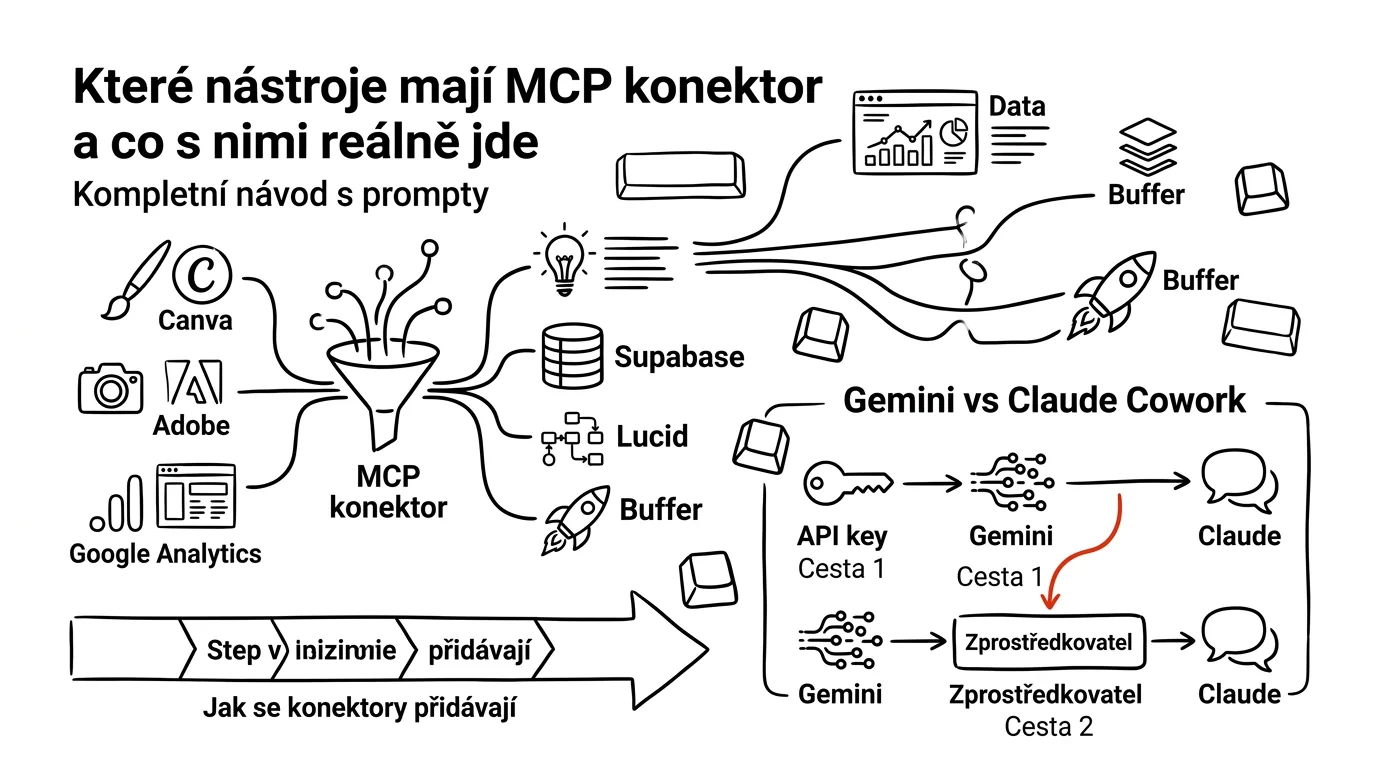
A connector from the tool’s maker. Written and run by the company that owns the service — address on its own domain, docs on its own site, repository under its own account. As of writing, that’s how most of the big names work: Canva, Figma, Notion, Atlassian for Jira and Confluence, Linear, Stripe, Supabase, Vercel, GitHub, Cloudflare, Sentry, Netlify, Buffer, Brevo, HubSpot, Meta Ads, or Adobe. The best case there is: when the API changes, the maker knows before you do, because it’s their API.
A connector from the model’s maker, or a partnership. Born of an agreement between a model maker and a tool maker. In April 2026, for instance, Anthropic launched nine integrations with creative software — Adobe, Affinity from Canva, SketchUp, Autodesk Fusion, Blender, Ableton, Splice, Resolume Arena, and Wire. The practical difference from the group above is essentially zero — two parties vouch for quality instead of one.
A verified connector in the directory. The directory lists both maker integrations and third-party projects, and some of the latter carry a “verified” badge. Precision matters here, because this gets oversold: verified means the integration passed a compatibility and policy check, not a security audit of the code. Community entries go through basic screening, but nobody vouches for what the server does with your data. Finding something in the directory is a weaker signal than it sounds — still stronger than a forum link, though.
A community project. Written by an individual or small team with no tie to the tool’s maker, living in a public repository, usually under a personal account. You can read the source, a real advantage — but open source doesn’t mean vetted, it means readable. Worth repeating: code you could theoretically read and practically never do doesn’t protect you on its own.
| Provenance | Who fixes bugs | What happens when the API changes | What to watch |
|---|---|---|---|
| Tool’s maker | the maker, as part of product support | knows in advance, the server gets updated | scope of permissions |
| Partnership with a model maker | two parties, usually fast | handled as part of the product | scope of permissions |
| Verified in directory | the author, if they feel like it | sometimes you never find out | who the author is, where data flows |
| Community project | only the author, for as long as it interests them | often it just breaks | absolutely everything |
What installing someone else’s server actually means
Split this by where the server runs — the risks differ.
A local server runs on your machine, with your permissions. Stronger than it sounds — it runs in no bubble: it can read files you have access to, connect to the internet, launch other programs. Installing a local MCP server is exactly like downloading and running a program off the internet, with the same consequences. The upside over remote: your data doesn’t travel to a third party, unless the program sends it somewhere itself. The downside: whether it does is decided by code you haven’t read.
A remote community server means your credential sits with someone else’s company. You log in via OAuth, the token is minted on their infrastructure, used from there. It doesn’t take bad intent — a poorly secured server, or an operator selling the business, is enough. The risk is nastier for being invisible: the token is used in your name, and in the service’s logs it looks like ordinary access.
How to spot an abandoned project: six numbers in the repository
This is a skill worth learning — fast, and it decides for you. Open the repository and check six things. Two minutes.
Date of the last commit. The fastest signal. The MCP protocol keeps evolving, and clients keep changing what they expect from servers. Six months with no change is a lot in this ecosystem, and a year is close to a guarantee it’ll break the moment something changes on the service’s side. Watch for cosmetics — a commit that only touched the README isn’t a sign of life.
Number of releases, and the date of the latest. A project with zero releases is still an experiment, no matter how many stars. Regular releases show someone maintains it on purpose, not sporadically. If the latest predates the last major protocol revision, expect trouble.
Open issues, and response time. The count doesn’t matter — whether anyone answers does. Fifty open issues with replies within a week is healthy; eight untouched for three months is a graveyard. Read the last two or three — often someone’s already hit exactly what you’re about to.
Number of contributors. A single person is the most common state and isn’t a flaw by itself — but the project ends the day that person loses interest. Building something that has to keep working next year? This matters more than features.
Documentation quality. Look for three things: a clear statement of what the server does with data, a capability list, and the protocol version it works with. A README that’s entirely about how great the project is, with not one paragraph on security, is itself a warning.
Relationship to the original. Plenty of servers are copies of others with a new name slapped on. When a repository looks like a fork, find out what of and why — sometimes a legitimate continuation of an abandoned project, sometimes just borrowed code nobody maintains. When you can’t tell who you’re actually trusting, the answer is “nobody.”
Alongside all this there’s an official MCP server registry, running in preview as of writing. Its main value isn’t rating servers — it verifies the namespace: whoever publishes under a name derived from a domain or account has to prove they own it. It doesn’t guarantee quality, but it closes off the cheapest kind of fraud — impersonating someone else.
Ten questions to ask before you install
- Who is the author, and can they be traced beyond this one repository?
- Is this the tool’s maker? If not, does the maker have an alternative, even a weaker one?
- Where does the server run — on my machine, or someone else’s?
- What permissions does it want, and is there a narrower option?
- Where does my data flow, and is that written down anywhere?
- What gets logged, and for how long?
- When did something last change, and does the author answer issues?
- Can I uninstall it and revoke access without losing anything?
- What’s the worst that happens if this server turns malicious? An answer like “I lose client data” means no.
- Does it save me enough time to be worth all of this?
No answer to three or more of these? That’s not a signal to be careful — it’s a signal to leave it alone. Copy and paste is slower, but it’s never cost anyone their account.
You can have the vetting done for you — just note that a model with no internet access can’t tell you anything verified about this, so give it a search tool or paste in the project page’s content yourself.
I’m about to connect the MCP server [name / link to
repository]. Vet it for me before I do. I want to know:

1. Who the author is, and whether it’s the maker of that
   service or a third party — and how you can tell
2. Signs of life: last change, releases shipped, open
   issues, and whether anyone answers them
3. What permissions it wants at connection time, and whether
   a narrower option exists
4. What the documentation says about where data flows and
   what gets logged — and if there’s nothing on that at all
5. Whether an alternative exists directly from the tool’s
   maker
6. Three specific things I should watch for if I connect it
   anyway

Base this only on what you actually read — cite a source for
each point. Where you can’t find something, write “not
found”; don’t infer it from the project’s name.
It returns an assessment with sources. Point 4 is usually the most valuable: for healthy projects the answer is two sentences in the docs; for the rest, there’s simply nothing — an answer in itself. Make sure the model actually cites what it found; if it starts writing generalities like “the project looks actively maintained,” ask for a date.
When you’re choosing between two servers for the same service, it’s worth putting them side by side.
Two MCP servers exist for [service]: [A] and [B]. Compare
them for me in a table, by:

- provenance (service’s own maker / third party) and how
  you determined that
- where it runs (locally / remotely) and what that means for
  my data
- range of capabilities — what one can do that the other
  can’t
- activity: last change, releases shipped, response to
  issues
- what people complain about most in the issues
- what I’d give up by choosing the more cautious option

At the end, give a recommendation for two different cases:
(a) I want to try it on my own data, (b) it needs to work for
a team and client data. If the recommendations differ,
explain why.
It returns a comparison that usually shows the more cautious option does two fewer things and is otherwise the same. The point about issue complaints is the most useful part of the prompt — the only place you’ll learn how the server behaves when something goes wrong.
When you need a community server anyway
Sometimes there’s simply no choice — for plenty of tools no official integration exists, and community is the only way in: some office suites, free CAD software, specialized databases. Not a reason to give up, just to proceed differently. Five measures that cut the risk to a fraction:
A separate account or key, for this purpose only. Never your main account — lose access to one narrow thing if something goes wrong, not everything.
The narrowest possible scope, ideally read-only. Most of what you want is reading. Add write access only once you know you can’t work without it.
Run it locally, from source, not a hosted version. Data doesn’t go to a third party this way — someone else’s program still runs on your machine, but you’ve eliminated a whole layer of risk.
A pinned version, not “latest.” Install the version you’ve assessed and update on purpose — never automatically.
A test space, not production. A database copy, a test workspace, sample files. Point it at real data only once you know how it behaves.
One last note, without which this chapter would be dishonest: a community server is sometimes better than an official one. It happens regularly — a maker ships an integration that does three things, and an independent project covers the whole API. The point isn’t always picking official; it’s knowing what you’re taking on and scoping it accordingly. Who’s behind what is tracked in the connector directory.
Catalog by area: what actually exists today
What follows is an overview of eight areas: a table of who publishes each integration, what it does, and where it stops, plus a paragraph on who the area suits. Everything here is accurate as of writing — the ecosystem changes by the week, so before you connect anything, check the current state with the maker or in the connector directory, kept updated.
In the provenance column, maker means an integration published by the company that owns the service, partnership means one born of an agreement with a model maker, and community means a third-party project installed at your own risk — everything from the previous chapter applies to those.
Office and notes
This is where most people start, and rightly so: none of it changes anything out in the world — it just lets you ask about things already written down somewhere inside.
| Tool | Provenance | What it does | Where it stops |
|---|---|---|---|
| Notion | maker | search across a workspace, read and create pages, query databases, comments | searches blind in a large workspace unless you say where; reads complex blocks better than it writes them |
| Google Drive | maker | search by meaning, read content, metadata and permissions, create files | reads complex spreadsheets and slide decks unreliably; doesn’t touch formatting |
| Atlassian (Jira, Confluence) | maker | search and read tickets and pages, create and edit them, service requests, repositories | in large instances it depends on your rights; do bulk changes in batches |
| Linear | maker | issues, projects, milestones, comments and intent — read and write | it’s a tool for product teams, not a general-purpose task database |
| Microsoft 365 | community | mail, calendar, files, spreadsheets, tasks over the Graph interface | as of writing, no connector from the maker; needs an app registration and usually admin consent |
| Zapier | maker | a bridge to a huge number of apps through a handful of generic capabilities | goes through a third party, and the actions are generic, not tailored to the specific service |
The best first move here isn’t to create anything — it’s to ask the question you’d normally skip because it’s too tedious: “which notes from the past six months mention changing our pricing, and what did we land on?” Company memory nobody can find turns, with a connector, into something you can just ask. MCP connectors: USB-C for AI covers this in more depth.
Search [Notion / Drive] and answer a question I’d otherwise
spend an hour hunting for:

Question: [e.g. what did we land on in the pricing-change
discussion over the past six months].

Approach:
- search in [workspace / folder], period [from–to]
- list your sources: title, date, author
- separate what’s directly in the documents from your own
  summary
- where sources disagree, say so instead of picking one
- at the end, list what you didn’t find, even if it belongs
  to the topic

Don’t state anything that isn’t in the documents you found.
It returns an answer with sources. The last point is usually most valuable — a documentation gap shows up exactly when someone looked and didn’t find it.
Data and databases
The area with the biggest gap between expectation and reality. Don’t expect a data analyst — expect someone who writes a query fast, describes what’s in the data, and doesn’t know your operation.
| Tool | Provenance | What it does | Where it stops |
|---|---|---|---|
| Supabase | maker | list tables and extensions, SQL queries, logs, security advice, migrations, branches | running SQL is powerful and irreversible — leave changing queries to yourself |
| Google Analytics | maker | account summaries, property detail, standard, funnel, and real-time reports, custom dimensions | marked experimental, runs locally, read-only |
| ClickHouse | maker | list databases and tables, read-only queries | deliberately narrow — a reading tool, not a management one |
| MotherDuck and DuckDB | maker | queries, list databases, tables, and columns, switch connections | local analytics and cloud together; for large volumes, think about what gets sent |
| Neon | maker | manage database projects and branches, queries | as of writing it moved to a hosted variant with OAuth login |
| Snowflake, BigQuery, Databricks | maker | read the catalog and query the warehouse | on warehouses billed per query, watch what the model runs |
The one hard rule here: the agent gets a read-only account, and nothing else. Database systems support read-only users; that’s the only sane setting. When you genuinely need an agent to change something, do it on a copy or a branch and push to production yourself. Data analysis with AI covers working with data when all you have is a spreadsheet; for larger volumes, see data analysis with DuckDB.
Connect to [database] and answer: [question].

Rules:
- read-only queries only, don’t change or delete anything
- before you run a query, show it to me and explain in
  plain language what it does
- cap the result at [100] rows and tell me the total count
- for every number, name the table and column it came from
- if you’re unsure what a column means, ask instead of
  guessing

If answering this would need a query that changes something,
write that out and don’t run it.
It returns a query for approval, then the result. The line about column meaning matters most: the most common data error isn’t a bad calculation — it’s a column meaning something other than its name suggests.
Graphics and design
Everyone expects “AI draws a picture” here — the real value is elsewhere: operating the tool your graphics already live in.
| Tool | Provenance | What it does | Where it stops |
|---|---|---|---|
| Canva | maker | search designs and folders, read a design, build from a brand template, resize, export, brand kits, comments | the template needs named fields; the model would rather trim longer text than say it doesn’t fit |
| Adobe | partnership | image edits (background, crop, color, vectorizing), video work, building in Express and Firefly, fonts | batch operations need a check sample; automatic background removal fails on hair and transparent materials |
| Affinity | partnership | working with documents from Canva’s suite | a fresh integration as of writing, expect changes |
| Figma | maker | read files and Dev Mode context, create and edit content in designs and on the whiteboard, turn a selected frame into code | “design to code” is a good starting point, not a finished result |
| Lucid | maker | build diagrams from a description, mind maps, org charts, sequence diagrams, data models, export | more complex layouts get tuned by prompting, not by drawing — and sometimes it’s faster to finish by hand |
Who it’s for: anyone doing the same thing in many variations — ten quotes into one frame, fifteen product cards, one visual in five formats, fifty photos with the same edit. Where an idea is what’s needed, a connector won’t help. A detailed walkthrough for Canva and Adobe follows in the graphics chapter.
CAD and 3D
The youngest, most uneven area — the gap between what one program can do and another is enormous. Go in expecting “an assistant for repetitive steps,” not “a draftsperson.”
| Tool | Provenance | What it does | Where it stops |
|---|---|---|---|
| SketchUp | partnership | working with a model via the April bundle’s integration | fresh integration, check the current capability range |
| Autodesk Fusion | partnership | working with a model and parameters | same — expect the range to keep changing |
| Blender | partnership and community | scene, objects, materials, rendering; a well-known community project exists alongside the official one | for the community variant, everything in the provenance chapter applies |
| Rhino and Grasshopper | maker | McNeel’s own platform, free as of writing | parametric definitions are harder to describe than to model |
| Revit | maker | technical preview, read-only | doesn’t touch the model — it’s a tool for querying a project, not drawing one |
| FreeCAD | community | only a community project, no integration from the maker | your own risk — check the project’s activity |
| AutoCAD, ArchiCAD | — | as of writing no integration exists; Autodesk only has a server over its help docs | can’t be worked around; that leaves export and manual work |
The last row matters most: we confirmed that as of writing, no official connector exists for AutoCAD or ArchiCAD. If someone claims otherwise, ask for the address and who runs it. What can actually move from paper into CAD today, and at what quality, is covered in an architect’s sketch, digitized.
Marketing and social media
The area with the highest return and the highest risk in one — everything you can do here goes out to real people.
| Tool | Provenance | What it does | Where it stops |
|---|---|---|---|
| Buffer | maker | list channels, browse and create posts, edit and delete, templates, ideas, aggregate metrics for a period | usable on the free tier as of writing; leave publishing to yourself |
| Meta Ads | maker | campaigns, ad sets, creatives, audiences, catalogs, performance overviews | in preview as of writing; budget limits belong in account settings, not the prompt |
| Brevo | maker | contacts, lists, segments, campaigns, templates, statistics | sending a campaign is irreversible — a human confirms it |
| MailerLite | maker | subscribers, groups, campaigns, automations, forms, statistics | same: preparation yes, sending no |
| HubSpot | maker | access to contacts and deal data over a hosted connector with OAuth login | the scope of CRM rights is broad — choose the narrowest one |
| Stripe | maker | customers, invoices, payment links, subscriptions | money. Nothing that changes payment state should run without human confirmation |
Who it’s for: anyone doing content or paid work regularly. The biggest payoff isn’t writing posts — that’s doable without a connector too. It’s closing the loop: the model reads what worked last time and preps the next batch accordingly, work almost nobody does by hand since it means exporting metrics and matching them to copy. See MCP for ads and analytics for ad accounts, and a campaign from a single source for a full campaign.
Development and hosting
The most mature area in the ecosystem — integrations started here first and are the most polished.
| Tool | Provenance | What it does | Where it stops |
|---|---|---|---|
| GitHub | maker | issues, pull requests, files, branches, action runs, code search, releases | writing to a repository is a visible step — through a branch and a pull request, never straight to main |
| Vercel | maker | projects, deployments, logs, runtime errors, documentation, analytics | deploying to production is a decision, not a task for an agent |
| Sentry | maker | errors, their grouping and context | tells you what broke; why it broke, you only find out with the code |
| Cloudflare | maker | Workers, storage, DNS, rules, analytics | a DNS change can take down an entire site — read-only until you have a reason not to be |
| Netlify | maker | create projects, builds and deploys, manage resources | same as every other host here: a human deploys |
| Supabase | maker | see the database section above — for developers, also migrations and branches | migrations into a production project are confirmed by a human |
The combination that makes the most sense here: an error, a repository, and a deploy in one conversation — the model pulls an error from monitoring, finds the matching spot in the code, proposes a fix as a pull request, and a human decides whether it ships. A website with Claude Code and Vercel shows how to turn this into a routine.
Public registries and research
Almost nobody knows about this area, yet it’s the most interesting one for journalists, researchers, and students. The data is public — a connector just removes the tedious clicking through forms.
| Tool | Provenance | What it does | Where it stops |
|---|---|---|---|
| PubMed | in directory | search articles, metadata, full texts where the license allows, related work, ID conversion | full-text availability is a licensing matter, not a connector one |
| Hlídač státu | maker | the contracts register, public tenders, subsidies, insolvencies, companies’ criminal records, unreliable VAT payers, party sponsorship, politician salaries, antitrust office rulings, legislation in preparation, parliamentary transcripts, K-index | some functions are tied to the account’s role; only a fraction of institutions have a K-index |
| arXiv, Semantic Scholar, OpenAlex | community | search preprints and citation networks | project quality varies, check activity |
| Zotero | community | access to your own source library and notes | runs over your library, locally or through the web interface |
Hlídač státu (Czech for “state watchdog”) deserves an extra paragraph — it’s the most useful Czech-specific tool in this ecosystem, a Czech public-sector transparency watchdog publishing government contracts, tenders, and related data as open records (similar public-registry projects exist elsewhere too). You log in on its site — via OAuth or a portable credential — and it opens up more than ten datasets at once. The advantage over the web interface is combining them: “find a company by name, get its tax ID, list its government contracts for the last three years, check insolvency and unreliable-VAT-payer status, and summarize it” is one query instead of an hour of clicking. Its contract search also has filters hard to replicate by hand — flagged contracts, contracts with hidden value, ones just under the public-tender threshold. Some functions are tied to the account’s role, though: rankings of contract-value increases need select roles, including journalist accounts, and a detailed K-index breakdown needs a commercial license — so an empty result might be permissions, not a bug. For citation work, see searching and verifying citations.
Look up the company [name or tax ID] through Hlídač státu:

1. Basic details and tax ID — if there are several matching
   companies, list them and ask which one I mean
2. Government contracts for [the last 3 years]: count, total
   value, biggest counterparties
3. Whether any of them are flagged as problematic
4. Public tenders, subsidies, insolvencies, criminal records,
   and VAT-payer status
5. A short summary for a non-expert: what’s worth paying
   attention to

Cite a source and date for every finding. Where data doesn’t
exist or I don’t have permission for it, say so — don’t
guess.
It returns research that would take an hour of clicking by hand. The last line matters most: some functions are tied to the account’s role, so an empty answer might not mean a clean record — it might mean missing access.
Communication
The last area — and the easiest one to get wrong in a way other people will see.
| Tool | Provenance | What it does | Where it stops |
|---|---|---|---|
| Gmail | maker | search threads, read messages, drafts, labels, replies | sending belongs to a human; a draft is safe, a sent message isn’t |
| Google Calendar | maker | list and search events, create and edit, propose times, respond to invites | an invite sent by mistake is a message to seven people |
| Slack | maker | read channels and threads, search, write messages | watch which channels the connector can see |
| Wire | partnership | secure communication | fresh integration, check the scope |
| Microsoft 365 mail | community | mail and calendar over the Graph interface | as of writing, no integration from the maker |
A stricter version of the basic rule applies here: with documents, a mistake means confusion; with communication, it’s a message real people read. So mail and chat connectors should only read and draft as a first step. Add sending rights only with experience and genuine need, and only for narrow cases. Routines over mail and calendar shows how to turn this into a risk-free morning routine.
Go through my mail for [period] and prepare draft replies
for whatever’s waiting on a response from me.

- pick only messages that are waiting on a reply from me
- for each one, one sentence on what it’s about and how
  urgent it is
- draft a reply in my tone for each: [describe tone]
- where you’re missing information to reply, write what I
  need to find out instead of a draft
- sort by what needs to go out soonest

Don’t send anything. Save everything as a draft, and at the
end give me a table: sender, subject, status, draft length.
It returns a ready queue you can clear in a few minutes. The line about missing information heads off the most common failure: the model would rather write a polite, empty reply than admit it doesn’t know something.
What to do with that list
The worst reaction to the catalog is to switch on half of it — that’s exactly how you end up with ten connectors, no idea where any piece of data came from, and everything switched off the first time an answer looks odd. The catalog exists so you know what’s out there when you need it, not as a shopping list.
It helps to build your own short rundown of what would actually be useful in your work.
My work looks like this: [description — what you do, for
whom, in which tools, what repeats every week].

Tools I use: [list].

Go through it and tell me:
1. Which of my tools it’s worth looking for a connector
   for — and why those specifically
2. Which three I should turn on first, and in what order,
   with reasoning tied to what each one saves me
3. Which ones carry more risk than benefit, and why
4. Which of my tasks a connector won’t solve, even if one
   existed, because the problem isn’t data transfer

Don’t list connectors you’re not sure actually exist — write
“check the directory” for anything uncertain. I care most
about point 4, don’t shortchange it.
It returns a shortlist — usually two or three items, not twenty. Point 4 exists because of the most common mistake: work that looks like moving data around is often decision-making, which a connector doesn’t speed up. If the model answers point 4 in one sentence, push back — it’s the most valuable part of the answer.
How to decide what to turn on at all
The catalog is nice, but “which connector should I add” is the wrong starting question. It leads people to pick whatever sounds interesting, discover they don’t use it, and leave it on anyway — the worst combination: the risk stays, the payoff never shows up. The approach that works goes the other direction.
Start from the task, not the tool
Write three to five sentences about what slows you down most, every week — not in general, but specifically, with a time attached. “Mondays: retype analytics numbers into a spreadsheet, an hour.” “Fridays: assemble a report from three sources, ninety minutes.” “Twice a month: the same graphic in five sizes, two hours.”
Only then ask which connector would solve each one. The difference matters: with a task, you know its cost, so you can work out whether it’s worth it. With a tool, you don’t — you decide on a gut feeling instead.
Then ask one more thing per sentence: where’s the decision, and where’s it just moving things around. “Assembling a report from three sources” usually breaks down into eighty percent moving data, twenty percent judging what it means. A connector handles the first part and leaves you the second — exactly what you want. If a task is ninety percent judgment, a connector won’t help, and it’s better to know that up front.
The test: does it save me more than an hour a week?
An hour a week is the threshold that’s held up in practice. Below it, the overhead isn’t worth it — and it’s real: connecting, reading permissions, the first three failed attempts, learning what the connector can and can’t do, checking first outputs, an occasionally expired login. Easily two to three hours over the first month. Save twenty minutes a week, and it pays off in nine months, sitting in your account the whole time until then.
Tighten the test with two more questions: is the task recurring (a one-off task almost never justifies a connector), and will I still be doing it in six months (a connector wired to a process ending in November is extra work).
One legitimate exception to the hour-a-week rule: a task that doesn’t get done today because it’s too tedious — reviewing what worked, checking that report numbers actually match, research there’s never time for. Here you’re not saving time, you’re adding work that wasn’t happening — usually the better trade.
When copy-paste is enough
It sounds like a step backward, and it isn’t. Pasting text into chat is the fastest, safest, most controllable way to hand the model something — nothing gets connected, nothing has permissions, you see exactly what you sent. It’s enough in four cases:
- The task is one-off. One export, one analysis, done.
- The data fits in a single paste. A two-hundred-row spreadsheet, three pages of text, a month’s account statement.
- A connector doesn’t exist for the source, and a community one would carry more risk than benefit.
- The data is sensitive, and you don’t want an extra layer of software able to reach it.
When a connector wins instead: when the data keeps changing and you need it current, when there’s too much of it for manual transfer, when you need to combine several sources at once, or when the output needs to land inside that tool itself — a draft in the scheduler, a design in the graphics editor, a page in your notes.
The order to turn things on in
Once you know which three connectors you want, don’t turn them all on at once. A proven order: three steps, about a month.
First, the one that only reads and whose data you already know. Ideally analytics or notes. You know them, so you’ll notice if the model says something wrong — and that’s the whole point of step one. It’s not about payoff yet, it’s about calibrating your own trust.
Then the one that creates drafts. Scheduler, notes, graphics. The worst outcome is a draft you delete. This is where you learn to write requests so the output doesn’t need a full rewrite.
Last, the one involving money or a public-facing output. Ad accounts, payments, publishing. And even there, with the rule that a human confirms every step that goes outward.
Help me decide whether to connect [tool].

My task: [description of what you do with the tool every
week].
How long it takes now: [time] a week.
How often: [frequency].
Data sensitivity: [what’s in this tool].

Walk through it like this:
1. Split the task into “moving data” and “deciding” — as a
   rough percentage
2. How much of that a connector would actually remove, and
   what’s left for me
3. What the overhead is: setup, learning, checking,
   maintenance
4. How long it takes to pay off at my volume
5. What would have to be true for it not to be worth it
6. Is there a simpler solution without a connector (an
   export, a template, copy-paste) that would be enough?

Be sober about it. If it turns out not to be worth it, say
so directly — don’t hunt for reasons to do it anyway.
It returns an assessment that often lands on “not yet” — a good outcome, not a failure. Point 6 is there because half of what looks like connector material can be solved with one export and a template. Point 5 guards against the model’s usual weakness here: agreeing with whatever you clearly wanted to hear.
Social media and content
Social media is where a connector saves the most — and where it hurts the most when something goes out unchecked.
Buffer: a scheduler the model can see into
Buffer schedules posts across channels, and its MCP connector covers nearly the whole workflow: list connected channels, browse scheduled and published posts, create a post with a publish time, edit or delete one, work with templates and ideas, and, most importantly, pull aggregate metrics for a period across posts.
That last capability is what makes it worth it. Every scheduler has metrics, but nobody looks, because comparing twenty posts against twenty numbers means opening a spreadsheet. The model does it in one query, and again next time. The more common use: one source document, and a batch of posts for several channels, each a different length and tone, spread over two weeks.
Prepare a batch of posts from this source:

[paste the article text or a link]

Channels: [LinkedIn, Instagram, Facebook page].
Period: [14] days starting [date]. Frequency: [LinkedIn 3x a
week, Instagram 2x, Facebook 2x].

For each post write:
- copy tailored to that channel (LinkedIn longer and
  substantive, Instagram shorter with a strong first line,
  Facebook medium length)
- a note on what the image should show (just a description,
  don’t generate an image)
- a suggested day and time, with reasoning
- one extra variant of the opening line so I have a choice

It shouldn’t be the same text just shortened — each channel
should take its own angle from the source. Don’t state
anything that isn’t in the source.

Don’t create anything in Buffer yet, just list it out in
chat.
It returns a complete batch to review. Keep that last line in the prompt until you’re used to the output — it’s easier to cut things in chat than to delete drafts you’ve already created. Check whether a number or claim crept into the copy that isn’t in the source (this happens mostly with superlatives), and whether the suggested times make sense for your audience.
Once the batch looks right, add one more sentence: “create this in Buffer, everything as a draft or in the queue, don’t publish anything, and finish with a table: channel, date, time, first 60 characters, status.” Look over that table before you open the scheduler — a mismatch between what the model claims it created and what’s actually in the scheduler shows up exactly this way.
Review: what worked and what just looked good
A prompt that separates content that improves from content that just keeps getting published.
Pull my post metrics from Buffer for [the last 3 months] on
channel [channel] and break it down:

1. The ten best- and ten worst-performing posts — for each,
   date, first 80 characters, key metric
2. What the top ones have in common: topic, format, length,
   opening-line type, day and time, whether there’s an image
3. Same for the weak ones
4. Which differences are a real pattern and which could be
   noise from a small sample
5. Three changes for next month and how I’ll know they
   worked

Be cautious on point 4: if a claim rests on fewer than [10]
posts, say so explicitly instead of drawing a conclusion.
Base this only on metrics you actually pulled.
It returns an analysis nobody does by hand because it’s tedious. Point 4 guards against the most common mistake: a rule drawn from five posts. Spot-check two or three numbers against the interface.
What to hand the agent and what not to
Hand it the preparation. Batches of posts from one source, rewriting for a different channel, pulling themes out of a longer text, a monthly calendar proposal, reviewing the last period — mechanical work with high payoff and zero risk. The worst outcome is a draft you delete.
Don’t hand it publishing. A published post can’t be taken back; a screenshot exists before you can delete it. The same goes for replying to comments and messages, where the risk is even higher. AI proposes, a human approves is less a principle for social media and more a practical safeguard. One thing sits between the two: automatically publishing scheduled drafts you approved yourself in advance is legitimate — the approval happened, just with a time delay. The AI content factory and social media with AI cover the broader process.
Making graphics
Graphics surprises the most people, because everyone expects “AI draws a picture,” when the real value is in operating the tool your graphics already live in.
Canva: working with your own designs, not generating from nothing
The Canva connector can search your designs and folders, read a design’s content, build one from a brand template filled with data, edit a design, resize it, export to a file, and work with brand kits and comments.
The key phrase is brand template. Give the model a Canva template with defined fields — headline, subhead, image, logo — and it turns out ten variants with different content in moments: ten quotes into ten identical frames, fifteen product cards, four announcement variants for four formats.
Find my brand template [name] in Canva and produce a series
of designs from this table:

[paste the data — e.g. headline / subhead / name / date for
each item, one row per design]

Rules:
- insert text verbatim, don’t rephrase or shorten anything
- when text doesn’t fit a field, skip that design and tell me
  by how many characters it’s too long
- name the designs [project]-[sequence number]
- save them into the folder [folder name]
- finish with a list of links and each one’s status

Don’t publish or share anything outward.
It returns a series of designs to check. The line about text not fitting comes from experience: the model tends to shorten text to look right, and you won’t notice until the finished piece. Check the first and last item.
Adobe: image edits, video, and Express
Of the three, Adobe’s connector is the broadest. Image work: background removal, crop/resize, generative canvas expansion, subject selection by description, area fill, vectorizing, exposure/color/contrast edits. Video work: metadata, quick cuts, resizing, rendering a frame or the full output, speech enhancement. Express and Firefly: assembling a design, exporting to other formats, fonts and asset libraries.
It’s especially good for bulk work: fifty photos needing backgrounds removed and sizes standardized is an hour of manual work, or one request.
There are [50] product photos in the folder [path]. Process
them like this:

1. Remove the background from each one
2. Crop to content and add a uniform [8] percent margin
3. Standardize to [1600 x 1600] px, product centered
4. Save as [PNG with transparency] into [destination folder],
   keeping the filename and adding a -clean suffix

Before you start, do the first three and show me — once I
approve them, run the rest. Where background removal doesn’t
come out clean (hair, transparent materials, fine detail),
skip the file and add it to a list for manual finishing.
It returns three samples first, then the rest after approval. Stopping after three items is the cheapest safeguard in this whole article — a batch setup mistake shows up fifty times over. Background removal also fails reliably on hair and transparent materials.
Lucid: diagrams you don’t draw by hand
The Lucid connector can build a diagram from a description, including specialized types — mind maps, org charts, sequence diagrams, data models — plus add blocks/connectors to a document, edit items, search, export to PNG, and share.
The most useful case isn’t drawing a diagram from scratch — it’s turning something you’ve already described into a diagram: a process described in three paragraphs, or a list of steps from meeting notes.
Turn this process description into a flowchart in Lucid:

[paste the process description — paragraphs are fine, as
written]

- each step as a block, decision points as diamonds
- name the role that does each step under the step’s title
- label branches at decisions (yes/no or the specific
  condition)
- where the description has a gap — a step that leads
  nowhere, or a decision missing a second branch — add an
  “UNRESOLVED: [what’s missing]” block instead of guessing
- name the diagram [name], save it in folder [folder], and
  finish with a list of what you flagged as unresolved
It returns a diagram and a list of gaps — usually worth more than the picture, since a process described in paragraphs almost always has unfinished branches, and a diagram makes them visible instantly.
Where AI is strong in graphics and where it isn’t
It’s strong at mechanics. Twenty variants of one thing. Reformatting into five sizes. Bulk edits following one rule. Filling data into a template. Cropping, backgrounds, exports, renaming — tasks where a human is slower and makes more mistakes because the twentieth repeat gets tedious.
It’s weak at what makes design design. Originality, an idea not derivable from what exists, a feel for the brand. The model has no taste, it has statistics — and statistics returns an average. Say “make it look nice” and you get something that looks like everything else. So: a human makes the visual decisions once, writes them into a template or style brief, and the model applies them endlessly — the approach in automatic image generation.
Analytics and data
Analytics is the most underrated connector area, since working with data looks like a specialist’s job. Usually all it takes is someone who asks.
Google Analytics: official, local, and read-only
The Google Analytics team publishes its own MCP server — repository github.com/googleanalytics/google-analytics-mcp, Apache 2.0, docs at developers.google.com/analytics/devguides/MCP. Three traits decide whether you want it.
It’s marked experimental: it can change, so don’t build anything needing to run daily unsupervised. It’s local — runs on your machine, not the provider’s; logs in with your Google account with GA4 access, and data travels only between your machine and the model. No charge for the server, only the model. And it’s read-only: it reaches GA4 through the Admin and Data APIs but changes no settings, so an agent can’t scramble your measurement setup.
It offers roughly six tools: account/property summaries, property detail, standard/funnel/real-time reports, and custom dimensions — works with any MCP client, Claude included.
Look at my GA4 property [name or ID] and tell me, for the
period [July 1–31, 2026] versus [the previous month]:

1. What changed in traffic — total and by channel (organic,
   direct, referral, paid, social), in percentages and
   absolute numbers
2. Which pages gained the most and lost the most, ten and
   ten, with numbers
3. For the three biggest changes, what explanations are
   plausible and how I’d verify each with another query
   against the data

Rules:
- don’t give a percentage change for numbers under [100]
  visits — give absolute values instead
- separate your own conclusions from what’s directly in the
  data
- where a metric is missing, say so instead of guessing
It returns an overview that would take twenty minutes of clicking in the analytics interface. The point about small numbers exists because a jump from three visits to nine reads as “a 200 percent increase” and looks like an event. And the model likes to explain things even without grounds to — hence the split between conclusion and data.
Query a funnel the same way: “build a funnel from [entry page] through [steps] to [goal] over the last 90 days, compare mobile vs. desktop and organic vs. paid, and for the biggest drop-off give three hypotheses, each with a query that would confirm or rule it out.” Check the steps actually match real events in your setup — the most common error isn’t in the analysis, it’s measuring the wrong thing. AI data analysis builds on this; MCP for ads and analytics covers ad accounts.
Notion, Drive, and Supabase: where the rest of the answer lives
Analytics answers “how much,” not “why” — the “why” usually lives in notes, documents, and databases.
The Notion connector searches across a workspace, reads pages, creates and edits them, queries databases, and handles comments. The value isn’t writing to Notion, it’s reading from it: unsearchable company memory turns into something you can just ask. The Google Drive connector searches files by meaning, reads content, returns metadata and permissions, and creates files. The Supabase connector suits anyone with their own database: lists tables and extensions, runs SQL, reads logs, returns security advice, generates types, manages migrations — running SQL is powerful and irreversible, so keep changing queries for yourself.
Prepare a monthly report for [client] covering [month]:

1. From GA4 property [name]: total and per-channel traffic,
   the ten most-visited pages, conversions on [event] —
   all versus last month
2. From Notion, page [name]: what we launched or changed
   this month, with dates
3. For every significant change in the numbers, note whether
   it lines up in time with anything from point 2

Format: two pages — a five-sentence summary first, then the
numbers, then what it means for next month.

Don’t mistake a time overlap for a cause — where things
overlap, write “coincides with,” not “caused.” Cite where
every number comes from.
It returns a report worth more than a table of numbers, since it ties the data to what you actually did. The line about time overlap matters most — without it you get a report full of unverified causal claims.
Gemini API: when to reach for something besides Claude
Most of the work in this article gets done by one model with connectors. But some tasks are worth reaching sideways for — huge volume, images or video, or something so simple you don’t want to pay full price for it.
What an API key is and where to get one
An API key is a string your program uses to identify itself to a service. It isn’t a user login, it’s a program’s login — so whoever holds it can spend on your account, and it never goes into a prompt, a document, or a repository. Create one in Google AI Studio: set up a project, generate a key, copy it once (you won’t see it again), store it in an environment variable or a password manager. Billing ties to the Google Cloud project — where you also set a budget limit.
How API billing works, and why you need to know
We’re not listing actual prices here — they go stale faster than the text, and the only trustworthy price list is the one on the provider’s site the day you’re deciding. What doesn’t change as fast is the billing model, and you need to know it to judge whether a batch job is worth running.
Text models bill by token, not by request. A token is roughly a chunk of a word, so a long input and answer both cost more. In practice: pasting a whole document costs an order of magnitude more than pasting the relevant excerpt — and a shorter output often cuts the cost of the same task.
Images are billed per item, scaling with resolution — higher resolution costs multiples of lower, so ask whether you actually need the large format or a preview-sized image would do.
Video is billed per second, and it’s by far the priciest line item on the list — an eight-second clip is a few units, a minute is tens of them. Do the math before running a batch.
Three things worth knowing about API pricing independent of the current numbers:
There’s an order-of-magnitude gap between the cheapest and priciest model. For simple tasks — reformatting, classification, a short summary, field extraction — the cheapest option is usually plenty, and the bill can differ tenfold. Trying it on a sample is the fastest way to cut costs without losing quality.
A free tier exists, but it’s limited. Plenty of models can be tried free within a limited volume — great for confirming a task makes sense, useless for running in production.
Batch processing is significantly cheaper than immediate processing. Instead of a question answered in two seconds, you send a batch, with the result arriving later. For anything that doesn’t need an instant answer — bulk rewrites, classifying thousands of records, text variants — it’s the simplest way to cut a bill substantially. The difference runs around half; check the current price list.
Keeping spend under control
The most common unpleasant API surprise isn’t a bad output, it’s the bill — always the same way: a script in a loop, a bug in a condition, a thousand calls instead of ten. Three layers of defense. A budget limit and alerts in Google Cloud — on the key’s project, set a monthly budget with alerts at fifty, ninety, and a hundred percent, arriving by email even if someone else ran the script. A cap inside the script — a call counter with a hard max. And a trial run on a small sample: before a batch of a thousand, run five, mainly to see if the output looks right.
I want to process [task description — e.g. generate
illustrations for 200 articles / classify 5000 comments]
through the Gemini API.

Estimate the cost for me:
1. Which billing type applies to this task (tokens / per
   image / per second of video)
2. Volume estimate — for text, estimate input and output
   tokens and say what the estimate is based on
3. Cost at standard processing and at batch processing
4. How the cost changes with a cheaper model, and what I
   actually lose by using it
5. Three ways to cut the volume without losing the result

Use the price list I give you: [paste the current price
list]. Don’t work from prices in memory — they may have
changed.
The last two lines matter most: model prices change often, and the model remembers whatever it trained on — it’ll happily budget from a stale price list. Always paste in the current one yourself.
Getting Gemini into Cowork
This needs saying plainly, since it’s often described wrong. The Gemini API isn’t a data source, it’s a model. A connector like Gmail or Notion exists because your data sits behind it; nothing of yours sits behind the Gemini API — it’s a second mind alongside the one you’re already talking to. It can’t switch on as “a Gemini connector” the way Drive does. It makes sense in two forms instead.
Path A: a script over an API key
The cleanest option: a short script that does one thing — call the Gemini API with your key and save the result to a file. Cowork or Claude Code runs it like any other tool; the key comes from an environment variable and is never shown to the model. Three advantages: the key stays with you, behavior is predictable, the result is repeatable — same input, settings, output, even a year later.
This is how illustrations on this site get made, and the principle breaks into four points.
The style brief is a constant in the file. Near the top sits a paragraph describing the site’s visual style, attached to every image request verbatim. Consistency doesn’t come from the model, but from the brief never changing by accident. The subject comes from the article: the script walks the folder, pulls the title and excerpt from each piece, and turns them into a sentence describing the subject. The key lives in an environment variable, never in the repository, never seen by the model running the script. And output goes into a folder, not onto the site: converting it to the reader-facing format is a separate step, on purpose, so a human looks and decides between generation and publishing. The whole security model: a machine generates, a human publishes. More in automatic images for your project.
You can have a script like that written with one request:
Work in this project’s folder. I want a script that uses the
Gemini API to [task description — e.g. generate an
illustration for every article / transcribe the audio files
in a folder].

Requirements:
- read the API key ONLY from the environment variable [name];
  if it’s missing, exit with a clear message
- never print the key to a log or output
- read inputs from [path], write outputs to [path]
- skip any item that already has output
- with no arguments, process everything; with arguments,
  process only the named items
- a call counter with a cap of [50]; stop if it’s exceeded
- on an error for one item, keep going and print a summary
  at the end: how many done, skipped, failed
- nothing gets published or sent anywhere — output only goes
  to the folder

Add a comment at the top of the file explaining how to run
the script and what it needs set up. Comment the code in
English. Once it’s done, explain what each part does as if I
can’t program.
It returns a finished script with comments and an explanation. Check three things before a full batch run: the key isn’t anywhere in the code, the call cap works, and the script runs on a single item. The explanation isn’t a courtesy — don’t run a script you don’t understand on anything that costs money. A website with Claude Code and Vercel covers extending this across a whole project.
Path B: a third-party MCP server
The other option: find an MCP server wrapping the Gemini API as a tool, and connect it as a custom connector via URL. Community and hosted versions both exist, and the model can then “ask Gemini” like any other capability.
The price for that convenience: you’re handing your API key to someone else’s service. Whoever holds the key can spend on your account, regardless of the author’s intentions — a poorly secured server is all it takes. Run it locally from source, and the risk is smaller; hosted, it’s the full risk. Minimum precautions: a separate key for this alone, a low budget limit, a traceable author, and regular spend checks, since a misused key only shows up on the bill.
For most real needs, path A is simpler, cheaper, safer. Path B makes sense mainly for using Gemini conversationally, not in batches.
Security in depth
Connector security isn’t about hackers. It’s about someone, in good faith, switching on access two notches wider than needed, and forgetting a year later they even have it. So this chapter is practical: what a connector actually sees, how to read a permissions scope, when to use a separate account, what to never connect, and what a quarterly cleanup looks like.
Five rules that always hold
A connector means giving the model access to your data, and sometimes the right to change something. Five rules follow, and they’re always the same.
Read first, write only after experience. For the first week, ask only things that change nothing — you’ll find out where the model gets things wrong, and there’s no way to learn it except by using it.
A human always confirms publishing, payments, budget changes, and deletion. “AI proposes, a human approves” isn’t caution, it’s a division of labor — the model is good at preparation and bad at judging consequences it can’t see.
Set ad-account budget limits on the platform’s side, not the agent’s. A limit in a prompt is a request; a limit in account settings is a rule.
For your own and community MCP servers, install only what you understand and what has a traceable author. You’re handing them your account login — open source doesn’t mean safe, only that you could theoretically read it.
Sensitive data only in a paid account with a data-processing agreement. And even there, in the smallest scope necessary — aggregate or anonymize whatever can be aggregated or anonymized. The broader framework is in AI, ethically and safely.
What a connector actually sees
The most common misconception: a connector “only has access to what you ask about.” It doesn’t. A connector has access to the whole scope you approved, and a query just determines what it pulls from that scope in the moment. The difference is like having a key to an apartment versus which room you happen to walk into.
Three uncomfortable consequences follow, and they’re worth knowing ahead of time.
A connector sees the things you forgot about too. Shared storage tends to hold folders from former colleagues, old contract versions, payroll spreadsheets saved into the wrong folder. Grant access to a whole drive, and all of that is in scope — and the model will find it exactly when you’re looking for something completely different.
Everything a connector loads becomes part of the conversation. It isn’t just a pass-through — loaded data sits in the context and behaves like text you pasted yourself, with every rule that applies to sensitive data. Have it load a spreadsheet with personal data, and you’ve sent that spreadsheet to the model, even though you never opened it.
Shared spaces mean other people’s data. With notes and storage the whole team uses, permission scope isn’t only your business. Connecting a company workspace without your colleagues’ knowledge is a decision made on their behalf — and where client personal data’s involved, it can be a legal problem too. A quick word to the admin is worth it.
Reading the permissions screen
We already mentioned the permissions screen back in the section on connecting. Here’s how to get more out of it than “I agree.”
Look for the verb. Phrasing like “view,” “read,” “list” is safe. “Manage,” “edit,” “full access” means write. “Manage” is the sneakiest word of all, since it usually includes deletion too.
Look for the scope. “Access to all files” versus “access to files you share with the app.” The second is an order of magnitude better, and plenty of services offer it — just not always prominently. When a service has a concept of “selected items” or “a specific workspace,” choose it, even if it means manually adding a few folders.
Look for persistence. Some services distinguish session-only access from permanent access. Permanent is more convenient, and also the kind that gets forgotten in a year.
And look for the account. With services that have several workspaces, it’s easy to connect the wrong one. The most common silent failure isn’t a security one, it’s operational: the model can’t see data you’re sure it can.
If you’re not sure what a specific phrase means, ask before you click through. The screen isn’t going anywhere.
I’m connecting [name] and the confirmation screen is offering
these permissions:

[paste the screen text verbatim]

Translate this into plain language:
1. What only reads, and what can create, change, or delete
2. How broad the scope is — everything, or just part of it
3. Which of these rights is riskiest, and why
4. What I’d lose by not connecting it and entering data by
   hand instead
5. Whether a narrower option exists based on the description

For point 1, work only from the text I pasted. Don’t guess
what the permissions probably do based on the service’s name.
It returns a translation that usually shows three of five items are read-only and one is “manage everything.” Point 4 is there on purpose: comparing against the manual alternative is the only way to notice whether the risk is worth it — or isn’t.
A separate account for the agent
The single most effective measure in this chapter, and the least used one: instead of giving the agent your own account, create it one of its own and share only what it needs to see.
This works best where services are built for sharing: in storage and notes, create an account or guest and add only specific folders or workspaces. In databases, create a read-only user. For API keys, issue a separate key for this purpose alone — with its own budget limit on a paid interface.
Three payoffs, all visible only once something goes wrong. The blast radius is capped in advance, limited to whatever you shared. The service’s log shows what the agent did versus the human, since they’re two different accounts — invaluable when tracing a problem. And revoking access is one click with no side effects for your own work.
The cost is real too: extra overhead, sometimes an extra license. So this makes no sense for personal notes — and complete sense anywhere client data, colleagues, or money is involved.
What to never connect
A short list with nothing to debate.
A production database with no backup and no separate read-only account. Not because of malice — one badly worded query can delete more than you expect, and production has nowhere to roll back to. If an agent must touch a database, use a user that can’t write, ideally on a copy.
Company mail or a colleague’s storage without their knowledge. Your own inbox is your call; a team’s shared space isn’t. Mail with clients’ personal data is neither — that’s the data controller’s decision.
An account with rights to change budgets or send payments. Ad accounts and payment gateways are the only places where a mistake costs money directly and is usually irreversible. Reading, yes. Proposing, yes. Executing, no.
Anything with third parties’ personal data, into an unpaid account. Without a data-processing agreement it doesn’t belong there — and even in a paid account, only the smallest necessary scope should go in, anonymized wherever possible. The broader framework is in AI, ethically and safely.
And a server whose author you don’t know. That includes “I found it in a forum thread and it looks fine.” Looks fine isn’t a criterion.
Revoking access: three places, not one
Disconnect a connector in the client and it disappears from your list — the credential can keep existing on the service’s side. So cleanup happens in three places.
In the client, turn off the connector and delete its configuration — that stops the model from calling it.
On the service’s side, in the list of connected applications, revoke the permission — the step that actually invalidates the credential, and the only list showing connectors you’d long forgotten. Check it even when disconnecting nothing; it’s often a surprising read.
For your own keys, revoke them in the settings of the service where they were created — a key still sitting somewhere can be used even after you’ve stopped using it.
A quarterly audit of connected connectors
Put a recurring calendar event on the books — every quarter, half an hour, “connector and key review.” It’s the cheapest security work there is, because the biggest risk isn’t the connectors you use, it’s the ones you’ve switched on and forgotten.
The process is always the same. Go through the client’s connector list and note when you last used each one — if you can’t remember, turn it off. Go through the connected-apps list on your key services and remove anything unrecognized. Revoke unused API keys. For community servers, check the project’s still alive. For any connector with write access, ask whether it still needs it.
I’m doing a quarterly connector review. Here’s what I have
switched on:

[list your connectors, and for each: what you wanted it for,
when you last used it, whether it can also write]

Help me sort this out:
1. Which ones I should turn off — a reason for each
2. Which ones I can narrow to read-only without losing what
   I use them for
3. Which ones I use enough that they’re worth setting up
   better (separate account, narrower scope, different
   workspace)
4. What to check about each one in the service’s connected-
   apps list

Be strict: if a connector has no clear, regular payoff,
recommend turning it off. Turning it back on takes two
minutes.
It returns a sorted list that usually drops about a third of the entries. That last line matters — we’re all lenient with ourselves here: a connector you once excitedly switched on is hard to switch off. Remember: turning it back on takes two minutes.
The risk nobody talks about enough
One last thing that belongs here, even though it doesn’t sound like security. When a connector reads content none of you wrote — public pages, mail from strangers, comments, bug reports — that content can contain text posing as an instruction for the model. The model has no reliable way to tell “this is data” apart from “this is my task,” so a stray sentence in someone else’s email can end up shaping what it does next.
The defense isn’t clever, it’s boring, and it works. Connectors that read outside content shouldn’t also have the right to change or send anything. Need both? Split it: one conversation reads, a second acts on your summary. And for anything going outward — a message, a publish, a payment, a deletion — require confirmation, even when it feels tedious. That confirmation is the only real safeguard here.
When a connector fails
Connectors fail, and it helps to expect that — most people’s first move is to repeat the question and then give up. In reality an outright malfunction is rare; it’s far more common for the connector to be answering a different question than the one you think you asked.
Five common failures and what they mean
| Symptom | What it usually is | What to do |
|---|---|---|
| Empty answer, no error | a different scope than you expect — period, account, workspace, folder, or filter | ask what parameters it used and correct them one at a time |
| Permissions error | you approved a narrower scope at connect time than the capability needs | disconnect, reconnect, and add what’s missing on the permissions screen |
| Authentication error | the credential expired or was revoked on the service’s side | disconnect and reconnect; if it keeps happening, look for the cause at the service |
| Truncated or incomplete results | the service caps item count or query rate | ask in smaller pieces — a shorter period, a smaller batch, a narrower filter |
| Data comes back, but it’s wrong | the capability returned something other than what the model expected, and it interpreted it its own way | verify two or three numbers directly in the service’s interface; this is the most dangerous case |
Troubleshooting step by step
Order matters — each step rules out a whole group of causes.
First, find out what actually happened. Ask which capability the model used and with what parameters — you can usually see the tool call in the interface, but it’s faster to just ask. Nine times out of ten the answer is already here: wrong period, wrong account, wrong workspace.
Then narrow the query to the smallest possible question. Instead of “pull three months of metrics and analyze them,” ask “list the last three items.” If that works, the connector’s fine and the problem is scope or volume; if even that fails, the problem is the connection.
Check the identifier. A lot of connectors need to know which workspace, account, or property to search in — without it, they guess or come back empty. Keep the correct names written down somewhere you can paste from.
Verify the same thing by hand in the service’s interface. Can’t see it there either? It isn’t the connector’s fault — it’s your data or your permissions.
Only then disconnect and reconnect. It works, but it also wipes your settings, so save it for last.
When the model claims it did something and didn’t
A special case worth its own section, since it doesn’t look like a failure at all. The model writes “I created eight drafts, here’s the list” — and the scheduler has three. It isn’t a lie in the human sense; the call failed or went differently, and the model composed the answer out of what it intended.
The defense is simple and always works: for any action that creates or changes something, have it print a table of what actually resulted, and check it before opening the tool — a mismatch is immediately visible. For batch operations, insist on a sample: the first three, then the rest after approval.
You say you did [action description]. Verify it and tell me:

- how many items you actually created or changed, and how
  many failed
- for each one: identifier, name, status, and a link if there
  is one
- which calls returned an error, and exactly what error
- which parts of your previous answer were your own summary
  of intent, versus a confirmed result

Don’t fill in missing items by guessing, and don’t recreate
anything until I’ve reviewed this. Where you’re not sure of
the state, write “unverified” instead of asserting it.
It returns the gap between claim and reality. The last paragraph matters most — without it you usually just get a politer version of the original claim. If part of a batch didn’t go through, don’t rerun the whole thing — add only what’s missing, or you’ll create duplicates.
The worst case: nonsense with no error
The last row of the table above is the most dangerous: the connector answers, the numbers look plausible, and nothing signals a problem. The only way to catch it is to spot-check two or three values directly in the service’s interface. Do this with every new connector, then periodically — it’s the only defense that works.
When an answer doesn’t add up, don’t just repeat the query — have it describe what happened first.
The previous answer doesn’t look right — [it’s empty / the
numbers don’t match what I see in the tool]. Before you try
again, describe:

- which connector and which of its capabilities you used
- with what parameters (period, account, property, folder,
  filter)
- how many records it returned, and whether anything got
  truncated
- what in the answer comes directly from the loaded data, and
  what’s your own conclusion

Then propose what to change in the request. Don’t repeat the
query until we’ve agreed on what was wrong.
It returns a description that usually makes it obvious where things went off track — typically the wrong period or account. That last line matters: repeating a query hoping for a better result is the most common way to burn half an hour for nothing.
Your own connector: when it’s worth it
Sooner or later you’ll hit a system with no connector — an internal record system, older software, something custom-built. “Should we just write our own MCP server” comes up almost automatically, and the answer is usually no — not because it’s hard, but because two intermediate steps between manual copy-paste and a custom server solve most situations cheaply.
Four levels, cheapest first
Copy and paste. Zero overhead, zero risk, full control. For a one-off task or data that fits in a single paste, this is the right answer, and nothing to be embarrassed about.
Export and template. When the task repeats but the source supports export, a fixed routine is enough: export, paste, use a saved prompt — it maintains itself and survives tool changes.
A script as a tool. A short program that does one thing — pull data, call an interface, save the result — that your client runs when needed. Keys stay in env variables, behavior is predictable, results repeatable. This is the right answer for the overwhelming majority of cases where people consider a custom server. Scripts for non-developers covers having one written even if you don’t code.
A custom MCP server. A program describing a system as a set of capabilities, offered to any client. Makes sense once most of the five conditions below are met.
Five conditions for a custom server
More than one person uses it. For one person, a server is a luxury; a script is enough. Once five people ask the same thing, one place handling it starts making sense.
The data changes, and answers need to stay current. A static export leaves nothing to solve — a server earns its place where the answer changes daily.
You need more than one operation. A server doing one thing is an overcomplicated script; one that searches, reads, filters, and creates is an actual tool.
An interface exists to connect to. Without an API or a database, a server has nothing to hook into — automating through clicking around a screen is a different discipline with different risks.
And someone will maintain it. The most common reason internal servers die: an enthusiast wrote it, then moved teams. If you can’t name who’s responsible a year out, don’t build it.
What it takes
Writing a working server is hours; running it is ongoing. Plan for five things: where it runs (your server, or locally per person), how it authenticates, what gets logged and for how long, how it’s versioned, and who gets paged when it goes down. None of this is complicated; all of it gets forgotten.
The best first version is as narrow as possible: read-only, one data area, a handful of people. Add write access only once you know you can’t work without it, and even then, behind separate confirmations.
I’m considering a custom MCP server for [system]. Before I
build it, help me think it through:

Situation: [what the system is, who uses it, what interface
it has — API, database, web UI only].
Task: [what people ask about it, and how often].
Who would use it: [number of people, roles].

Answer:
1. Would a script or a regular export be enough for this?
   Exactly where would it fall short?
2. Which three to five capabilities the server should have
   in the first version — and what to leave for later
3. Everything that would need to be run around it (hosting,
   auth, logging, versioning, monitoring)
4. What risks come with more people having access, and how to
   limit them
5. An estimate of the first version’s effort and monthly
   upkeep

If it turns out a server is unnecessary, say that in the
first sentence and spend the rest describing the simpler
option.
It returns an assessment that often ends up recommending you stick with a script — fine, the point is hearing that before writing a thousand lines of code. Point 3 gets forgotten in the excitement; read it carefully, since that’s where most of the real cost lives.
If you decide to build the server anyway, here’s the request for a first version.
Write a first version of an MCP server for [system], following
these rules:

- read-only, no capability may change or delete anything
- capabilities: [list of 3–5 things it should do]
- credentials are read ONLY from environment variables; if
  missing, the server won’t start and prints why
- no data gets logged, only the name of the capability
  called, the time, and whether it succeeded
- write an English description for each capability so it’s
  clear when to use it and what it returns
- if a query would return more than [100] items, truncate the
  result and say in the response that it was truncated and
  what the total count is
- on error, return a readable message, not a technical dump

Add a comment at the top explaining how to run the server and
what it needs configured. Once it’s done, explain what each
part does, and give me three queries to confirm it works.
It returns a working foundation. The line about truncating results is the most valuable from experience: a server silently returning ten of a thousand items produces answers that look correct and aren’t. Watch the no-logging rule yourself — it’s the most common place sensitive data ends up saved where it shouldn’t.
Common mistakes
- Switching on ten connectors at once. You lose track of where data came from, and the first odd answer makes you turn everything off. One connector, a week of reading, then the next.
- Clicking through the permissions screen. It’s the one place where you decide, and reading it takes a minute — it decides what the model can do next year.
- Letting an agent publish. A reviewed queue of drafts is safe; direct publishing isn’t.
- Drawing rules from five posts. Small-account social metrics are mostly noise. If the model claims a pattern, ask how many cases it rests on.
- Working from prices in the model’s memory. Price lists change, and the model remembers whatever it trained on — always paste the current one into the prompt.
- Handing an API key to a service you don’t know. Whoever holds it spends on your account. If you must, use a separate key with a low budget limit — and never run a batch without a trial on a handful of items.
- Leaving on what you don’t use. The biggest risk isn’t the connectors you use — it’s the ones you’ve forgotten. A quarterly review, half an hour.
- Installing a community server without checking the repository. Two minutes: last commit, releases shipped, issue responses, who the author is.
- Trusting the model’s claim that it created something. Have it print a table of what actually resulted, and check it before opening the tool.
- Mistaking a time overlap for a cause. In reports connecting analytics to what you’ve been doing, causality invents itself.
What you get out of it
- Time: a sober 3–5 hours a week for anyone currently moving data between analytics, a scheduler, and a design tool.
- Money: the savings aren’t in the software, they’re in what starts getting done — a review nobody used to do changes what gets published next. On paid interfaces, batch mode cuts every large job significantly.
- Peace of mind: no more feeling the answer is sitting somewhere in your data with nobody to find it.
- Quality: the model works from current source data, not whatever you managed to copy over — the quiet error of “I copied last week’s number by mistake” disappears.
Pro tip
An advanced trick that beats adding another connector: write a one-page description of how your operation runs — client and project names, which analytics property belongs to whom, your scheduler’s channel names, where templates live — and save it into the model’s persistent context. Connectors stop searching blind: “put together a report for Smith for July” suddenly means the right property, folder, and format.
A closing rule: a connector is permission to prepare, not to close. Reading, searching, sorting, proposing, drafting — yes. Publishing, paying, deleting — a human, every time. Specific integrations are tracked in the connector directory — check it when you need something, not before. Put a quarterly reminder on your calendar — “connector and key review” — and switch off anything unused for three months. Rights never granted can’t be misused, and a key that doesn’t exist can’t be stolen.
Want to go deeper? The handbook has a whole chapter on it — AI and automation.
Similar tips
Double-Click the Fill Handle to Copy a Formula All the Way Down
You don't have to drag a formula across a thousand rows — double-clicking the little black square copies it down to the end of the adjacent data.
XLOOKUP: Lookups Without VLOOKUP's Weaknesses
The newer replacement for VLOOKUP searches in either direction, doesn't break when a column gets inserted, and has a built-in “not found” fallback.
Freeze Panes: Keep Headers Visible Even at Row 500
View → Freeze Panes keeps the table header locked at the top no matter how far you scroll.
Common questions
What's the difference between a remote and a local connector?
A remote connector is a hosted server on the internet — you connect a URL, log in via OAuth, and it runs at the provider's end. A local connector runs on your own machine, like the official MCP server for Google Analytics. The difference isn't just technical: with a remote connector you're granting a service access to your account; with a local one, only to a process on your own machine.
How do I tell if a connector is official or community?
By who publishes it and where you get it from. An official connector lives on the maker's own domain, is linked from the product's documentation, and its repository sits under the company's account. A community project lives under an individual's account and has no backing in the product documentation. When you can't tell from the link, treat it as community — and before you connect anything, check the rundown in the [connector directory](/konektory).
How do I recognize an abandoned community project?
Look at four numbers in the repository: when the last commit landed, how many releases the project has and how long ago the latest one shipped, how many issues are open, and whether anyone answers them. Six months of silence at MCP's current pace of change means the project can't keep up with the protocol. An abandoned connector isn't just broken — it's a security risk too: nobody's left to fix a bug in it.
What should I do with the permissions screen when connecting?
Read it in full — it's the only place in the whole process where you decide. Look for three things: scope, direction (what it only reads versus what it can create, change, or delete), and account (which workspace is being connected). The proven approach: read-only for the first week, then the right to create drafts.
Can an agent with a connector publish posts directly?
No — a published post can't be taken back, and a screenshot exists before you can delete it. Give the agent the preparation: batches of drafts, metric reviews, calendar proposals. The legitimate exception is automatic publishing of scheduled drafts you approved in advance yourself — the approval happened, just with a time delay.
What should I never connect?
A production database with no backup and no separate read-only account. Company mail or a colleague's storage without their knowledge and the admin's consent. An account with the right to change budgets or send payments. And anything containing third parties' personal data, into an unpaid account with no data-processing agreement.
What do I do when a connector returns nothing or nonsense?
Nine times out of ten it isn't a malfunction: an empty answer means a different scope (period, account, folder), a permissions error means a narrower approved scope, and an authentication error means expired credentials. The worst case is a connector returning nonsense without an error — so with every new connector, spot-check two or three numbers directly in the service's interface.
When is it worth writing your own MCP server?
Only once several people repeatedly need the same thing through the same system, and the data keeps changing. For a one-off transfer or a personal task, a script someone writes for you and you run as a tool is enough. A custom server makes sense for an internal system with no public connector API — and it means ongoing operation, versioning, and someone to maintain it.
Was this helpful?
Liked this tip?
I send one like it every week by email. Two minutes to read, hours saved.
The Top 30 tips e-book, free — it lands in your inbox right away.
Then 1 tip a week · no spam · unsubscribe in one click
Prefer a system to single tips? The free email course — seven days, seven emails, one skill a day.