Tips & tricks · AI · Everywhere · ~2–3 evenings of volunteer work a month · 57 min read · in-depth guide, doing it ~3 h
Your club as a system: posters, an events calendar, and membership records with AI
Last reviewed:
In this article
- A typical scenario
- Phase 1: the inventory — seven binders and three spreadsheets on the table
- Phase 2: connectors — letting AI see into the tools you already use
- Phase 3: one visual identity — the whole brigade from a single template
- Phase 4: the events calendar as the source of truth for dates
- Phase 5: membership records in Supabase — roles, dues, order
- Phase 6: mass communication — drafts with a personal touch
- GDPR and children: carefully, honestly, and without panic
- Security across the whole system
- Handing off the role: a system that outlives its author
- The same system for a sports club, a parents' association, and scouts
- What it costs: free tiers and their honest limits
- The minimal version: when you only have two evenings
- The most common mistakes
- The best tools
- What you get out of it
- Pro tip
Almost every club in the country holds together thanks to one or two people who do it in the evenings, for free. The secretary of a volunteer fire brigade, the treasurer of a sports club, the chair of a parents' association, the leader of a scout troop — they're all fighting the same battle: posters for events knocked out at midnight, membership lists in three different versions, dues checked off in a notebook, emails sent with forty addresses in the cc field, and the constant low-grade dread that when they eventually step down, nobody will know where anything is. And unlike a company, they can't hire an agency, a designer, or an accountant.
This guide argues that exactly this situation is ideal terrain for AI with connectors — not as a toy for generating pictures, but as a way to build a club as a system with a single source of truth, derived outputs, and something you can actually hand off. The thinking is borrowed from the guide on your brand as a system, which walks a small company through the same logic: a typical scenario, an inventory, a single source of truth, derived outputs, editability, security, and finally an honest reckoning of costs. For a club, though, that logic lands with a different emphasis. At a company, the main point of editability is “I can fix a mistake in a minute”; at a club, it's handoff-ability — the secretary's role changes hands every few years, and a system that only survives with its original author isn't a system, it's a dependency on one burned-out volunteer.
You can read it phase by phase — each one stands on its own and comes with prompts to copy, just fill in the brackets. But the phases follow the story of one specific brigade, so reading straight through from the start makes the most sense the first time. Anyone who wants to get clear on what connectors are and how to set them up first has the overview of MCP tools to draw on; here we'll only recap what a club actually needs.
A typical scenario
Jana is the secretary of a volunteer fire brigade (in Czech, a sbor dobrovolných hasičů, or SDH — a village-level volunteer fire company that's as much a social institution as an emergency service) in a village of just under a thousand people. The brigade has 40 members, twelve of them children in the junior firefighters' club, and it runs eight events a year: a firefighters' ball, a scrap-metal collection, the Walpurgis Night bonfire, a kids' day, a district firefighting-relay competition, a summer party, a kite festival with a cookout, and the annual general meeting. She took over the role last year from Mr. Kratochvíl, who'd done it for thirty years and did an enormous amount of good work — just entirely in his own head. He handed her seven binders (meeting minutes going back to the 1990s, correspondence with the district association, inspection reports, bylaws in three different versions), three spreadsheet files (clenove.xls, last saved six years ago, prispevky2019.xlsx, and adresy_nove.xlsx, which is confusingly the oldest of the three), and one sentence: “Call me if anything comes up.”
What does Jana's year look like? Before every event she makes a poster — in Word, from scratch every time, a little different every time, with the brigade's logo, which exists only as a blurry image scanned off a letterhead from 2005. She prints the poster for the notice board, emails it to the members (all forty addresses visible in the cc field, because that's how her predecessor did it too), creates a Facebook event, and asks the parish office to read an announcement over the village loudspeaker. When the district competition had to move by a week this year because of the weather, she had to fix the date in four different places, and the old poster stayed up on the notice board two days past the new date — which three people were happy to remind her of. The treasurer collects membership dues in cash at the annual general meeting and checks them off in a notebook; whoever misses the meeting spends the rest of the year being “tracked down” by someone. And when Jana's daughter asked her why she keeps doing this if it bothers her so much, she answered honestly: because if she didn't do it, nobody would.
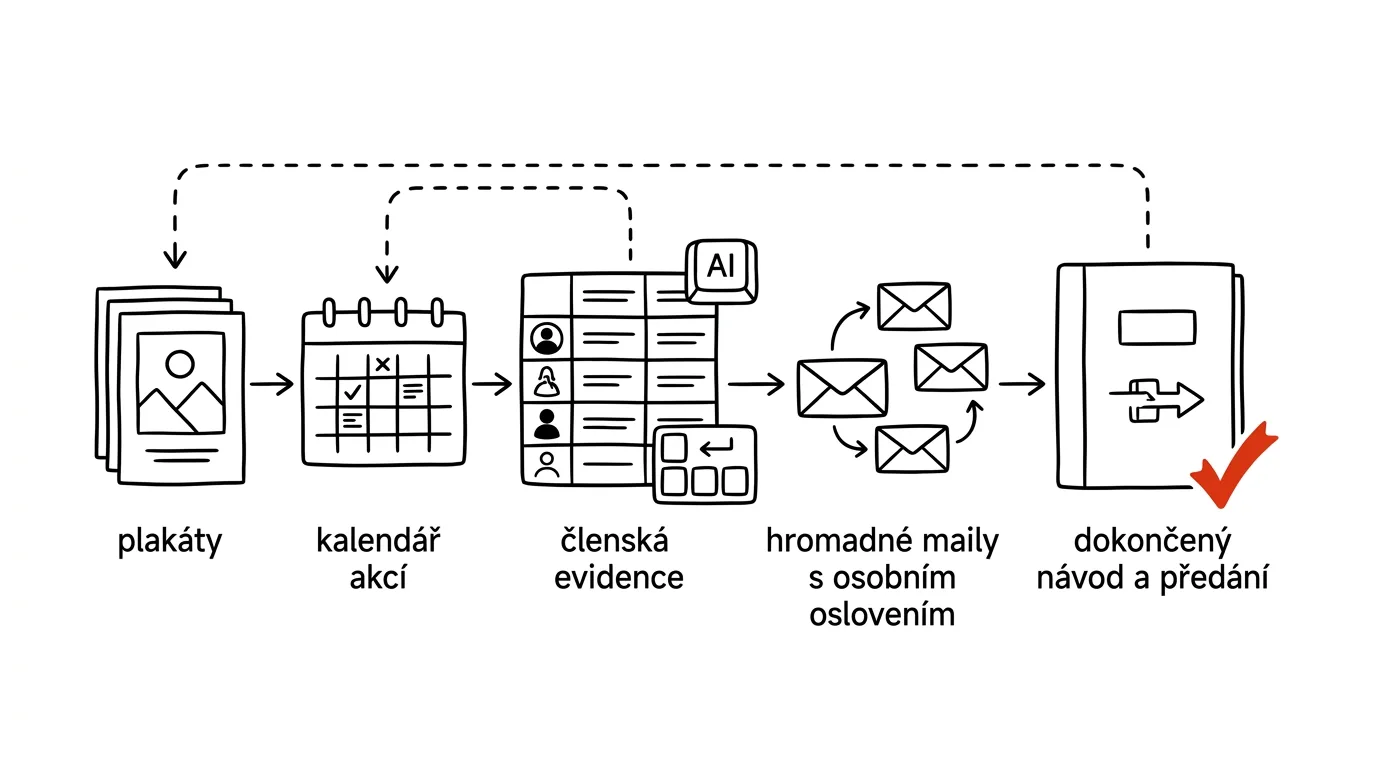
Now the same year with the system this guide is about to build. The dates of all eight events live in the brigade's Google Calendar — that's the only place a date ever changes. The visuals live in a single brand template in Canva; the poster, the ball invitation, the kids' competition certificates, and the Facebook event image are all derivatives of the same template, so everything looks like it comes from one brigade, not four different people. Members live in a small database with a member list, roles, and dues tracking; who's paid is visible at a glance, and reminders don't get written by hand. AI drafts member emails with a personal touch, and Jana sends them after checking. When the competition moves again, Jana changes the date in the calendar, has the poster regenerated from the template, and sends out a correction email — the whole thing takes an evening in front of the TV, not a weekend. And in the drawer — a shared folder, really — sits an operations manual that someone else will one day pick up from Jana.
No single feature makes this difference. The architecture does: a handful of sources of truth that outputs get derived from, instead of a pile of one-off outputs. Let's build it.
Phase 1: the inventory — seven binders and three spreadsheets on the table
Every system starts by looking at what you actually have. For a club that's usually a discouraging sight — paper, scans, files named things like final_version2_fix.doc — which is exactly why it's the ideal first job for AI: reading messy source material and turning it into order is precisely what it's good at. One rule before you start: minutes, member lists, and correspondence are personal data belonging to real people. Upload them only to a paid account with contractual data protection, never to an anonymous free chat — and even there, only what the task actually needs. That sentence will repeat throughout this guide, because it matters more than every prompt put together.
The binders: photograph, read, write up
You don't have to scan seven binders page by page. A phone is enough for an inventory: photograph the binder spines, their contents section by section (the binder open, the tab dividers, the first page of each document), and send the photos into the conversation — Claude reads photos of documents, including handwriting, so it can handle handwritten minutes from the 1990s too.
I'm sending photos of the contents of seven binders I inherited
as the new secretary of a [volunteer fire brigade / club /
association]. Go through them and build an inventory:
1. A table: binder, section, what it contains, an estimate of the
   years it covers
2. Sort the contents into three groups:
   a) live documents — we need these to operate (bylaws, current
      contracts, records); suggest which ones to digitize
   b) archive — historical value, but not part of day-to-day
      operations (old minutes, the chronicle); just needs to be
      stored somewhere known
   c) candidates for shredding — suggest them, but don't declare
      anything shredded; that's my call. For documents with
      personal data, flag that they need to go through a shredder,
      not the recycling bin
3. List anything in the photos that isn't clear to you — I'll
   follow up or take more photos
You'll get back a structured map of the paper legacy — often the first coherent overview in years. Check group (c) especially: the model will sometimes suggest shredding something with a longer legal shelf life than it realizes (accounting records for a club have statutory retention periods — be conservative with those, and if in doubt ask your accountant or follow the retention periods set by accounting law, not the model's guess).
Bylaws: turning a legal text into an operating checklist
The bylaws are a club's most important document, and almost nobody reads them until something goes wrong. Have an operating summary made from them — not a replacement for the bylaws, but a cheat sheet for what the club has to do and when.
I'm uploading our club's bylaws [photo or PDF, a scan is fine].
Create an operating summary from them for the committee:
1. The club's bodies, their powers, and terms of office — who can
   decide what alone, and what has to go to the general meeting /
   membership meeting
2. A calendar of obligations: what has to happen and how often
   (the annual general meeting, elections, approving the financial
   report) and what deadlines apply for calling the meeting and
   sending invitations
3. Membership: how it starts, how it ends, what the bylaws say
   about dues
4. List any places where the bylaws are unclear or contradict
   themselves — just list them, don't interpret them for us
Write in plain language a non-lawyer can follow. For every point,
cite the article number of the bylaws it's based on, so it can be
checked.
That last requirement — an article number for every claim — is a safeguard against confabulation: a summary you can't trace back to the source is worthless. Hang on to the calendar of obligations from point 2 — in phase 4 we'll turn it into recurring calendar events, so the annual general meeting never again sneaks up on you with an “oh, is that already now?”
Three member spreadsheets: one clean list
Three member files from different years are three versions of the truth. The goal is one list — for now just as a cleaned-up spreadsheet; we'll move it into a real database in phase 5.
I'm uploading three files with member records from different
years [clenove.xls, prispevky2019.xlsx, adresy_nove.xlsx]. Merge
them into one list:
1. Standardize the columns: first name, last name, year of birth,
   address, email, phone, year joined the club, role, note
2. Merge duplicate people into a single row; where the data
   disagrees (two addresses, two emails), keep both values side by
   side and add a CONFLICT column — I'll decide, not you
3. List separately: people who appear in only one file (possibly
   former members), people with no email, and people whose year of
   birth makes them under 18
4. Don't fill in any gaps — leave a missing value blank, don't
   invent emails or addresses
Return the table as a download, plus a list of questions I need to
decide.
Watch two things. First, the “don't fill in any gaps” instruction — models tend to “helpfully” fill in empty fields, and a made-up address in your records is worse than a missing one. Second, point 3: you'll need the list of underage members in the GDPR chapter, since different consent rules apply to them. Go through the resulting list row by row — for forty members that's half an hour, and it's the last time you'll do it by hand; from phase 5 on, there's only ever one list.
The logo from 2005: what to do with it
Somewhere in the folder you'll find the logo as a blurry 300-pixel-wide JPEG, cropped out of who-knows-what. That's an unusable source for any decent graphic design, and it's worth solving once and properly — because the logo is the one visual element the club truly owns.
I'm sending the one surviving logo of our brigade [photo/scan].
Assess it:
1. Describe what's on it and what condition it's in (resolution,
   artifacts)
2. Suggest three paths, and honestly weigh the pros and cons of
   each:
   a) redraw it faithfully as a vector (preserve the historical
      look)
   b) modernize it gently (keep the motif, clean up the shapes)
   c) keep the bitmap for the archive only and use a simplified
      variant (e.g., just the emblem without text) for small
      formats
3. For whichever path I pick, prepare a precise brief for the
   redraw: describe the shapes, colors, and text in enough detail
   that a designer or a vectorizing tool could work from it
One flag for a club emblem: if it contains a municipal coat of
arms or an association's symbol, point that out — altering it may
be subject to rules we need to check — don't suggest changing it.
An honest technical note: a chat window doesn't do the actual vectorizing out of thin air — either you do it in a tool built for it (Canva has image tracing, and there are dedicated vectorizers), or you have a person redraw the emblem from the prepared brief. For an emblem the brigade is going to carry for another thirty years, that second option is often the best investment in the whole project: pay a designer once for the redraw and have a clean vector forever. Either way, AI saves you the part that matters most — the precise brief and the decision of which path to take. And the flag about the municipal coat of arms in the prompt isn't pedantry — using municipal symbols is often tied to the municipality's consent, and club logos frequently contain one.
Photos: turning chaos into a usable archive
The last item on the inventory tends to have the biggest volume and the least structure: event photos, scattered across members' phones, shared folders, and camera memory cards. Don't build a perfect archive right away — to start, one shared folder with subfolders by event and year (2025-06-detsky-den) is enough, plus an agreement that a designated member uploads the event's photos within a week. What's AI good for here? It can describe and sort photos, and — more importantly — once you have a well-named folder, you can tell it “use the photos from last year's kids' day” when making a poster and know exactly what you mean. Photos with children in them follow special rules — there's a whole GDPR chapter on that below; until you've read it, don't publish any.
That completes the inventory: you know what you have, you have a clean member list, a summary of the bylaws, a plan for the logo, and one photo folder. Only now does it make sense to connect any tools — because only now do you know what you'll be feeding them.
Phase 2: connectors — letting AI see into the tools you already use
Without connectors, AI is a commentator: it can advise, draft text, but you have to move everything by hand. With connectors it becomes a participant — it reads your actual calendar, reaches into your actual Canva account, drafts an actual email. For a club, that means something fundamental: the routines that cost Jana entire evenings can be handed off as a single task working on real data, instead of her assembling them across five different windows.
Under the hood it's MCP (Model Context Protocol) — an open standard that lets an AI assistant talk to other services. In practice, you don't need to care about the technicalities: on claude.ai, open Settings → Connectors, find the service in the directory, click Connect, and sign in to your own account (OAuth — you type your password into the service itself, never into the AI). The overview of MCP tools covers this in detail; here's just what a club needs, and the verified state at the time this guide was written.
What each connector can do — the verified state
Canva has an official connector (hosted by Canva itself) that's listed in the connector directory on claude.ai. Once connected, AI can create new designs in your account from a brief, edit existing ones, resize between formats (turning a poster into a social post), search your designs and folders, upload assets, fill brand templates with data, and export results (PDF, PNG, and other formats). What matters for this guide: the output is always an editable design in your own Canva account — you open it in the editor and fine-tune it by hand, which is exactly the “source file, not a black box” property the whole system rests on. Brand templates — locked-graphics layouts with swappable fields — are a paid-tier Canva feature; registered nonprofits can apply for them through the Canva for Nonprofits program (more in the cost chapter).
Google Calendar has an official connector in the directory on claude.ai: it reads calendars and events, searches them, finds free time slots, and can create, edit, and delete events. For a club, this is the heart of the whole system — the events calendar as the source of truth from phase 4 rests entirely on AI being able to see into it and read from it as the input for everything else.
Gmail also has an official connector: it searches your inbox, reads threads, works with labels, and — the key part — drafts messages, which appear in your Gmail Drafts folder waiting for you to send them. This is exactly how we'll use it: AI writes, a human sends. Even if your account can send directly through the connector, don't use that for mass mail to members — we go into why in phase 6.
Connectors evolve fast — before connecting, check the connector directory on claude.ai and the permissions screen for exactly what your version can do. None of that changes the guide's underlying principle: sources of truth and derived outputs work the same way even if the specific buttons get renamed.
Whose accounts these are — a small but crucial detour
Before you start clicking Connect, one decision that predecessors of this guide — secretaries who've since stepped down — flag as the single most important: connect these tools to the club's accounts, not your personal ones. Set up a dedicated Google account for the club (its calendar and email), its own Canva account, and later its own Supabase account. The reason is handoff-ability: when you eventually pass the role on, you hand over access to the club's accounts — not your personal email, where five years' worth of club mail has become inseparably tangled up with your private life. It's half an hour of extra work up front, and it saves months of pain at the end. Passwords for the club's accounts belong in a password manager that at least one other committee member also has access to — not on a sticky note, and not only in your head.
First test: read-only
After connecting the tools, run a trial round where AI only reads — creates nothing, changes nothing, sends nothing. You'll get a feel for how working with connectors goes, and you'll confirm the right account is connected (the classic mistake: connecting your personal Gmail by accident instead of the club's).
I've connected the Canva, Google Calendar, and Gmail connectors to
the club's accounts. Do a READ-ONLY trial round — don't create,
change, or send anything:
1. List every event on the calendar for the next 12 months
2. List the designs and folders that exist in the Canva account
3. In Gmail, find the last three threads discussing [the ball /
   the competition / dues] and summarize where each one left off
At the end, confirm which account each connector is connected to —
I need to verify these are the club's accounts, not my personal
ones.
If the listing doesn't add up (an empty calendar, unfamiliar designs), disconnect and reconnect the right account now — while it's still one click, not a data migration. And the general rule from the connector overview applies here too: read the whole permissions screen when connecting; it's the one moment where you decide what you're letting the AI service do.
Guardrails for connectors that can write
Calendar and Canva are write-capable connectors — AI can create, change, and delete through them. That's both their purpose and their risk, which is why three habits are worth building in — you'll see them in every prompt in this guide, and you should carry them into your own:
- A write-capable prompt always says what it must not do. “Don't delete or overwrite existing events,” “don't modify the template, create a copy” — the guardrail belongs in the instructions, not in good intentions. A model without a guardrail will do whatever it thinks is helpful, and helpfulness combined with delete permissions is a bad combination.
- Bulk operations run dry first. First “show me what you're about to do,” then approval, then execution. For a single event that's overkill; for setting up an entire year's schedule or importing members, it's the difference between control and a cleanup job.
- Irreversible actions stay with a human. Deleting, sending, publishing — those aren't jobs for a connector, they're decisions for you. Notice that no prompt in this guide ends with “and delete the old one” or “and send it”; they end with “show me,” “prepare,” “list for approval.”
It sounds like bureaucracy, but in practice it's one line in the prompt and ten seconds of approving — and it's exactly the discipline that lets you hand connectors bigger and bigger chunks of work with a clear conscience.
Phase 3: one visual identity — the whole brigade from a single template
Now for the part that shows most in the result. The goal of this phase: one brand template in Canva that the poster, the invitation, the certificate, and the social post all get derived from — so that everything the brigade puts out looks like it comes from one brigade, and a change (a new date, a different photo) is a fix in one place, not a build from scratch.
First, a quick word on why Canva and not, say, layout in Affinity, which the company guide uses. That company is building a ten-page print brochure — it needs bleed, CMYK, and full typographic control. A club needs something different: a poster for the notice board printed at the parish office, an invitation for email, a certificate on an ordinary printer, and a Facebook image. For that, Canva is exactly the right league — simpler, free or nearly free, editable in a browser by anyone on the committee, and with an official connector so AI can reach it directly. If the brigade ever puts together a hundredth-anniversary book for print, it can borrow the company guide's approach for that one project; for the year's routine graphics, Canva is enough.
The mini brand: colors, fonts, rules on a single page
Big companies have twenty-page brand manuals; a club needs one. It's built from the little you have: the logo (once you've sorted it in phase 1), tradition (firefighter blue? the village colors?), and a handful of decisions you make now and never again.
Help me put together a one-page set of visual rules for our
brigade. Input materials: the logo [attached, post-redraw], colors
[e.g., dark blue from the uniforms, red from the trucks — describe
what's authentically yours], and photos of three old posters, so
you can see what we've used before.
Suggest:
1. A palette: 1 primary color, 1 accent, 1 background — with exact
   values (HEX) so they can be entered into Canva
2. A pair of fonts available free in Canva: one bold one for
   poster headlines, one readable one for body text; no decorative
   font for longer text
3. Half a page of rules: where the logo always goes, how the
   brigade's name is written (full name vs. abbreviation), what
   never leaves a poster (date, time, place, who's organizing it),
   and what doesn't belong on it
4. Two variations on the look: traditional (more formal,
   historical) and livelier (for kids' events) — both from the
   same palette, so the whole thing doesn't fall apart
I want the result as a short document I'll attach to every future
piece of design work.
You'll get back a document we'll call the mini brand. Check two things: that the colors actually come from what the brigade wears and uses (the model likes to propose a fashionable palette that has nothing to do with your firehouse), and that the fonts really are in Canva's free offering — the prompt asks for it, but verify it when you build the first template. Save the document to the club's shared folder next to the bylaws summary; it's another source of truth, and an attachment to every future design prompt.
The master poster template
Now the core of the phase. You're not going to make eight posters — you're going to make one template that has a fixed skeleton (logo, colors, an organizer footer) and swappable content (event name, date, time, place, a photo or illustration).
Using the Canva connector, create a portrait A4 poster design
that will serve as the template for all of our brigade's events.
Follow the attached visual rules [mini brand] — take colors,
fonts, and required elements from there, don't invent anything
outside them.
Layout:
- top: logo and brigade name (fixed part, the same on every
  poster)
- a large headline with the event name [EVENT NAME as placeholder
  text]
- below it, a date + time + place block, big enough to be
  readable from across the street
- an area for a photo or illustration
- footer: organized by [brigade name], contact, [space for a note
  like “donations welcome at the door”]
Use placeholder text in square brackets so it's clear what
changes. Create two color variants per the rules: traditional and
a livelier one for kids' events. Send me links to both designs —
I'll fine-tune the details right in the Canva editor and ask for
changes.
You'll get back links to designs in your own Canva account. And now the important working rhythm that runs through this whole guide: the first version isn't final, and it isn't meant to be. Open the design in Canva, look at it through the eyes of someone walking past the notice board — is the date readable from three meters away? — and give your edits as a specific list:
Edits to the poster template:
- enlarge the date and time block, it disappears from a distance;
  the date should be the second-biggest thing on the poster after
  the headline
- shrink the footer and mute its color, it's pulling attention
  away
- in the livelier variant, swap the illustration for [description]
  — the current one reads more like a supermarket flyer
Show me a preview of both variants after the edits. Once I approve
them, save them in Canva to the Templates folder as
poster-traditional and poster-kids.
Naming things and using a folder isn't fussiness — six months from now, when the vice-chair is making a poster, they'll find the template by name, not by memory. If the club has a paid Canva tier (or gets into the nonprofit program), have the template saved as a real brand template with locked fixed elements: then nobody can accidentally nudge the logo, and the swappable fields can be filled with data. On the free tier, an ordinary design in the Templates folder does the job — a copy gets made from it for each event — and the discipline of “copy it, don't overwrite the template” is then on the people; write it into the operations manual.
From one template to a whole set
The system's strength shows itself at the first real event. The Kite Festival, October, a photo from last year:
From the poster-kids template in Canva, create a copy for a
specific event:
- event name: Kite Festival with a cookout
- date and time: [fill in from the brigade's calendar — the
  “Kite Festival” event]
- place: the meadow behind the sports field
- photo: pick three candidates from the [2025-10-kite-festival]
  folder in the uploaded assets and show them to me, I'll choose
  one
- footer note: bring your own sausages, we also have kites to
  borrow
Once I approve the poster, create derivatives from it:
1. a square image for Facebook (adjust the layout, not just a
   crop — keep the date big)
2. a landscape invitation for email
Export: the poster as a print PDF, the rest as PNG. Save
everything into the Events 2026 folder under names starting with
kite-festival-2026.
Notice the middle line: AI pulls the date from the calendar — this is the first time the connectors meet each other, and it's by design, not by accident. In phase 4 we'll turn it into a rule. The output is a complete set for one event in one evening, visually consistent, saved where someone else can find it too. And most importantly: when the Kite Festival's date moves, it's one fix in the design and a fresh export — not three fresh builds. That sentence alone is the reason phase 3 pays off, even if you never implement anything else from this guide.
Certificates: same principle, different format
A kids' competition needs certificates, and a certificate is exactly the kind of document that otherwise gets made at midnight the night before the event. From the same template:
Create an A5 landscape certificate template in Canva for kids'
competitions, derived from our visual rules and the poster-kids
template — same colors, fonts, and logo, so it's clear they belong
together.
Swappable fields: [name], [placement], [event/discipline], [event
date]. A signature line for the fire chief and a stamp in the
bottom right.
Then create copies for the [name] competition from the attached
list: [insert list: name — placement — discipline]. Use the
children's names exactly as listed, don't rewrite or shorten
anything — a certificate with a typo in the name is a ruined
certificate. Export everything as a single print-ready PDF, sorted
by discipline.
A note on data: a list of children's names belongs here only once you're working in a paid account with contractual data protection — and Canva only ever receives what's going to be just as publicly visible on the printed certificate anyway. Checking the names after printing is still on you: “AI drafts, a human approves” applies just as much to the certificate for an eight-year-old winning the firefighting relay, because it might be the first certificate of their life, and they'll remember a typo longer than their placement.
Phase 4: the events calendar as the source of truth for dates
Now the least visible and most important phase. Remember Jana moving the district competition: the date lived in four places (poster, email, Facebook, notice board), and none of them was the primary one — which is exactly why they drifted apart. The fix isn't more diligence, it's architecture: a date has one home, the brigade's Google Calendar, and everything else is a derivative. The poster reads the date from the calendar (you saw this in phase 3), the email reads it from the calendar (you'll see this in phase 6), and when the date changes, it changes in the calendar — first, not last.
This is the same principle by which the company guide turns a git repository into the single source of truth for the brand. A club doesn't need git; the calendar is its version of the same thing — one unambiguous place everyone looks at, and where decisions get made. And because Google Calendar has a connector, AI reads real data from it, not your memory.
Setting it up: a year's schedule in one evening
The input is something the brigade does anyway: the committee plans next year's events in the fall. The output of that meeting — a photo of a page of notes is fine — turns into a structured calendar.
Using the Google Calendar connector, create events for [year]'s
events in the brigade's [calendar name] calendar, based on this
plan: [insert the list, or a photo of the committee's notes —
event, tentative date, place, who's in charge of it].
Rules for each event:
- name: short and unambiguous (Kite Festival, Firefighters' Ball),
  no exclamation marks and no ALL CAPS
- structured description: place, start and end time, event lead,
  what needs to be arranged, and a POSTER: line with the deadline
  for it to be up (3 weeks ahead for big events, 2 for small ones)
- all-day vs. timed: parties and the ball get a time, the
  scrap-metal collection is all-day
Before you create anything, show me a table of the events for
approval. Don't delete or overwrite existing events in the
calendar — only add.
Two details here aren't accidental. The POSTER: line in the event description turns the calendar into a production schedule too — in a moment we'll hook a routine onto it that tracks what needs to be made. And the “don't delete or overwrite” instruction belongs in every prompt allowed to write to the calendar; a write-capable connector is a helper with real leverage, and you're the one who sets its guardrails.
Add the obligations from the bylaws to the plan too — this is where the summary from phase 1 comes in handy:
From the bylaws summary [attach], pull out any obligations with a
deadline or a recurring period — the annual general meeting,
approving the financial report, committee elections, reporting
membership numbers to the district association — and create them
in the brigade's calendar as recurring events. For each one, set a
description: what has to happen, what lead time precedes it (e.g.,
invitations to the annual general meeting 14 days ahead, per
article [X] of the bylaws) — and also create a separate reminder
event at the start of that lead time (“Send out AGM invitations”).
Show me everything for approval before you create it.
This is a quiet but essential service: the club's obligations stop depending on someone remembering them. A deadline from the bylaws (“invitations 14 days ahead”) becomes an event, not folklore — and a new secretary will inherit it in the calendar five years from now, not by word of mouth.
Checking for conflicts: what the model doesn't know, you supply
A planned year is worth one extra check, and it's a nice illustration of the division of labor between AI and a human. The model can compare the calendar against what's publicly known — public holidays, school vacations, Easter dates. But it knows nothing about what matters to your village specifically: the fair in the neighboring village, a district league match, the local school's ball. You have to tell it that.
Check the brigade's planned events for [year] in the calendar
against possible conflicts:
1. Public holidays, school vacations in our region [region],
   Easter, and other movable holidays — for each event, note
   whether being near a holiday is an advantage (the ball on a
   long weekend) or a risk (kids' day on a weekend when families
   are away)
2. Compare against this list of local events I know about: [the
   fair in the neighboring village, nearby clubs' ball season,
   league match dates…]
3. For outdoor events, flag which ones usually have a rain
   contingency and whether it's noted in the event description
Return a table: event — risk — recommendation. Don't change
anything in the calendar; date changes are the committee's call.
That last sentence matters procedurally too: an event's date is the committee's decision, not something for the model to optimize. AI acts here like a diligent colleague who goes through the calendar and says “your kids' day is on the first weekend of the school break, half the village will be away” — the decision stays exactly where the bylaws put it.
Deriving: everything else from one event
Now the circle closes. In phase 3 we filled the Kite Festival poster with “data from the calendar”; let's turn that into a standard workflow for every event. Three weeks before an event (the POSTER: line in the event description flags the deadline — or a scheduled task can, see the Pro tip at the end), you run a single task:
Prepare materials for [event name] from the brigade's calendar:
1. Load the event and list its data: name, date, time, place,
   lead, notes from the description — that's the only source of
   truth, don't fill anything in from your own head; list anything
   missing from the event as MISSING
2. In Canva, build a poster from the [poster-traditional /
   poster-kids] template with this data and show it to me for
   approval
3. Draft the invitation text for the member email (don't create
   drafts yet, just the text): matter-of-fact, warm, no
   exclamation-point inflation, with the practical information
   from the event description
4. Draft a short text for the Facebook event and a script for the
   village loudspeaker announcement (2-3 sentences, meant to be
   read aloud — no bullet points)
Everything from the event's data. If the event description and my
earlier instructions to you disagree, the calendar wins — and flag
me on that discrepancy.
That last instruction is the heart of the whole phase: the calendar wins. When the model finds a discrepancy (you remember Saturday, the calendar says Sunday), it shouldn't quietly paper over it — it should surface it, because either the calendar is wrong (fix it, now) or your memory is (good thing you caught it now). Points 3 and 4 look minor, but they're exactly what eats up evenings: a loudspeaker script that reads well aloud is a different discipline from a poster, and both now come from the same source.
Changing a date: a dress rehearsal for the most common crisis
And now the situation the whole thing is for. A week before the district competition, word comes that it's moving to the following Saturday because of the forecast. The old way: panic and four places to fix. The system way:
The district competition is moving from [original date] to [new
date], time and place unchanged. Walk me through the change:
1. Update the event in the brigade's calendar (date only) and add
   a CHANGE: line to the description with the original date and
   the reason — so there's a trail
2. List a checklist of every derived output that's now out of
   date: the Canva poster, the notice-board PDF, the Facebook
   event, the sent email, the loudspeaker script — and what to do
   with each (regenerate / fix by hand / take down from the notice
   board)
3. In Canva, update the poster with the new date and add a bold
   “DATE CHANGED” banner — people remember the old poster, the new
   one has to shout that it's different
4. Draft the correction email to members and the new loudspeaker
   script
Don't send or publish anything — I'll work through the checklist,
you prepare.
Point 2 is worth noting: the model can't take a sheet of paper off the notice board or fix a Facebook event managed by a different member — but it can generate a complete checklist of everything that's derived and needs to be touched. That's exactly the difference between “we forgot about the notice board” and “the notice board is item 3 on the list.” The system doesn't work because a machine does everything; it works because nothing falls through the cracks.
A map of derivatives: everything that lives off the calendar
To make clear what this phase is really about, here's a dependency map of the whole system — what's a source and what's a derivative. It belongs in the operations manual, and it doubles as a diagnostic tool: whenever a value doesn't match somewhere, ask whether someone fixed a derivative instead of the source.
| What | Source of truth | Derivatives (never edited on their own) |
|---|---|---|
| Event date, time, place | the event in the brigade's calendar | poster, invitation, email, Facebook event, loudspeaker script, notice board |
| Visuals (logo, colors, fonts) | mini brand + Canva templates | every specific poster, certificate, social image |
| Who's a member, contacts, roles | membership records (Supabase) | email recipients, certificate list, AGM attendance sheet |
| Who's paid dues | the membership_fees table | list of debtors, reminders, financial report |
| Consents (photos, emails) | the consents table | what can go in the album, who gets mail |
| Club obligations and deadlines | bylaws → summary → recurring events | reminders, AGM agenda, invitation mailing deadline |
| How things get done | operations manual | onboarding a successor, routines, answers to “how do we…” |
Notice how short the sources column is — seven rows for the whole club. That's the entire secret: seven places to maintain, and everything else gets produced from them. Jana's predecessor maintained dozens of places (every poster, every list, every email), which is exactly why he couldn't keep up.
The public calendar: a notice board that updates itself
Alongside the committee's internal calendar, Google Calendar can also carry a public layer — an events calendar you can share via a link, embed on the village or club website, and that members can add to their phones. The practical setup: keep two calendars — internal (with committee notes, leads, and POSTER: lines) and a public “SDH Events,” into which only what's meant for the public gets carried over from the internal one: name, date, time, place. Even this transfer is a routine for AI (“create/update the public versions of events from the internal calendar, show me the differences for approval”), and the payoff is real: anyone who's added the calendar has the date change in their pocket the moment you make it — no poster, no email, no loudspeaker. This doesn't retire the notice board and the loudspeaker (half the village will never add a calendar), but for the first time you have a channel that updates itself.
By the way — if a club family also runs a shared family calendar, this exact logic scales down to a household too: the guide on AI in the family shows the same principle of a single overview taming family chaos. Jana, who has three kids on top of the brigade, uses both.
Phase 5: membership records in Supabase — roles, dues, order
The cleaned-up member list from phase 1 is still sitting in a spreadsheet. A spreadsheet on disk is fine for things one person looks at; but membership records hold personal data on forty people, including children, three different roles read from it (the secretary, the treasurer, the youth leader), and it gets written to all year round. That's where a spreadsheet stops being enough — not because of missing features, but because of control: who's allowed to see it, who's allowed to change it, and where the record is of what happened.
The answer is a small database in Supabase — managed PostgreSQL with login and Row Level Security (RLS): rules built right into the database that govern who can read and change which rows. The full build of records like this — from the data model through policies to deploying a simple app — is covered step by step in the detailed guide to an internal CRM; here we'll walk through the club variant and how it differs: roles mirror the club's positions, dues sit at the heart of the records, and some of the members are children.
Three practical rules carried over from there, unchanged. Create the project in the EU region (members' personal data, European jurisdiction). RLS gets turned on in the first migration, not “once it's up and running” — a database locked down after the fact always has a window where it was wide open. And login is handled by Supabase Auth, never your own cryptography.
Schema: four tables is enough
A club doesn't need a CRM with a sales funnel. It needs four tables: members, positions (who's on the committee and since when), membership_fees (dues owed and paid, by year), and consents (GDPR — mainly for children, but not only). Leave the design to AI, approval is yours — and since you probably don't read SQL every day, have every piece explained to you in plain language.
Design a Supabase database schema for a club's membership
records (a volunteer fire brigade, 40 members, some of them
minors).
Tables:
1. members — first name, last name, year of birth, contacts,
   address, join date, status (active / suspended / ended
   membership), a link to a legal guardian (name and contact) for
   minors
2. positions — who holds which position and from when to when
   (secretary, brigade chair, treasurer, youth leader, committee
   member); history is never deleted, a position just ends on a
   date
3. membership_fees — for each year and member: the amount owed,
   the payment date, the method (cash / bank transfer), who
   recorded the payment
4. consents — type of consent (photos on the website and social
   media, sending emails…), who granted it, on whose behalf (a
   legal guardian, for children), the date it was granted and, if
   applicable, revoked
Write the Row Level Security policies right away — turned on from
the first migration:
- committee role: reads everything, writes members and positions
- treasurer role: same read access, and is the only one who
  writes to membership_fees
- youth_leader role: reads only minor members and their consents
- nobody is allowed to delete records — use the status “ended
  membership” instead of deleting (the club's history doesn't get
  lost)
- a logged-out user sees nothing
Generate the SQL migrations and comment every policy: what it
allows, for whom, and why. Then explain the migrations to me like
someone who doesn't read SQL — I'll approve each one separately,
don't run anything without approval.
You'll get back the migrations with comments. Before you run them, read at least the comments and ask about anything that doesn't make sense — “why does the youth leader see the guardian's address here?” is a legitimate question, and you want the answer before you pour real data in. The “nobody deletes” rule is worth noting: in a club with a hundred-year chronicle, membership history has value — a member who left isn't a deleted row, it's an ended membership with a date. (Careful — this is an operating rule, not a GDPR interpretation: the right to erasure doesn't go away because of it; when someone requests it, you handle it deliberately and individually, not by quietly deleting.)
Import: the list from phase 1 moves in
Import the attached cleaned-up member list [the table from the
inventory] into the members table in Supabase. Steps:
1. First, run it dry: show me how the spreadsheet columns map to
   the database columns, and list the rows that won't pass
   (missing a required field, a suspicious year of birth, a
   duplicate name)
2. Flag minor members and check that they have a legal guardian
   filled in — don't create them without one, list them separately
3. Only run the import after my approval, and give me checksums at
   the end: how many rows in the spreadsheet, how many in the
   database, how many skipped and why — the numbers have to match
Don't fill in any gaps: a blank field stays blank.
Remember the rhythm — dry run, approve, execute, count — it's the universal procedure for any bulk data operation, and the difference between an import and an accident. The checksums at the end aren't a formality: 40 members in the spreadsheet and 38 in the database is a discrepancy you want explained now, not in December at the annual general meeting.
Dues: who's paid, visible at a glance
Membership dues are the treasurer's most frequent job, and the most common source of embarrassment — reminding someone who's already paid is worse than reminding no one at all. That's why the records rest on two separate things: what's owed (how much each member owes for the year — the amount is set by the annual general meeting per the bylaws) and what's paid (when and how it came in). AI helps in two places: recording payments and generating overviews.
Recording bank payments: if the brigade collects dues by bank transfer (and after this guide, it will — a payment reference number solves the matching problem), the treasurer periodically downloads a bank statement and has the payments matched up. A statement is a sensitive document — it belongs only in a paid account, and only the excerpt relevant to dues.
I'm attaching an excerpt of the club's bank statement with
incoming payments [CSV or PDF; I've removed the other
transactions]. In Supabase there's a membership_fees table with
amounts owed for [year], and members' payment reference number =
their member number.
1. Match payments to what's owed by reference number and amount
2. List three groups: clear matches, suspicious ones (the
   reference matches, the amount doesn't — an overpayment, a
   partial payment, a payment covering two siblings at once), and
   unmatched payments
3. Don't write ANYTHING yet — show me the proposed entries, I'll
   approve them by group; we'll go through the suspicious ones one
   by one
4. After the approved entries are written, generate a summary: how
   many members have paid, how many haven't, total collected vs.
   expected
A payment from someone who isn't in the records is always for
manual review — never assign it anywhere by guessing.
That last line is a lesson every treasurer learns the hard way: a parent pays for a child from their own account under their own name, a grandmother pays for a grandchild, one transfer covers two siblings. The model can recognize and propose these patterns — but assigning someone else's payment to a member is a decision with consequences, so a human makes it. You'll see what the follow-up reminder looks like in phase 6; thanks to the separated records, it'll only go to members who actually owe money.
One distinction that will save you an argument with your accountant: dues records are not the club's accounting. As a legal entity, the club keeps books according to the law (usually simplified bookkeeping for small clubs), and that stays right where it is — with the accountant, in their tool, by their rules. Your records answer a different question: which member has paid. The two systems meet at one checkpoint (the total dues collected in the records should match the corresponding line in the accounting — once a year, before the financial report, have AI compare the two and list any discrepancies), but they don't replace each other. Trying to make the membership records “double as the accounting” is a classic way to alienate your accountant and break both things at once.
Red-teaming: five minutes that protect forty people
Policies nobody has tried to break are just a hypothesis — that's a lesson from the company guide, and it applies double when children's data is involved. Before you let real data anywhere near the database, test the locks on a test project with made-up members:
Play the role of an attacker against a test copy of our
membership database (made-up data). You have the anon key (which
is public by design) and you know the schema. Try to:
1. Read members without being logged in
2. As the youth leader, read adult members and payments
3. As a committee member, write a payment (not allowed — only the
   treasurer can)
4. Delete anything at all
For each attempt: did an RLS policy stop you? Which one? If
anything got through, propose a policy fix and test again. Return
a table: attempt — expected — result. Only test against the test
project, never against live data.
A typical finding is both mundane and serious at once: a table where RLS was forgotten (fully readable through the public key), or a policy written for reads only, leaving writes wide open. The fix takes five minutes — if it's found now.
A table of roles and access
The whole access system in one place — this doubles as a page for the operations manual from the final chapter. Roles aren't technical constructs; they mirror positions in the club:
| Role | Supabase (records) | Canva | Club calendar | Club Gmail |
|---|---|---|---|---|
| Secretary | reads everything, writes members and positions | edits templates and events | writes | full access, sends |
| Treasurer | reads everything, only one who writes payments | view only | reads | reads, drafts reminders |
| Youth leader | minor members and consents only | creates from the kids' template | writes kids' events | no |
| Committee member | reads everything, doesn't write | creates from templates, doesn't change them | reads, proposes dates | no |
| Regular member | no access (gets summaries by email) | no | sees the public events calendar | no |
| Successor in training | reads everything (like a committee member) | creates from templates | reads | reads |
| AI with connectors | reads; writes only on instruction and with approval | creates drafts for approval | reads; writes only on instruction | drafts only, never sends |
That last row isn't a joke — it's the most important row in the table: AI is a role in the system like any other, and it carries the strictest guardrails — everything it does gets approved by a human. And the second-to-last row is the whole table's point: a successor gets “reads everything” access a year before the handoff, so they don't fall into the role, they grow into it.
Phase 6: mass communication — drafts with a personal touch
Club mail has two ailments. The first is impersonality: “Dear members” in a mass email that half the people never finish reading, because it isn't clear whether it's meant for them. The second is worse, and Jana inherited it from her predecessor: all forty addresses visible in the cc field, so any member can harvest the entire brigade's contact list — which, incidentally, is a personal-data violation, not just bad manners. The Gmail connector fixes both: AI drafts each member their own message with their own greeting and their own information, the drafts wait in the Drafts folder, and a human sends.
Why insist that a human does the sending, even where it could be automated? In a village where everyone knows everyone, an email from the brigade is a personal matter. A wrong salutation, a reminder sent to someone who paid in cash yesterday, an invitation with last year's date — every one of those mistakes has a name and a face, and you'll run into it Saturday morning outside the shop. Checking before you send takes a minute; repairing your reputation takes a year. The reverse holds too: precisely because the drafts pass through your review, you can afford to let AI write all of it.
A mass email that doesn't sound like one
A standard situation: an event invitation, with materials prepared back in phase 4. The recipient list is pulled from membership records — another spot where the connectors meet.
Prepare a mailing of the invitation to [event] for the brigade's
members:
1. Pull active members with an email address and consent to being
   emailed from the membership records; write to the legal
   guardian for minors. Give me the recipient count, and list
   members without email separately — we'll print them a paper
   invitation, so prepare a print version too
2. Invitation text: insert the prepared text from the event
   materials [insert], and check the date against the brigade's
   calendar — the calendar wins
3. For each recipient, create a separate draft in Gmail with a
   personalized greeting using their name (Dear Petr, Dear
   Mrs. Dvořák) — use the first name for members you're on
   first-name terms with per the note in the records, and a more
   formal form of address otherwise
4. DON'T SEND. Once the drafts are created, give me a review
   table: recipient — salutation — subject. I'll spot-check five
   drafts and send them myself.
Three details make the difference. The salutation: Czech is unforgiving here because it inflects a name for direct address — the vocative case, a grammatical form English simply doesn't have — so a correctly declined “Milý Ondřeji” (not “Milý Ondřej”) is exactly the kind of small thing that tells a recipient someone cared, rather than that a mail merge ran; models handle it well, but check unusual names. Since English has no vocative case and no formal/informal address distinction the way Czech does, the equivalent care here is simpler and just as important: get the name right, and get the register right — first name for someone you know well, a more formal “Mr./Mrs. [Last name]” for someone you don't. Whether to use one or the other comes straight from the records — a one-word note next to a member's name (“first-name basis”) is a small thing that fits easily into the database and saves you an awkward moment. And members without email: a club isn't a company — Mr. Souček (78) doesn't have email and never will — a system that forgets him is no better than the old binders, just faster. A paper invitation for three members is part of the mailing, not an exception to it.
Dues reminders: gently, and only to debtors
Hooked up to the dues records from phase 5 — this is where separating what's owed from what's paid proves it was worth the effort:
From the dues records, pick out members who haven't paid for
[year] as of today. Double-check: nobody with a recorded payment
should appear on the list — better to leave out a borderline case
than remind someone who's already paid.
For each one, create a reminder draft:
- tone: kind and matter-of-fact, no guilt-tripping — we're
  neighbors, not debt collectors; the first reminder is a nudge,
  not a demand
- content: the amount owed, the account number, the payment
  reference number (their member number), the deadline to pay, and
  a line saying that if they paid in cash in the last few days,
  they should ignore this message and let the treasurer know
- write to the legal guardian for minors, and mention the child's
  name
DON'T SEND — the treasurer will review and send the drafts. Give
them a review list: who, what amount, what reference number.
The line “if you paid in cash, let us know” isn't a hedge — it's a safeguard against the most common gap in the records: a cash payment the treasurer hasn't gotten around to logging yet. A reminder that accounts for that possibility is decent even when the records run a day behind. And if you're tempted to escalate the reminders (“second notice,” “final warning”) — for a club, a second round sent before the annual general meeting, with a line noting that unpaid dues are dealt with there per the bylaws, is usually enough. The club treasury doesn't need more drama than that.
The AGM invitation: deadlines from the bylaws
The most formal email of the year, and the only one where a mistake means a legal problem — an annual general meeting called in violation of the bylaws can have its resolutions invalidated. That's why this invitation isn't written from memory, but from the bylaws summary:
Prepare the invitation to the annual general meeting [date from
the brigade's calendar — verify it respects the calling deadline
from the bylaws, article (fill in from the bylaws summary); if the
timing doesn't work, flag it and don't create anything]:
1. Required contents per the bylaws: agenda (insert the committee's
   items), place, time, who's calling it; check against the bylaws
   summary for anything mandatory that's missing (e.g., a slate of
   candidates for elections)
2. Attach the treasurer's financial report [insert] — just attach
   it, don't adjust or round the numbers
3. Drafts as usual: individual, personalized greeting, a print
   version for members without email; write to guardians for
   minors, with a note on whether junior firefighters have voting
   rights at the AGM (per the bylaws — cite the article)
4. Also draft me a short version for the notice board and the
   loudspeaker
DON'T SEND. And tell me the latest date I can send by for the
bylaws' deadline to hold — I'll put that in the calendar.
This prompt is a nice illustration of how work from earlier phases stacks up: the bylaws summary tracks deadlines (phase 1), the calendar holds the date (phase 4), the records supply the recipients (phase 5), Gmail makes the drafts (phase 6). None of those steps is impressive on its own — but an AGM invitation that used to take a whole weekend to put together is done in an evening, and formally correct.
Incoming mail: the inbox as institutional memory
The Gmail connector isn't just for outgoing mail — and for a club, what it can do with incoming mail may be even more valuable. The club inbox is institutional memory: correspondence with the district association, with the parish about renting the hall, with the insurer, with the band for the ball. The old way, that memory lived in the secretary's head (“last year we agreed with the band that…”); the system way, it's an inbox AI can search. “Find last year's arrangement with the band for the ball and summarize what we agreed” is a ten-second query — and it means this year's negotiation doesn't start from scratch, or from memory.
For this to work, minimal discipline is all it takes: club mail goes to the club inbox (not to individual committee members' personal email — the same rule as for accounts), and every so often you have AI suggest labels and sort what's unlabeled (suggesting labels, yes; bulk relabeling only after approval, again). A small club's inbox doesn't need any more system than that; what matters is that the answer to “how did we leave that” gets found in the inbox, not through phone calls to former officers. And when the role gets handed off, this memory goes with it — whole, searchable, on the club's own account.
GDPR and children: carefully, honestly, and without panic
The chapter everyone would rather skip — which is exactly why this guide has it. A club with child members handles children's personal data, and caution is warranted there not because an inspection is looming, but because it's about parents' trust, without which a kids' club doesn't exist. The good news: the system in this guide makes compliance easier, not harder — a record of consent is a table in a database, not a box of papers. The bad news: no tool relieves the committee of responsibility. Let's approach it soberly.
What a club records about its members rests on solid legal ground: membership itself requires a name, a contact, and for children a legal guardian — that's processing necessary for the club to function, and you don't need separate consent for it (you do need to inform people what you record and why — a simple information page or a note on the membership application covers that). You need consent where you go beyond what's necessary, and at a club that's typically two things: photos and videos of children published on the website and social media, and using contact details for anything beyond club communication. For children, the legal guardian gives consent.
About photos specifically, since that's the most common friction point. A kids' day produces three hundred photos, and the temptation to “dump the album on Facebook within the hour” is enormous — the photos are lovely, parents want them, and the brigade's page stays active. But among those three hundred photos there's also a child whose parents didn't give consent, and that's not necessarily a whim: there are situations (custody disputes, protected housing) where a published photo with a place and time attached can genuinely cause harm. Hence the rule: an album gets checked against the consent records before publication — always, even when it costs you a delay. AI helps here by turning the rule into a routine instead of a heroic feat of memory:
Help me set up consents and photos for our child members:
1. Draft the text of a legal guardian's consent to taking and
   publishing photos of a child on [the brigade's website,
   Facebook page, village newsletter]: specific purposes, how long
   it's valid, an explicit option to revoke it at any time and how,
   and a line stating that not giving consent has no effect on
   membership. Plain language, one page. Remind me that the final
   text should be reviewed by a lawyer, or at least checked against
   a template from an umbrella organization — your draft is not
   legal advice.
2. Suggest how to record consents in the consents table in the
   records (type, scope, date, revocation) and how to log the
   paper original
3. Write a procedure for checking an album before publication: take
   the list of children with consent from the records and go
   through the album — photos where a child without consent is
   identifiable get pulled or cropped; judge group photos more
   strictly, not more leniently. The result is a list of photos
   cleared to publish and a list of pulled ones with reasons — I do
   the publishing.
An honest technical note on point 3: actually recognizing “which child is in this photo” is exactly the step that shouldn't be a machine's job — automated facial recognition of children is inherently a very sensitive kind of processing that a small club has no way to justify, and besides, the youth leader simply knows the kids. The practical process is human: the leader goes through the album with the list in hand, AI has already prepared the list and the checklist for them, and afterward logs the result. The machine does the record-keeping, the human does the recognizing and the deciding.
And three more rules connected to children that belong in the operations manual. First: children's names are never publicly linked to photos (“from left in the photo…” doesn't belong on Facebook) — a certificate with a name on the wall inside the firehouse is a different situation from the same certificate posted online. Second: children's data in AI conversations — minimum of the minimum; for most tasks “twelve children aged 6 to 14” is enough, and a named list is only needed for certificates and addressed documents, in a paid account with contractual data protection. Third: when a parent revokes consent, the revocation gets logged in the records and already-published photos get taken down to whatever extent that's possible — and tell parents that “to whatever extent possible” honestly, up front: from your own website and page, yes; from copies other people have already downloaded, nobody can guarantee that. The broader framework — what AI is and isn't allowed to do, not just with children — is covered in the chapter on ethics and safety.
Security across the whole system
Security principles have been scattered across the phases; here they are together, because together they form a system — and because this page belongs in the operations manual next to the roles table. For a club, it's not trade secrets at stake, but something more sensitive: the trust of forty neighbors and the parents of twelve children.
- Members' personal data only ever goes into a paid account with contractual data protection — and even there, by the minimization principle: put only the excerpt the task needs into the conversation, not “the whole database just in case.” Data's permanent home is a database with roles, not chat history.
- The club's accounts, not personal ones. Calendar, mail, Canva, and the database all belong to the club. Passwords live in a password manager at least two committee members can access — one person is a single point of failure, and clubs tend to have long lives and fragile continuity.
- Roles mirror positions, and the database enforces them. The treasurer writes payments, the youth leader sees only their own kids, nobody can delete — and thanks to RLS that holds even if someone finds a way to the data outside the app. Policies get tested by red-teaming on made-up data, not by hoping for the best.
- Write-capable connectors get guardrails in every prompt — what's off-limits, dry runs first, irreversible actions (deleting, sending, publishing) stay with a human. AI is the role with the strictest rules in the access table.
- Children get a special regime: guardians' consents in the records, albums checked against the records before publication, names never publicly linked to photos, children's data in conversations kept to a minimum.
- Someone leaving = a role change, not a detective story. When someone leaves the committee, their roles in the records and their access to the club's accounts get revoked — one sitting, a complete result. That, incidentally, is the strongest security argument against a spreadsheet on a shared drive that who-knows-who from years past still has a link to.
None of this is paranoia, and none of it is expensive — it's a handful of habits. And they're worth adopting before you need them: security rules are hardest to introduce after something's already gone wrong, when what gets built is an alibi instead of a system.
Handing off the role: a system that outlives its author
And now the chapter this entire guide was written for. Let's return to the sentence from the introduction: at a company, the point of editability is “I can fix a mistake in a minute”; at a club, it's handoff-ability. Mr. Kratochvíl wasn't a bad secretary — he was an excellent one. But for thirty years he built a system that existed only in his head, so the handoff shrank down to seven binders and “call me if anything comes up.” Jana could now do the exact same thing, one technology generation later: build a brilliant system in Canva, Supabase, and the calendar that only she understands. Tools alone don't guarantee handoff-ability — documentation and access structure do. Both can be built so they grow on their own.
The good news: you've already written most of the documentation, you just don't know it yet. The bylaws summary, the mini brand, the commented database migrations, the event descriptions in the calendar, the roles table — all of that is pieces of the operations manual. What's left is to gather them in one place and fill in what's still only habit.
The operations manual: one document that answers “how do we do this here…”
Put together an operations manual for our club, for my
successor in this role.
Materials: the bylaws summary, the mini brand, the roles and
access table, the list of Canva templates, the membership records
schema [all attached], and this description of the routines, in my
own words [describe in your own words: what happens before an
event, how payments get recorded, how a mailing goes out].
Structure:
1. A system map: what lives where (dates → calendar, visuals →
   Canva templates, members and payments → records, mail → club
   Gmail) and the golden rule: change the source, not the
   derivatives
2. Routines as step-by-step guides: preparing an event (3 weeks
   ahead), changing a date, recording payments, reminders, the
   annual general meeting, admitting a new member, publishing
   photos from a kids' event
3. Access: what club accounts exist, who has what role on each,
   where the password manager is — DON'T put the passwords
   themselves in the manual, only where they're stored
4. A secretary's year-at-a-glance calendar: what happens in which
   month
5. A glossary: what a connector, a template, and records are — for
   a reader who's never seen these tools before
Write it for a specific person: a volunteer, in the evening, tired,
who doesn't need to know computers beyond email and online banking.
End every routine with the sentence “if you're stuck, ask AI like
this: …” with a concrete prompt.
That last instruction is a small trick with a big payoff: a manual where every chapter ends with a ready-made prompt turns AI into a permanent part of the handoff — a successor doesn't just get a description, they get a helper that walks them through the routine. And a note on point 3: take the “passwords don't belong in the manual” rule seriously; the manual is a document that gets shared and printed, passwords live in the club's password manager with controlled access.
Save the manual where the club's other documents live, and — this matters — maintain it as the source of truth for processes: when a routine changes, the manual changes, the same way a date changes in the calendar. An outdated manual is worse than none at all, because a successor will believe it.
The handoff test: a dry run as the successor
How do you know the manual is really complete? By the same trick the company guide used to test brand voice: flip the roles and have AI play the reader.
Read the attached club operations manual and play my successor:
a volunteer taking over the role, who's never seen this system and
has ordinary computer skills. Walk mentally through the first year
in the role (use the secretary's year-at-a-glance calendar from the
manual) and ask me anything you'd need to know in that situation
that the manual doesn't answer:
- a missing step in a routine (“where do I get access to Canva?”)
- knowledge that seems obvious but is written down nowhere (“who's
  Mr. Souček, and why does he get his invitation by mail?”)
- a decision where it's unclear who's supposed to make it
Ask one question at a time, and fold my answers straight into the
manual. Stop once you can get through the whole year without a
question the manual can't answer.
This one hour is the best investment in the whole chapter. The questions that come out of the model are exactly the ones a real successor would ask three years from now — except now you're answering them calmly over tea, not on the phone from vacation. And there's a side effect: you get to see your own system through outside eyes, a view its author never otherwise gets.
Handoff in practice: a year, not an evening
The handoff itself, then, isn't an act but a process — and the system from this guide gives it a natural shape. A year ahead, the successor gets the “reads everything” role (a row in the roles table — that's what it's for) and starts watching: they see the records, the calendar, the templates, they get copies of important mail. Six months ahead, they take on their first routine — say, preparing one event from the manual, with you standing behind them. At the annual general meeting, the role is handed off formally, and technically that means: a role change in the records, handing over the password manager, transferring ownership of the club's accounts. No binders, no “call me if anything comes up” — well, they can call, but they don't have to.
And one last honest note: a handoff-ready system has a second dimension — it outlives not just a change of secretary, but a change of tools too. Canva, Supabase, and connectors will all transform or disappear over the next ten years; what stays is sources of truth in open formats (a member list can always be exported from a database into a spreadsheet, a calendar into a standard format, documents are text). While building your system, ask yourself now and then: “if this tool disappeared tomorrow, could I get my data out of it?” For every tool in this guide, the answer is yes — and that's not a coincidence, it's the criterion they were chosen by.
The same system for a sports club, a parents' association, and scouts
This whole guide ran on the firefighters, because a specific story reads better than an abstract diagram. But the architecture — sources of truth, derivatives, roles, the manual — is the same for any club; only the contents of the tables and the rhythm of the year change. A few notes on carrying it over, so you don't have to translate every sentence yourself:
- A sports club has a season instead of eight events: a schedule of matches or meets (often set by the league — the source of truth is then the league's own schedule, and your calendar is a watched copy of it, which needs to be spelled out honestly in the manual), training sessions as recurring events, and training camps. The records pick up specifics of their own: medical checkups with an expiration (another date the calendar tracks), league registration, jersey sizes. The certificate template gets used constantly, and dues reminders are the single biggest time-saver for clubs with kids — club dues are paid twice a year, and “who hasn't paid” is a perennial topic.
- A school parents' association has a year driven by the school calendar: a ball, a fair, class contributions. Its specific quirk: almost zero continuity — roles change hands every two or three years as kids grow up and move on, so the handoff chapter isn't the last one to read, it's the first. And nearly all the members are also parents of non-members (kids at the school), so it's worth clarifying right away whose data the club actually records: record the association's members, and for kids' events, only what the event actually requires.
- A scout troop or group has an advantage: national headquarters provides nationwide registration and methodology, so you don't need to build the whole membership system yourself — your local layer (patrols, expeditions, consents beyond what's already registered, troop dues) gets built alongside it, not instead of it. The same holds for fire brigades within district structures, or athletes in league registries: first find out what the umbrella organization already records, and keep locally only what's not there. Duplicating a nationwide registry locally is extra work, and a GDPR risk on top of it.
- A small cultural society, a hunting club, a gardening club, an amateur theater group — the smaller the club, the more the minimal version from the next chapter applies. A theater group with five premieres over ten years doesn't need Supabase; it needs a poster template and one folder. Build the system to match your actual operation, not the guide — the guide is a menu, not an obligation.
The common denominator: always start with the question “what's our source of truth for dates, for people, and for visuals” — and only then pick the tools. A club that answers those three questions has gotten the essential thing out of this guide, even if it ends up running everything in different apps entirely.
What it costs: free tiers and their honest limits
Prices don't belong here — they change faster than articles do — but the shape of the costs can be described, and for a club it's remarkably favorable: at the size of a typical club (dozens of members, a handful of events a year), free tiers will usually get you through. More important than “what's free,” though, is knowing where free tiers stop, so you don't hit the wall in the middle of ball season.
- Canva's free plan covers building designs, plenty of templates, and export; the connector works with a free account too. The limit: real brand templates (locked elements, data-filled fields), shared team kits, and some premium content are paid-tier features. But there's an important switch for clubs here: registered nonprofits — which a Czech registered association typically is — can apply for the Canva for Nonprofits program, which gives a team premium features for free. The application needs proof of the club's registration (an extract from the register of associations) and a bit of patience; for a club with a kids' program, it's one of the most worthwhile applications a committee can file. Check the program's current terms on Canva's website, they change.
- The Supabase free tier comfortably handles membership records with dozens to hundreds of entries — for a database, that volume is negligible. The limit a club will actually run into isn't size, it's activity: an inactive project on the free tier “goes to sleep” after a longer pause and needs to be woken up in the dashboard. Membership records that get touched once a month are exactly the kind of candidate for that — plan for it (waking it up is one click, no data loss), and every so often export the members to a spreadsheet as a backup; that's good practice regardless of tier.
- A free Google account is enough for the calendar, mail, and a shared photo folder. The limit: photo storage is finite (it fills up after years of events — move older years' archives to a drive and a backup), and club mail from an address ending in gmail.com looks less official than a custom domain; but that's cosmetic, and can be dealt with later, if at all.
- Claude: connectors and file handling are a paid-tier feature, and — more importantly — for working with members' personal data, a paid account with contractual data protection is a requirement, not a nicety. This is the one line item where the guide recommends budgeting for a real cost: one paid account for whoever runs the system. Put plainly — it's roughly what a club spends on refreshments for one committee meeting, and it carries the whole system. A second account (for the treasurer) is a luxury, not a necessity; the routines can run from just the one.
And one cost that's not measured in money: the time to set it up. An honest estimate for a brigade Jana's size is five to eight evenings spread over two months — two for the inventory, one to two for the identity, one for the calendar, two for the records, one each for mail and the manual. It isn't free; it's an investment that pays for itself the first season, because from then on every event costs an evening instead of a weekend. And unlike evenings spent in Word wrestling a poster, this work stays.
The minimal version: when you only have two evenings
Honesty requires admitting that not everyone has the energy for the full system — and that a half-built system is worse than a small, finished one. If you only have two evenings, here's a minimal version that already bears fruit, and that you can build on any time:
First evening: the template. A one-page mini brand and one poster template in Canva (the prompts from phase 3, even without the connector — the brief can be carried into Canva by hand too). From that point on, no more posters from scratch, and everything from one visual identity. That's the most visible result for the least work.
Second evening: the calendar. A club Google account, the year's plan of events as calendar entries, obligations from the bylaws as recurring events (the prompts from phase 4). From that point on, a date has one home, and nothing depends on memory.
That's the whole thing — and it's more than ninety percent of clubs have. Records in Supabase, drafts in Gmail, consents, and the manual can wait for next winter; until then, the cleaned-up member spreadsheet from the inventory will do (one, with a clear owner — the treasurer), plus the discipline of “addresses go in bcc.” The one thing that can't wait even in the minimal version: no photos of kids without consent, ever, and personal data only into a paid account. Security isn't a module you buy later in version two.
And when the next winter comes around, you'll be building on something finished: the calendar and the templates are exactly the foundation that records and mail connect onto. The minimal version isn't a stripped-down version — it's the first floor of the same house.
The most common mistakes
- Connecting tools to personal accounts. The most expensive mistake in the whole guide, because it doesn't show up for years — at the handoff, when it turns out the brigade's calendar, templates, and mail all live in your private account, and migrating them is hell. Club accounts from day one; half an hour that decides everything that follows.
- Fixing derivatives instead of the source. The classic: a date changes, someone quickly fixes the poster in Canva but leaves the calendar alone — and the next routine pulls the old date straight from the calendar. The system's golden rule: change the source (the calendar, the records, the template), derivatives get regenerated. Whoever fixes a derivative breaks the system.
- Letting AI send mail without review. Checking forty drafts takes ten minutes; explaining away one badly addressed email, or a reminder sent to someone who already paid, takes a month in a village. Drafts, yes; automatic sending, no — for a club where every recipient is a neighbor, no exceptions.
- Dumping members' personal data into a free chat. A member list with addresses and years of birth belongs in a database with controlled access and a paid account with contractual data protection — with only the excerpt the task needs going into any conversation. “It's just a spreadsheet, after all” is the sentence that trouble follows.
- Publishing kids' photos “before it goes cold.” An album from a kids' day gets checked against the consent records before publication, every time. A one-day delay hurts nobody; a photo of a child without consent can cause real harm — and parents' trust doesn't come back with a Facebook apology.
- Building the system and never writing the manual. The quietest mistake of all: everything works as long as its author does. Without a manual, you've just traded Mr. Kratochvíl's seven binders for seven accounts only you understand — a more modern dependency is still a dependency. The manual and the dry-run successor test are part of the build, not an optional extra.
The best tools
- Claude with connectors (claude.ai) — the conductor of the whole system: reads the calendar and the records, creates designs in Canva, drafts messages in Gmail, holds the routines together. A paid account with contractual data protection is a requirement for working with members' data.
- Canva + connector — home of the visual identity: the mini brand, poster templates, certificates, derivatives for social media. Editable designs in your own account, not images out of a black box; for registered clubs, the nonprofit program is worth applying to.
- Google Calendar + connector — the single source of truth for dates: events, obligations from the bylaws, deadline reminders. A public version of the events calendar can be shared with members and embedded on the village website.
- Gmail (club account) + connector — mass mail as personalized drafts; a human always sends. Labels keep the workload organized (dues, the district, events).
- Supabase — membership records with roles and Row Level Security: members, positions, dues, consents. EU region, RLS from the first migration; the detailed build is in the in-depth CRM guide.
- A phone with a camera — the underrated key tool for the inventory: binders, bylaws, and committee minutes all enter the system as photos that AI reads. No club needs a scanner.
What you get out of it
- Time: event prep drops from a weekend to an evening — poster, invitation, emails, and the loudspeaker script all from one source. A date change goes from a crisis afternoon to an hour with a checklist. Dues reminders go from year-round “chasing” to one round of drafts. Conservatively: two to three evenings a month back, more in season.
- Money: a club can usually run the whole system on free tiers plus one paid AI account; graphics that would otherwise be paid for, or begged off a friend, come from your own templates instead. And better-collected dues aren't a trivial line item either — records where a debt is visible simply collect better than a notebook does.
- Peace of mind: the calendar watches dates, deadlines from the bylaws are events, consents are records, and nothing depends on you remembering. Plus that specific club kind of peace: knowing that when you want to step down, you can — because there's something to hand over.
- Quality: the brigade looks like one brigade from the outside — posters, certificates, and emails all from one identity. Mail addresses people by name and only reaches whoever it's actually for. And the kids' program handles children's data better than plenty of institutions do, which parents notice even if they can't quite put a name to it.
Pro tip
Once the system's running, give it a pulse: a scheduled task that goes through the brigade's calendar once a week and sends you a short summary — what's coming up in the next month, which events have a “make the poster” deadline running out per the event description, which bylaws deadlines are approaching, and whether any members show up in the records without a recorded consent or payment. Ten lines on Monday morning, no event ever caught flat-footed. That's the last stage of development a secretary goes through: from someone who does everything, to someone who delegates everything, to someone the system itself tells what needs delegating — the routine has turned from something you watch into something that watches for you.
And a closing rule for the whole guide, a relative of “own your source files” from the company piece, but the club version of it: build for your successor. Make every decision — where to save something, how to name it, whether to write a routine down — with the question of whether a tired volunteer replacing you in five years will understand it. What comes out of that is a system that happens to be better for you too. Mr. Kratochvíl served the brigade for thirty years and handed over seven binders; you could serve for just five and hand over a club that works. The second one is more.
Want to go deeper? The handbook has a whole chapter on it — AI and automation.
Similar tips
In-depth guide · 16 min
“Explain it to me like…” — AI as a private tutor
A complete guide with prompts: explanations at your level, the Feynman technique, test questions from your notes, and the trap of illusory understanding.
In-depth guide · 28 min
AI for complete beginners: what to install on your computer and phone, and the difference between chat, Cowork, and Claude Code
A complete guide with prompts: installing Claude and ChatGPT on computer and phone, chat versus Cowork versus Claude Code — and who can actually draw.
In-depth guide · 19 min
From a meeting recording to notes with tasks in a minute
A complete guide with prompts: from recording consent to notes that separate decisions from discussion, list who-what-by-when tasks, and admit what's open.
Common questions
Why isn't making posters in Word and tracking members in Excel, like we've always done, good enough?
Because every poster starts from scratch, and every date change means manually fixing the poster, the email, the Facebook event, and the notice board — and one of them always gets missed. In a system, a date has a single home (the events calendar) and the visuals have a single template; the poster, the invitation, and the email are all derived from them. A date change then becomes one fix in the calendar and a checklist of what to regenerate, instead of a detective hunt for every place the old version is still hanging.
Does a club have to pay for all these tools?
For the size of a typical club (dozens of members, a handful of events a year), free tiers usually cover it: Canva's free plan for design work, the Supabase free tier for records, a regular Google account for the calendar and mail. The limits are laid out honestly in the cost chapter — for instance, that brand templates in Canva are a paid-tier feature, though registered nonprofits can apply for them through the Canva for Nonprofits program, or that an inactive project on the Supabase free tier goes to sleep after a while and needs to be woken up.
Can I upload a list of members with names and addresses to an AI chat?
Only into a paid account with contractual data protection — members' personal data never belongs in an anonymous free chat. And even in a paid account, minimization applies: put only what the specific task needs into the conversation. The permanent home for personal data is a database with controlled access (in this guide, Supabase with Row Level Security), not chat history.
Is AI allowed to send emails to all members on its own?
No. Use the Gmail connector for preparation: AI searches threads, drafts personalized messages, and saves them to the Drafts folder — sending is your click. Forty badly addressed or accidentally sent emails is a more expensive mess in a village where everyone knows everyone than it is at a company. AI drafts, a human sends — no exceptions.
What about photos of children from the kids' day on the club's social media?
Nowhere without the parents' consent. Consent has to be specific (what for, where, for how long), voluntary, and revocable — and the record of it belongs in the membership database, not in the youth leader's head. AI can help draft the consent form and check an album against the records before publishing; the decisions and the responsibility stay with people. For more sensitive situations, consult a lawyer — a generated form is not legal advice.
What if my successor isn't great with computers?
That's exactly why the whole system gets built documented: the operations manual describes every routine in “what to do when…” language, access is named roles rather than passwords in someone's head, and AI can walk a successor through tasks step by step. The test is simple — have AI play the successor and keep asking questions until the manual answers everything. A system that only survives with its original author isn't a system, it's a dependency.
Was this helpful?
Liked this tip?
I send one like it every week by email. Two minutes to read, hours saved.
The Top 30 tips e-book, free — it lands in your inbox right away.
Then 1 tip a week · no spam · unsubscribe in one click
Prefer a system to single tips? The free email course — seven days, seven emails, one skill a day.