Tips & tricks · Apps · Everywhere · calmer delivery · 3 min read
Presenter view: notes only you can see
Last reviewed:
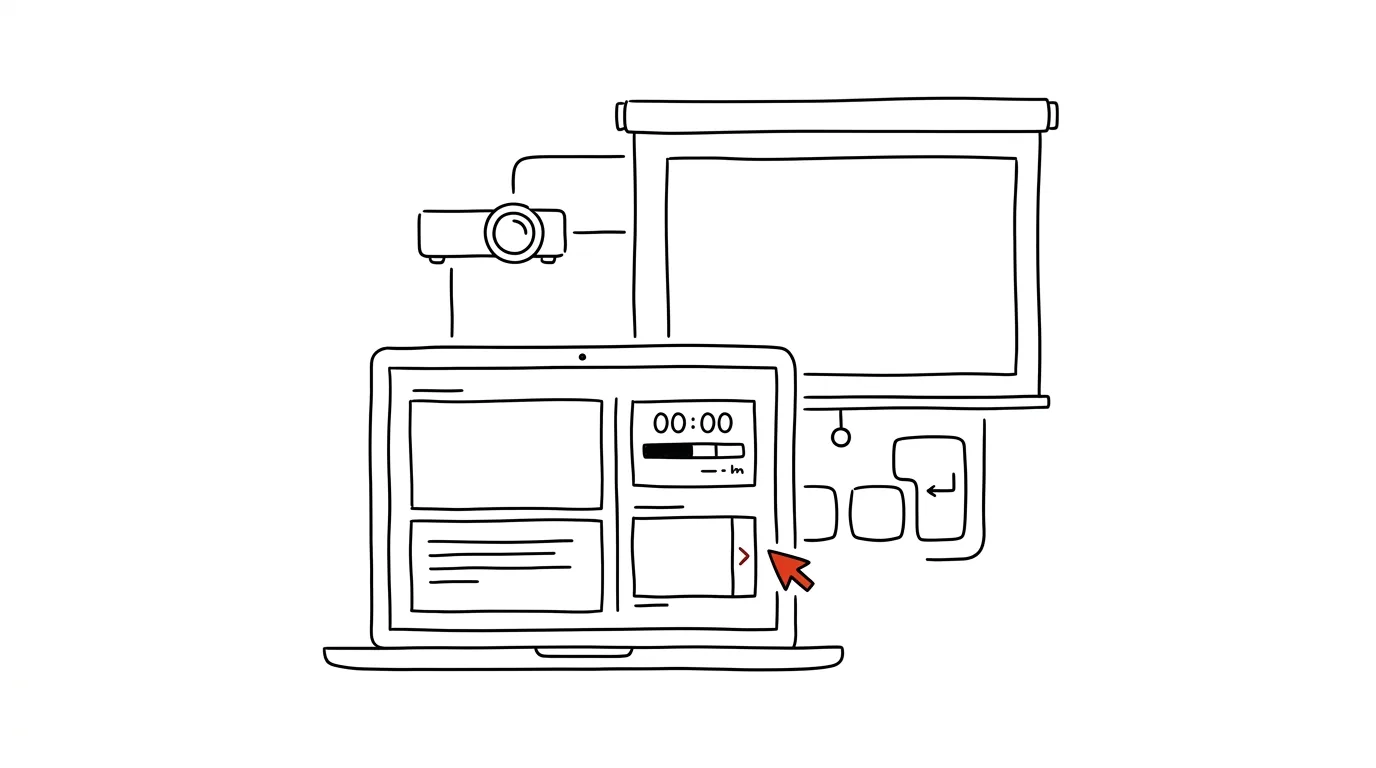
You don't need to memorize what's on the next slide, or carry a cheat sheet of notes. PowerPoint can show the audience on the projector just the slides themselves, while on your laptop you see a completely different, much richer view — notes, the presentation timer, and a preview of what's coming up next. This feature is called presenter view, and on most setups it turns on by itself once you connect a projector.
A typical scenario
You're giving a quarterly presentation to leadership, and for a few key slides you've prepared notes with exact figures you don't want to memorize. Without presenter view, you have two options: memorize the numbers, or keep a piece of paper with notes next to you on the table that you glance at discreetly while the audience sees the same slide you do. With presenter view, you have the notes right on your own display next to the current slide — the audience on the projector sees a clean slide with no notes, while you also get to see how much time has elapsed and what the next slide is, without turning the screen around or memorizing anything.
How to do it
- Connect your laptop to a projector or second screen and start the presentation with F5.
- PowerPoint automatically detects the second screen on your display and turns on Presenter View — if it doesn't happen automatically, find the toggle on the Slide Show tab, where you can check "Use Presenter View."
- On your own display you now see: the current slide, a preview of the next slide, the text notes written for the current slide, and the elapsed presentation time.
- Controls stay the same as usual — you move between slides with arrow keys or by clicking, just with all this extra information available on top.
- If you're presenting over a video call (screen sharing), check ahead of time that you're sharing only the slide window, not your whole screen — otherwise call participants would see your notes too.
The best tools
- The built-in presenter view in PowerPoint and Google Slides — free, turns on automatically with a second display.
- A mobile remote-control app for presentations (such as the official PowerPoint or Google Slides companion app) — lets you advance slides and read notes right from your phone when you don't have a second display.
- A physical presenter remote with a small screen (on pricier models) — shows the time and next slide title directly on the clicker.
What you get out of it
- A calmer delivery: you don't need to memorize anything or glance discreetly at notes on the table.
- Better pacing control: a visible timer tells you whether you're on track, without checking your watch.
- Smoother transitions: you see the next slide ahead of time, so you can naturally lead into it with a sentence before the audience even sees it.
- A more professional impression: the audience sees only a clean presentation with no notes or distracting details.
Pro tip
Write your per-slide notes in editing view, in the Notes field, ahead of time and calmly — not on the fly. Short cues or key figures work better than continuous prose, since in presenter view you want to be able to catch them at a glance, not read them in full.
Want to go deeper? The handbook has a whole chapter on it — The app categories that matter.
Similar tips
Snap Layouts: window arrangements from the maximize preview
Win+Z
Hover over the maximize button (or press Win+Z) and pick where the window belongs — halves, thirds, a grid.
Clipboard with history: paste anything you've ever copied
Win+V
Windows can remember everything you copy. Just press Win+V instead of Ctrl+V.
Virtual desktops: keep work and communication apart
Win+Ctrl+→
Win+Ctrl+D creates a new desktop, Win+Ctrl+arrows switch between them. Slack on one, focused work on the other.
Was this helpful?
Liked this tip?
I send one like it every week by email. Two minutes to read, hours saved.
The Top 30 tips e-book, free — it lands in your inbox right away.
Then 1 tip a week · no spam · unsubscribe in one click
Prefer a system to single tips? The free email course — seven days, seven emails, one skill a day.