Tips & tricks · Apps · Browser · ~10 min a day · 2 min read
Reader mode: an article without ads or popup banners
Last reviewed:
F9
In this article
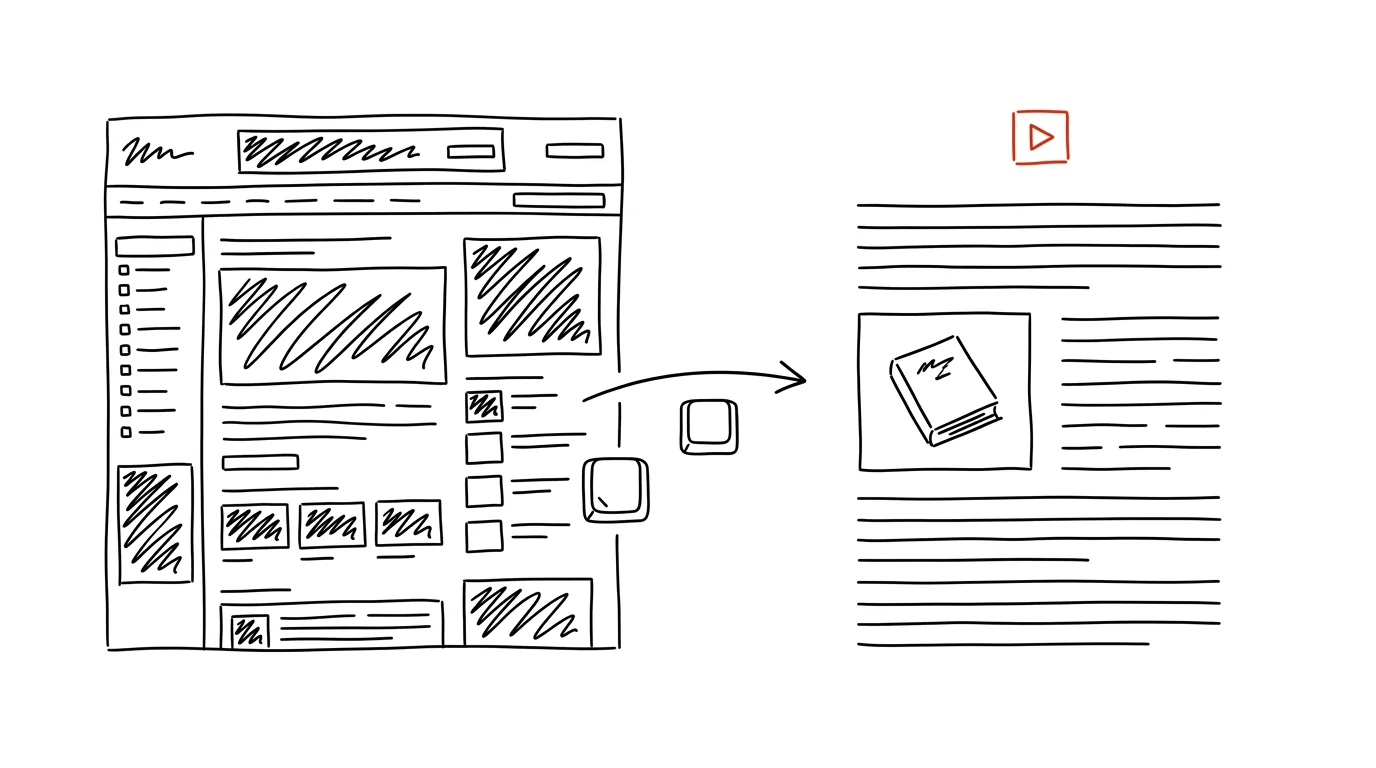
You open an article and before you get to the first sentence, you're dodging a cookie banner, a video ad, a newsletter signup prompt, and a floating menu. Browsers have a built-in answer to this: reader mode. One click “strips” the page down to plain text and images — no ads, no sidebars, no blinking elements. It's not an extension or a paid tool, just a button almost nobody knows about.
How to do it
- Firefox: open the article and click the page-with-lines icon on the right side of the address bar, or press Ctrl + Alt + R (on a Mac, Cmd + Option + R). Reader View switches on.
- Edge: press F9 or click the reader icon in the address bar. The mode used to be called Immersive Reader; newer versions call it Reading View — it's the same thing. The same key turns it off again.
- Chrome: open the three-dot menu and choose More tools → Reading mode — the text appears in a side panel. It's less convenient than in Firefox and Edge, but it works.
- In reader mode, you can adjust font size and typeface, column width, and background color (light, dark, sepia) — handy for long evening reading.
- Reader mode only works on pages with an article or continuous text; the icon won't appear on homepages or in online stores.
- Turning it off is always the same as turning it on — the same icon or the same shortcut. The original page, in full, stays just one press away, so you lose nothing if you want to click a link from the text.
A typical scenario
A teacher wants to project a news article during class. But on the classroom wall, ads and “recommended articles” unrelated to the topic show up next to the text — and sometimes they're flat-out inappropriate. She presses F9 and projects only clean text in a large font that even students in the back row can read.
A student partway through a twenty-minute read appreciates how everything competing for their attention disappears from the page. Reading an article in reader mode is noticeably less tiring than dodging banners with your eyes — and you stick with the text longer.
What you get out of it
Reading longer pieces on the web stops being a fight for your attention — you focus on the content, not on dodging ads. It pays off when printing too: an article printed from reader mode doesn't waste half the page on banners and menus.
Pro tip
Combining reader mode with printing is quietly powerful: turn reader mode on, press Ctrl+P, and save the article as a clean PDF — no ads, sensible type. Ideal for archiving source material or preparing materials for class. On a Mac, Safari's reader does the same thing.
Want to go deeper? The handbook has a whole chapter on it — The app categories that matter.
Similar tips
Your iPhone as a scanner: scan a document straight into your Mac
Right-click in Finder → Import from iPhone → Scan Documents. The scan lands directly in the folder, perfectly cropped.
Dictation: you talk, your Mac types
Double-tapping the keyboard shortcut starts dictation wherever the cursor is blinking. It handles other languages surprisingly well.
Finder Quick Actions: PDF from photos and background removal with a right-click
Select photos, right-click, Create PDF — done. Finder's Quick Actions can even convert formats or remove a background without opening an editor.
Was this helpful?
Liked this tip?
I send one like it every week by email. Two minutes to read, hours saved.
The Top 30 tips e-book, free — it lands in your inbox right away.
Then 1 tip a week · no spam · unsubscribe in one click
Prefer a system to single tips? The free email course — seven days, seven emails, one skill a day.