Tips & tricks · Communication · Everywhere · ~5 min a day · 3 min read
Slack: Ctrl+K jumps to any channel or teammate
Last reviewed:
Ctrl+K
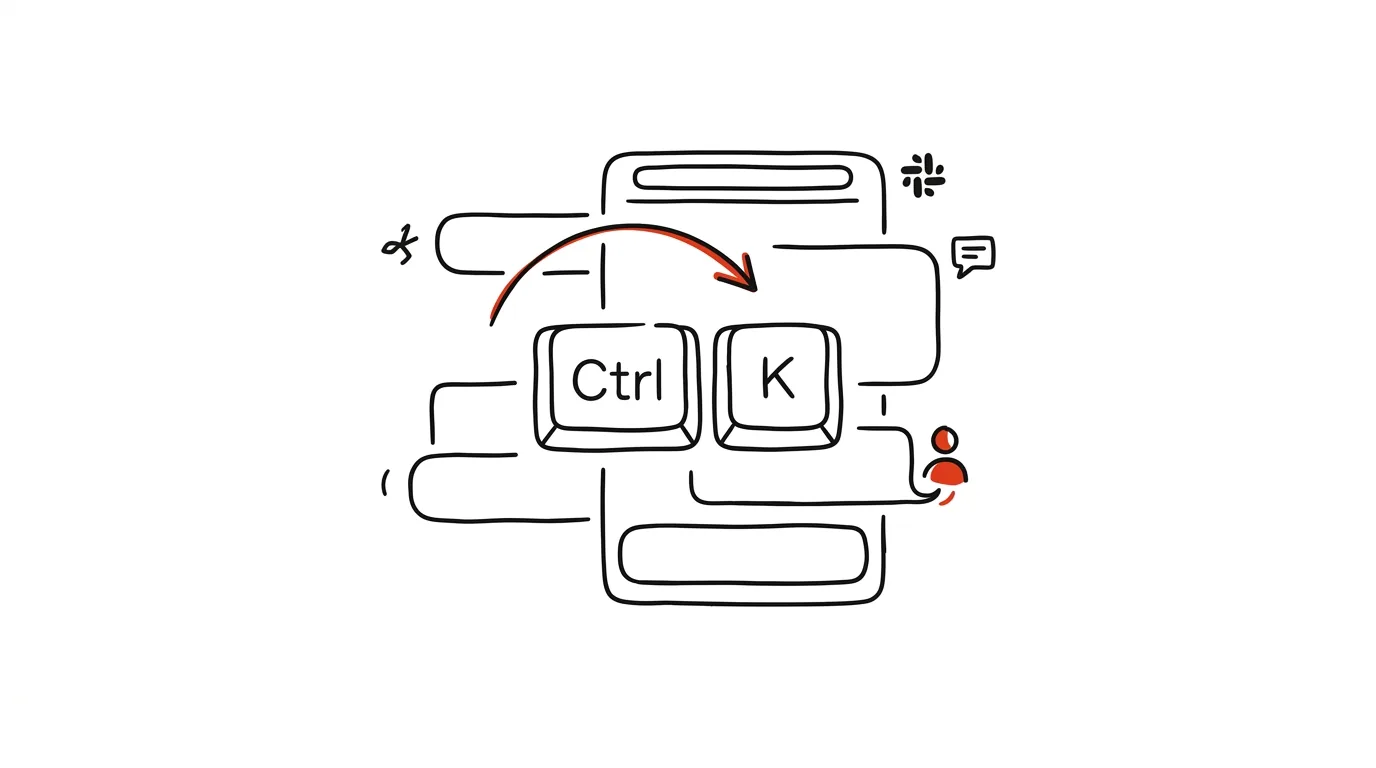
Scrolling through a channel list is a waste of time, especially at a bigger company where Slack's left sidebar looks like a phone book. One shortcut solves the problem entirely — instead of hunting with your eyes, a few keystrokes and Enter get you there. It's the same idea as a quick app launcher on your computer: instead of clicking through menus, you type a few characters and the system drops you exactly where you need to go, no matter how deeply it's otherwise buried.
A typical scenario
Manager Honza is looking for the marketing team's channel among thirty others, half of which have similarly sounding names. Scrolling up, down, squinting at abbreviations — all just to ask one quick question.
With the quick switcher, he presses Ctrl + K, types “marketing,” and he's there. It works the same way for people — finding a specific colleague among dozens of names takes three seconds instead of scanning a contact list. It doesn't even need to match the whole name exactly — a few consecutive letters from anywhere in the channel or person's name is enough, and the switcher figures out the rest.
How to do it
- Press Ctrl + K (Cmd + K on a Mac) anywhere in Slack — you don't need to be in any particular window or channel.
- Type part of the channel name or a colleague's name — the switcher starts suggesting matches after just a few letters, so you don't need to type the whole name correctly.
- Use the arrow keys to move through the suggestions if there are several.
- Press Enter and Slack takes you straight into the chosen channel or direct message.
- It works the same way in both the desktop and web apps, so you don't need to remember a different shortcut depending on where you're working.
- The switcher finds not just channels and people but also private group conversations, so you can use it as a universal entry point into anything in Slack, instead of remembering different paths for different types of conversations.
The best tools
- Slack's built-in quick switcher — the fastest route, works with no setup in both the desktop and web versions.
- The Slack mobile app — the search field at the top finds a channel or colleague just as fast on your phone.
- Raycast or Alfred (macOS) — Slack extensions that let you switch channels straight from the launcher, without needing a Slack window open at all.
- Keyboard shortcuts in general — the less your hand reaches for the mouse, the faster everyday team communication gets.
What you get out of it
- Time: a few seconds saved on every switch, but it adds up to a solid five minutes over the course of a day.
- Less distraction: you don't get pulled aside by notifications from four other channels you'd otherwise be scrolling past on your way to the one you need.
- Smoother communication: a fast reply to a colleague without getting held up hunting for where the conversation actually is.
- Less interface annoyance: Slack stops feeling like a maze and starts working like a tool that listens on the first try.
- A habit that transfers elsewhere: you'll find the same quick-switcher idea in other apps too (Notion, VS Code, Linear), so the shortcut you learn becomes a general reflex, not just a trick for one particular tool.
Pro tip
The more you use the quick switcher, the better it gets. Slack remembers where you go most often and offers those channels and people as the top suggestions before you've even finished typing the full name — often just one or two letters is enough.
Want to go deeper? The handbook has a whole chapter on it — Professional email communication.
Similar tips
The Two-Screen Meeting Rule: One for People, One for Notes
Put the meeting window on the monitor with the camera, notes and materials on the other. You look people in the eye, never share anything private, and minutes write themselves.
Email three times a day in blocks, not sixty times in drips
Constantly checking your inbox shreds your focus into pieces. Three fixed blocks a day are enough for 95% of jobs.
The two-minute rule for your inbox
Anything that takes less than two minutes, do right when you read it. Longer things go to your task list — and archive the email.
Was this helpful?
Liked this tip?
I send one like it every week by email. Two minutes to read, hours saved.
The Top 30 tips e-book, free — it lands in your inbox right away.
Then 1 tip a week · no spam · unsubscribe in one click
Prefer a system to single tips? The free email course — seven days, seven emails, one skill a day.