Tips & tricks · Communication · Everywhere · ~5 min a day · 3 min read
Formatting in Slack: code, quotes, lists
Last reviewed:
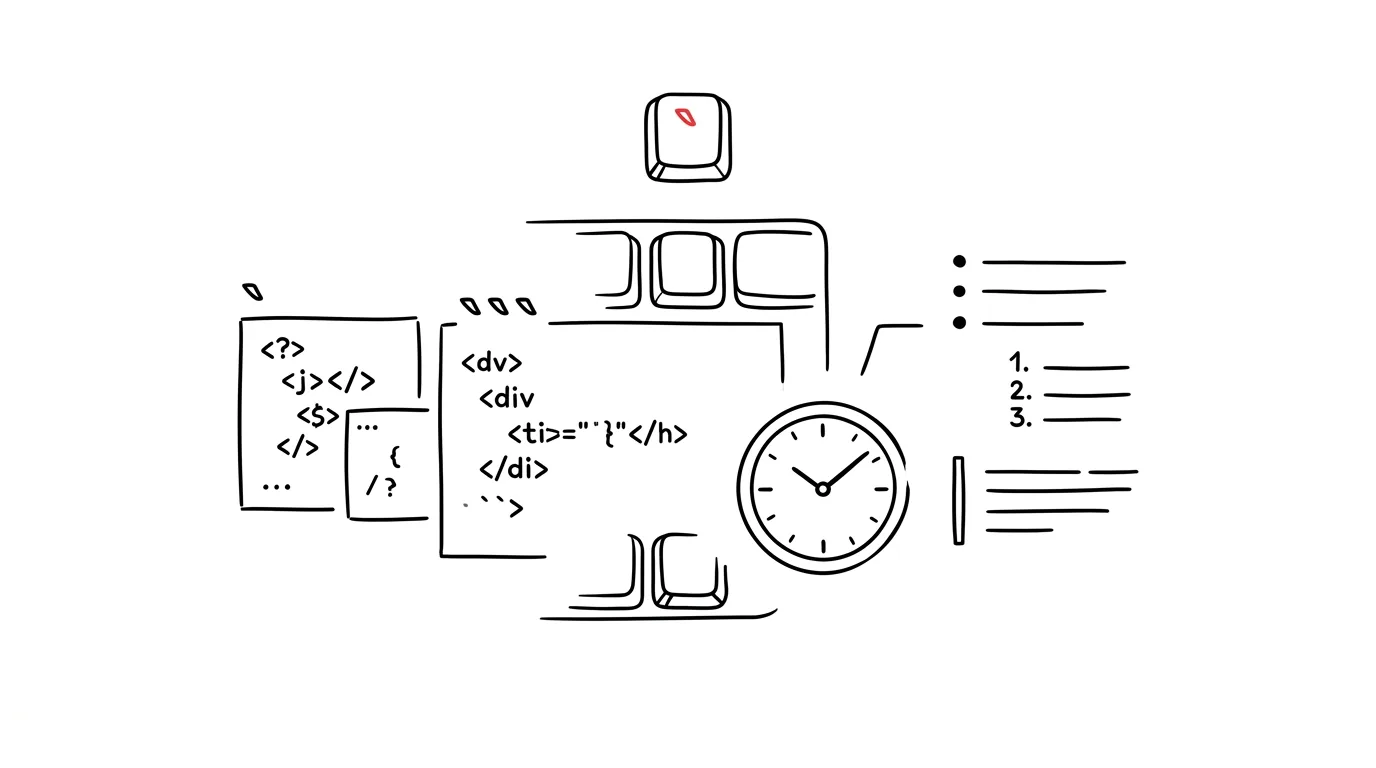
A message with an unformatted log or a code snippet to debug is unreadable — variables blend into regular text, indentation disappears, and a colleague has to puzzle out where one command ends and the next begins. A few extra characters are all it takes to make a message look like it came from documentation instead of a random keyboard mash. Formatting isn't just cosmetic, either — with code it often determines whether you can even see where the indentation is, and therefore where the bug most likely lives.
A typical scenario
Developer Kateřina posts an error message and a chunk of code with the problem into a channel. Without formatting, the multi-line dump blends into the surrounding text, indentation is lost, and the colleague she's asking for help has to copy the message into an editor just to make sense of it.
With formatting, she wraps the code in a block, puts the error message in inline code, and adds a quote for context. The message looks clear at a glance, the colleague sees exactly what's going on, and replies right to the point — no “send that again, I can't read it.” The difference between the two versions of the message is obvious at first glance, even though technically it's the same content.
How to do it
- Wrap a single word or short piece of code (a variable name, a command, an error message) in
backticks— the text displays in monospace font and stands out clearly from a regular sentence. - Put a longer snippet or multi-line code into a block: three backticks at the start and three at the end (or the shortcut Ctrl + Alt + Shift + C). The block preserves indentation and line breaks exactly as you typed them.
- Quote or reference what you're responding to by starting a line with
>— handy when you're replying to an older message outside a thread and want to make clear what you're referring to. - Combine formats as needed — a short error message as inline code, a whole stack trace as a block, and a sentence of context above it explaining what happened.
- Create bulleted lists with a dash or asterisk at the start of a line, numbered lists with a plain number and period — useful when describing steps to reproduce a bug.
The best tools
- Slack's built-in formatting — works with no setup, you just need to know a few characters and a keyboard shortcut.
- Slack snippets — for longer code, with automatic syntax highlighting by language.
- GitHub Gist — if the code is too long to reasonably fit in a chat, share a link to a gist instead of a long block directly in the channel.
- VS Code Live Share — when debugging calls for browsing code together rather than describing it in messages, it saves a whole round of explaining.
What you get out of it
- Readability: a colleague understands the problem on the first read, not after copying it into an editor a second time.
- Fewer questions: a formatted message answers questions before anyone has a chance to ask them.
- Faster help: the clearer the ask, the faster a relevant answer arrives instead of a “what do you mean.”
- A more professional impression: formatted communication in a team channel looks more organized, even for a quick message.
- Easier to find later: formatted code stands out visually in channel history and in search results, so you can find it again even a week later.
Pro tip
Send longer code as a snippet (the paperclip by the message box → Create text snippet) — unlike a block in a regular message, it gets syntax highlighting for the programming language and can be collapsed in the channel, so it doesn't take up unnecessary space among other messages.
Want to go deeper? The handbook has a whole chapter on it — Professional email communication.
Similar tips
Show hidden files with a single shortcut
Cmd+Shift+.
Cmd+Shift+period in Finder toggles hidden-file visibility. Handy for configs, backups, and cleaning up your drive.
Spotlight: launch apps without touching the mouse
Cmd+Space
Cmd+Space opens Spotlight — the fastest way to launch anything on a Mac. You can practically stop using the Dock.
Half- and quarter-screen window layouts
Newer macOS versions support window snapping — drag a window to the edge, or hold Option over the green button for instant layouts.
Was this helpful?
Liked this tip?
I send one like it every week by email. Two minutes to read, hours saved.
The Top 30 tips e-book, free — it lands in your inbox right away.
Then 1 tip a week · no spam · unsubscribe in one click
Prefer a system to single tips? The free email course — seven days, seven emails, one skill a day.