Tips & tricks · Workflow · Everywhere · ~5 min a day · 2 min read
SSH config: type “ssh prod” instead of an IP address and flags
Last reviewed:
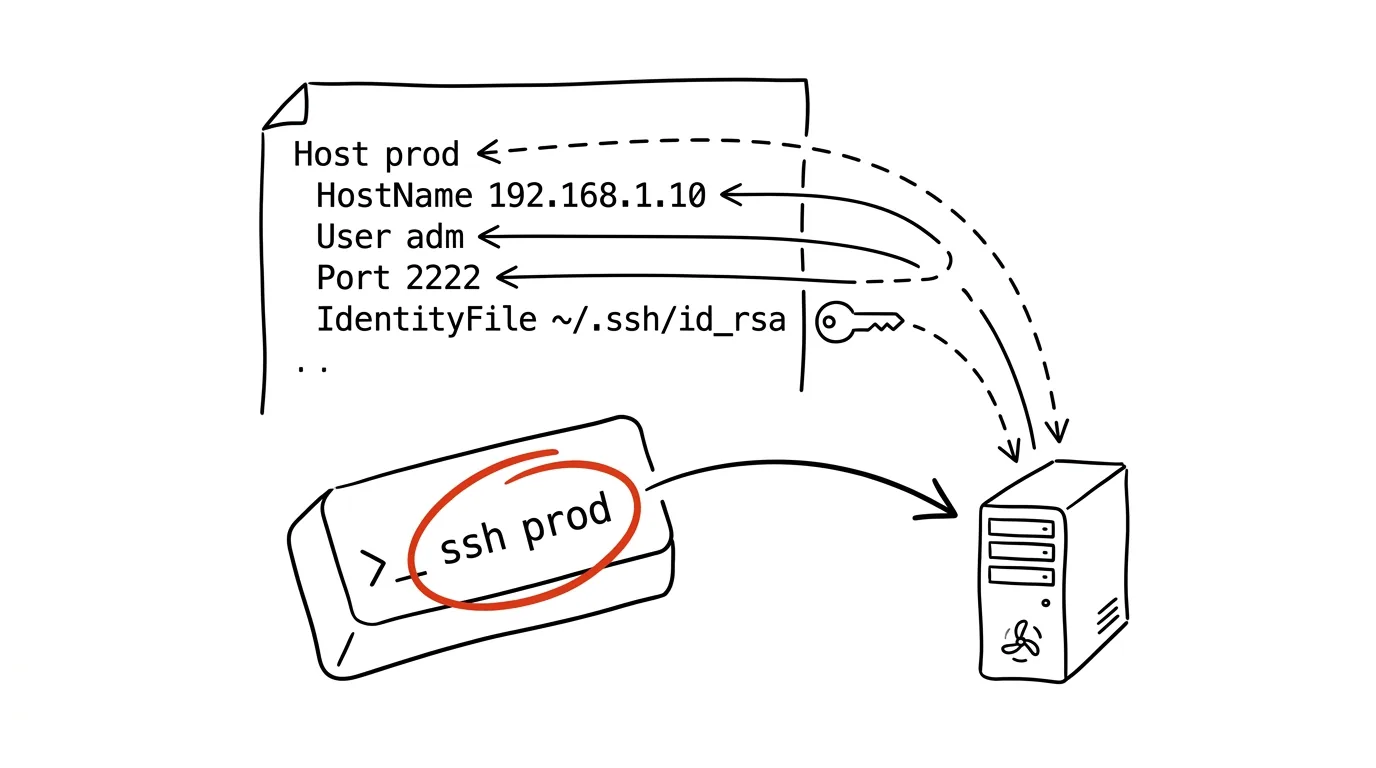
The command ssh -p 2222 jan.novak@203.0.113.42 -i ~/.ssh/company_key is exactly the kind of thing nobody remembers — so it ends up living in a notes app, copy-pasted with the mouse. Yet SSH has an elegant built-in solution: the config file ~/.ssh/config, where you write down the address, username, port, and key path once under a short name. From then on you just type ssh prod — and the same shortcut works in scp, rsync, and in VS Code's remote development too.
How to do it
-
Open (or create) the file
~/.ssh/config— a plain text file that works on Mac, Linux, and Windows with OpenSSH. -
Add an entry for the server:
Host prod HostName 203.0.113.42 User jan.novak Port 2222 IdentityFile ~/.ssh/company_key -
Save it and connect:
ssh prod. SSH fills in all the details itself. Lines you don't need (default port 22, a single key) can be left out. -
Add as many entries as you like —
prod,test,nas,school. These names then show up in tab completion too, and work everywhere SSH is used:scp backup.tar.gz prod:/opt/,rsync -av web/ prod:/var/www/, a remote window in VS Code. -
Write settings shared by every server under
Host *— for exampleServerAliveInterval 60, which sends keep-alive packets so idle connections don't drop.
A typical scenario
A developer manages six servers — two at a client with a nonstandard port, three company machines, and a home NAS, each with a different username. She used to fish the exact combination out of her notes for every connection, and would coach coworkers over the phone: “no, it's admin there, not deploy.” Now she has six entries in her config and connects with ssh client-web, ssh nas. When a server's IP address changes, she fixes it in one place — and every one of her commands, scripts, and saved VS Code connections keep working without a single change.
The config handles more advanced situations too: a server hidden behind a jump host is solved with the line ProxyJump gateway (SSH connects to the gateway first and tunnels through it, with no extra effort on your part), and when you need a different key for GitHub than for work, you assign it with an entry under Host github.com. All declarative, in one place, in a readable text file.
What you get out of it
Connecting to any server becomes two words off the top of your head instead of copy-pasting from notes. Server names become part of your muscle memory, while a single file handles the addresses, ports, and keys correctly, every time. Combined with the tip on ssh-copy-id — a key instead of a password, a name instead of an address — a remote server is suddenly as close as your local terminal.
Want to go deeper? The handbook has a whole chapter on it — Core systems: inbox, priorities, reviews.
Similar tips
ssh-copy-id: log in to a server without typing a password
One command uploads your public key to a server — from then on you log in without a password, faster and more securely.
cd - takes you back to the folder you came from
Jumping between two directories? You don't have to type the full paths back and forth — “cd -” always jumps to the previous folder.
From the terminal to File Explorer or Finder: open . and explorer.exe .
Open the current folder from the terminal in your graphical file manager with one command: “open .” on a Mac, “explorer.exe .” on Windows and in WSL.
Was this helpful?
Liked this tip?
I send one like it every week by email. Two minutes to read, hours saved.
The Top 30 tips e-book, free — it lands in your inbox right away.
Then 1 tip a week · no spam · unsubscribe in one click
Prefer a system to single tips? The free email course — seven days, seven emails, one skill a day.