Tips & tricks · Shortcuts · Everywhere · ~2 min a day · 2 min read
Ctrl+W and Ctrl+U: delete by word and by line in the terminal
Last reviewed:
Ctrl+WCtrl+U
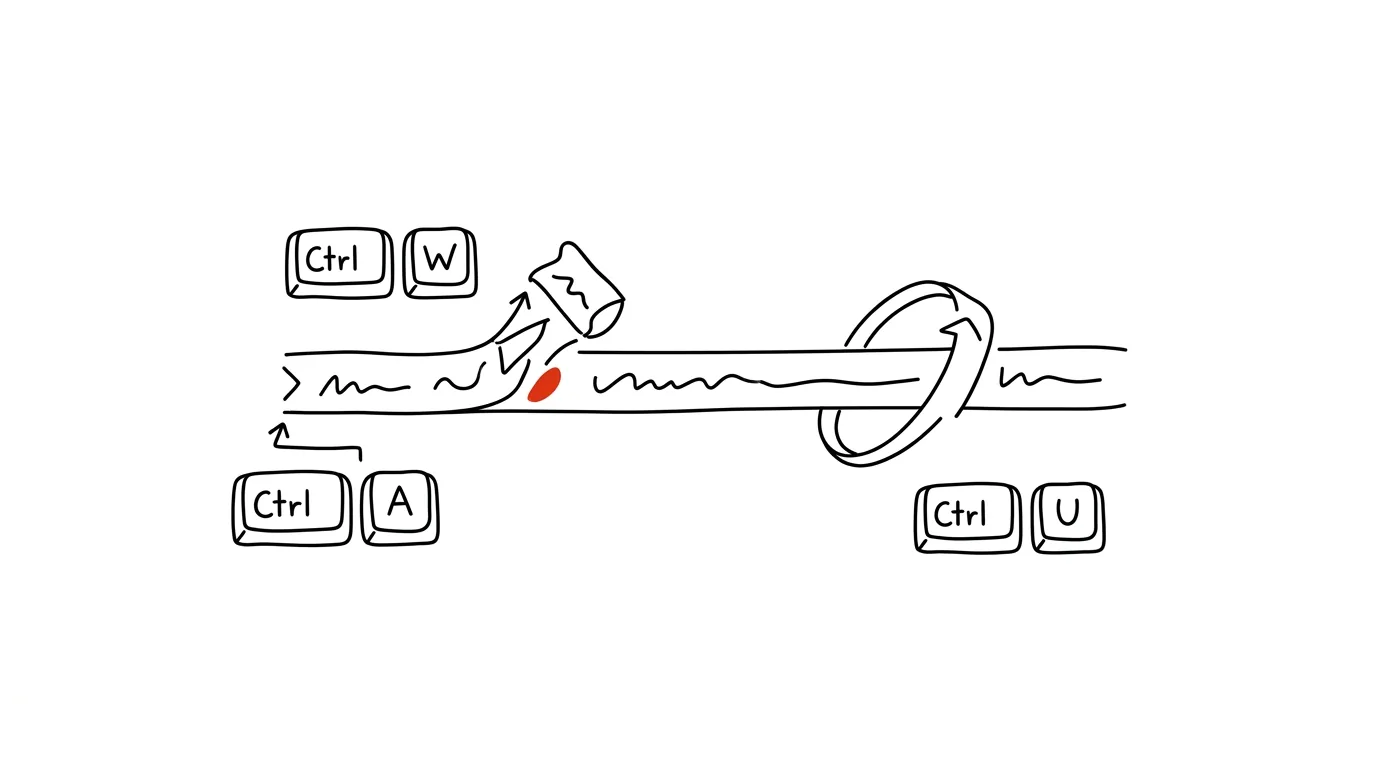
The command line has its own set of editing shortcuts that work in bash and zsh on any computer and server — and most people hold down Backspace and wait instead of using them. Yet four are all you need to know: Ctrl + W deletes the whole word before the cursor, Ctrl + U deletes the line, Ctrl + A jumps to the start of the line, and Ctrl + E to the end. On long commands, where arrows and Backspace mean seconds of tapping, the difference is immediately obvious.
How to do it
- Typed the wrong argument? Ctrl + W deletes it all at once — it always removes one word before the cursor, and repeated presses chew through more words.
- Want to start the whole command over? Ctrl + U deletes everything from the cursor to the start of the line in bash (in zsh it clears the whole line outright). Faster than holding Backspace for five seconds.
- Typo right in the first word of a long command? Ctrl + A takes you to the start of the line, you fix it, and Ctrl + E returns the cursor to the end. No tapping the left arrow across eighty characters.
- Bonus: Ctrl + K deletes everything from the cursor to the end of the line, and Ctrl + Y pastes the last deleted text back — so delete and paste also work as a quick “cut and paste” within a line.
- The shortcuts belong to the shell's line editor (readline), so they also work in other tools that use it — like the Python console or a database client.
A typical scenario
A developer is assembling a longer deployment command and, halfway through, notices she typed the wrong environment name right at the start. Without the shortcuts: twenty presses of the left arrow, a fix, twenty presses of the right arrow. With them: Ctrl+A, fix, Ctrl+E — done in two seconds. A moment later, autocomplete fills in the wrong path; Ctrl+W chops it off word by word, leaving the rest of the command standing.
These shortcuts pay off especially on remote servers, where you don't have your own aliases and settings — readline and its shortcuts are waiting for you there regardless. Incidentally, deleting by word also works outside the terminal: in text fields and editors it's handled by Ctrl+Backspace.
What you get out of it
Editing long commands stops being an exercise in patience — fixing a typo at the start of a line takes two seconds instead of ten. The shortcuts work anywhere bash or zsh runs, including on other people's servers, so the investment in muscle memory pays off on every machine you ever sit down at. And because Ctrl+A and Ctrl+E come from the Emacs editor, you'll run into them in other unexpected places too — from database consoles to the input lines of many developer tools.
Want to go deeper? The handbook has a whole chapter on it — The app categories that matter.
Similar tips
Zoom the page: Ctrl+plus, minus, and zero
Ctrl++
Tiny text on the web isn't something you have to live with. Ctrl and your scroll wheel (or +/−) zoom the page in, Ctrl+0 resets it.
Ctrl+Shift+V: paste without formatting works everywhere
Ctrl+Shift+V
In Docs, Gmail, and most web apps, it pastes plain text without foreign fonts and colors.
A New Line Inside a Cell: Alt+Enter
Alt+Enter
Enter jumps to the next cell — Alt+Enter creates a line break inside the same one. No more broken layouts.
Was this helpful?
Liked this tip?
I send one like it every week by email. Two minutes to read, hours saved.
The Top 30 tips e-book, free — it lands in your inbox right away.
Then 1 tip a week · no spam · unsubscribe in one click
Prefer a system to single tips? The free email course — seven days, seven emails, one skill a day.