Tips & tricks · Apps · Everywhere · ~10 min a day · 3 min read
Todoist filters: your own “important today” view
Last reviewed:
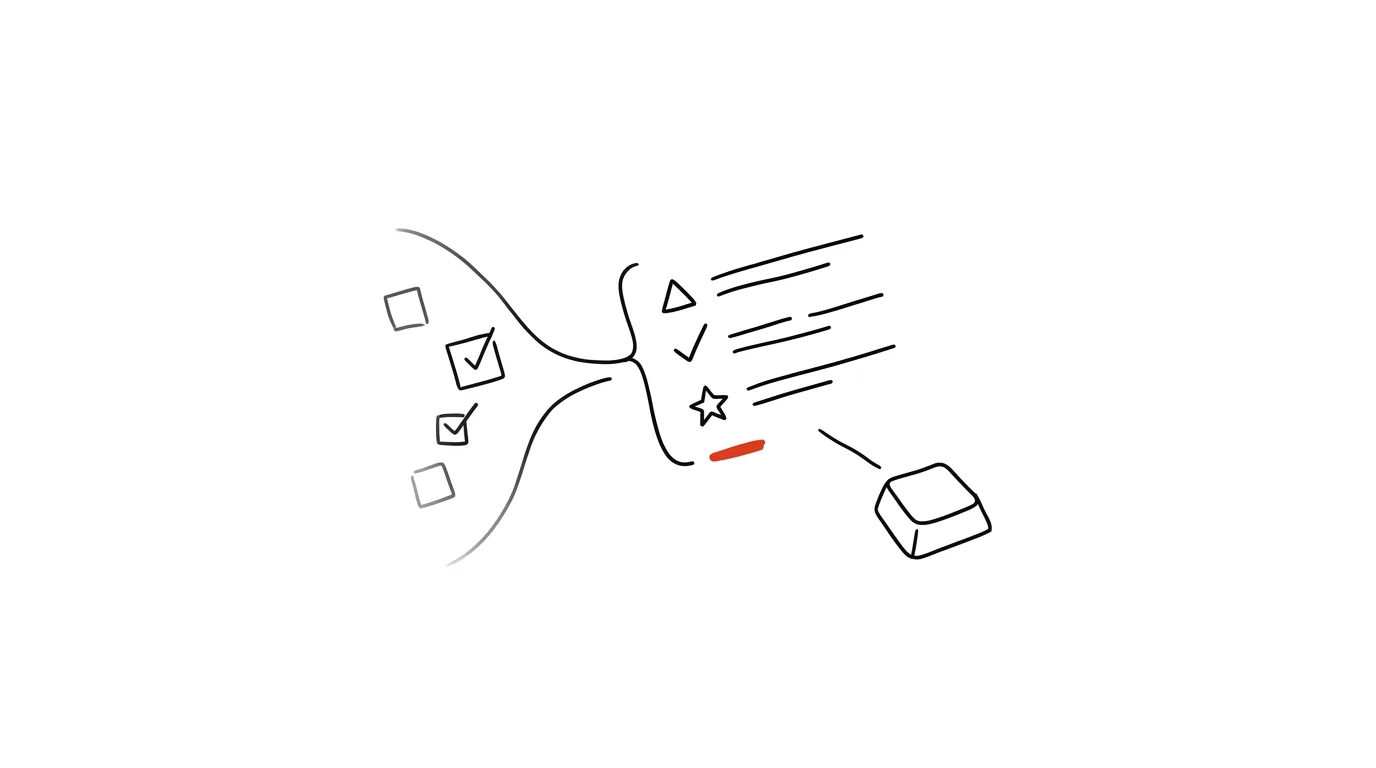
A long task list triggers the same kind of paralysis as an overflowing email inbox — the more items you see at once, the harder it is to decide where to even start. Filters in Todoist cut just what matters out of that long list and simply keep the rest out of sight until its turn comes.
A typical scenario
A project coordinator opens Todoist in the morning and sees a hundred and twenty active tasks spread across ten projects — from today's deadline to an idea he jotted down three months ago and never got back to. Deciding where to start means scrolling through the whole list and mentally reconstructing the priority order himself — and that alone takes ten minutes before he's even started working.
With an “Important today” filter, he sees just five items after opening the app: the ones with today's due date and the highest priority. The rest still exists, he just doesn't have to deal with it now — it's tucked away in other projects and filters, waiting for its own time to come.
How to do it
- In Todoist, open the Filters section and create a new filter with a custom query.
- For an Important today view, use the query
(p1 | p2) & due:today— it shows only tasks with priority 1 or 2 that are due today. The pipe|means “or,” the ampersand&means “and.” - For a Waiting on a reply view, use
@waiting & !completed— it finds all tasks tagged with the@waitinglabel (you'll need to create it first and tag tasks with it) that aren't done yet. The exclamation mark!works as a negation, meaning “not.” - To spot dead projects, either build a filter based on last activity, or periodically go through your projects by hand for anything with no movement in over 30 days — these are candidates for archiving or deleting, since they just clutter your overview and get in the way of planning.
- Pin your saved filters to your favorites or the sidebar, so you can reach them with a single click instead of hunting through the menu.
- Filters can be combined with additional conditions too — like a specific project (
#project) or a label — so you can gradually build a set of views tailored exactly to how you work.
The best tools
- Todoist's built-in filters — the core of the whole feature, free in the app, no add-on needed.
- Labels like
@waiting,@home,@calls— combined with filters, they let you build views based on context, not just due date. - Priorities p1 through p4 — the basic building block for an “important” filter; without consistently assigning priorities, a filter on “important” has nothing to filter by.
- Community filter templates (available in Todoist's help center and forums) — inspiration for other useful queries beyond the two basic ones above.
What you get out of it
- Time: an estimated 8–12 minutes a day, since you're not scrolling the entire task list but seeing just the relevant slice right away.
- Less decision fatigue: instead of “which of these hundred tasks do I do today,” you're only dealing with the five items the filter picked according to a clear rule.
- Visibility into neglected projects: regularly checking for dead projects keeps unfinished work from quietly piling up in your system, never going anywhere.
- A consistent morning routine: the same view every morning means you know exactly where to look, without reinventing today's priority from scratch each time.
Pro tip
Your morning routine then isn't “go through everything,” it's “open the Important today filter.” One view, clarity in ten seconds — and only once that's done does it make sense to glance at the broader list to see if anything there needs a new due date or priority.
Want to go deeper? The handbook has a whole chapter on it — The app categories that matter.
Similar tips
Tasks right inside Google Calendar
Create a task with a due date by clicking directly in the calendar — and check it off when done. Enough to replace a separate task app for simple systems.
Your iPhone as a scanner: scan a document straight into your Mac
Right-click in Finder → Import from iPhone → Scan Documents. The scan lands directly in the folder, perfectly cropped.
Dictation: you talk, your Mac types
Double-tapping the keyboard shortcut starts dictation wherever the cursor is blinking. It handles other languages surprisingly well.
Was this helpful?
Liked this tip?
I send one like it every week by email. Two minutes to read, hours saved.
The Top 30 tips e-book, free — it lands in your inbox right away.
Then 1 tip a week · no spam · unsubscribe in one click
Prefer a system to single tips? The free email course — seven days, seven emails, one skill a day.