Tips & tricks · Shortcuts · Windows · ~2 min a day · 2 min read
Win+period: emoji, symbols, and special characters
Last reviewed:
Win+.
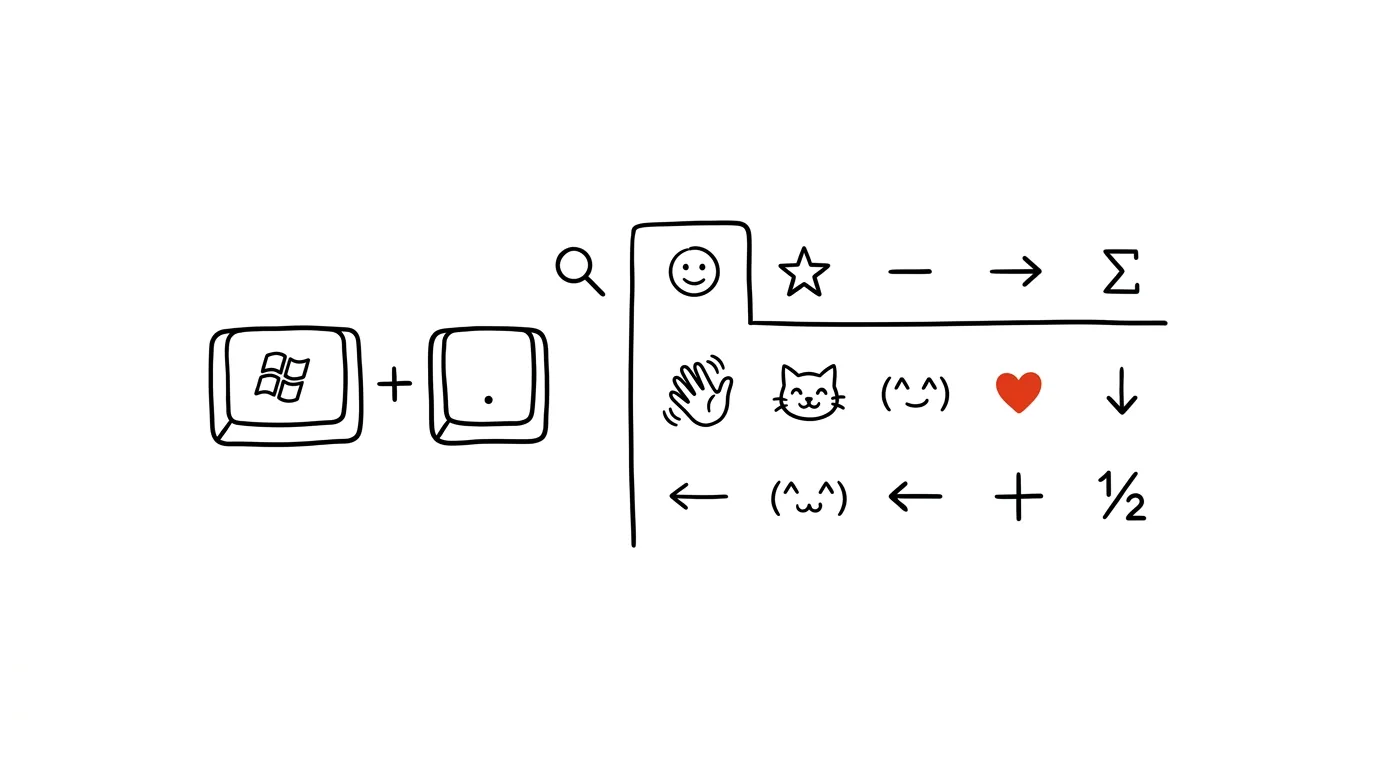
An em dash, an arrow, a degree symbol — you don't need to copy them from Google. Windows has a built-in panel with all the common and less common characters your keyboard doesn't offer on its own, and it opens with a single press anywhere you're typing.
A typical scenario
You're writing and need a proper em dash "—" instead of a plain hyphen, or a degree sign "°" for a temperature, or an arrow "→" for a diagram. The usual fix is to open a browser, google "degree symbol," copy it, and switch back to the document — an unnecessary detour for one character.
With Win + . (period), the character panel opens right inside the text field you're typing in. Use its search to find the character you need in seconds and insert it with a click, without leaving your document.
How to do it
- In any text field (document, email, chat, browser), press Win + . (period) — Win + ; works the same way too.
- A panel opens with several tabs. The default tab offers emoji sorted into categories, with a search box at the top.
- Switch to the symbols tab (marked Ω) for em dashes, arrows, math symbols, and other special characters not commonly found on a keyboard.
- Clicking a character or emoji inserts it directly wherever your cursor was.
- The panel remembers your most recently used characters in the top bar, so using the same character again is a matter of seconds.
The best tools
- The built-in Win + period panel — free, works in any app with a text field, the fastest way to special characters.
- Character Map — an older built-in Windows tool for finding a character by its Unicode code, useful for really rare characters.
- AutoHotkey — for power users who want custom shortcuts for specific characters or strings they use very often.
- Alt code shortcuts — an alternative without the panel, where a character is inserted directly by typing its numeric code with the Alt key.
What you get out of it
- Time: roughly 1–2 minutes a day saved on copying characters from the internet, which adds up to several hours a year if you write regularly.
- Consistent typography: a proper em dash and other correct characters instead of workarounds (two hyphens instead of one dash) make your text look more professional.
- Less distraction: you don't leave your document to search in a browser, so you don't lose your train of thought.
- A broader character vocabulary: the panel also includes kaomoji and symbols you might not otherwise know or find.
Pro tip
If you use the same character or emoji often, keep an eye on the panel's top bar of recently used characters — after a few days of regular use, you'll find exactly what you need there without browsing categories or searching again.
Want to go deeper? The handbook has a whole chapter on it — The app categories that matter.
Similar tips
In-depth guide · 58 min
A conference as a system: one program that generates everything
A complete guide with 23 prompts: the event program as structured data — generating the website, name badges, signage, posts, and MC notes. When a speaker cancels the day before, you fix one file, not eight outputs at 3 a.m.
Cap charging at 80%: your battery lasts years longer
A laptop permanently docked at 100% is wrecking its battery. Almost every manufacturer has a hidden option that stops charging earlier — and multiplies the battery's lifespan.
AirDrop: a file on the next device in two seconds
Don't email files between Apple devices. AirDrop is faster, doesn't compress anything, and has no size limits.
Was this helpful?
Liked this tip?
I send one like it every week by email. Two minutes to read, hours saved.
The Top 30 tips e-book, free — it lands in your inbox right away.
Then 1 tip a week · no spam · unsubscribe in one click
Prefer a system to single tips? The free email course — seven days, seven emails, one skill a day.