Tips & tricks · Gear · Everywhere · peace of mind · 3 min read
An external drive and File History: a backup that runs itself
Last reviewed:
In this article
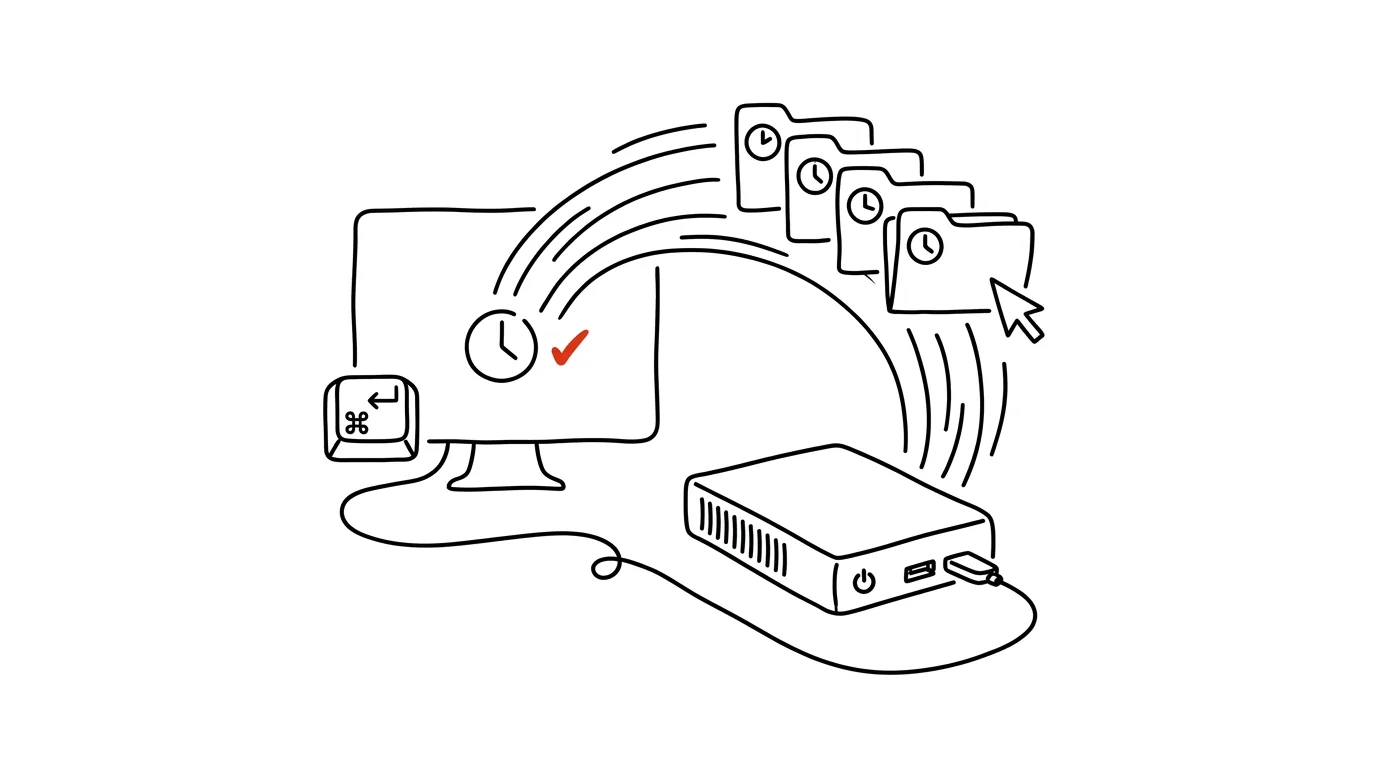
Everyone puts off backing up, because it sounds like a project. Yet Windows and Mac both have backup built in and free — the only thing missing is a drive to back up to. Plug in an ordinary external drive, turn the feature on once, and the system keeps backing itself up from then on: every hour, quietly, including older versions of files. An overwritten thesis chapter or an accidentally deleted folder of invoices can then be restored in a couple of clicks. Cloud sync doesn't fully replace this — when you delete or overwrite a file, sync happily copies that mistake everywhere too.
How to do it
- Get an external drive with at least double the capacity of the data you want to protect, and connect it to your computer — ideally permanently, say into a dock or a port on the back of your monitor.
- On Windows, open Control Panel → System and Security → File History and click Turn on. The system starts backing up files from your user folders (Documents, Pictures, Desktop…); the menu on the left lets you fine-tune what to skip and how long to keep versions.
- On a Mac, go to System Settings → General → Time Machine, add the drive, and confirm. Time Machine keeps backing up automatically from then on and prunes old backups itself as space runs low.
- Test a restore right away — a backup you've never tried restoring is just wishful thinking. On Windows: right-click a file or folder → Properties → Previous Versions. On a Mac, open Time Machine and browse versions through time.
- Working on a laptop and don't want to carry the drive around? Leave it plugged into a dock at home — the backup catches up every time you connect. Just make that a rule, not an exception.
A typical scenario
Translator Alena discovered on a Friday that her lengthy translation was empty after syncing — the file had gotten overwritten somewhere along the way, and the cloud had dutifully copied the empty version to every device. In the past that would have meant a week of work redone. This time she opened Previous Versions, picked Thursday afternoon, and had the document back within a minute. File History had been running quietly for months, unnoticed — exactly how a backup is supposed to work.
What you get out of it
Protection against the three most common disasters: accidentally deleted, accidentally overwritten, drive died. And because the backup is automatic, it doesn't depend on your discipline — the only thing you have to watch is keeping the drive connected.
Pro tip
Protect genuinely important data (invoices, contracts, family photos) twice over: an automatic backup to a drive plus the cloud. Two different mechanisms fail in different ways — which is exactly why they complement each other so well. For where to keep documents so the rest of the family can find them too, see the tip on a digital document first-aid kit.
Want to go deeper? The handbook has a whole chapter on it — The complete guide to an effective home office.
Similar tips
Speed up Windows startup: turn off apps that launch themselves
Your computer takes minutes to boot because a dozen apps you don't need wake up with it. Turning them off in Settings takes five minutes — and it's permanent.
Phone Link: photos and texts from your phone, right on your computer
Get a phone photo into a presentation without a cable, no emailing yourself: the Phone Link app shows photos, messages, and notifications right inside Windows.
Clipboard sync across computers
Win+V
Clipboard history (Win+V) can sync through your Microsoft account — copy something on your work PC, paste it on your laptop.
Was this helpful?
Liked this tip?
I send one like it every week by email. Two minutes to read, hours saved.
The Top 30 tips e-book, free — it lands in your inbox right away.
Then 1 tip a week · no spam · unsubscribe in one click
Prefer a system to single tips? The free email course — seven days, seven emails, one skill a day.