Tips & tricks · Shortcuts · Mac · ~5 min a week · 3 min read
Look up a word with three fingers: the built-in dictionary
Last reviewed:
Ctrl+Cmd+D
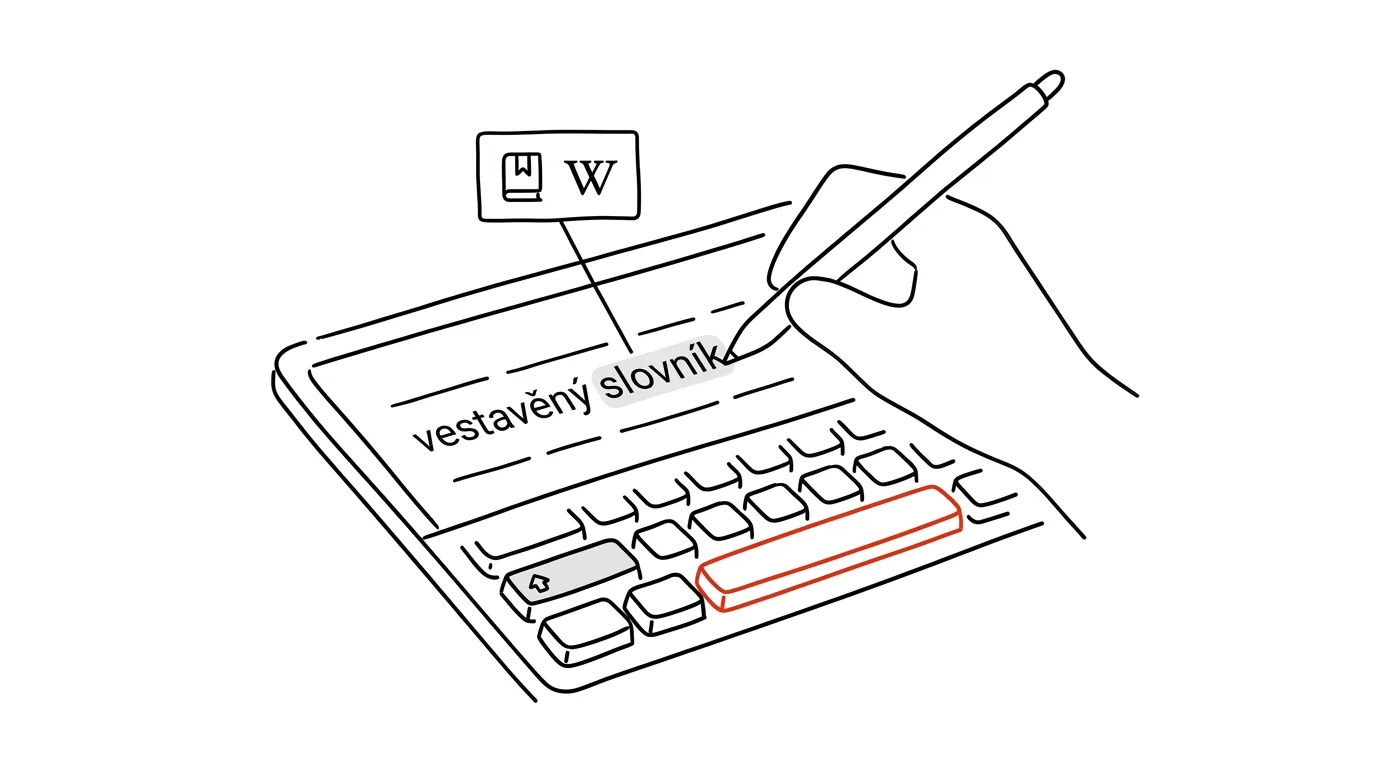
An unfamiliar word doesn't have to mean a trip to the browser. macOS has a built-in dictionary, thesaurus, and quick Wikipedia preview, all of which can be summoned right over a word — in any app where you can select text, from PDFs to Mail to Notes.
A typical scenario
A student is reading an academic PDF and runs into an unfamiliar word. The usual route is to open a new browser tab, retype or copy the word, search for it, wait through results full of ads and links — and then come back to the text, often having lost their place.
With the built-in preview, all it takes is hovering the cursor over the word and tapping the trackpad with three fingers. A definition, and possibly a translation, appears right above the text in a small window — the student is reading again within three seconds, with no window switching and no lost focus.
How to do it
- Hover your cursor over the word whose meaning you want to check — it works in text, mail, a PDF, or a web page.
- Tap three fingers on the trackpad, or press Ctrl + Cmd + D.
- A small window pops up with tabs: a dictionary definition, a thesaurus with synonyms, and a Wikipedia preview if it's a proper noun or a known term.
- Close the window by clicking outside it or pressing Esc — the text underneath stays exactly where it was, no app switching involved.
- If you have additional language dictionaries installed on your system (Dictionary → Preferences), the preview window switches between them automatically based on the language of the text, or you can pick one manually.
- The preview also works on a trackpad without a physical click — and in the Dictionary app, you can browse word pronunciations too, if you're curious how a given word is actually said.
The best tools
- The built-in dictionary preview (three-finger tap or Ctrl + Cmd + D) — free, works offline, ideal for a quick meaning check.
- The Dictionary app (Spotlight → "Dictionary") — the same entries in a standalone window, handy for a longer lookup or browsing related terms.
- DeepL or Google Translate — for full sentences and longer passages, where it's not just about one word but understanding the context.
- Dictionary extensions in the browser — for users who mostly read on the web and want the same preview even where the system shortcut doesn't work reliably.
What you get out of it
- Time: no switching to a browser and back — with a text full of unfamiliar words, that adds up to several minutes a week.
- Uninterrupted reading: your attention stays on the text, not broken up by opening new windows and tabs.
- Broader context: besides a definition, you also see synonyms and a short Wikipedia preview, which helps more than a bare definition for technical terms or proper nouns.
- Better comprehension: checking an unfamiliar word quickly, right on the spot, helps a student keep the thread of what they're reading, instead of having to reorient themselves after a browser detour.
Pro tip
It also works on foreign-language words mixed into English text — if you have a bilingual dictionary installed in System Settings, the preview offers a translation right away, so you don't have to switch between a dictionary and a translator app. You can add or remove language dictionaries anytime in System Settings, depending on which languages you work with most.
Want to go deeper? The handbook has a whole chapter on it — The app categories that matter.
Similar tips
Three-finger drag: move windows without pressing down on the trackpad
A hidden option in Accessibility changes how you use the trackpad — drag windows and files with a light three-finger touch, no holding down and no thumb fatigue.
Copy on your iPhone, paste on your Mac
Universal Clipboard works between Apple devices automatically — text, photos, and links travel over without emailing yourself.
Universal Control: one mouse and keyboard for both Mac and iPad
Move the cursor past the edge of your Mac's screen — and it shows up on the iPad. One keyboard, one mouse, two devices, zero setup.
Was this helpful?
Liked this tip?
I send one like it every week by email. Two minutes to read, hours saved.
The Top 30 tips e-book, free — it lands in your inbox right away.
Then 1 tip a week · no spam · unsubscribe in one click
Prefer a system to single tips? The free email course — seven days, seven emails, one skill a day.