Tips & tricks · Apps · Mobile · ~5 min a week · 3 min read
Scheduled sending for texts: write now, it goes out in the morning
Last reviewed:
In this article
A lot of people already know about scheduled sending for email — but few realize plain text messages on your phone can do the same thing. Write a message in the evening while it's on your mind, and it delivers in the morning when the timing is right. No "don't forget to text this in the morning," no waking up colleagues at 11:40pm, no sticky-note reminders. Both systems' built-in apps can do this, each a little differently.
How to do it
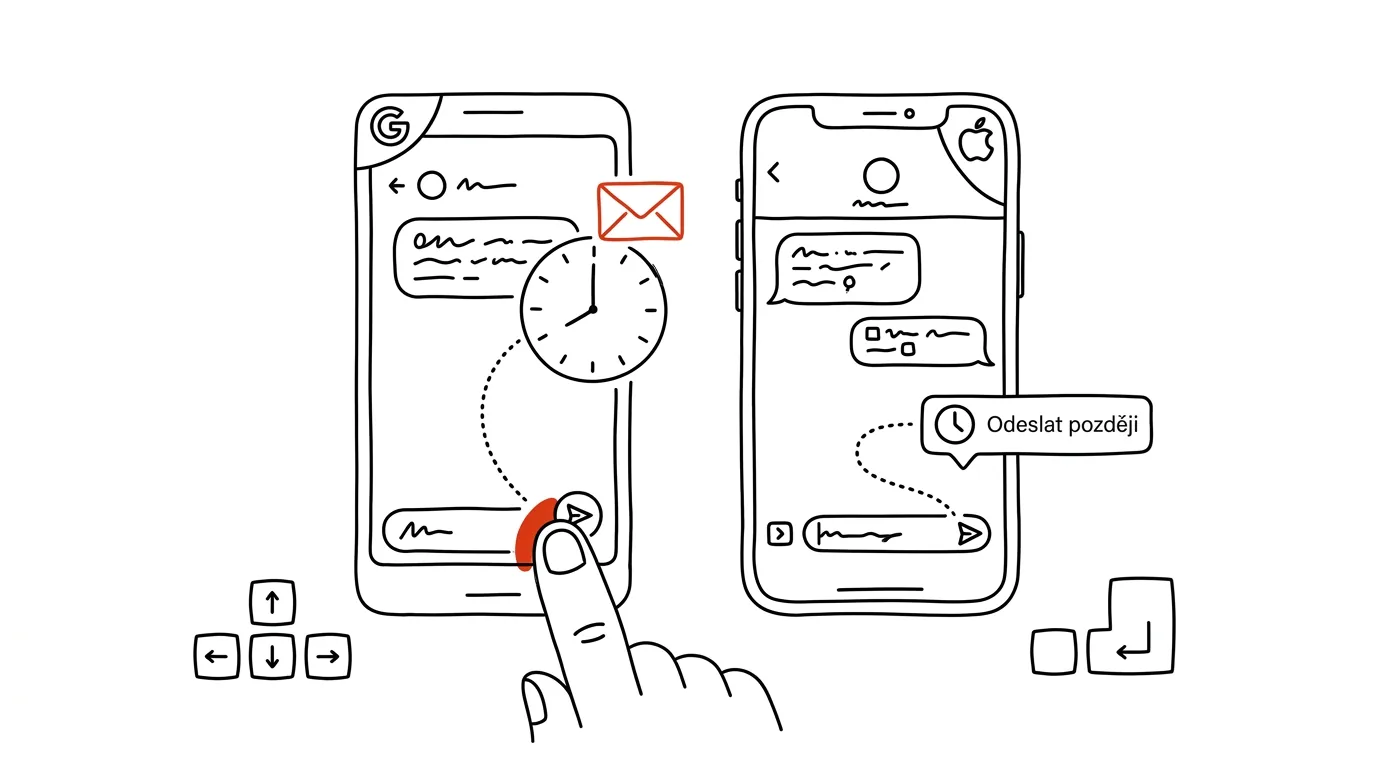
Android (Google Messages app):
- Type your message as usual, but instead of tapping the send arrow, hold it down.
- A time picker opens — preset options or a custom date and time.
- Pick a time and confirm. The message waits in the conversation with a clock icon; you can edit or cancel it before it sends. It works for both SMS and RCS messages, so basically anyone.
iPhone (Messages, iOS 18):
- In a conversation, tap the + to the left of the text field and choose Send Later.
- Set a date and time, type your message, and send — the bubble slots into the conversation with a visible send time, and you can still edit or cancel it until then.
- Important limitation: it only works for iMessage (blue bubbles), meaning between Apple devices. You can't schedule a regular text to Android this way.
A typical scenario
On Sunday evening, while planning your week, you remember you need to remind a colleague about materials for Wednesday's meeting. Texting her right then means bothering her on the weekend — and a reminder to yourself for "Monday morning" tends not to survive past your first coffee. So you schedule the message for Monday 8:30am and you're done: you didn't forget anything, and she got the message during work hours.
The same trick saves the day for birthday wishes: write the message whenever it occurs to you, and it delivers on the actual day, in the morning — not three days late with an embarrassed "belated."
What you get out of it
You separate the moment you think of something from the moment it's appropriate to send it — and that's the whole point. You handle things right away, while they're fresh in your head, but the recipient gets them at a time that makes sense. Fewer forgotten reminders, fewer midnight messages, and a better impression too: a message at 8:30am reads differently than one at 11:40pm, even with identical content.
The same applies to email — scheduled sending in Gmail is useful for the same reasons.
Pro tip
Scheduled messages are a quiet leadership tool: you can write to colleagues who work different hours whenever suits you, and have it delivered whenever suits them. A boss's evening brainstorm scheduled for the morning doesn't create "respond right now" pressure — and that one detail is the difference between a company where you have to work evenings and one where you merely can. Just watch for one thing: a scheduled message goes out even if the situation changes in the meantime. For anything that might evolve, set the send time a bit closer and double-check the message before you head out.
Want to go deeper? The handbook has a whole chapter on it — The app categories that matter.
Similar tips
Slide Master: change the font everywhere at once
View → Slide Master controls the look of the whole presentation from one place — fonts, colors, logos.
Align objects with the tool, not by eye
Select objects and let PowerPoint align and space them evenly. The difference between an amateur slide and a clean one.
Presenter view: notes only you can see
The projector shows slides; on your laptop you see notes, a timer, and a preview of the next slide.
Was this helpful?
Liked this tip?
I send one like it every week by email. Two minutes to read, hours saved.
The Top 30 tips e-book, free — it lands in your inbox right away.
Then 1 tip a week · no spam · unsubscribe in one click
Prefer a system to single tips? The free email course — seven days, seven emails, one skill a day.